Event Centers (Momentus)
Display live event schedules from your venue management system on digital signage throughout your facility using Momentus or other event management system January 13, 2026
Setting Up Event Centers (Momentus Integration)
Display live event schedules from your venue management system on digital signage throughout your facility using Momentus or other event management system.
Overview
The Event Centers feature connects to Momentus (formerly Ungerboeck) venue management systems to display:
- Today’s events and meetings
- Room/space assignments
- Event times
- Custom event details
Perfect for convention centers, hotels, universities, and corporate campuses.
Adding a Momentus Event Source
- From the Dashboard, find the Event Centers section
- Click + Add Source
- Fill in the connection details
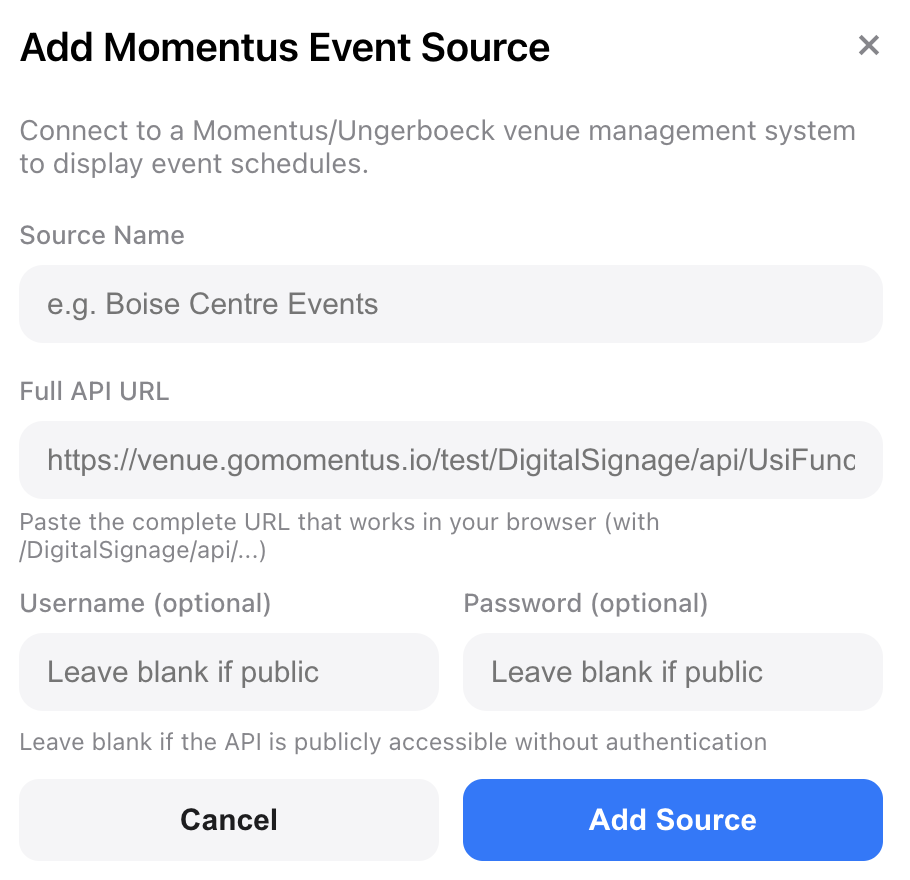
Required Fields
API URL Format
Your Momentus API URL typically follows this pattern:
https://[venue].gomomentus.io/[instance]/DigitalSignage/api/UsiFunctionsByDays/[past]/[future]Parameters:
- [venue] - Your venue subdomain (e.g., boisecentre)
- [instance] - Usually test or prod
- [past] - Days to look back (e.g., 0 for today only)
- [future] - Days to look ahead (e.g., 14 for two weeks)
Example URLs:
https://boisecentre.gomomentus.io/test/DigitalSignage/api/UsiFunctionsByDays/0/14
https://venue.gomomentus.io/prod/DigitalSignage/api/UsiFunctionsByDays/1/7
Filtering by Space
To show events for specific rooms only, add a spaces parameter:
https://boisecentre.gomomentus.io/test/DigitalSignage/api/UsiFunctionsByDays/10/14?spaces=120B,120AAuthentication (Optional)
If your Momentus API requires authentication:
- Enter the Username and Password in the optional fields
- Credentials are stored securely and never displayed after saving
Testing Your Connection
- After adding the source, it appears in your Event Centers list
- Click Fetch Events to test the connection
- If successful, you’ll see:
[SCREENSHOT: Successfully connected source showing event count]
- If there’s an error:
Adding an Event Board to Your Design
- Open a design in the Editor
- Click + Add Box
- Select Event Board
- Position and resize the Event Board on your canvas
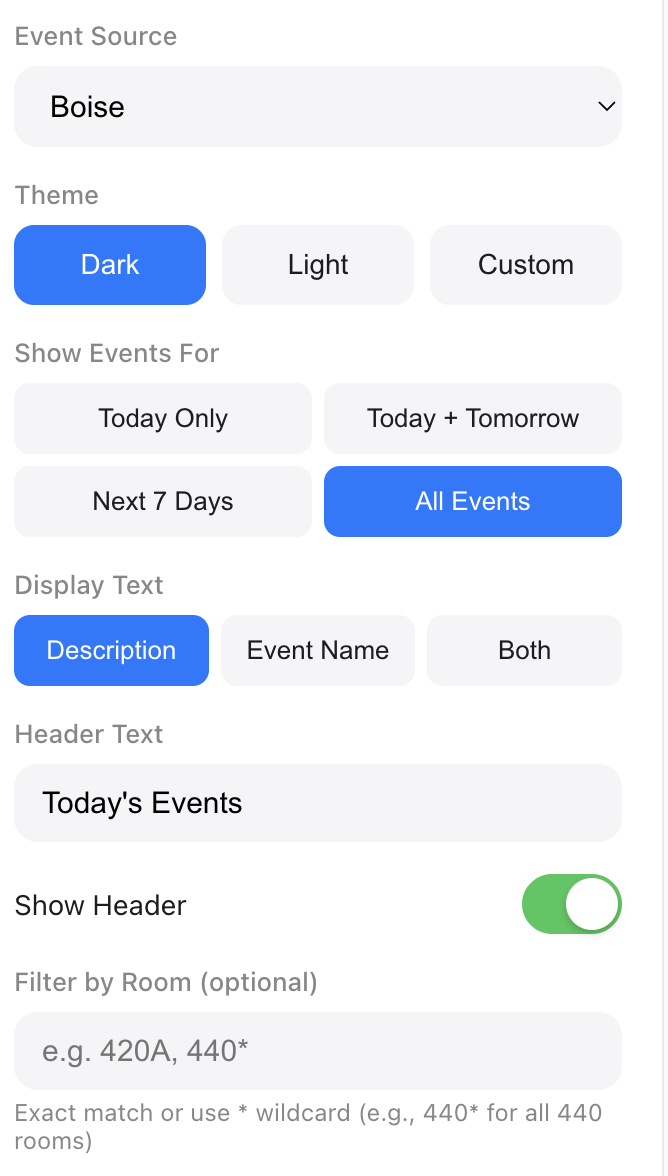
- In the Properties panel, configure:
Event Board Properties
Date Filtering
Control which days’ events appear on your display:
Today Only (Default)
- Shows only events happening today
- Header automatically displays “Today’s Events”
- Best for most lobby and room displays
Today + Tomorrow
- Shows events for today and tomorrow
- Header displays “Today & Tomorrow”
- Good for end-of-day planning displays
Next 7 Days
- Shows all events in the coming week
- Header displays “This Week’s Events”
- Best for weekly planning boards
All Events
- Shows all events from the Momentus feed
- Header displays “Upcoming Events”
- Use when you’ve already filtered by date range in the API URL
Display Text Options
Choose what information to show for each event:
Description (Default)
Shows the event description field from Momentus. Falls back to event name if no description exists.
Event Name
Shows the event name field. Falls back to description if no name exists.
Both
Shows both description and event name combined (e.g., “Annual Conference - ACME Corp Meeting”).
Display Layouts
Auto Layout
Automatically chooses the best layout based on: - Box dimensions (portrait vs landscape) - Number of events - Text length
Horizontal Layout
- Time on the left
- Event name in the middle
- Room badge on the right
- Best for wide, short boxes
Stacked Layout
- Time and room on first line
- Event name below
- Best for tall or square boxes
Themes
Dark Theme
- Dark background with cyan accents
- Best for high-contrast visibility
Light Theme
Ready to get started?
Open Brix Portal