Point of Sale Integration
Connect your POS systems such as Toast, Square or Clover directly to your Brix. Perfect for people who just want to update their POS information and see it reflected directy on their signage. January 13, 2026
Setting Up Data Sources (Toast, Square, Clover POS & Custom APIs)
Display live menu prices and data on your digital signage by connecting to Toast POS or custom data feeds.
Overview
Data Sources allow you to pull live pricing and menu information into your designs. You can connect:
- Toast POS (Multi-Location) - Connect via OAuth to access all your restaurant locations
- Toast POS (Single Location) - Direct connection using a Restaurant GUID
- Custom API - Connect to any JSON REST API
Adding a Data Source
- From the Dashboard, find the Point of Sale section
- Click the + Add Source button
- Choose your source type:
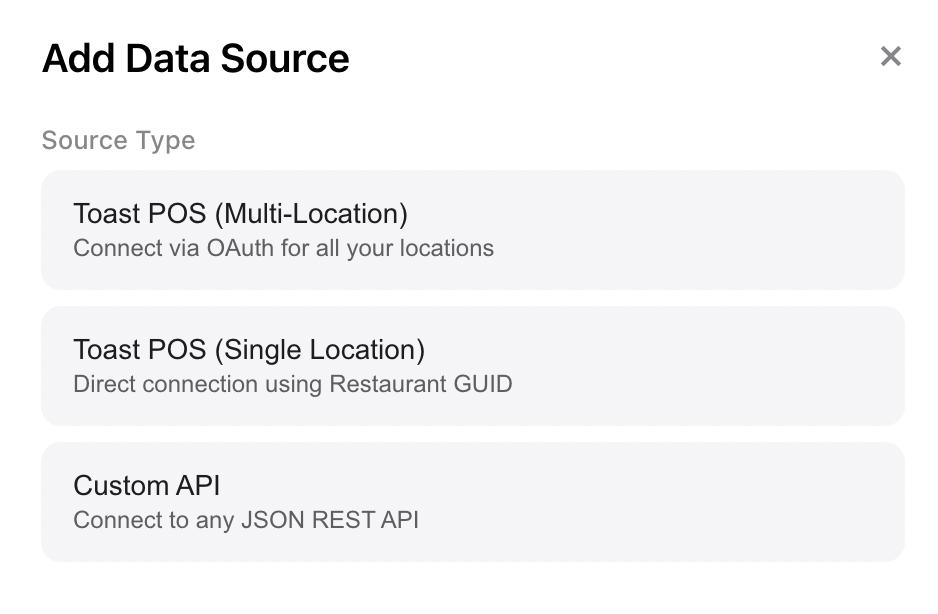
Toast POS (Multi-Location)
Best for restaurants with multiple locations managed under one Toast account.
Setup Steps
- Select Toast POS (Multi-Location) from the Add Source modal
- Enter your Toast API credentials:
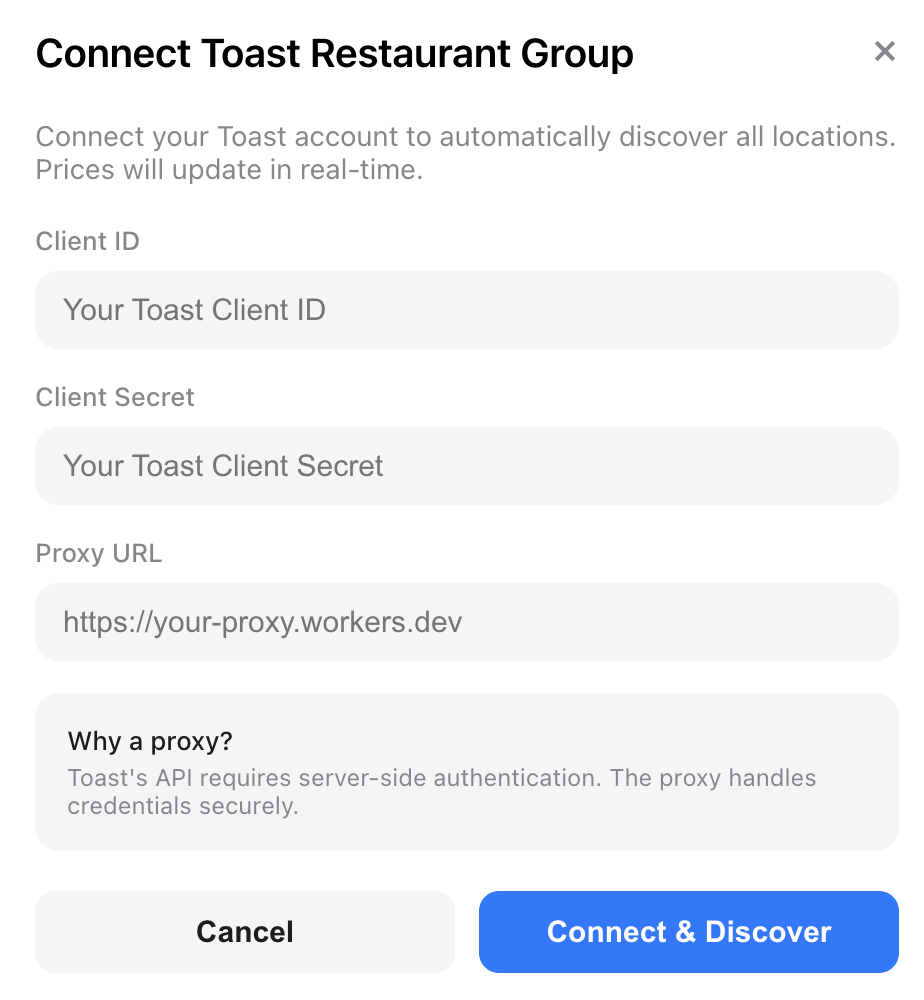
- Click Connect
- Once connected, you’ll see all your restaurant locations listed
- Toggle on the locations you want to use in your designs
Selecting Menu Data
For each enabled location, you can configure which menu data to display:
- Click Settings next to the connected Toast POS source
- For each location, set the Data Path to point to the menu section you want
- Common paths include:
Toast POS (Single Location)
For connecting to a single restaurant location directly.
Setup Steps
- Select Toast POS (Single Location) from the Add Source modal
- Enter a Source Name (e.g., “Miami Beach Location”)
- Enter your Restaurant GUID - found in your Toast dashboard
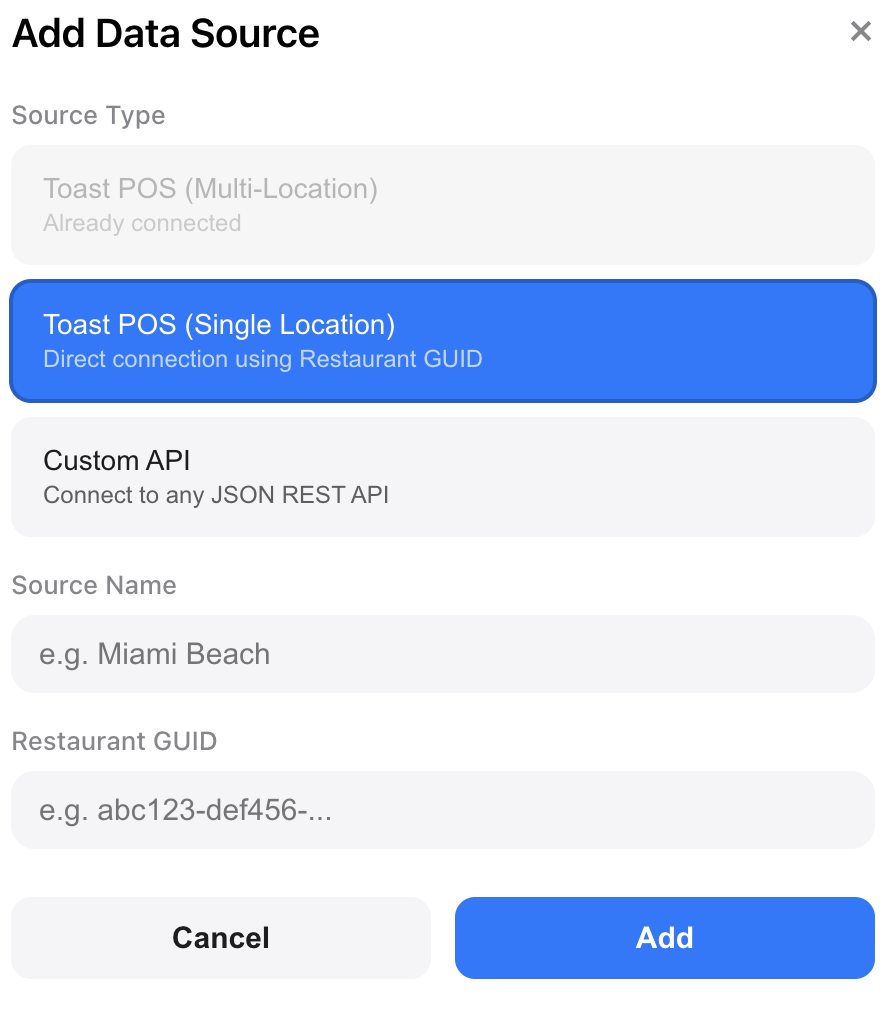
- Click Add
- Click Test to verify the connection
Clover POS
Connect to Clover to display menu items and prices from your Clover inventory.
Prerequisites
- A Clover merchant account
- API access enabled for your account
- Your Merchant ID and an API token
Finding Your Credentials
- Log in to your Clover Dashboard
- Go to Account & Setup
- Navigate to API Tokens
- Create a new token or copy an existing one
- Your Merchant ID is displayed in the dashboard URL or in Account & Setup
Setup Steps
- Select Clover POS from the Add Source modal
- Enter a Source Name (e.g., "Downtown Clover")
- Enter your Merchant ID
- Enter your API Key (token from the Clover Dashboard)

- Click Add
- The system will fetch your menu items and categories
What Gets Imported
Clover imports the following data for each item:
Troubleshooting Clover
Square POS
Connect to Square to display catalog items, prices, and images from your Square account.
Prerequisites
- A Square merchant account
- Access to the Square Developer Dashboard
- An access token with catalog read permissions
Generating an Access Token
- Go to the Square Developer Dashboard (developer.squareup.com)
- Create or select an application
- Navigate to Credentials
- Copy your Access Token (Production or Sandbox)
Note: Production tokens only work with live data. Use Sandbox tokens for testing.
Setup Steps
- Select Square POS from the Add Source modal
- Enter a Source Name (e.g., "Main Store")
- Enter your Access Token
- Optionally enter a Location ID to filter by specific location (leave blank for all)

- Click Add
- The system will fetch your catalog items
What Gets Imported
Square imports the following data for each catalog item:
Troubleshooting Square
Custom API
Connect to any JSON REST API to display custom data.
Setup Steps
- Select Custom API from the Add Source modal
Ready to get started?
Open Brix Portal