The easy way to show employee birthdays on digital signage is to keep one list of names and dates (a spreadsheet or your HR system) and let the signage software pick today's or this week's people from it. Nobody makes a new slide each morning, and nobody is forgotten. Put the board on break-room and time-clock screens, where frontline staff who never read company email will see it.
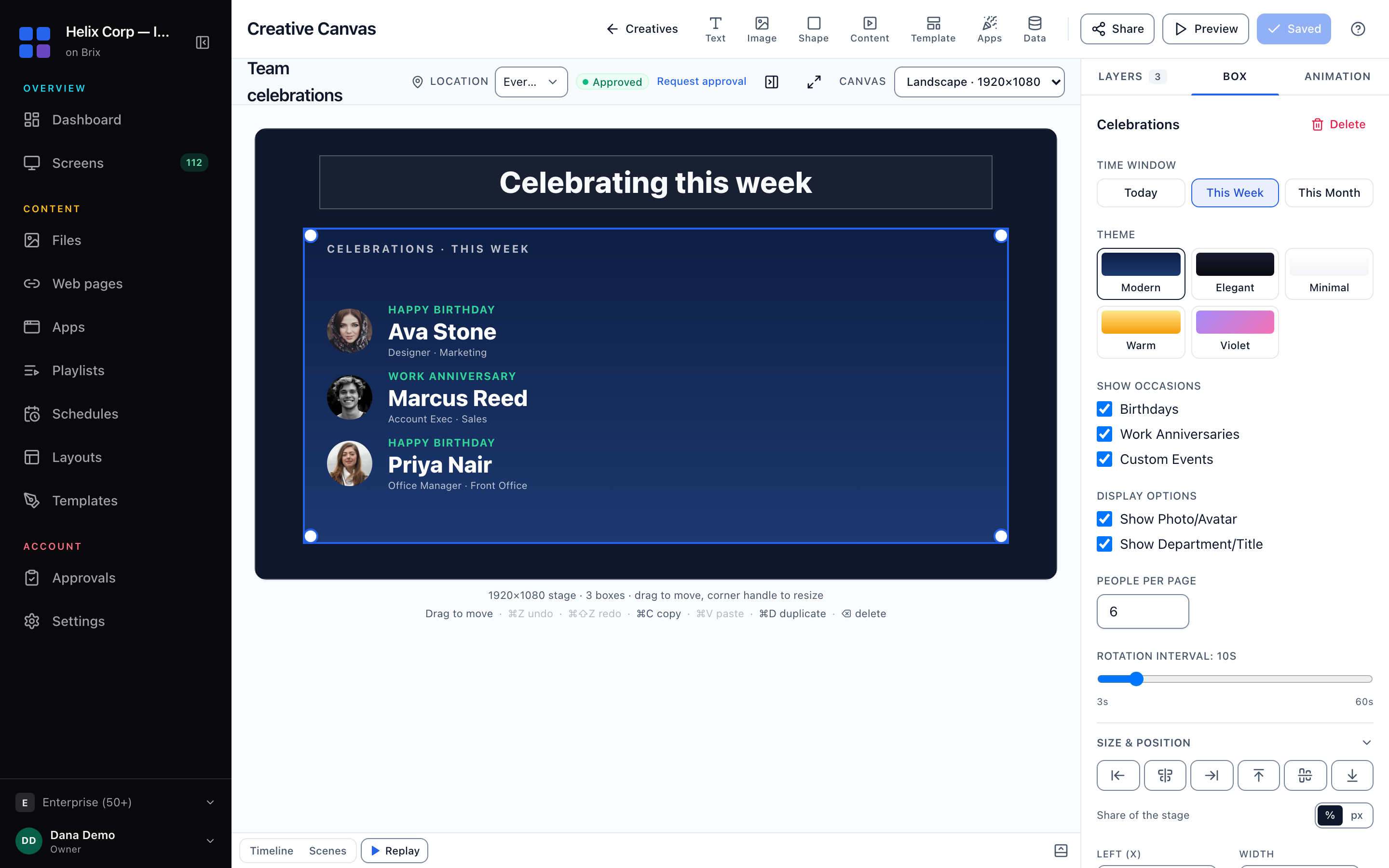
In Brix: add a Celebrations source (a Google Sheet, a CSV or JSON file, or BambooHR or CharlieHR), then add a Celebrations box to a design and choose the source. The box lists people soonest first, one below the other, each with Happy Birthday or Work Anniversary, a photo and a title and department when the source has them. When nobody is celebrating in its time window it says No celebrations.
Step 1: Add the list of birthdays and anniversaries
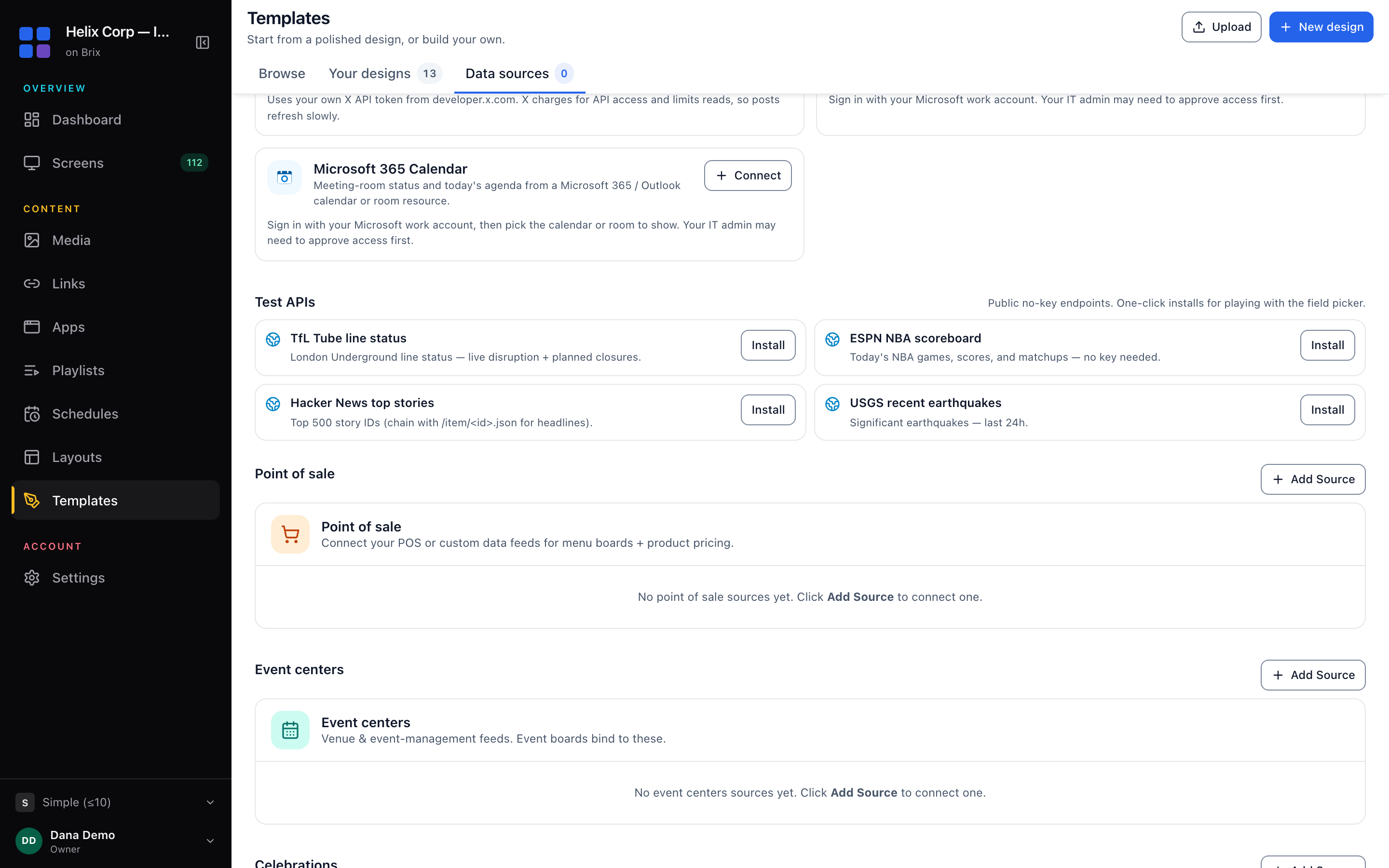
- Open Templates, select the Data sources tab and find the Celebrations section
- Click + Add Source
- Enter a Source Name, for example "Team birthdays"
- Under Data Source, choose CSV/JSON Upload, HR integration or Google Sheets
From a Google Sheet
Keep one row per person, with the column names in the first row. Brix needs a name column and a date column; the others are optional.
| Column | Names Brix recognizes | What it does |
|---|---|---|
| Name (required) | Name, Full Name, Employee, Employee Name, Person | The name on screen |
| Date (required) | Date, Birthday, Birth Date, DOB, Hire Date, Start Date, Anniversary | The day to celebrate. Only the month and day are used |
| Type | Type, Occasion, Occasion Type, Event Type | birthday or anniversary |
| Department | Department, Dept, Team, Division | Shown under the name |
| Title | Title, Job Title, Position, Role | Shown under the name |
| Photo | Photo, Photo URL, Image, Picture, Avatar | A link to the person's photo |
Column names are not case sensitive.
Birthday or anniversary? A Type cell containing "anniversary" makes that row a work anniversary, and "birthday" (or an empty cell) makes it a birthday. With no Type column, the date column's name decides: Hire Date, Start Date or Anniversary means work anniversaries; Birthday, Birth Date, DOB or plain Date means birthdays. To mix both in one sheet, add a Type column.
Dates can be written as 1990-06-14, June 14 or 6/14/1990. Numeric dates are read month first, so write 14/06/1990 as 1990-06-14 or June 14 instead.
Example:
Name,Date,Type,Department,Title,Photo URL
Sarah Johnson,1990-03-15,birthday,Marketing,Designer,https://example.com/sarah.jpg
Mike Chen,2019-06-01,anniversary,Sales,Account Executive,
Then choose how Brix reads the sheet, paste the link and click Add Source. The access options (your Google account, sharing with Brix, or anyone with the link) are explained in show live data on screen. Avoid Anyone with the link for staff dates of birth. If the sheet has several tabs, copy the link while the tab you want is open: Brix reads that tab.
From a CSV or JSON file
Choose CSV/JSON Upload, then drop the file on the box or click to browse. Use the column names from the table above. To start from a blank file, select Download CSV template: its first row holds the columns Name, Date, Type, Department, Title and Photo URL. A JSON file holds a list of people, one object per person, with the same names as keys. Check the preview of the first rows, then click Add Source. A file can be up to 256 KB, which holds several thousand people.
An uploaded file is a copy, so later edits to the file on your computer do not reach the screens. To change the people, add a source with the new file and choose it under Data in the design. For a list that changes often, a Google Sheet is easier to keep up to date.
From BambooHR or CharlieHR
Choose HR integration, pick BambooHR or CharlieHR, then contact support and we connect it with you. BambooHR needs your subdomain and an API key; CharlieHR needs a client ID and secret. Both bring in birthdays and work anniversaries, with names, titles and departments. BambooHR also brings in photos; CharlieHR does not.
Step 2: Add the birthday board to a design
- Open a design in the editor
- Select Apps in the editor toolbar, then Celebrations
- Position and resize the box on your canvas
- Select Data in the editor toolbar and choose your celebrations source under Data source
Settings in the Properties panel
| Setting | What it does |
|---|---|
| Time Window | Today: people whose day is today. This Week: today and the next six days. This Month: everyone whose day falls in the current calendar month, in date order |
| Show Occasions | Turn Birthdays and Work Anniversaries on or off |
| Display Options | Show Photo/Avatar and Show Department/Title |
| People per page | How many people the box shows at once, from 1 to 20. A new box shows 5 |
| Theme | Five fixed color schemes: Modern (navy), Elegant (near black with gold), Minimal (white), Warm (amber) and Violet (a violet to pink gradient) |
How the board stays up to date
Brix re-reads a Google Sheet or an HR system about every two hours, so edits there reach the screens on their own. To update straight away, open a design that uses the source, select Data and click the refresh button next to the source.
Screens change over to the new day's people at midnight in the screen's own time zone.
Troubleshooting
The screen shows Ava Stone, Marcus Reed and Priya Nair
Those are sample people. Either the design has no source chosen under Data, or Brix did not find a name column and a date column in your sheet or file. Check the column names against the table above, then refresh. If a date lands on the wrong day, check its format; if an anniversary shows as a birthday, add a Type column.
No celebrations
Nobody's day falls in the Time Window, or the occasion is turned off under Show Occasions. Try This Month to check the source is working.
Photos not showing
The photo link must open the image directly in a browser without signing in. Show Photo/Avatar must also be on.
Privacy: ask first
Ask people before their birthday goes on a screen, and let them opt out. Keep the year out of the sheet: a birthday needs only the month and day. Prefer Connect my Google account or Share the sheet with Brix over a public link.
To put the finished design on the break-room screen, read put content on a screen, or add it to a playlist between your other news.