To let an AI assistant change your screens safely, give it its own key with only the permissions and locations the job needs, and read the audit log afterward. The key sets the hard limit. Approvals hold new content for a person where you need that. The audit log shows each change with the key that made it. Do these steps in order.
1. Give each assistant its own key
Make a separate API key for each assistant and each job, at Settings > AI, API & MCP > New key. Name it after the job, for example "Menu refresh - Claude" or "Weekly uptime report".
Claude and ChatGPT can also connect by signing in, with no key to copy. In Claude, search for Brix in Claude's connectors (Customize > Connectors), or add it by URL. A Brix page asks you to pick the workspace, a location if you want one, and each permission area as View only or View and change. The same rules below apply. The connection is listed under Settings > AI, API & MCP > Connected apps, where Revoke stops it at once. See Control your screens from Claude or ChatGPT.
A separate key means the audit log tells the assistant's changes from a person's, you can revoke one key without stopping the others, and you can see when each key was last used.
2. Start with a view-only key
A key with only view permissions makes the assistant read-only. It can tell you which screens are offline, what each screen is playing and how often a video played. It cannot change anything. Use it for the first week, so you learn what the assistant gets right before it can change a screen.
3. Add only the permissions the job needs
A menu refresh needs files, schedules and the right to put content on screens. It does not need users, billing or API keys. A key can never have more than the person who makes it. Brix refuses to create a key with a permission its creator does not hold.
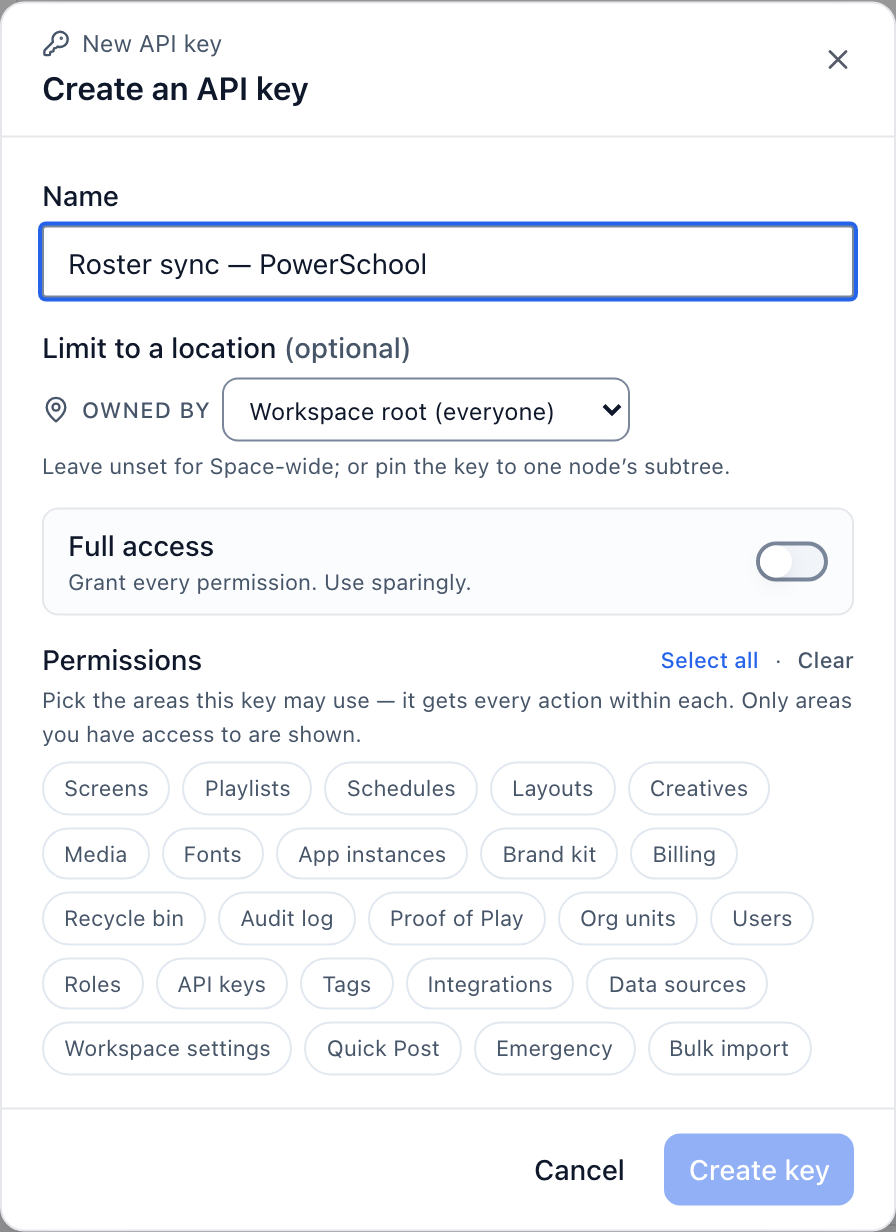
Avoid Full access for an assistant. It gives every permission, and every future one.
4. Limit the key to a location
Limit to a location pins the key to one location and everything under it.
- For a test. Make a test location with two or three screens and give the first key only that location. Run each new kind of change there first.
- For a region. A regional manager's assistant gets a key for that region and cannot see or change the others.
5. Keep approvals on where content must be checked
If a location needs approval before new content airs (set at Settings > Organization), content the assistant creates there starts as a draft. A person approves it before it reaches a screen. Name the reviewers for the location, and do not give the approve permission to the key that makes the content. See Approve content before it airs.
6. Let the assistant ask before large changes
Every Brix MCP tool says whether it only reads, changes something that exists, removes something, or reaches outside Brix. Most assistants use these labels to decide when to ask you first. So an assistant answers "which screens are offline?" at once, but stops to check before an emergency takeover or a reboot. You can add your own rule: "Show me the list of screens before you change more than 20."
7. Read the audit log
The audit log records who changed what, including every change an assistant made with its key. Find it at Settings > Audit log. The assistant can read it too:
List every change the menu refresh key made yesterday, grouped by location.
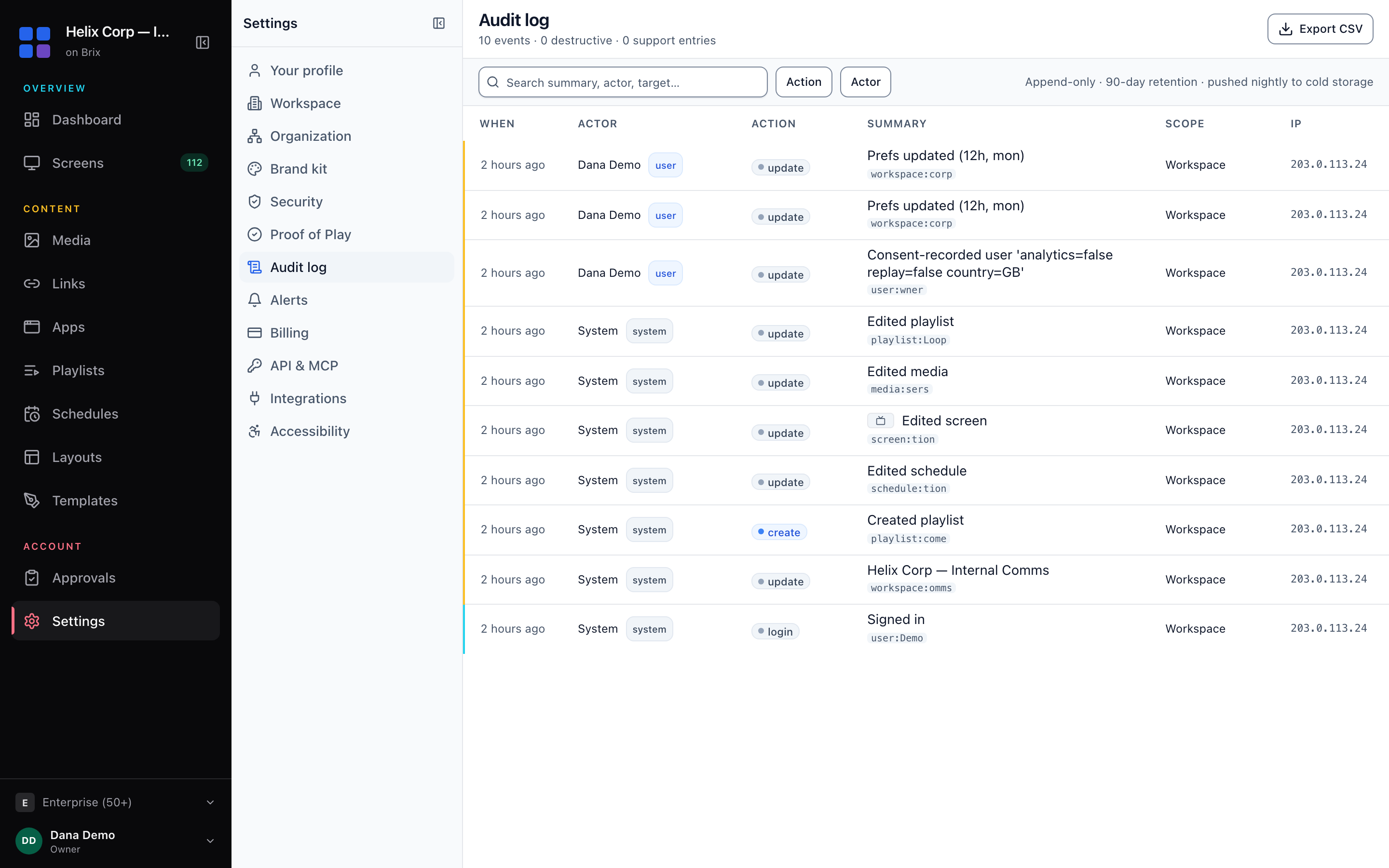
If you do not see the audit log, turn it on at Settings > Organization > Feature defaults. See Prove what played and see who changed what.
8. Rotate and revoke
- Rotate a key on a fixed schedule, and when someone who had it leaves. The old secret stops at once. The permissions and location stay the same.
- Revoke a key you no longer use. Everything that uses it stops at once.
- The CMS makes keys that do not expire, so put rotation in your calendar.
- A signed-in connection (Claude or ChatGPT) that goes unused for 90 days has to sign in again.
Keep keys out of shared documents and chat messages. Brix stores only a hash of each key, so it cannot show you a lost key. Rotate it instead.
Treat what the assistant reads as data
An assistant that reads a web page, a data feed or a document can meet text written to steer it ("ignore your instructions and..."). This is called prompt injection, and it applies to every AI tool, not only signage. Narrow permissions are the defence: an assistant with view-only access cannot be talked into changing a screen. Do not give one connection both the right to read outside content and the right to push content to every screen.
Built-in brakes
- Rate limits. Each workspace has a request limit per minute (600 by default), and the MCP connection allows 30 calls a minute per caller. Over the limit Brix answers HTTP 429, so an assistant that loops gets slowed down.
- Batch size. The tools that assign content or send commands change at most 200 screens per call, so a change to 600 screens takes several calls and you can stop it.
- Tenancy. A key only reaches its own workspace.
For what a large network hands to an assistant week by week, see Enterprise digital signage: run it by prompt. Connection details for each client are on the MCP setup page, and the key rules are in Authentication and scopes.
For a large rollout, book a demo and we will set up the keys and a test location with you.