Yes, for most small and mid-sized businesses running a handful to a few hundred screens: the Amazon Signage Stick is a $99.99 4K HDMI stick that boots straight into the CMS you choose during setup, not a Fire TV home screen, so staff cannot switch it to a streaming app. Skip it for a video wall, touch screens, or a network that only allows enterprise Wi-Fi sign-in with no cable to the screen.
You also pay for signage software (a CMS), because the Stick has none of its own. Brix is in Amazon's CMS directory with the Remote Management label, so you can restart the Stick, see its screen and turn the TV off from the same place you change the content: $6 per screen per month billed annually, or $8 billed monthly. See Brix on the Signage Stick or start a free 7-day trial, no card needed.
Amazon provides Signage Sticks free for rollouts of 30 or more screens. Talk to us and Brix arranges it with Amazon.
- Price: $99.99 once. See Signage Stick price for other countries.
- Setup: about 10 minutes, from Amazon's phone app.
- Cheaper option: a Walmart onn box for screens you can walk to.
What is the Amazon Signage Stick?
A digital signage stick is a small media player that plugs into a TV's HDMI port and plays what your CMS sends it. The Amazon Signage Stick is Amazon's business version of the Fire TV Stick. It has no streaming apps and no home screen: it opens the CMS you chose during setup and stays there, so staff cannot use it to watch TV.
Amazon sells it in the US, Canada, the UK, Germany, France, Spain and Italy (signage.amazon.com). For the price in each country, bulk discounts and the total cost per screen, see Amazon Signage Stick price.
Amazon Signage Stick specs
From Amazon's listing and its safety and compliance sheet:
| Spec | Amazon Signage Stick |
|---|---|
| Price | $99.99 |
| Processor | Quad-core 2.0 GHz, 850 MHz GPU |
| Memory | 2 GB LPDDR4 |
| Storage | 16 GB, shared with the system and the CMS app |
| Video output | HDMI 2.1, up to 4K (2160p) at 24 to 60 Hz; also 1080p and 720p |
| Video formats | HDR10, HDR10+, HLG, H.265, H.264, VP9, AV1 |
| Wi-Fi | Wi-Fi 6E tri-band (2.4, 5 and 6 GHz); no WPA-Enterprise |
| Bluetooth | 5.2 + BLE |
| Ports | HDMI, micro-USB (power) |
| Ethernet | No port. Use Amazon's micro-USB Ethernet Adapter ($14.99) |
| Power | 5.25 V, 1.0 A, from the wall adapter in the box |
| Operating temperature | 0 to 35 °C (32 to 95 °F), indoor use only |
| Size and weight | 99 x 30 x 14 mm (108 mm with the connector), 43.5 g |
| In the box | Stick, remote with 2 AAA batteries, power cable and adapter, HDMI extender |
| Warranty | 1-year limited warranty |
| Security updates | At least three years after Amazon stops selling it new |
For 4K you need a 4K display with HDCP 2.2, a CMS that supports 4K and 4K content. Wi-Fi 6E needs a Wi-Fi 6E router; the Stick also works with older Wi-Fi.
2 GB of memory and 16 GB of storage are enough for full-screen images, video loops, menu boards and split-screen layouts with a few zones. Heavy web dashboards and several 4K videos at once need a more powerful player; for lighter pages, see how to show a website or dashboard on a TV. For file sizes and what fits, see how much storage digital signage needs.
How do you set it up?
Setup takes about 10 minutes per Stick:
- Plug the Stick into the TV's HDMI port and into a wall socket with the adapter from the box.
- Install the free Amazon Signage app on your phone and sign in with an Amazon account.
- Add the Stick in the app. It finds the Stick over Bluetooth. Connect it to Wi-Fi.
- Choose your CMS from the list. The Stick updates itself and installs the CMS, which can take 10 minutes or more on a slow network.
- Pair the screen in your CMS, usually with a code the TV shows.
For many Sticks, save the Wi-Fi network and CMS choice as a profile in the app, so each next Stick takes fewer steps. No phone? Use the remote and console.signage.amazon.com on a computer. The full Brix walkthrough is in the Amazon Signage Stick setup guide.
Check these before you install
These come from Amazon's own support FAQ and safety sheet. Each one either stops setup or makes a screen fail later.
- Enterprise Wi-Fi does not work. The Stick joins open, WEP, WPA/WPA2-Personal and WPA3-Personal networks. It cannot join WPA2 or WPA3-Enterprise (sign-in with a username or certificate), which most offices, schools and hospitals use. Use a guest or IoT network with a shared password, or the Ethernet adapter.
- A hidden network is not found at setup. Unhide the SSID while you set the Stick up, then hide it again, or use Ethernet.
- Firewalls must allow Amazon's domains. If IT blocks the Stick, allow api.signage.amazon.com, device.signage.amazon.com, api.cm.ds.amazon.dev, api.ota.ds.amazon.dev, api.beta.ota.ds.amazon.dev and api.dt.ds.amazon.dev, plus your CMS's own addresses. To register the Stick on the network, its MAC address is under Settings, About Device.
- Power it from the wall, not the TV. A TV's USB port gives too little power, so the Stick runs slowly and crashes. The Ethernet adapter needs wall power too.
- Leave it powered overnight. The Stick installs its firmware updates between 2 am and 5 am local time, and only if it is on. A Stick on a timer switch misses them. Turning the TV off from your CMS is fine: the Stick stays on.
- Keep it out of the heat. It is rated for 0 to 35 °C (32 to 95 °F) and indoor use. A sunny shop window or the wall above a grill line can get hotter than that. Amazon says to keep it away from stoves, heater vents and direct sunlight.
- Plug it straight into the TV. HDMI switches, splitters and AV receivers often block the HDMI-CEC commands that turn the TV on and off.
What remote management does it have?
Two layers:
- Amazon's app and console. You can turn displays on and off, capture the screen, restart or factory reset a Stick and monitor it. The app groups Sticks by location, and its virtual remote works from anywhere.
- Your CMS. Amazon gives CMS providers a Remote Management API. Providers that use it carry a "Remote Management" label in Amazon's CMS directory. With one of them you restart a Stick, see its screen or turn the TV off from the same place you change the content.
This is the main reason to pay more for the Signage Stick than for a consumer stick: you see a store's screen and fix most problems without a visit. What each layer can and cannot do is in Amazon Signage Stick remote management, explained.
Which CMS works with it?
Amazon's CMS directory lists more than 80 providers, among them Brix, Yodeck, ScreenCloud, OptiSigns, Xibo, Rise Vision, NoviSign and Play Digital Signage. About 30 of them carry the Remote Management label. If remote restart, screen capture and TV power from your CMS matter to you, filter the directory by that label first.
The Stick is not tied to one CMS. If you change, you keep the hardware: factory reset the Stick and choose the new provider (how to change CMS).
The CMS is a separate subscription, and over three years it is most of what you pay. Entry plans run from $6 (Brix) to $20 (ScreenCloud Core) per screen per month billed annually. For a side-by-side of the main options on price, remote management and offline playback, see the best CMS for the Amazon Signage Stick.
Which "Fire Stick" do you need: Signage Stick or Fire TV Stick?
| Amazon Signage Stick | Fire TV Stick 4K Plus | |
|---|---|---|
| Price | $99.99 | $69.99 list, often on deal |
| Starts in | Your CMS, in kiosk mode | The Fire TV home screen |
| Other apps | None | Streaming apps; staff can open them |
| Setup and fleet tools | Amazon Signage app: profiles, locations, virtual remote | Consumer Fire TV setup |
| Business support | Amazon Signage email support ([email protected]) | Consumer support |
Many signage apps, Brix among them, also run on a consumer Fire TV Stick. It works for one or two screens you can walk to (what a Fire TV Stick can and cannot do for signage). For screens in a public place or at another site, the Signage Stick is worth the extra money: nobody can switch it to a streaming app, and you can manage it from the office.
What the Signage Stick does not do
- No Ethernet port. Wired networking needs the adapter. Use it wherever Wi-Fi is weak behind the TV, for example in a kitchen full of steel.
- One HDMI output. One Stick drives one screen. It cannot split one picture across a video wall. See is the Amazon Signage Stick good for a video wall?
- No touch input. It is for screens people watch, not kiosks they tap.
- No volume control from afar. It cannot change volume or mute over HDMI-CEC, and its remote has no volume buttons. Set the volume with the TV's own remote.
- Portrait is set in the CMS. The Stick has no rotation setting of its own. A CMS that uses Amazon's device agent rotates the whole display, video included; Brix does. See portrait mode.
- The TV must answer HDMI-CEC for remote screen on and off. Most TVs do, but the setting often has a brand name (Anynet+, SimpLink, Bravia Sync) and is sometimes off. See HDMI-CEC not working.
Is the Amazon Signage Stick worth it?
Buy it for 1 to a few hundred screens that show menus, promotions, notices or dashboards. It is easy to reorder and replace, and its remote management saves site visits.
Look elsewhere for a video wall that spans one picture, interactive touch screens, a network that only allows enterprise Wi-Fi sign-in with no cable to the screen, or content that needs a lot of processing power (several 4K videos at once, heavy 3D). Those need a commercial player or a PC. See Amazon Signage Stick alternative for what to buy instead.
Consider a cheaper box such as a Walmart onn only if you have a few screens near you and can go to them when one stops. For other options, see Raspberry Pi vs Signage Stick and Nvidia Shield vs Signage Stick.
Want the screen and player in one box? The Amazon Signage Display is a 55-inch 4K screen with the same player built in, $699.99 in the US. See Signage Display vs Signage Stick.
FAQ
Is the Amazon Signage Stick an Android device?
Yes. It reports to its CMS as an Android device. It opens only the CMS you chose during setup, in kiosk mode, and stays there.
Does the Amazon Signage Stick come with a CMS?
No. The Stick has no signage software of its own. During setup you pick a CMS from Amazon's directory, and that CMS is a separate subscription. Brix starts at $6 per screen per month billed annually, with a free 7-day trial and no card needed.
Do you need an annual contract for the Amazon Signage Stick?
No. The Stick is a one-time $99.99 purchase. Brix costs $6 per screen per month billed annually, or $8 billed monthly with no annual contract.
What is the Amazon Signage Stick's warranty and failure rate?
Amazon does not publish a failure rate for the Signage Stick. It ships with a 1-year limited warranty and gets at least three years of security updates after Amazon stops selling it new.
Brix on the Amazon Signage Stick
Brix is one of the CMS providers in Amazon's directory with the Remote Management label (Brix for the Signage Stick). Pick "Brix Signage" during the Stick's setup, then pair it in the CMS under Screens, Add screen, Pair a hardware device.
From the screen's panel in Brix you see what the TV shows now, and you can take a screenshot, turn the screen on or off, clear the cache or reboot the Stick. Brix stores the playlist on the Stick, so it keeps playing if the internet drops (offline playback). In Brix's own fleet, a Stick reports about 12 GB of its 16 GB as usable storage, and a typical Stick has about 10.7 GB free. Brix lets content use up to half of that storage.
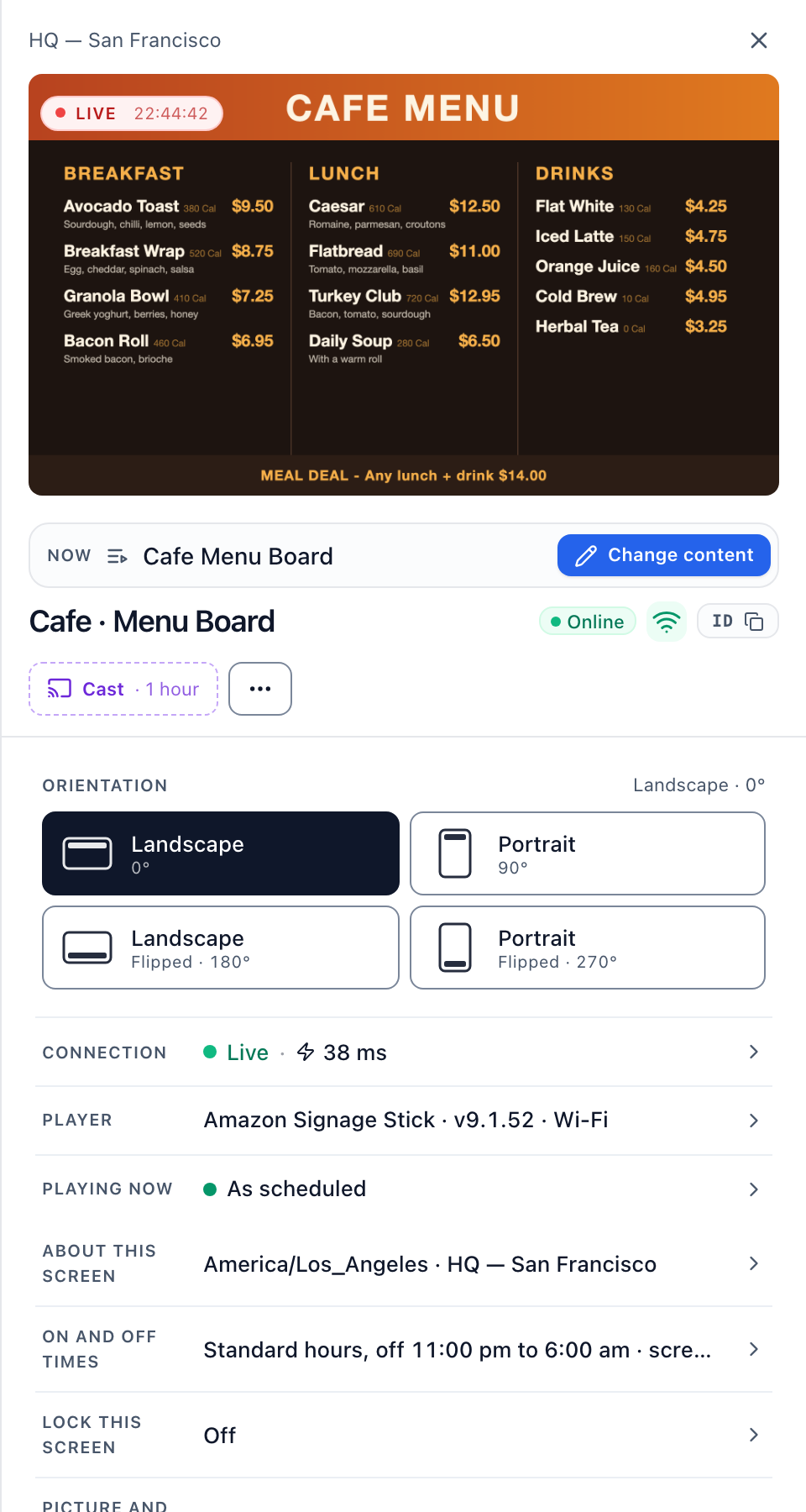
Brix costs $6 per screen per month billed annually, or $8 billed monthly. Moving from another CMS? We move your content, playlists and screens for you: free migration, usually in a day. Rolling out 30 or more screens? See how Brix arranges free Signage Sticks from Amazon.
Start a free 7-day Brix trial. No card needed.