To control your screens from Claude, search for Brix in Claude's connectors, or add it by URL, then sign in on the Brix page that opens. In ChatGPT, add Brix as a plugin with the address https://api.brixsignage.com/v1/mcp. There is no key to copy.
Brix is one of several signage platforms with an MCP server. Brix, Yodeck, Revel Digital and Fugo connect by signing in; Kitcast, Screenly and NoviSign use an API key or a local server. The table below compares them.
Set it up
- In Claude: search for Brix in Claude's connectors (Customize > Connectors, then +) and select Connect. Brix is in Claude's connector directory. Or add it by URL: + > Add custom connector, then enter
https://api.brixsignage.com/v1/mcp. On a Team or Enterprise plan, an owner adds Brix under Organization settings > Connectors first. - In ChatGPT: turn on Developer mode under Settings > Security and login. Then go to chatgpt.com/plugins, select +, name it Brix, enter
https://api.brixsignage.com/v1/mcpunder Connection and create it. - On the Brix page that opens ("Allow Claude to use Brix?"), sign in, pick the workspace, a location if you want one, and set each permission area to View only or View and change. Then allow the connection.
- Ask "Which of my screens are offline, and why?"
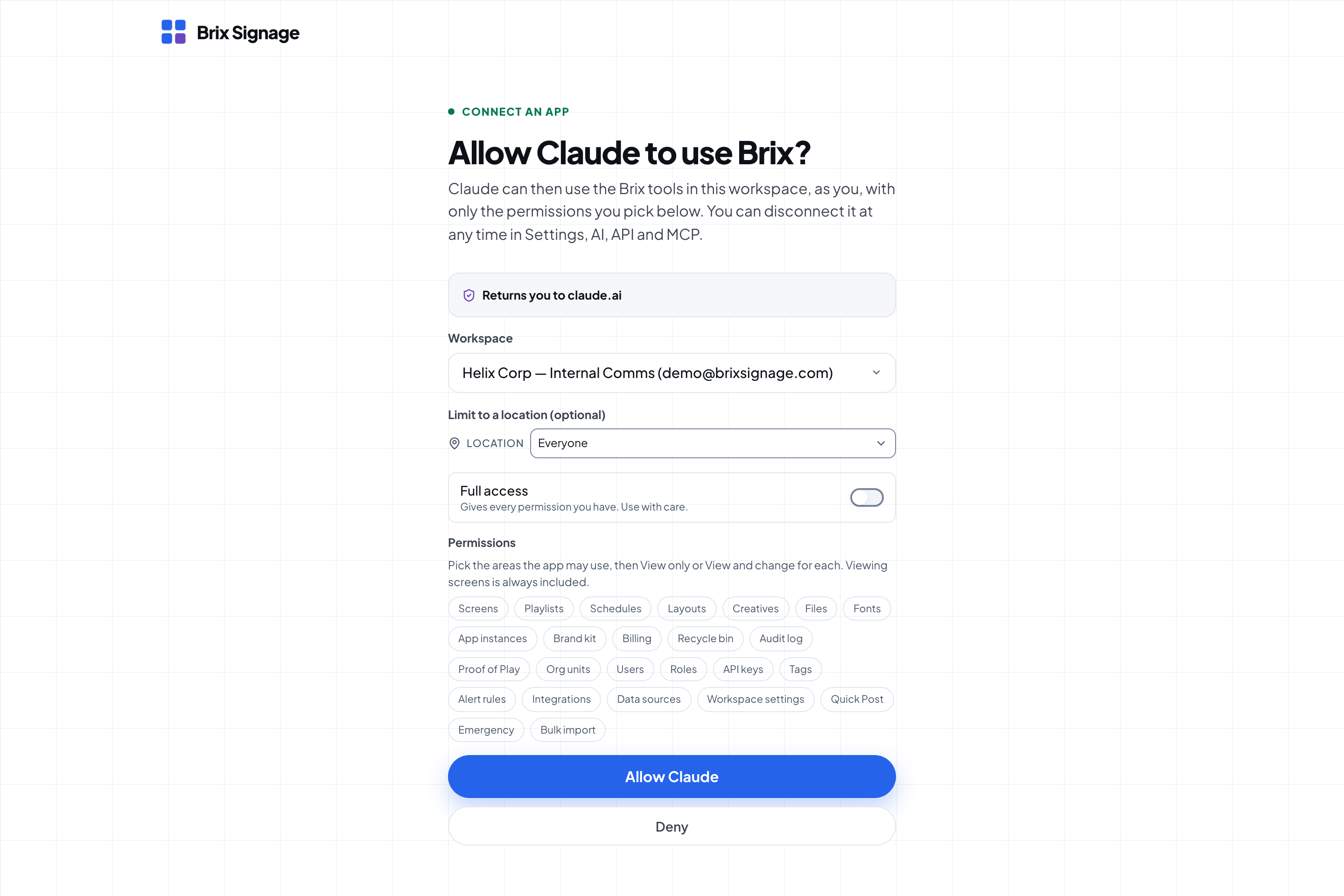
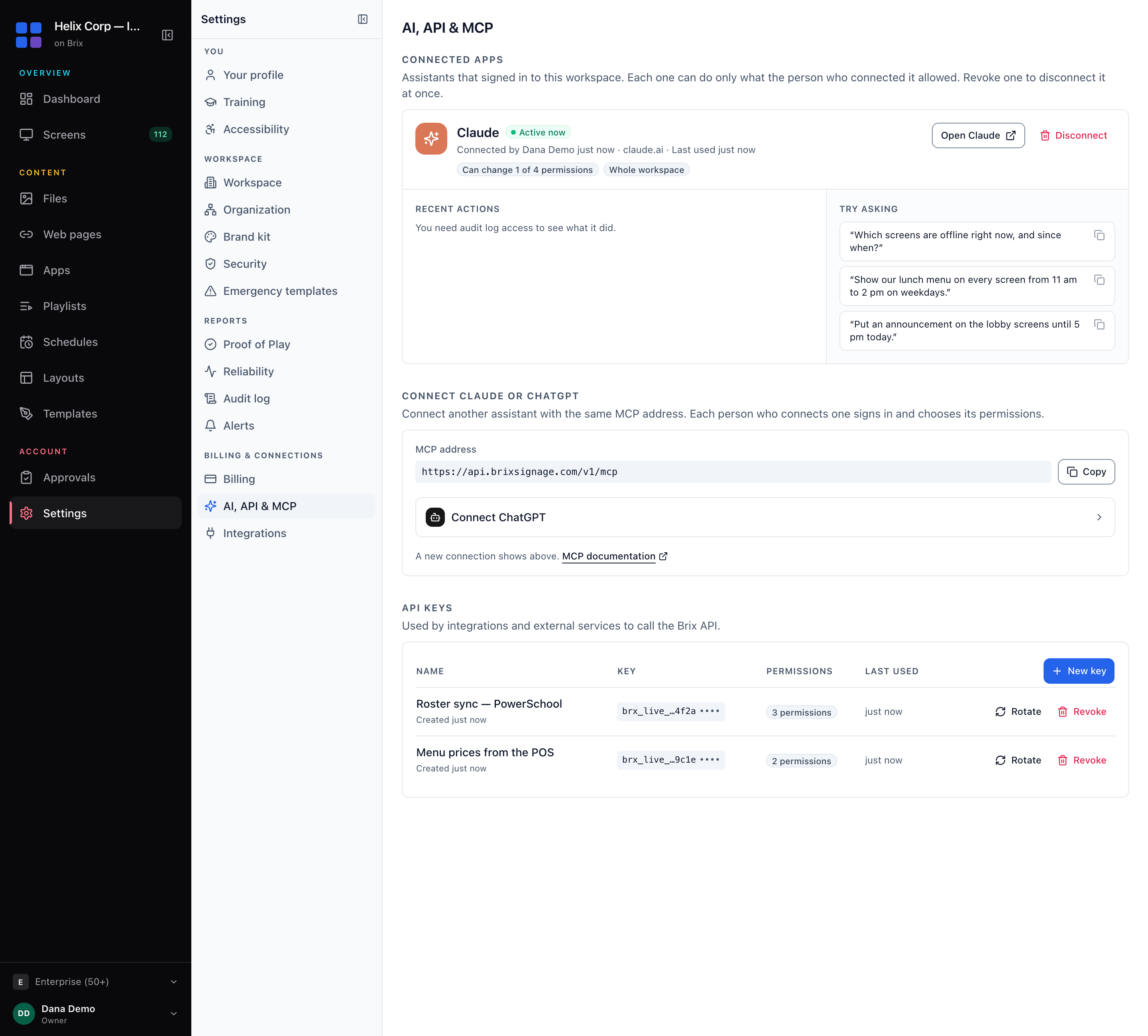
The connection is listed under Settings > AI, API & MCP > Connected apps. Revoke stops it at once.
The chat apps at claude.ai and chatgpt.com, and the Claude desktop app, connect this way. For Claude Code, Cursor, the Claude Desktop config file or your own scripts, use an API key instead: see Automate digital signage with Claude Code or Cursor.
Start with read-only permissions
Give the connection the smallest set of permissions that does the job. With view permissions only, the assistant can tell you which screen is down and why. It cannot change what plays. The permissions you pick are the hard limit. Add change permissions once you trust the results, and test on one location first. The full checklist is in Let an AI assistant change your screens safely.
What to ask first
The connection has more than 40 tools. You describe the outcome and the assistant picks the tools.
- "Which screens are offline, and why?" It reads each screen's outage history and gives the cause, not just the state.
- "Something is wrong with the screen in reception." It runs a diagnosis and reports what it found.
- "Put the winter menu on every screen in the Leeds shops." It finds the screens by location and assigns the content.
- "Put the lunch playlist on every screen tagged kitchen, from 11:00 am to 2:00 pm on weekdays." It makes a schedule in each screen's own time zone.
- "How many times did the safety video play last month?" It runs a proof-of-play report. Proof of play is off by default. Turn it on at Settings > Organization > Feature defaults before the month you want to report on.
After a change, open Settings > Audit log and check that each change is there with the connection that made it.
Step-by-step guides for common jobs
Each guide gives the exact prompt, the Brix tool the assistant runs, what you get back and the permissions it needs.
- Post an announcement to every screen from Claude (
quick_post) - Find offline signage screens with ChatGPT (
search_screens,screen_health) - Pull a proof-of-play report from Claude (
get_proof_of_play) - Schedule a menu board change from ChatGPT (
bulk_create,assign_content) - Trigger an emergency message from Claude (
trigger_emergency_template) - Update menu boards at every store with one prompt
- A week of enterprise signage run by prompt
What the assistant will ask you first
Every tool says whether it only reads, changes something that exists, or reaches outside your workspace. Assistants use that to decide when to check with you. An assistant answers "which screens are offline" at once. It pauses before an emergency message on every screen.
What an assistant does not do
It does not install hardware. Someone still plugs in the player and pairs it to a screen. A Signage Stick takes about 10 minutes. It carries out the change you describe and can be wrong, so start with a view-only connection and a test location.
Which digital signage software works with ChatGPT or Claude
Several signage vendors publish an MCP server. They differ in how you connect (sign in, or paste a key), which assistants work, and which plan you need. Checked on each vendor's own documentation in September 2026:
| Software | How you connect | Works in claude.ai and ChatGPT | Plan |
|---|---|---|---|
| Brix | Hosted server, sign in | Yes, and listed in Claude's connector directory | Every plan |
| Yodeck | Hosted server, sign in (API token as an option) | Yes | Premium and Enterprise |
| Revel Digital | Hosted server, sign in | Yes | Not stated |
| Fugo | Hosted server, sign in | Claude documented | Not stated |
| Kitcast | API key | No, per Kitcast's guide; works in Claude Desktop, Claude Code, Cursor and others | Pro |
| Screenly | Runs on your computer through the Screenly CLI, with an API token | Desktop and developer tools; screens are read-only through it | Not stated |
| NoviSign | Claude connector with an API key; covers NoviSign's custom data APIs only | Claude | Business Plus and above |
What to look for in any signage connector
- Sign-in, not a pasted secret. A connector you add by signing in can be revoked from the signage console, and no key sits in a chat or a file.
- Permissions you choose at connection time. View-only must be possible.
- A location limit. A test connection should reach only a test store.
- An audit log that names the connection on every change.
- Labels on risky actions so the assistant asks before an emergency message or a reboot.
- The price. Some vendors keep API access for higher plans.
What it costs
Nothing extra. The API and the MCP server are included on every plan, at $6 per screen per month billed annually ($8 billed monthly). To compare what other vendors gate behind API access, see the best digital signage software.
The MCP setup page has the steps for every client. Start the free trial.