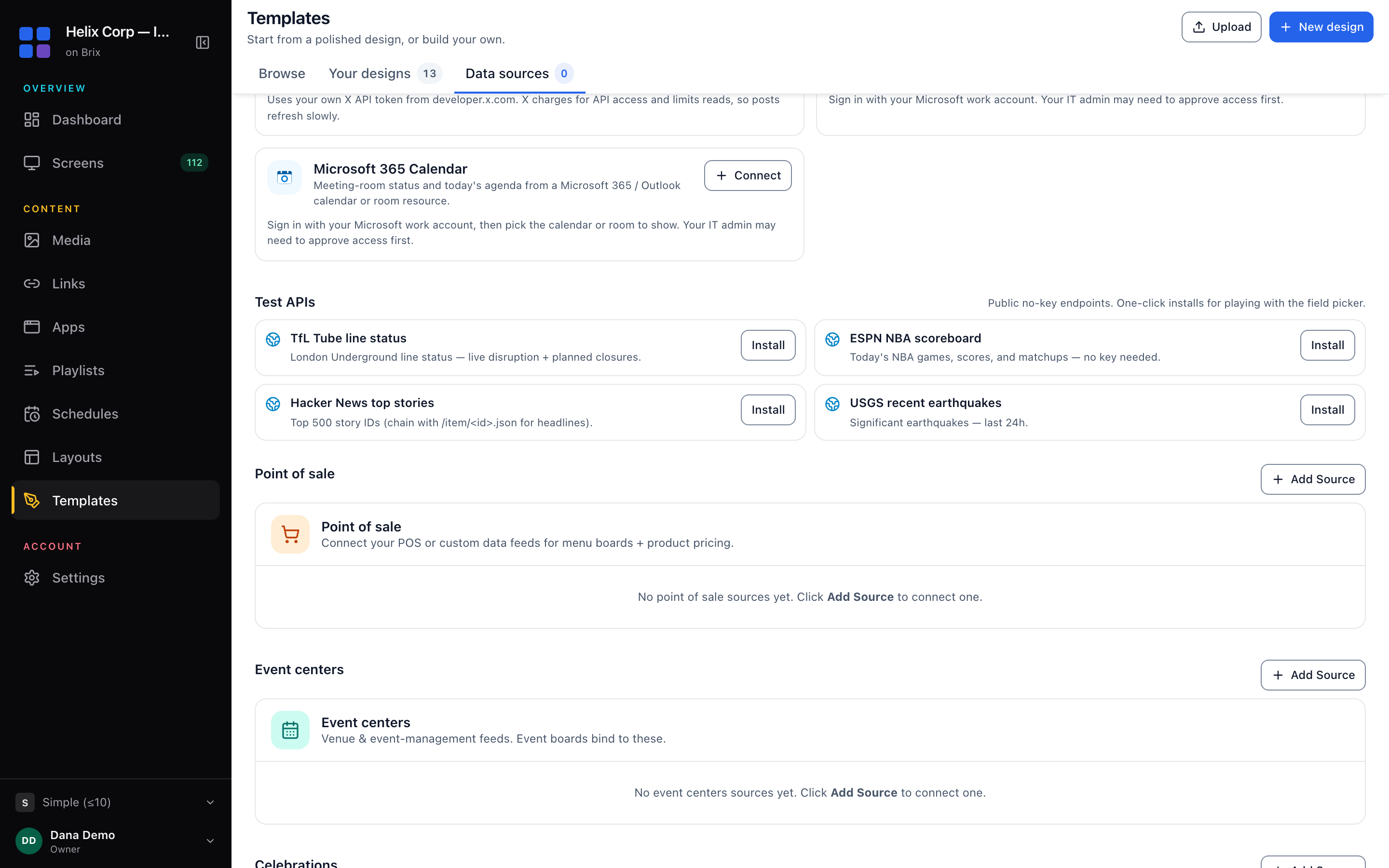
To show Momentus events on digital signage in Brix, connect a Momentus or iCal (.ics) source under Templates > Data sources > Event centers, then add an Event Board to a design and put it on your screens. The Event Board lists upcoming events, earliest first, one row each with the event name, the room if the feed has one, and the start and end times. It suits convention centers, hotels, universities and corporate campuses.
Step 1: Connect your events
The Event Board reads events from a Momentus or iCal source. Momentus is set up with the Brix team. You add an iCal feed yourself.
Momentus
- Open Templates, select the Data sources tab and find the Event centers section
- Click + Add Source, choose Request access, pick Momentus and select Register interest
We will ask for your Momentus (formerly Ungerboeck) digital-signage API address, and a username and password if your API needs them. The address typically follows this pattern:
https://[venue].gomomentus.io/[instance]/DigitalSignage/api/UsiFunctionsByDays/[past]/[future]The past and future day counts in the address decide which events Brix receives, and the board shows them in start-time order. For a board of today's and upcoming events, keep the past days at 0 so finished events do not fill the list.
To show events for specific rooms only, the address can carry a spaces parameter (for example ?spaces=120B,120A). Use a separate source for each set of rooms.
iCal feed
If your events live in a calendar that can publish an iCal (.ics) address, such as Google Calendar, Outlook or a booking system, add the feed yourself:
- Open Templates, select the Data sources tab and find the Event centers section
- Click + Add Source and choose the iCal feed tab
- Paste the calendar's public .ics or webcal address into Calendar feed URL
- Check Time zone (optional). It is filled in with your browser's time zone. Brix uses it for event times that the feed writes without a time zone. Leave it blank to read those times as UTC
- Click Add Source
Brix reads the next 30 days of the calendar, including repeating events, and leaves out events that have already ended. The board uses the event's location as the room.
Step 2: Add an Event Board to a design
- Open a design in the editor
- Select Apps in the editor toolbar, then Event Board
- Position and resize the board on your canvas
- Select Data in the editor toolbar and choose your events source under Data source
Settings in the Properties panel
| Setting | What it does |
|---|---|
| Theme | Five fixed color schemes: Modern (navy), Elegant (near black with gold), Minimal (white), Warm (amber) and Violet (a purple to pink gradient) |
| Display Options | Show Room/Space and Show Time/Duration |
| Events per page | How many events the board shows at once, from 1 to 20. A new board shows 5 |
Put the design on a screen directly, or add it to a playlist or schedule, the same way as any other design.
Keeping it up to date
Brix re-reads each source about every two hours. To update straight away, open the design, select Data and click the refresh button next to the source.
Troubleshooting
The board shows Spring Gala, Robotics Expo and Board Meeting
Those are sample events: the design has no Momentus or iCal source chosen under Data. Choose one, then refresh.
Finished events are at the top
For Momentus, set the past days in the API address to 0. An iCal feed already leaves out events that have ended.
Events from the wrong rooms
For Momentus, check the spaces parameter in the API address.