Digital signage user permissions by location let head office see every screen while each store manager sees only their own store. Each person gets a role (what they can do) at a location (where they can do it), and access to a region flows down to every store in it. Look for three things:
- One person can hold different roles at different locations.
- Nobody can hand out more access than they hold.
- Approval can be switched on per location.
How do user permissions by location work?
Every permission answers two questions: what can this person do, and where? A role called "Editor" is not enough when you have 40 stores and the editor in store 12 must never touch store 13.
- Locations form a tree: the company, then regions, then stores, and sometimes areas inside a store (the drive-through, the break room).
- A role is a list of actions: for example view screens, upload files, edit playlists, approve content, push an urgent message.
- A person holds a role at a place in the tree. Access flows down: a role at a region covers every store in it, including stores added later.
Weaker systems use a flat list of screen groups or folders instead of a tree. They work for a few sites, but each new store must be added to every group by hand, and a missed group is a store manager who cannot see their own screen.
Give each store manager their own screens only
The most common request is simple: "the store manager should only see his store." To do it:
- Draw your locations once: regions, then stores.
- Build a store manager role with the actions a manager needs, and nothing that changes other stores.
- Invite each manager to their own store with that role.
Check the result by signing in as a test manager. They should see only their store's screens, playlists and files, and anything they make should stay at their store. Check that the software filters the data on the server, not only in the menus: a hidden button is not a permission.
Keep head office and store screens apart in one account
A second request sounds like this: "HR should not be able to mess up what is in the stores." The internal comms team runs the screens in break rooms and at head office. It must not reach the menu boards or promo screens on the shop floor.
You do not need a second account. Put head office in the tree as its own location, next to your regions, and invite the comms team there only. Their role can hold every content permission and still stop at the edge of head office.
Some platforms also let a role carry its own limit ("this role only ever applies to these places"), which protects you from inviting someone to the wrong level by mistake.
Who can change which screens: set it up once
Buyers call this "levels of delegation." Head office defines the roles, regional managers look after their stores, store managers run their own screens. Each level can do less than the one above it. Three rules keep it safe:
- Nobody can hand out more than they hold. A regional manager who can invite people can give only roles within their own permissions.
- Editing roles is its own permission. Give it to very few people.
- Sharing is separate from editing. A store can change its own content without pushing it to other stores.
A worked example for a chain with a head office, three regions and 40 stores:
| Person | Role | Location | Can do | Cannot do |
|---|---|---|---|---|
| Marketing lead | Head office admin | Top of the tree | Everything except billing and roles | Change the plan |
| Regional manager | Region lead | Their region | View screens, push a message to a screen, approve content | Touch another region |
| Store manager | Store manager | Their store | View screens, upload files, push a message to a screen | Edit the national playlist, see other stores |
| Comms team | Internal comms | Head office | Create and edit playlists and files | Reach any store screen |
| Installer | Installer | All stores | Add, name and view screens | Change content |
Build it in this order: draw the tree, build one role per job, invite people, then check each person's access list.
Let stores add local content without touching the brand
Two features let locations contribute safely:
- Content approval per location. New content at a location waits until someone with approval rights there signs it off. Approval should be a setting per location, so a new franchisee needs sign-off while a flagship store does not.
- Locked templates. Head office shares a design where locations can change the text or price but not the logo or layout.
Let access follow your HR system
Large teams want "ticket-free access": when HR moves a person to a new store, their signage access moves too. That needs single sign-on with rules that read the person's store number, region or job title from your identity provider and give the matching role at the matching location. SCIM goes further and applies moves and leavers immediately, not at the next sign-in. See single sign-on for digital signage.
Which plan includes permissions by location?
Most vendors keep location-scoped roles off their entry plan. From each vendor's pricing page and help center, read September 2026 (per screen per month):
| Vendor | Plan | How location access works | Price |
|---|---|---|---|
| Play Digital Signage | Essential | Roles per team; per sub-team on Pro | $8 |
| Rise Vision | Basic | Sub-company users see only their sub-company | $11 annual, $12 monthly |
| Kitcast | Pro | Managers invited to screen groups, advanced roles | $10 annual, $14 monthly |
| TelemetryTV | Core | Groups scoped to folders, playlists and devices | $13 annual, $15 monthly |
| OptiSigns | Pro Plus | Folder security settings and team workspaces | $13.50 annual, $15 monthly |
| Yodeck | Enterprise | A different role per workspace (region or branch) | $16 |
| ScreenCloud | Core / Pro | Preset roles per space; custom roles per space on Pro | $20 / $30 annual, $24 / $36 monthly |
"Per team", "per workspace" and "per space" are not always a tree: check whether a regional role reaches new stores by itself.
Questions to ask any signage vendor
- Does access flow down a tree? If you add a store to a region, does the regional manager get it with no extra step?
- Does the server filter the data, or does the interface only hide buttons?
- Can a manager give away more than they hold? The answer must be no.
- Can one person hold different roles at two locations?
- Does a leaver lose access at once, including sessions already open?
- Can approval differ by location?
- Can store staff do their part from a phone? See change what is on your store TVs from your phone.
Permissions by location in Brix
Brix has permissions by location on its one plan: $6 per screen per month billed annually, or $8 billed monthly. A person holds a role at a location in your organization tree, and access flows down. The server returns only the screens, playlists and files at the places where that person has access.
- Invite: step 2 of the invite asks where the person can go. Tick a region and they get every store in it.
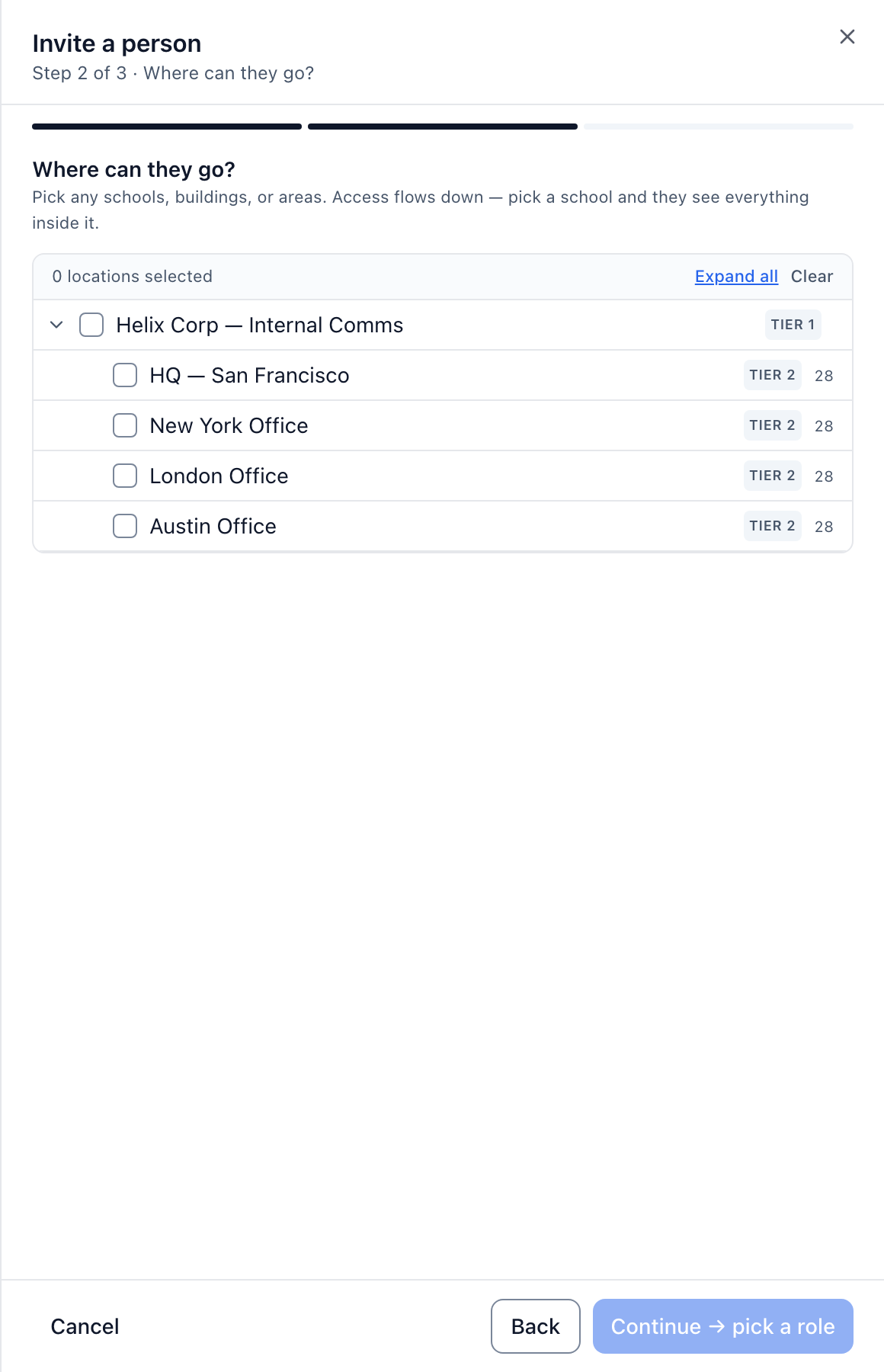
- Roles: every workspace starts with the Owner role. Build your own under Settings > Organization > Roles with New role, or Duplicate an existing one. Permissions include View and Cast to screen on screens, and Create, Edit, Approve, Publish without approval and Share to other locations on playlists. A role's Where this applies is either Everywhere in this workspace or Choose specific places; Brix uses the smaller reach of the invite and the role.
- Delegation: nobody can give a role with permissions they do not hold. The same email can be invited to a second location with a different role.
- Leavers: Deactivate signs the person out everywhere and blocks the next sign-in.
- Approval: set per location. See approve content before it airs and share a template and lock what others can change.
- SSO: access rules read a location claim, such as a store number, at each sign-in, over OpenID Connect (no SAML). SCIM works with Okta and Microsoft Entra ID.
The steps are in set up your organization, people and roles. If you need SAML or a SOC 2 report, Brix is not the right fit.
Planning access for many locations? Book a demo and we will map your store tree with you.