You can run most day-to-day digital signage work from a phone: change what a TV plays, put up a message for an hour, upload a photo from the camera roll, approve content and see which screens are offline. Designing a sign from scratch, drawing layouts and setting up users are still easier on a laptop. You do not need a native app for this: a signage console that works in a phone browser does the same jobs.
What you can do from a phone
These are the jobs store managers and owners actually do away from a desk. Any signage software you pick should handle all of them on a phone screen:
- Change what a TV plays. Pick the screen, pick the content. Two taps, not a menu hunt.
- Put something up for a while. A "today only" offer or a closed-early notice that takes itself down after an hour or at a set time, so nobody has to remember to remove it.
- Upload from the camera roll. Take a photo of the new dish or the display, and put it on the TV from the shop floor.
- Change the words on a sign. Fix a price or a date in a design without opening a desktop editor.
- See what every TV is showing. Which screens are online, which are off, and a recent picture of the real screen.
- Turn a TV off or restart the player. Without going to the back of the TV.
- Approve content. When head office or a colleague sends content for sign-off.
- Get told when a screen goes offline. By email or a chat message, so you find out before a customer does.
What is still easier on a laptop
- Designing a sign from scratch: moving, resizing and animating parts.
- Drawing a split-screen layout.
- Reordering a long playlist.
- Setting up users, roles, single sign-on and billing.
Native app or phone browser?
| Native app | Console in the phone browser | |
|---|---|---|
| Install | From the App Store or Google Play, per phone | None: open the web address and sign in |
| Updates | Each phone must update the app | Always the current version |
| Company phones | IT may have to approve the app | Works on any managed phone with a browser |
| Push notifications | Yes, if the app has them | Alerts come by email or chat instead |
| Home screen icon | Yes | Yes: add a shortcut to the home screen |
For store staff on their own phones, a browser console is usually easier: nothing to install, nothing for IT to approve. A native app matters mainly if you want push notifications on the lock screen.
To add a home screen shortcut: on an iPhone, tap Share, then Add to Home Screen. On Android, open the Chrome menu, then Add to Home screen.
What to check before you choose software for store managers
- Try it on your own phone during the trial, not a demo on a laptop. Change a screen, cast a message and upload a photo.
- Limit each manager to their store. A manager should see and change only their own screens. See digital signage user permissions by location.
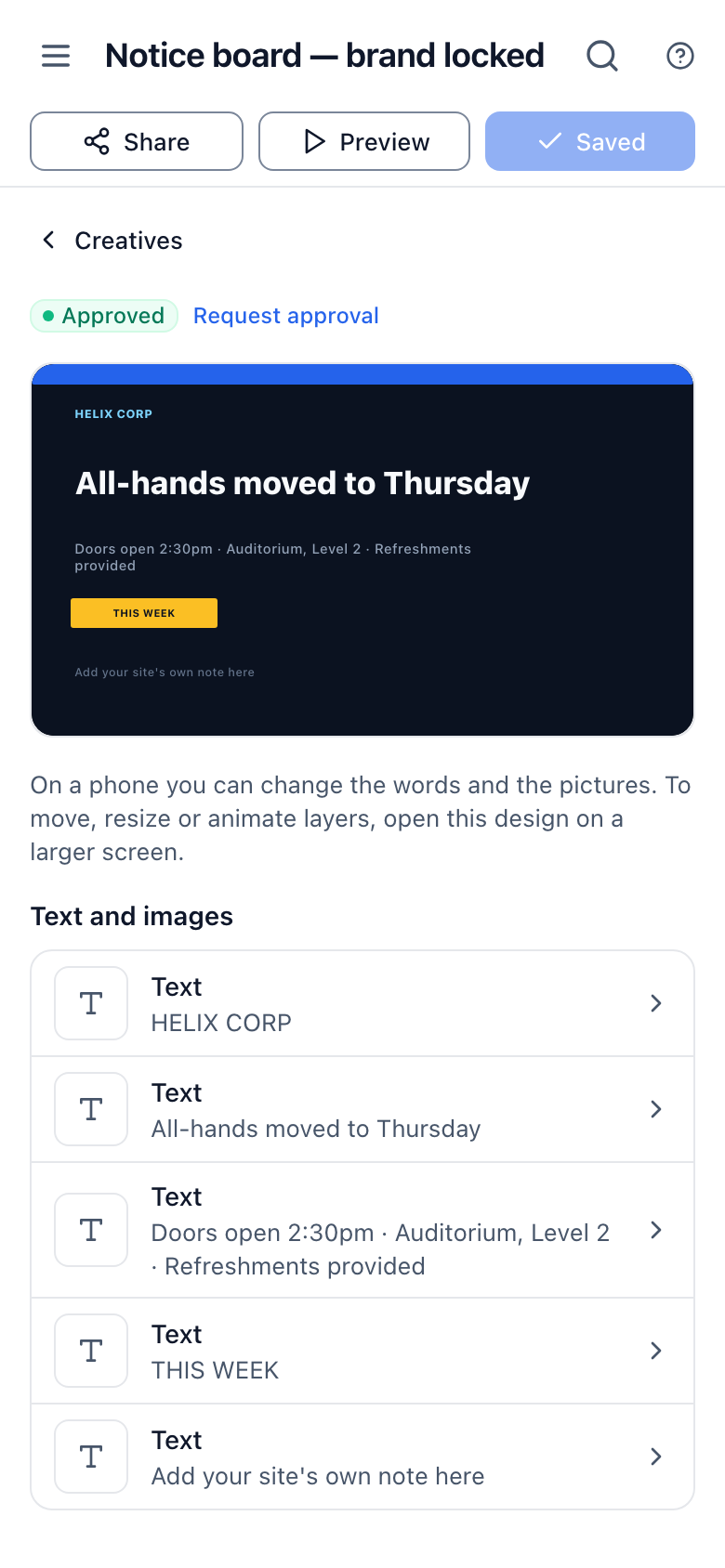
- Lock the brand. Head office designs should let stores change the words and prices but not the logo or colors.
- Check the picture of the screen. Some players can send a real picture of what the TV shows; a browser-based player usually cannot.
- Check TV power control. Turning the TV off from a phone needs a player that controls the TV over HDMI-CEC, and some TVs ignore the command.
Where Brix fits
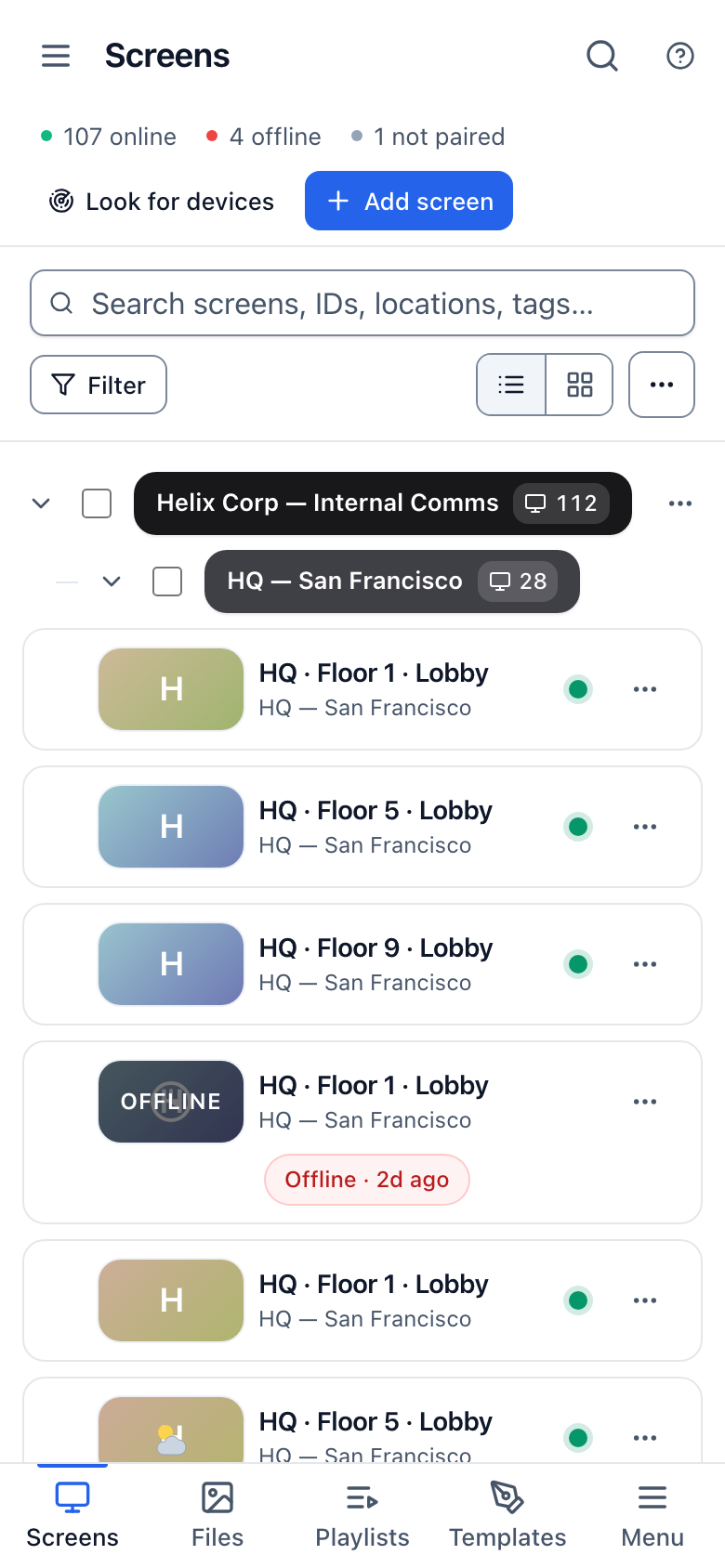
Brix has no native app. The Brix console works in any phone browser at cms.brixsignage.com, with a tab bar at the bottom: Screens, Files, Playlists, Templates and Menu (everything else). Sign in with the same email and password, passkey or single sign-on as on a computer.
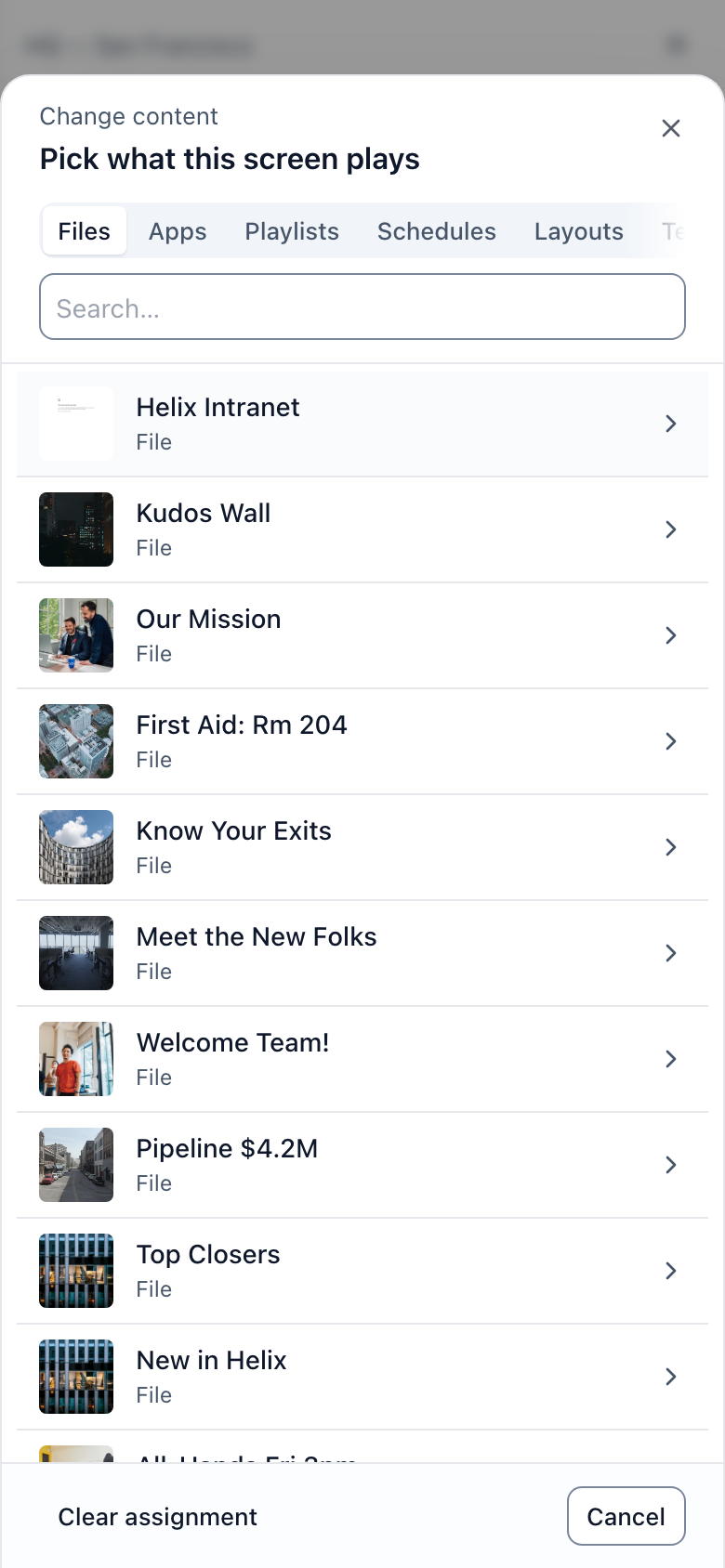
- Change content: tap the screen, tap Change content, pick a file, playlist, schedule, layout, app or template. Tick several screens and the bottom bar does the same for all of them.
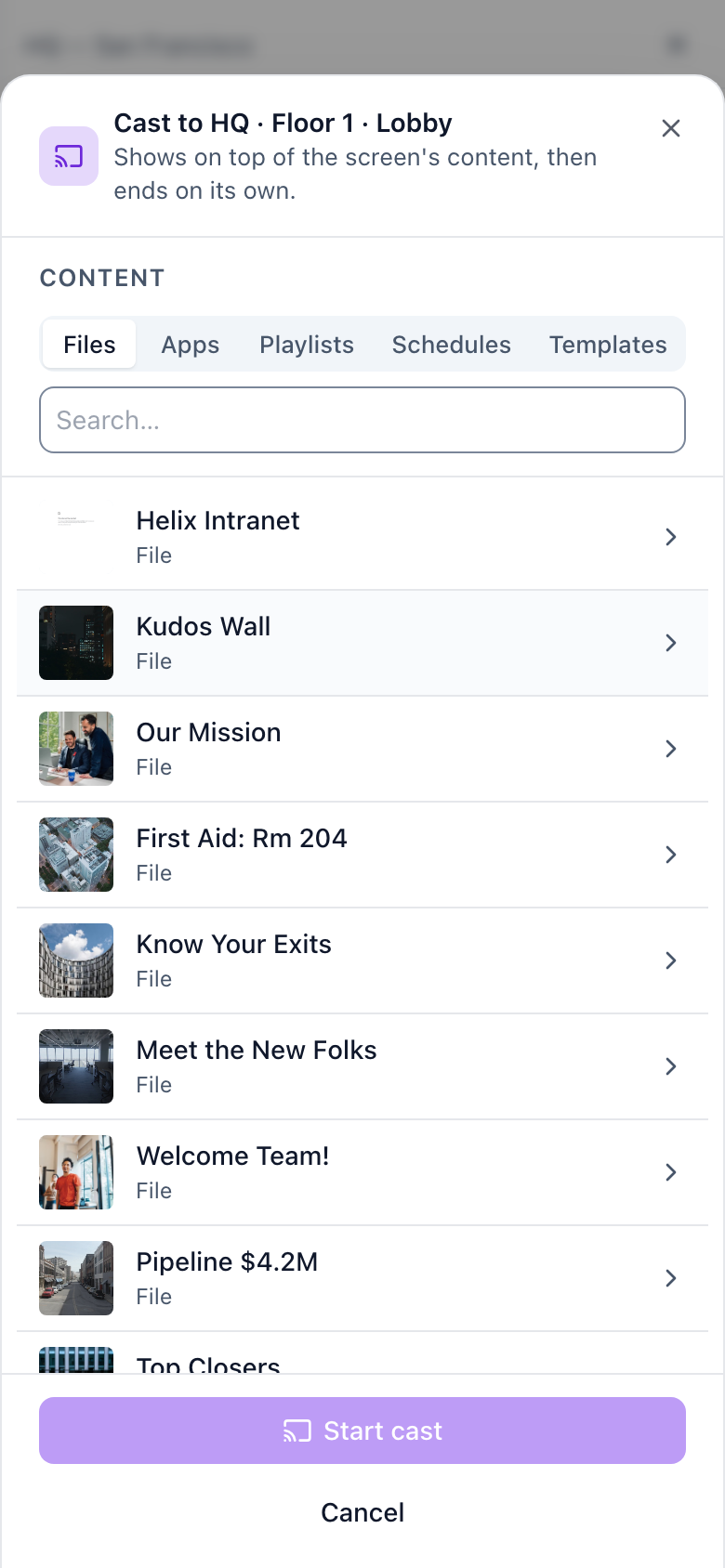
- Cast for a while: tap Cast, pick what to show and how long (15 minutes, 1 hour, rest of today, a set length, until a time, or until you stop it), then Start cast. The screen goes back to its normal content by itself.
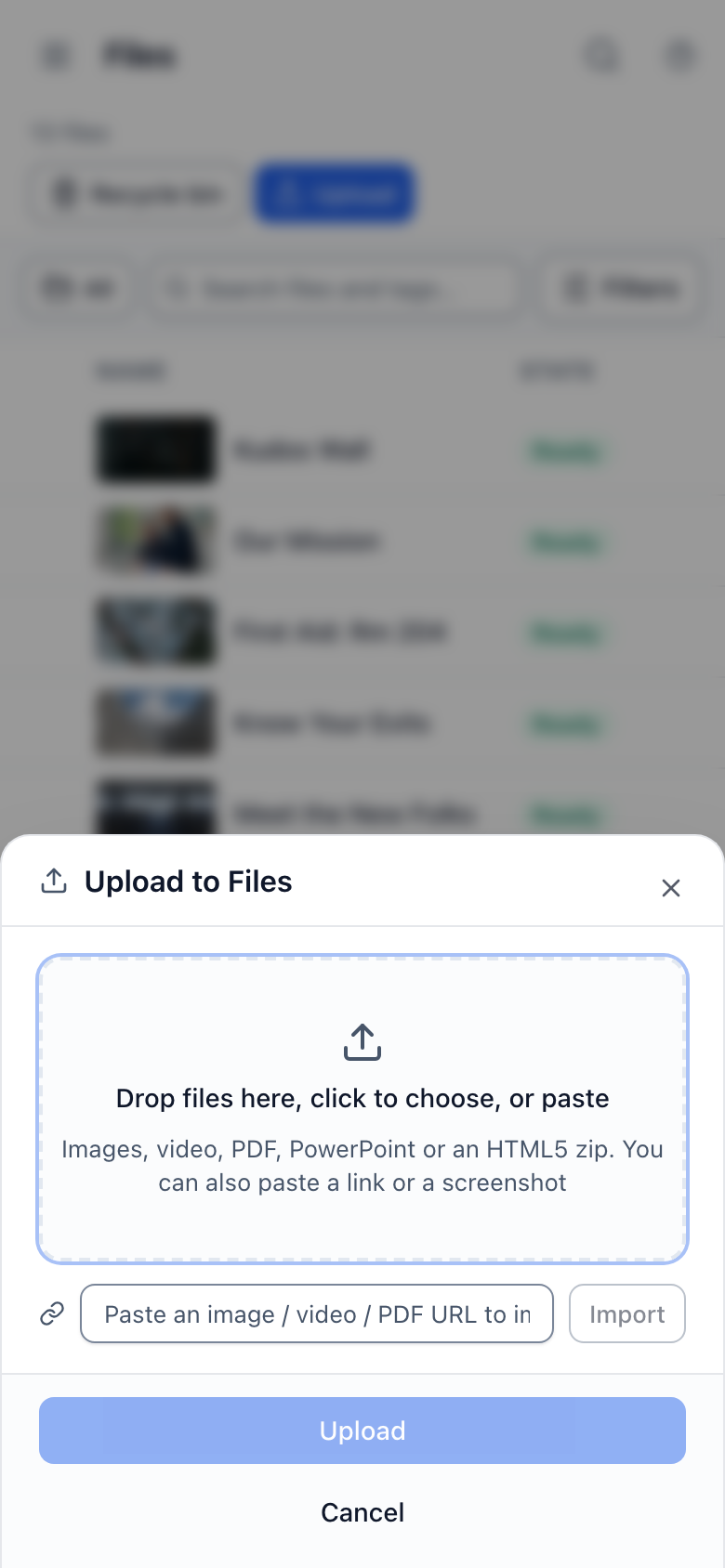
- Upload: Files > Upload > Choose photos or videos. Files also takes PDFs and PowerPoint files.
- Edit a sign: open Templates, tap a design, tap a line of text or an image in the list, change it and tap Save. Every screen that shows the design updates. Parts that head office locked stay locked: see share a locked template.
- TV off at night: on a Signage Stick or Android player, On and off times defaults to "Standard hours", 6:00 am to 11:00 pm, and the stick turns the TV off over HDMI-CEC outside them. Pick Always on for a 24/7 screen.
- Restart the stick: tap the screen, tap the ... button next to Cast, then Reboot. To restart several, tick them and tap Reboot in the bottom bar.
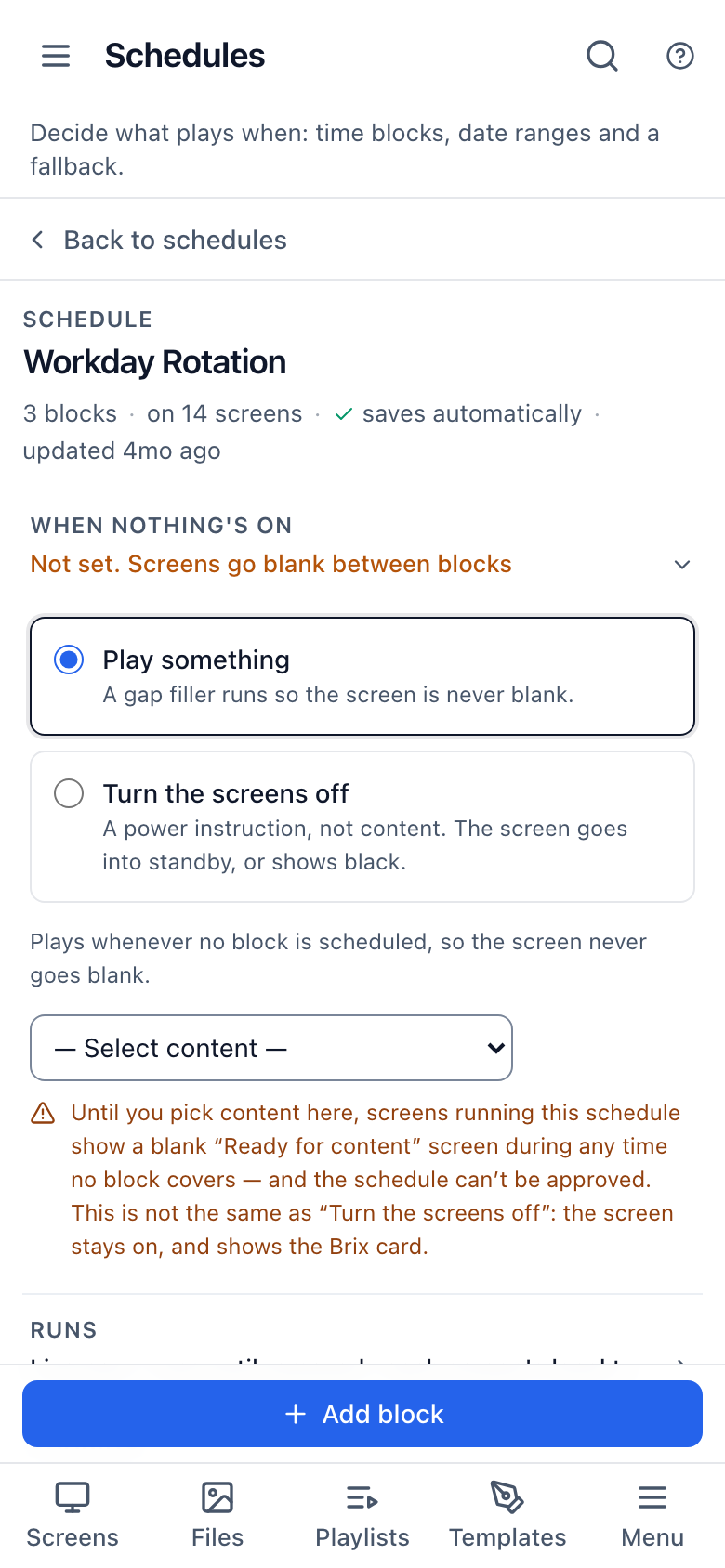
- Schedules and approvals: open Menu, then Schedules to change a block (for example breakfast from 6:00 am to 11:00 am on weekdays), or Approvals to approve or reject content. See content scheduling and approve content before it airs.
- Offline alerts go by email, Microsoft Teams, or a webhook (for example into Slack).
A Signage Stick or Android player sends a recent picture of the real screen. A screen running Brix in a web browser cannot take a picture of itself.
Brix is not the right choice if you need a native app with lock-screen push notifications. For a store manager who should reach only their store, read organization, people and roles. Phone access is included in the per-screen price: $6 per screen per month billed annually, $8 billed monthly. Start the free trial and try it on your own phone.