A locked digital signage template is a design that head office shares with stores, where each layer says what local teams may change. The usual split: the logo, brand colors, fonts, layout and legal lines are locked, and the headline, price, dates and photo are open. Stores get their local message on screen in minutes, and the brand cannot drift. It fails in two ways: lock too much and stores stop using the template, lock too little and the brand control is gone.
In Brix, open the design, select Share, set What they can change to Text for the whole design, then set the logo layer to Nothing under Layer exceptions. Select Done, then Save the design. The server refuses any other change, on a computer or a phone.
Share a template and choose what people can change
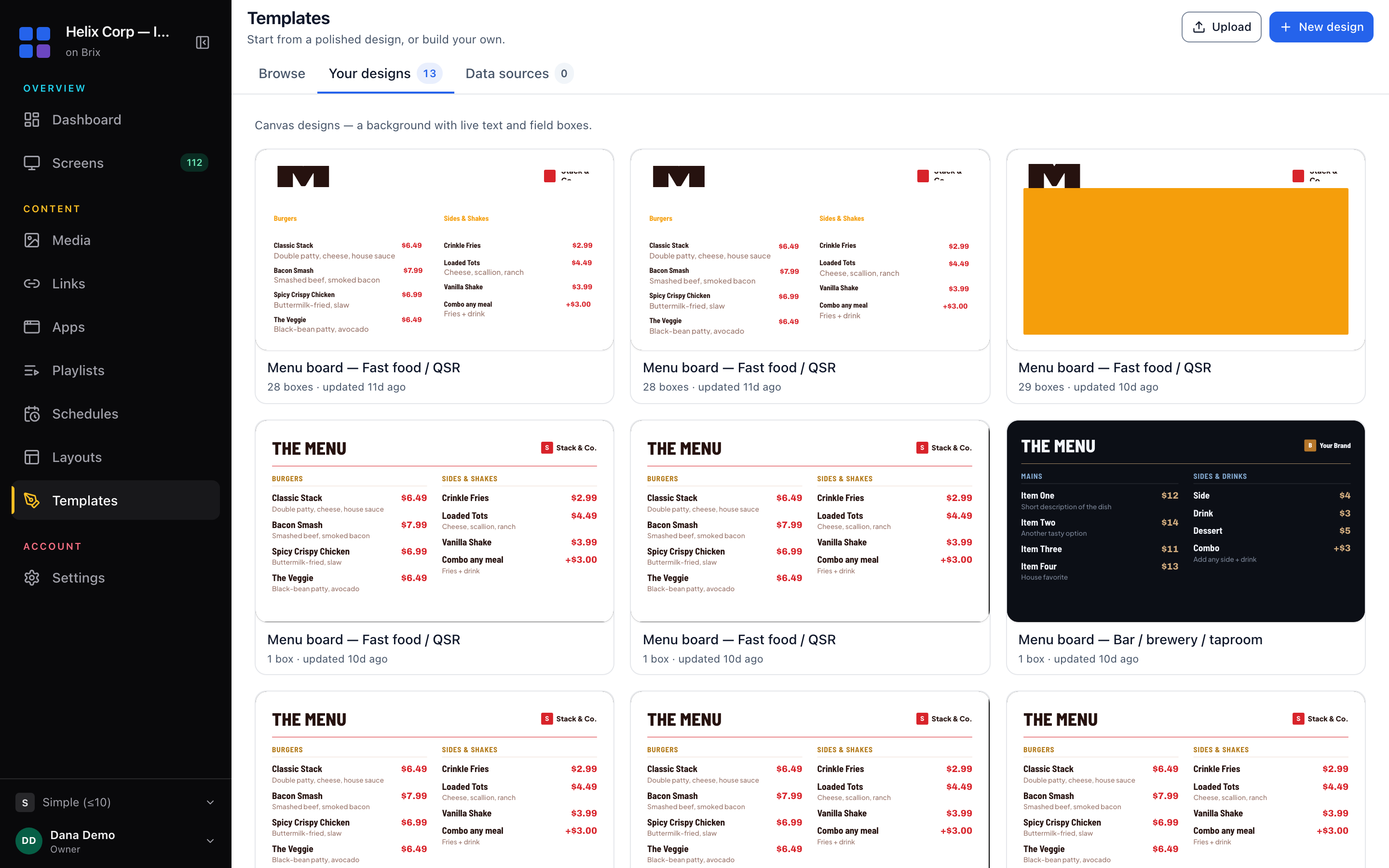
- Go to Content > Templates > Your designs and open the design.
- Select Share on the top row of the editor.
- Under Who gets it, choose Only me, Everyone in this workspace, or Specific locations, roles or people and tick each one.
- Under What they can change, pick Nothing or Everything, or any mix of Text, Formatting and Position.
- To give one layer its own rule, open Layer exceptions, find the layer and pick its icons. The round arrow at the end of a row puts it back to the design setting.
- Select Done, then Save in the editor.
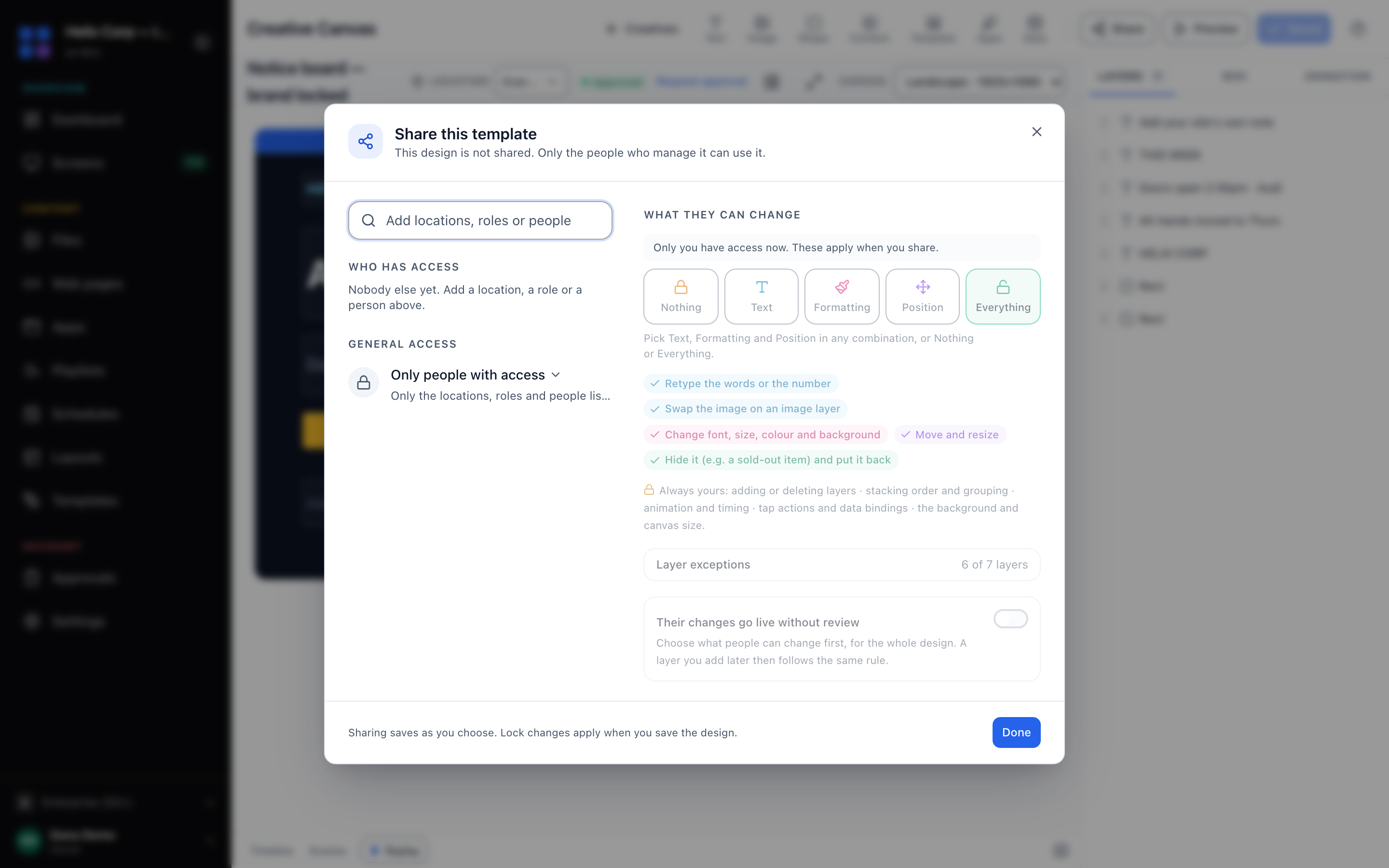
Sharing saves the moment you choose. A lock change applies only when you save the design, so do not skip the last step. Sharing needs the Share to other locations permission on Creatives: read organization, people and roles.
What each lock allows
- Nothing: no change on the layer.
- Text: retype the words or the number, or swap the image on an image layer.
- Formatting: change font, size, color and background.
- Position: move and resize the layer.
- Everything: any change, including hiding the layer. Use it only where a store may need to hide something, such as a sold-out item.
Some parts are never open, whatever you choose. The dialog lists them on the Always yours line: adding or deleting layers, stacking order and grouping, animation and timing, tap actions and data bindings, and the background and canvas size.
A setup that works for most brands
- Put the logo, the brand name and each fixed color block on its own layer, so you can lock them one by one.
- Set the whole design to Text, then set the logo and any legal or allergen line to Nothing.
- Leave Formatting and Position locked unless stores have a real reason to change them. Most requests are for a new headline, a price or a photo.
- Name the open layers clearly ("Headline", "Price", "Photo"), so you find them fast under Layer exceptions.
When you change the template later
The design stays yours and stays one design. Your edits reach every location that holds it. A store's allowed edits, such as its own headline, sit on top of your design. If you lock a field later, Brix stops applying the store's edit to it, and the edit comes back if you unlock the field. Deleting a layer drops the store edits to it. When a store sets a value back to yours, Brix drops that edit.
Review local changes before they go live
Locks decide what people can change. Approval decides whether someone reads the change first. If a location needs approval, a store's changes to your template wait for it: read digital signage content approval. If you can approve content yourself, the dialog also shows Their changes go live without review. Brix lets you turn it on only when every layer locks something.
Edit a template shared with you
- Open the design from Content > Templates > Your designs.
- Read the label beside the name: it counts the layers you can edit.
- Select a layer and change the controls the right panel offers. A fully locked layer says so.
- Untick Show this layer to take a sold-out item off your screens, if the owner allowed it.
- Select Save.
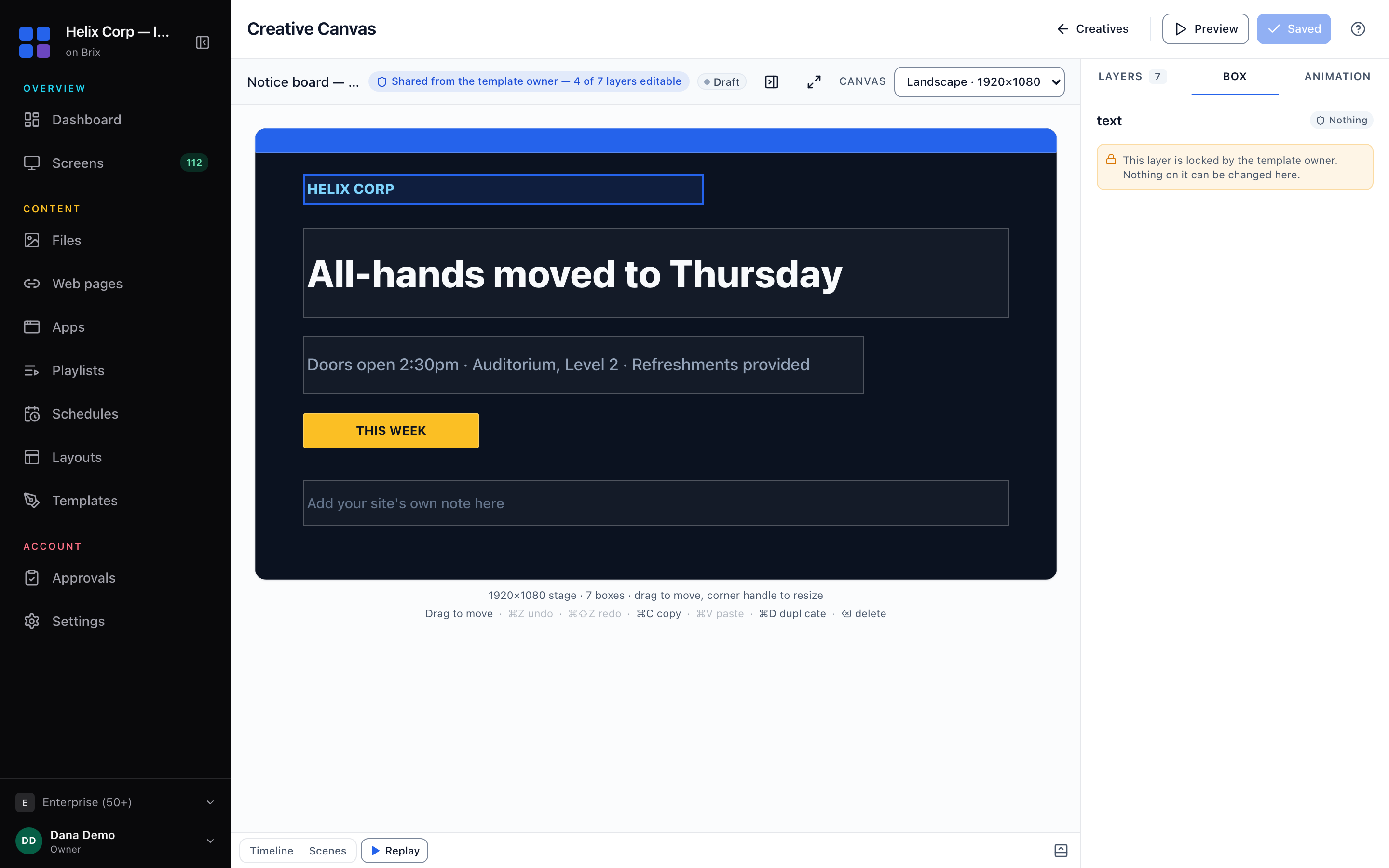
Your edits stay in your workspace and the owner's design does not change. The add tools and Share do not appear on a design shared with you, so nobody can add a layer to someone else's design. Brix names the owner only as "the template owner".
What locks do not do
Locks protect one design. They do not stop someone building a different design from scratch, so give Create on Creatives only to the roles that should design. They also do not cover a photo or video a store uploads and plays on its own: use approval for that. To share a playlist or airtime instead, read share content between teams. To build the design first, read design a sign.