To run an Amazon Signage Stick in portrait, mount the TV on its side and set portrait in your signage software (CMS), not on the stick. The stick's own settings have no rotation option. Amazon's documentation says so, and lists the CMSs that support portrait. Pick the rotation that matches which way the TV was turned, then play a video to check it.
Why the setting lives in the CMS
The stick always sends a landscape signal, and a TV has no sensor to know it is on its side. So the rotation is done by the signage app. A CMS that uses Amazon's Remote Management API can tell the stick to rotate its whole display, so pictures, text and video all turn. That is why the orientation choice appears in your CMS dashboard and not in the stick's menus.
Most CMSs on the stick offer four choices, named in different ways:
| What is on the wall | Rotation | Common names |
|---|---|---|
| A normal horizontal TV | 0° | Landscape |
| A TV turned 90° clockwise | 90° | Portrait, Rotate 90° |
| A horizontal TV mounted upside down, for example on a ceiling bracket | 180° | Landscape flipped, Upside down |
| A TV turned 90° counter-clockwise | 270° | Portrait flipped, Reverse portrait |
If the picture ends up upside down, do not remount the TV. Select the opposite portrait option (90° or 270°) in the CMS.
Steps
- Decide which way the TV turns before you mount it. Note which edge ends up on top. Some TVs put the power and HDMI ports on one side, so the cable direction decides it.
- Mount the TV and plug the stick in with its power adapter in a wall outlet.
- Set up the stick and pair it with your CMS.
- In the CMS, set the screen to portrait (90° or 270°).
- Assign content made for a tall screen: 1080 × 1920 pixels for an HD TV, 2160 × 3840 for 4K.
- Play a video. On Fire OS, a video can play sideways if the app rotates only its page and not the display. If the video is wrong while pictures are right, ask your CMS vendor.
Content made for portrait
Landscape content on a portrait screen plays small, with empty bands above and below, or cropped. Make portrait versions of your menus and posters. Keep text large: a tall screen is often read from close up, but it is narrow. Menu boards, posters, staff notices and social feeds suit portrait. Video shot in landscape does not.
Where Brix fits
In Brix, open Screens, select the screen and choose a tile in Orientation at the top of its panel: Landscape, Portrait, and a flipped version of each. The stick needs no visit and nobody touches the TV.
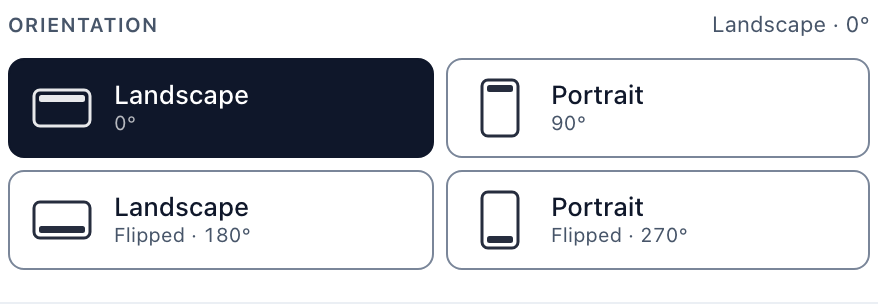
- On the Signage Stick, Brix asks Amazon's device agent to rotate the whole display, so video plays upright in portrait along with pictures and text.
- If the screen's content is the wrong shape, a warning under the picker names it, for example "Cafe Menu is landscape, but this screen is portrait. It plays with bars and empty space." It links to templates in the right shape. See design a sign.
- Orientation belongs to the screen, not the stick. A spare stick swapped in with Replace device keeps it.
- Portrait costs nothing extra. See pricing.
For a video wall of several portrait screens playing one picture across them, a stick per screen is the wrong tool. Use players built for walls.
FAQ
Does the TV need to support portrait mode?
No. The TV shows what the stick sends. The rotation happens before the picture leaves the stick.
Can two screens on one account use different orientations?
Yes, in any CMS that sets orientation per screen, Brix included.
Start your 7-day free trial and set a stick to portrait from the dashboard.