Sign in to Brix Signage at cms.brixsignage.com/login with your work email and password, Continue with Google, Microsoft, a passkey or your company single sign-on. If you forgot your password, type your email and select Forgot password?: Brix emails a reset link that works for 7 days. There is nothing to install: the CMS runs in any current browser, on a computer or a phone.
Sign in
- Open cms.brixsignage.com/login.
- Type your work email into Email.
- Type your password into Password and select Sign in.
- If Brix asks for a code, type the 6-digit code from your authenticator app into 6-digit code and select Verify. No phone? Type one of your recovery codes into the same field.
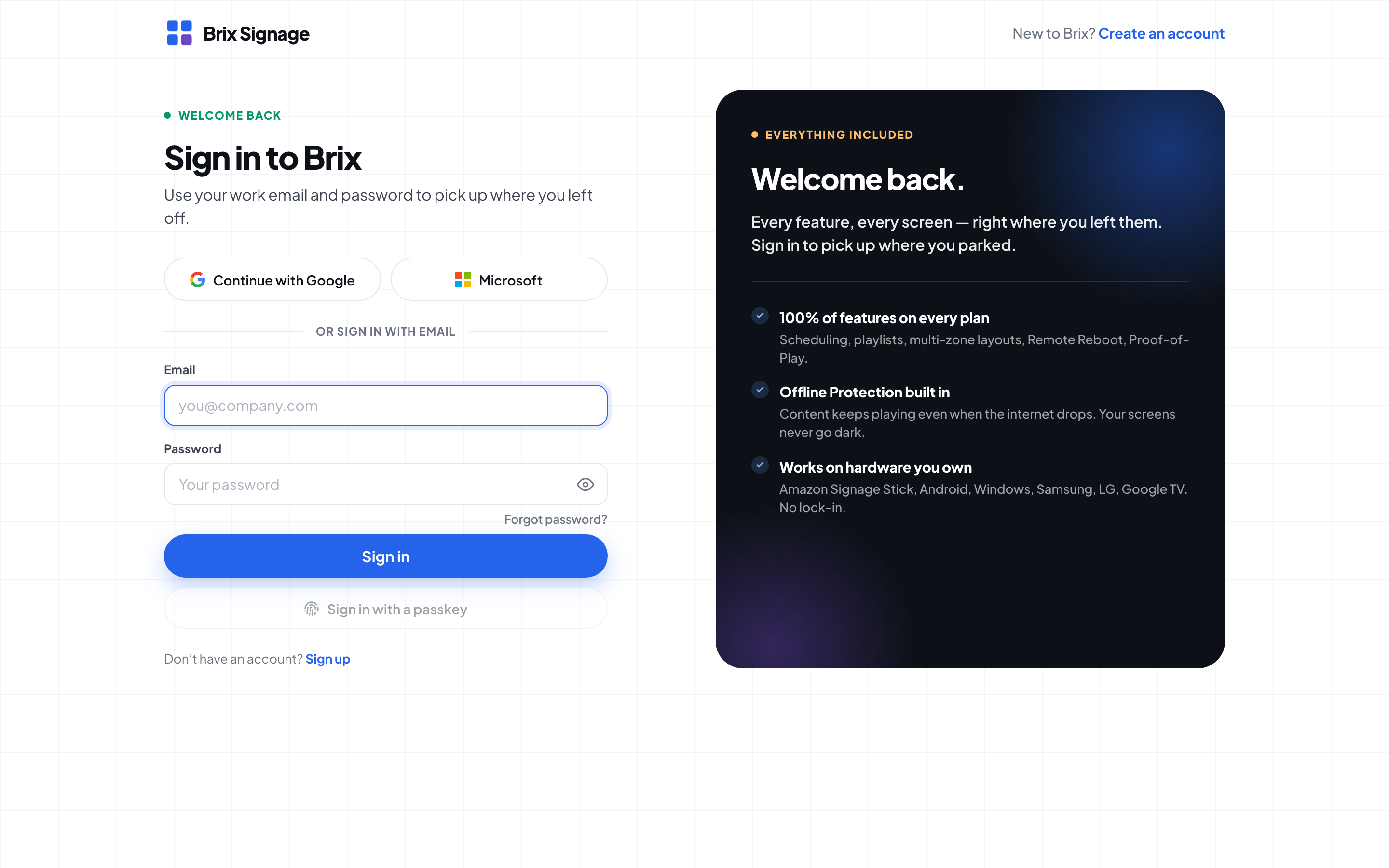
- Google or Microsoft: select Continue with Google or Microsoft and finish at the provider.
- Passkey: type your email, select Sign in with a passkey and approve the prompt on your device.
- Single sign-on: type your work email. When your domain uses single sign-on, the password field disappears and a Continue with button names your provider. Select it and finish at your provider. Sign in with password instead brings the password field back when your identity provider is down, unless your workspace requires single sign-on.
- One login can own more than one workspace. Every one shows in the account switcher.
- If your workspace requires two-factor and you have not set it up, Brix shows a QR code during sign-in. Scan it with an authenticator app, type the code, then save the recovery codes it shows.
Reset a forgotten Brix password
- On the sign-in page, type your email and select Forgot password?.
- Open the reset link in your email. It works once and for 7 days, and a new request cancels the old link.
- Check the Setting a new password for line shows your address.
- Type a new password of at least 12 characters into New password and Confirm password.
- Select Set new password, then Sign in.
A new password signs you out of every session on every device, in every workspace this login owns. Brix shows the same message whether or not an account exists. To change your password while you are signed in, open Settings > Security and select Reset password on the Password row: Brix emails you the same link.
Why you cannot sign in
The message under the form says what went wrong:
- That account is not active here. Ask a workspace admin to invite you or reactivate you. An admin deactivated you, or never invited this address. Ask them to reactivate or invite you in Settings > Organization > People.
- This workspace requires single sign-on. Use the single sign-on button for your workspace. Your workspace turned on Require single sign-on, so Google, Microsoft and password sign-in are refused. Type your work email and use the Continue with button.
- Your organization has not given you access to Brix. Contact your workspace admin. Single sign-on worked, but no access rule gives you a role. Your admin fixes it in the connection's access rules.
- That identity provider is not linked to your email domain. You signed in at a provider that does not own your email domain. Use your work account.
- That sign-in link expired or was already used. Try again. Start the sign-in again from the sign-in page.
- Lost your phone? Type a recovery code into 6-digit code. Each works once.
Sign back in when your session expires
A Your session expired dialog opens over the page, so unsaved editor work survives. Type your password (and your code if asked), select Sign in, and carry on. The dialog offers Sign in with a passkey too. Escape, the close button, Sign in on the login page instead and single sign-on all leave the page and lose unsaved work.
Confirm your email address
Open the link Brix emails you. It works for seven days, and opening a used link is safe. To get a new link, go to Settings > Your profile, find Your email and select Send confirmation email when it reads Not confirmed. You cannot invite people until your address is confirmed.
Set how dates and times look to you
Your choices change only what you see. Workspace defaults still apply to new members and screens.
- Open Settings > Your profile.
- Under Your preferences, pick 12-hour or 24-hour, the day the week starts, a date format and °F or °C.
- To go back to the workspace value, select Reset to workspace default under a row you changed.
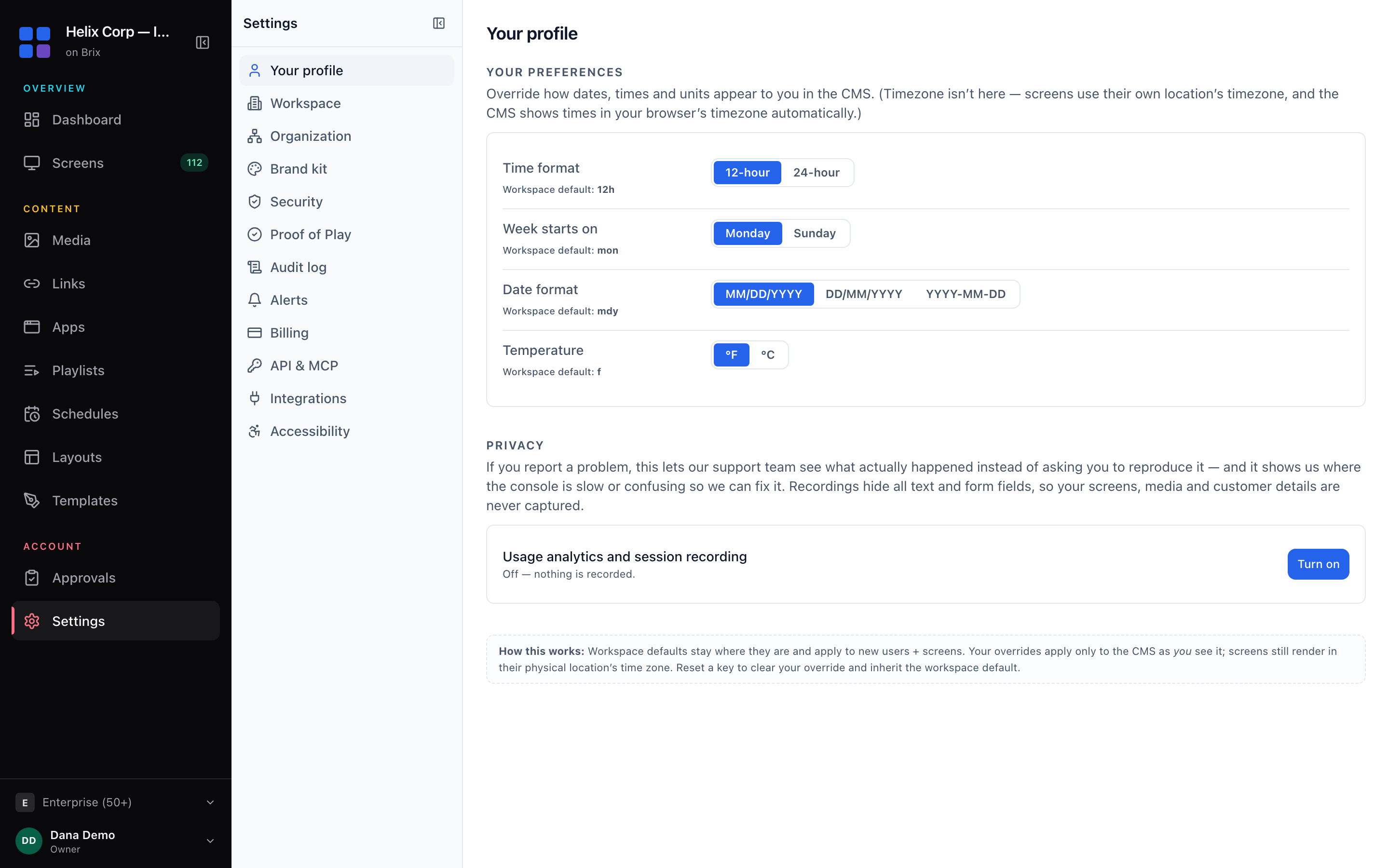
Every choice saves on its own. Time zone is not on this page: the CMS uses your browser's zone and screens use their location's zone.
Accessibility switches
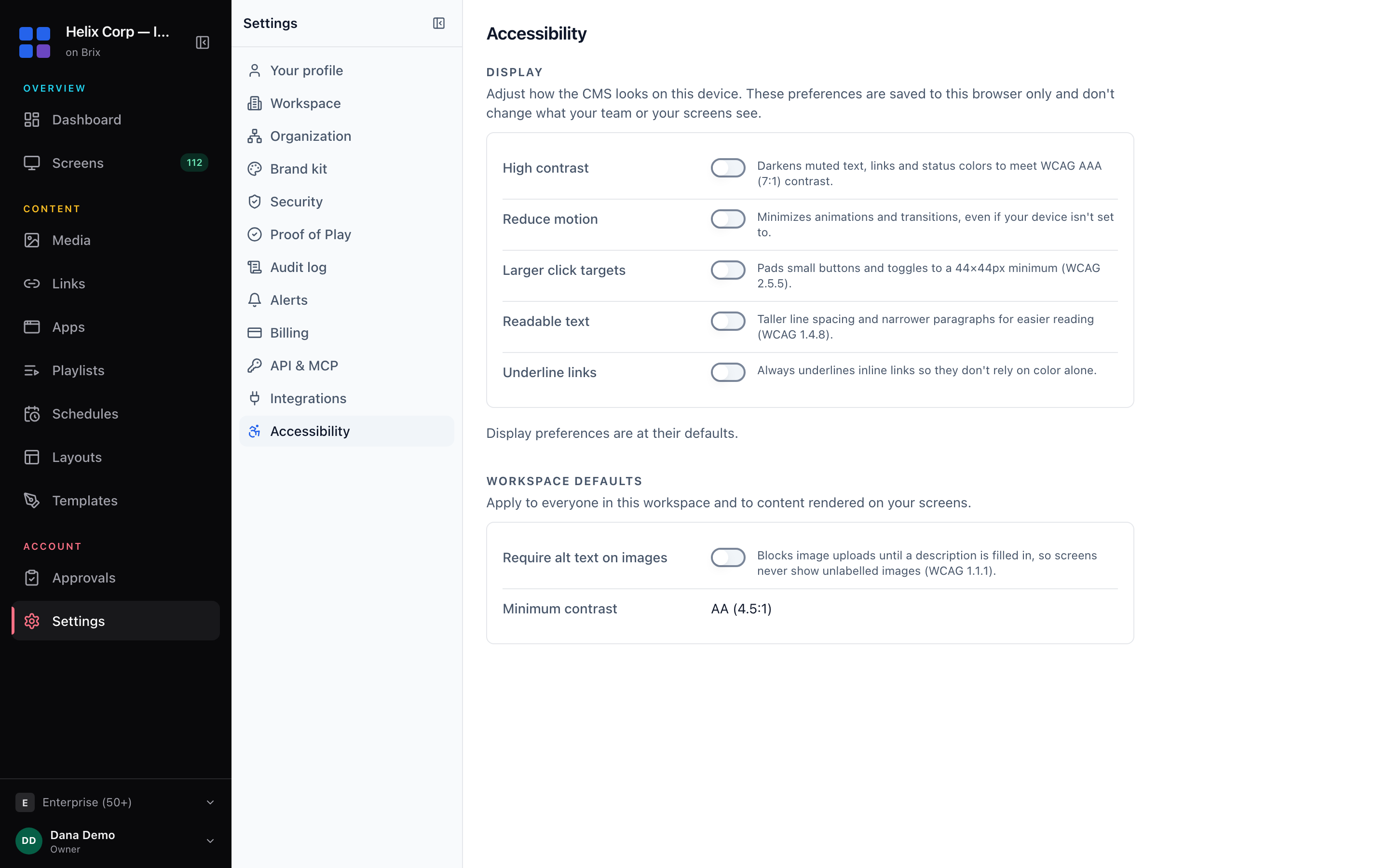
Settings > Accessibility has switches for High contrast, Reduce motion, Larger click targets, Readable text and Underline links. They apply in this browser only. Reset appearance undoes them. The Workspace defaults card below has Require alt text on images, which blocks an image upload in Media until someone types a description.
To add a passkey, turn on two-factor or set up single sign-on for your team, read set up 2FA and single sign-on.