An emergency takeover replaces whatever your screens are playing with one message, such as an evacuation, a lockdown or a severe weather warning, on every screen or on the screens you pick, in one action. Prepare the wording as a template before you need it, so that in the moment you only choose the template and the screens. The message stays until you clear it or a set time ends, then the screens go back to their normal content.
In Brix, the takeover lives on the Emergency tab of Settings > Alerts, next to the alerts Brix opens when a screen has a problem. You can trigger it from a computer or a phone.
Turn on emergency takeover and prepare the message
Brix support turns emergency takeover on for your workspace. On the Rules tab, find the Emergency takeover card, select Message us, type your message and select Send message. Once it is on, the Alerts page gains an Emergency tab and the Settings rail gains Emergency templates.
Write the wording once, before you need it:
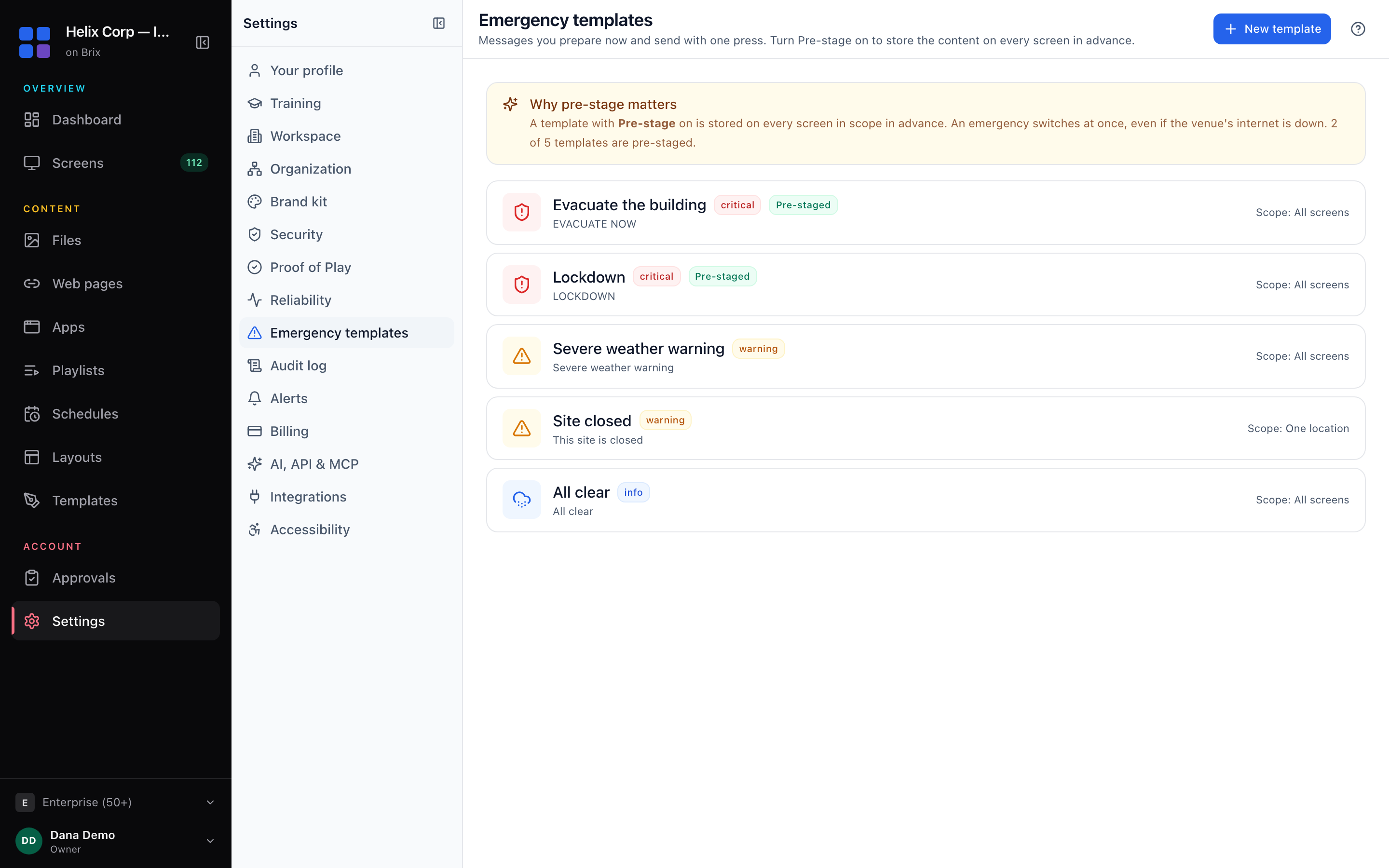
- Select Emergency templates, then New template.
- Type a name, pick Critical, Warning or Info under Severity, and type the On-screen headline and Detail / instructions.
- Under Scope, pick All screens in this workspace, One org-tree node (then pick the place) or Specific screens (chosen when you trigger).
- Optionally select Choose content... for a media file, app or playlist. Turn on Pre-stage to cache it on every screen in scope, so the takeover switches at once even with no internet. Pre-stage with no content caches nothing.
- Select Create (or Save).
Trigger and clear an emergency message
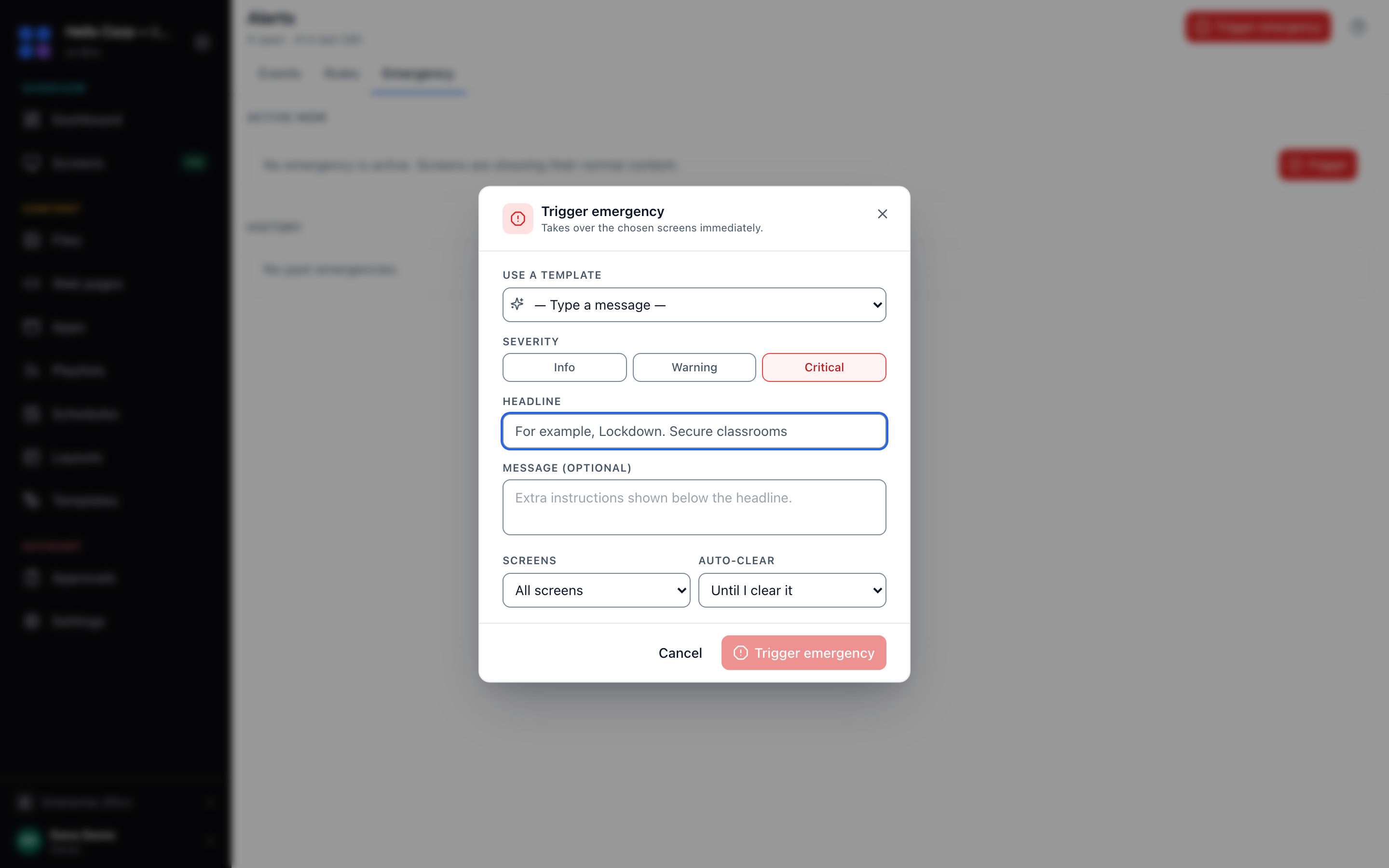
- Open the Emergency tab and select Trigger emergency.
- Pick a template under Use a template, or keep — Type a message — and type a Headline and an optional Message. A picked template locks those fields.
- Pick the Severity. Under Screens, pick All screens, Specific screens (then tick them) or one place.
- Pick Auto-clear: Until I clear it, 30 minutes, 1 hour or 4 hours.
- Select Trigger emergency.
- To end it, find the takeover under Active now and select Clear. Screens go back to normal and the takeover moves to History.
The takeover starts at once and asks nobody for approval, so check the wording and screens first. If the trigger fails, Brix says your screens do not show the message: send it again. To delete a template, select it, then Delete and Delete template.
You can trigger a takeover from a phone: read change what's on your store TVs from your phone.
Connect a CAP or webhook alert system
Brix connects to CAP and webhook alert systems such as Singlewire, Rave and Alertus, so an alert raised there takes over your screens. Our team configures the connection with you. Talk to us.
Read alerts about offline or blank screens
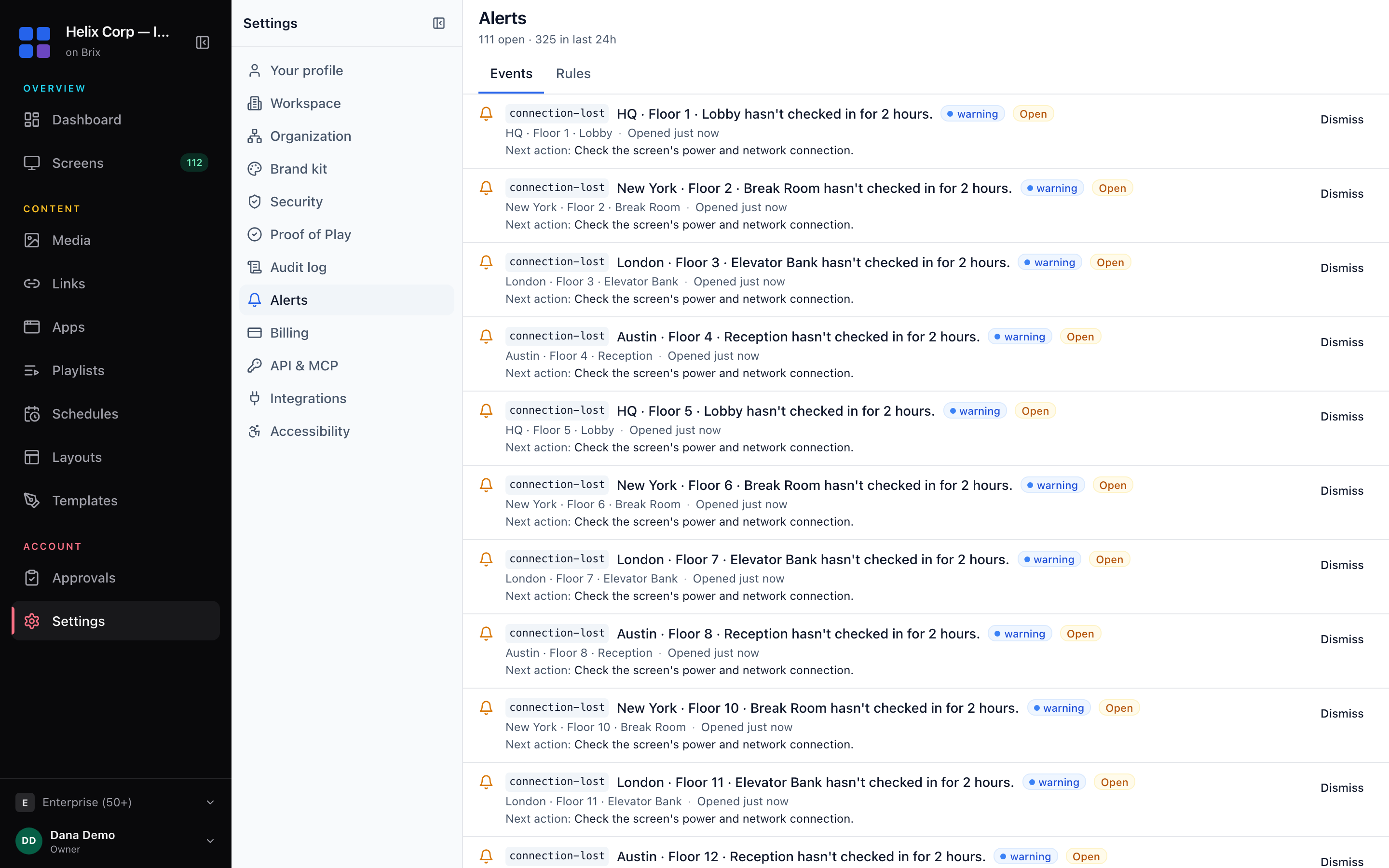
- Select Alerts in the Settings rail and stay on the Events tab.
- Read each row: the code, message, severity and screen. The Next action line gives the fix, and the screen name opens that screen.
- Select Dismiss on an open row once you dealt with it. It appears only on open events, and only for a member who can edit screens.
Brix closes an event five minutes after the condition clears. A rule that stays open sends a reminder once a day. For the fix behind a code, read troubleshoot a screen.
Get emailed when a screen goes offline or blank
Built-in alerts show in the CMS only. A rule adds email, a webhook or a Microsoft Teams message. The one exception: if an emergency takeover fails to reach a screen, the workspace owners get an email.
- Open the Rules tab. To start fast, select Frozen or blank screen and Playback failing in the Recommended alerts card. Each arms a rule that emails the workspace owners.
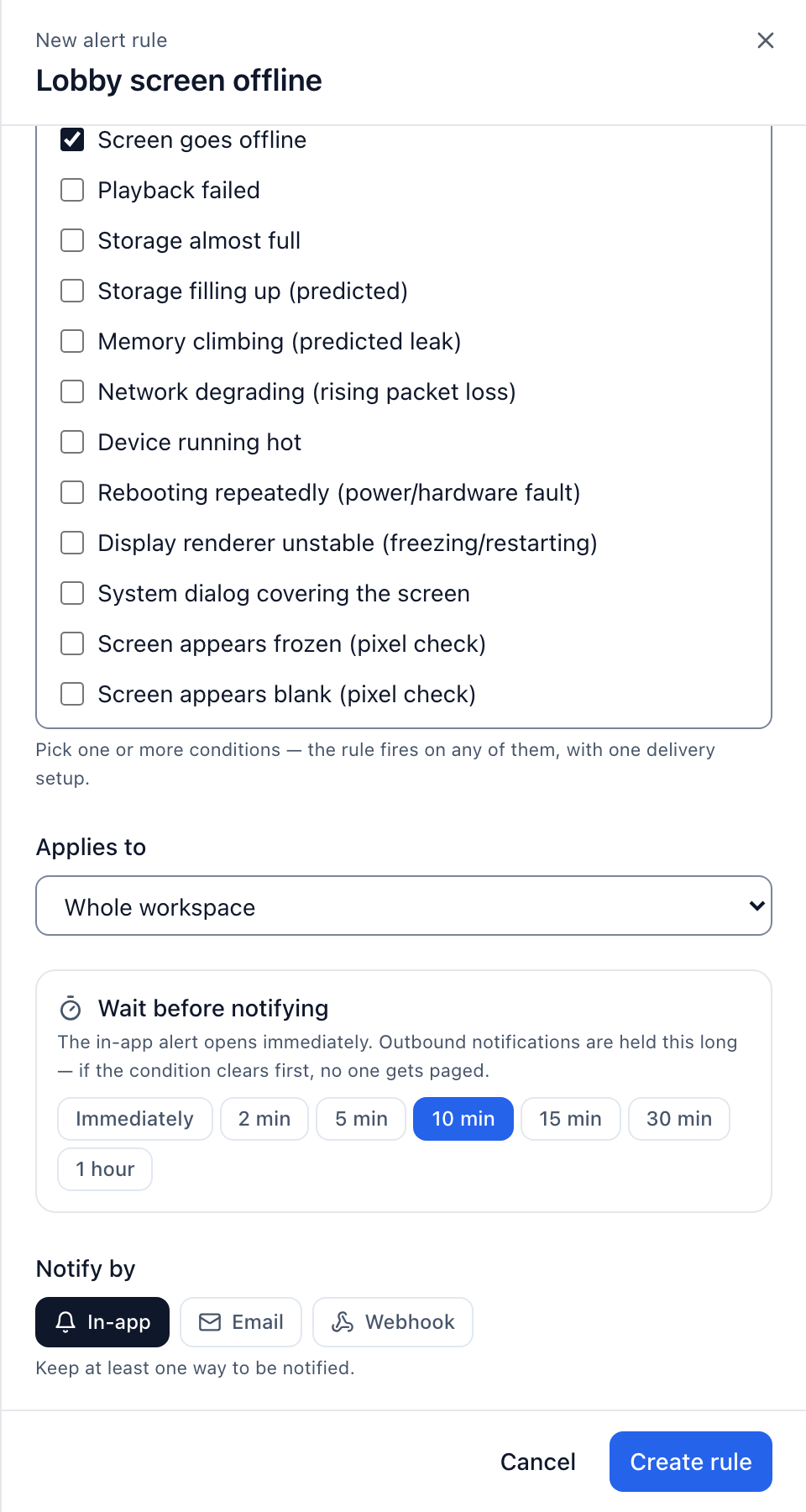
- For your own rule, select New rule and type a Rule name.
- Tick one or more conditions under Trigger when.
- Choose Applies to, then the target it asks for. Anything smaller than the whole workspace needs a target, and changing Applies to clears it.
- Pick a hold time under Wait before notifying. It holds the email and webhook only. If the condition clears inside the hold, nobody is notified.
- Under Notify by, select Email, Webhook or Microsoft Teams. Type email addresses (comma-separated) or an https address in Recipients. + Site manager notifies whoever manages the screen that fired, and + Workspace owners notifies every owner.
- Optionally turn on Capture evidence when it fires for a fresh screenshot in that screen's Activity.
- Select Create rule, or Save rule when editing.
To pause a rule, use the switch in the On column. It keeps its conditions and recipients. A trigger marked (not live) saves but never fires.