A digital signage screen that is blank, offline or stuck on old content almost always has one of six causes: the TV is off or on the wrong input, the HDMI cable or port has failed, the media player has lost power, the player has lost the network, nothing is scheduled to play, or the player's storage is full so new content cannot download. Work from the TV back: check TV power and input with the TV remote, reseat the HDMI cable, unplug the player for 10 seconds, then check the network. A player that has lost the network usually keeps playing what it saved, so "offline" and "blank" are often two different problems.
Your signage software tells you which one you have. In Brix, go to Screens, select the screen and read the Connection row: Live, Slow updates or Offline. Then find your symptom below. A screen that never paired needs connect a screen instead.
Digital signage screen offline
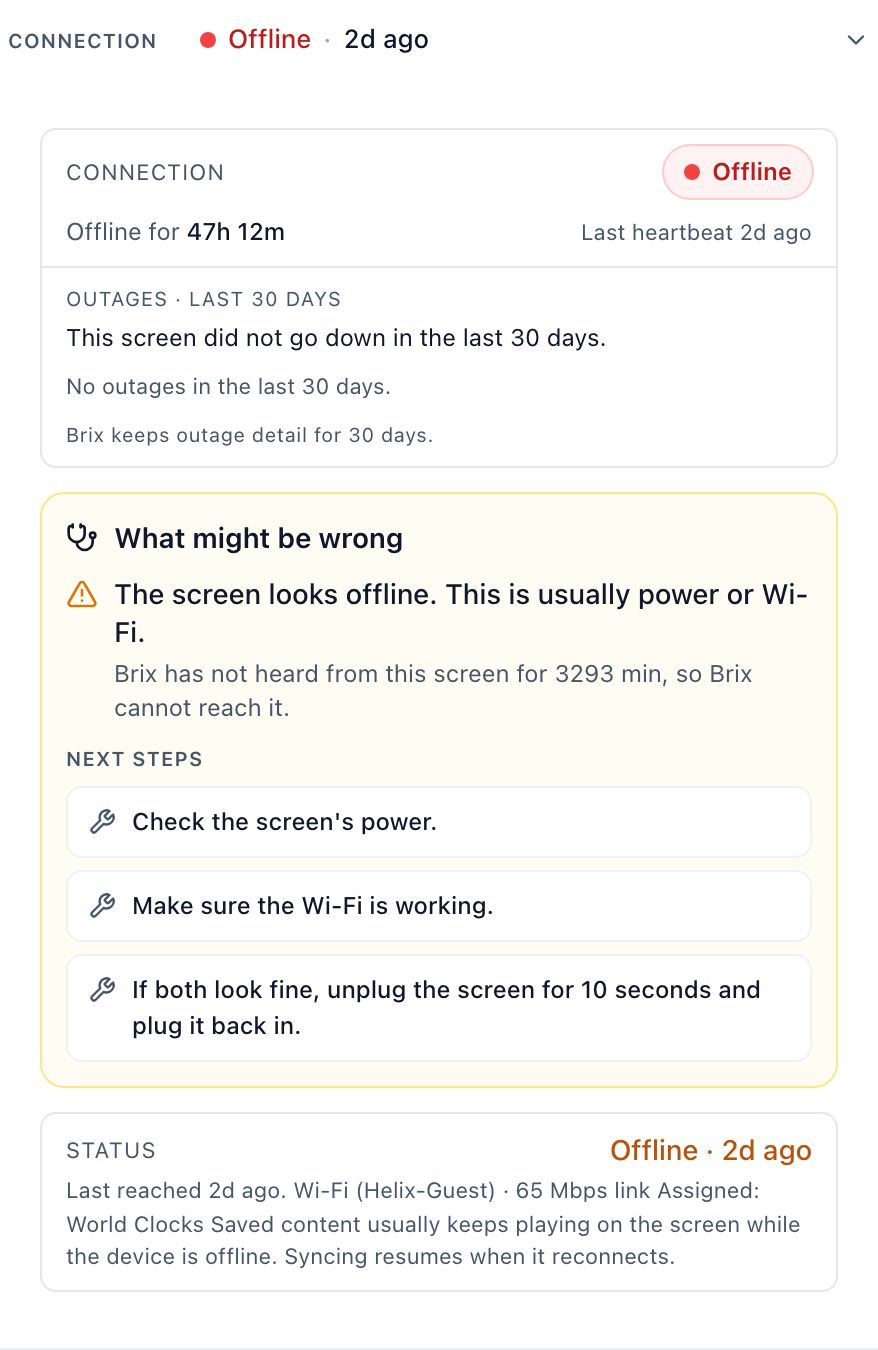
Cause: Brix heard nothing from the screen for ten minutes or more. The picture on the glass probably stays as it was; the screen only gets nothing new.
Fix:
- Expand Connection and read the Last heartbeat line.
- Select What might be wrong? and work down the Check, in order list at the TV, starting with TV power and the input source. The list is a guided guess: Brix cannot see the TV, the cable or the input.
- Check the network the screen uses in the Wi-Fi or Ethernet block of the Player row.
- If the TV keeps switching off, read Amazon Signage Stick keeps turning off and check the screen's on and off times in screen hours and display power.
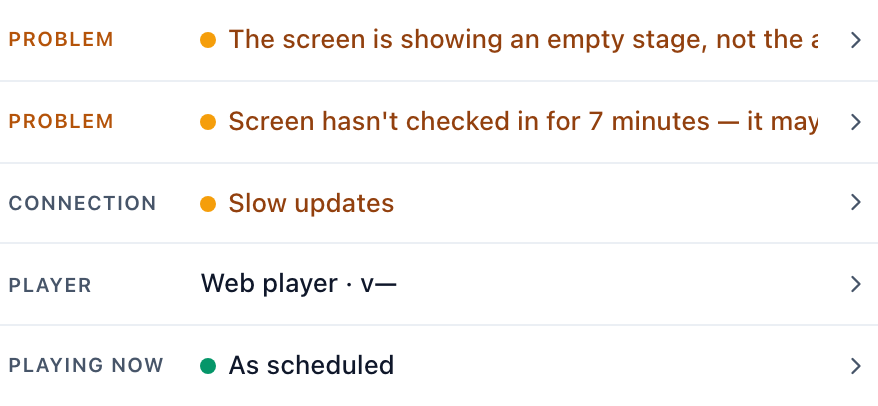
Slow updates is milder: the live connection is closed, but the screen still checks in every 5 minutes and saved content keeps playing. A change can take a few minutes to arrive. It usually fixes itself; if it does not, the venue internet is slow or unstable.
A player that loses the network keeps playing the content it saved. For how long and what it needs, read Amazon Signage Stick offline playback.
Digital signage screen blank or black
Cause: Usually power, the HDMI input or the display. Possibly frozen and May be blank come from picture sampling, so treat each as a hint.
Fix:
- Run the What might be wrong? list above.
- A Signage Stick stuck on the Amazon logo, or a black screen: Amazon Signage Stick stuck on logo or black screen.
- Still stuck: factory reset an Amazon Signage Stick, then pair it again.
- A screen showing the Ready for content splash has nothing assigned: read put content on a screen.
Screen shows old content or does not update
Cause: The screen plays something other than what you expect, or it has not downloaded the new content.
Fix:
- Expand Playing now and read the Decision chain from the top. The highlighted step is one of: deactivated, emergency, cast or scheduled.
- Expand the Player row and find Content storage. Scan Cached assets for an item marked Missing.
- Select Download again to make the screen fetch everything again. Clear cache removes every local copy first, and the screen can show its splash while it downloads.
- Under Updates, select Update now if the row shows a pending Player app version. The button appears only for a pending player app update.
A Storage row in the Connection detail reading Critical (less than 5% or 250 MB free) means the player has stopped downloading new content. Low (less than 20% or 1 GB free) means it has paused downloading emergency content. Clear the cache, remove content, or replace the device.
Picture sideways or upside down
Cause: The screen's rotation does not match how the TV is mounted.
Fix: Follow Amazon Signage Stick portrait mode, even upside down. It sets portrait, and portrait flipped, from one screen in the CMS.
See what the screen shows from the office
- Live: open the screen panel, select the … button beside Cast and choose Mirror live. Wait for Live in the header. Without a peer-to-peer video path it falls back to about 2 frames per second and reads Live · preview.
- A still: select See this screen's history, then Capture now in Captured frames. A browser screen shows no captured frames.
Contact support
- Select the ID pill at the top of the panel to copy the screen ID.
- Select See this screen's history, then Copy diagnostics.
- Paste both into your support ticket. Player logs cover a rolling 24 hours only.
To act on a whole fleet, read manage your screens. For alerts when a screen drops, read alerts and emergencies.