No, not with the Amazon Signage mobile app. The app only sets up a Signage Stick on a network that has a password, so an open Wi-Fi network with no password needs a different route: the physical remote and Amazon's Signage Manager Portal, or a password network first with a switch after. Both end the same way: pick Brix Signage and pair the screen in the CMS.
For the full setup walkthrough and what is in the box, see the Amazon Signage Stick setup guide.
Why the app cannot set up open Wi-Fi with no password
Amazon's own setup guide is direct about this: the Signage Mobile App only supports setup with password-protected Wi-Fi networks. Point the app at a network with no password and it has nothing to offer, because the app's whole setup flow assumes a passphrase step.
The Stick itself has no such limit. Its on-screen setup, driven straight from the physical remote, can join an open network, including a hidden one, and can add a security type the app never shows. The restriction is in the app, not the device.
Before you start either method
- Get the open network's exact name (SSID). A space or a different case counts as a different network.
- Check whether the network broadcasts its name. The plain Wi-Fi list, in the app or on the Stick's own setup, does not show a hidden network, open or not. The remote can join it during setup, and Brix's Change Wi-Fi can join it after pairing (see the FAQ below). The app cannot.
- Know whether the network calls itself "open," "no password," or "Enhanced Open." The first two join with nothing typed in. Enhanced Open also needs no password, but it only appears as a security type during the Stick's own first-time setup, with the remote. Brix's Change Wi-Fi in the CMS offers WPA2, WPA3, WPA, WEP and No password, never Enhanced Open, so an Enhanced Open network has to be set up with Method 1, at the screen itself, not switched to later from the CMS.
- If the network only lets approved devices on at all, even with no password prompt, it is filtering by device, not by typing: find the Stick's address at Settings > About Device > Device Wi-Fi MAC address and give it to whoever manages the network before you start.
- If you plan to use Method 2, have a password network ready first, even briefly: a phone's own hotspot is enough.
Method 1: the remote and the Signage Manager Portal
Use this when no network with a password is within reach at all, or the network is Enhanced Open or hidden.
- Plug in the Stick, connect it to the TV over HDMI, and switch the TV to that input.
- On the remote, press and hold Home for about 10 seconds, until Press button to start appears.
- Pick a language, then select the network. For a plain open network, pick it from the Wi-Fi list; there is no password step. For Enhanced Open, pick it from the list, then choose Enhanced Open from the security types shown. For a hidden network, select Join Other Network instead of picking from the list, then type its exact name and security type by hand.
- A registration code appears on screen. On your phone or computer, go to console.signage.amazon.com and select Login with Amazon, then enter the code.
- When Amazon's setup asks which signage software to use, pick Brix Signage.
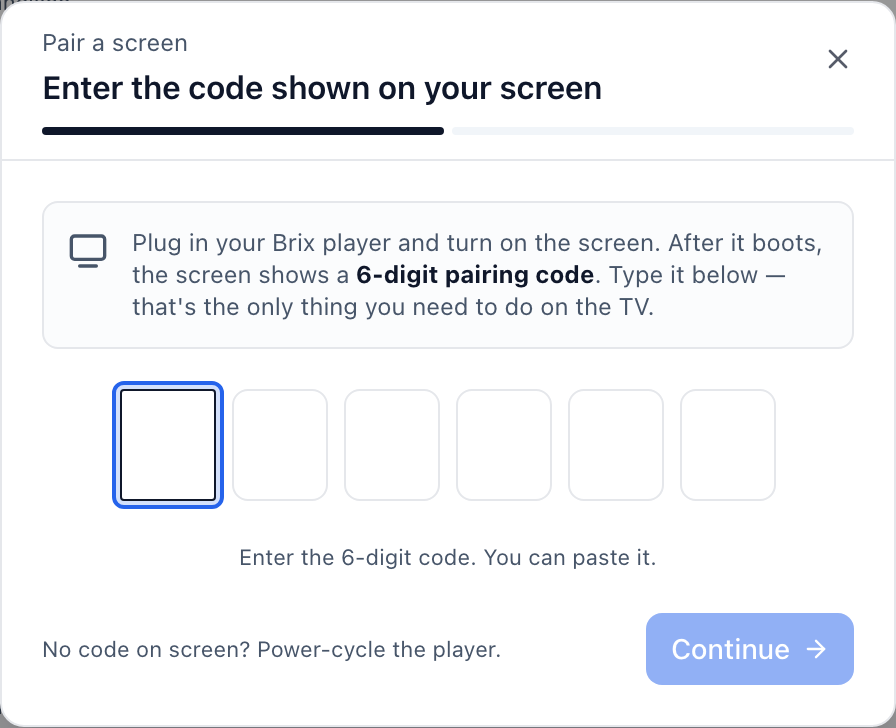
- Open the CMS and pair the screen: Screens > Add screen > Pair a hardware device, then enter the 6-digit pairing code the TV shows next. This is a different code from the one in step 4: Amazon's registration code finishes the Stick's own setup, and Brix's pairing code connects that Stick to your workspace.
Setup takes about 10 minutes this way, the same as on any other network.
Method 2: set up on a password network, then switch in Brix
Use this when a network with a password is reachable even for a few minutes, such as a phone's own hotspot, and the open network you are moving to is a plain open network, not Enhanced Open (see Before you start above). Method 2 skips the remote-and-portal route entirely.
- Set up the Stick as normal, on the password network, using the Amazon Signage mobile app. Pick Brix Signage when it asks.
- Pair the screen in the CMS: Screens > Add screen > Pair a hardware device.
- Once the screen shows as online, open it in the CMS and select Change Wi-Fi.
- Set Security to No password and enter the open network's name. Brix hides the password field for this security type, since there is nothing to enter.
- If the screen's old network will still be in range after the move, also check Use this network before the others the screen knows, so the Stick picks the new one first instead of falling back.
- Save. The Stick joins the open network itself, once it is in range of it.
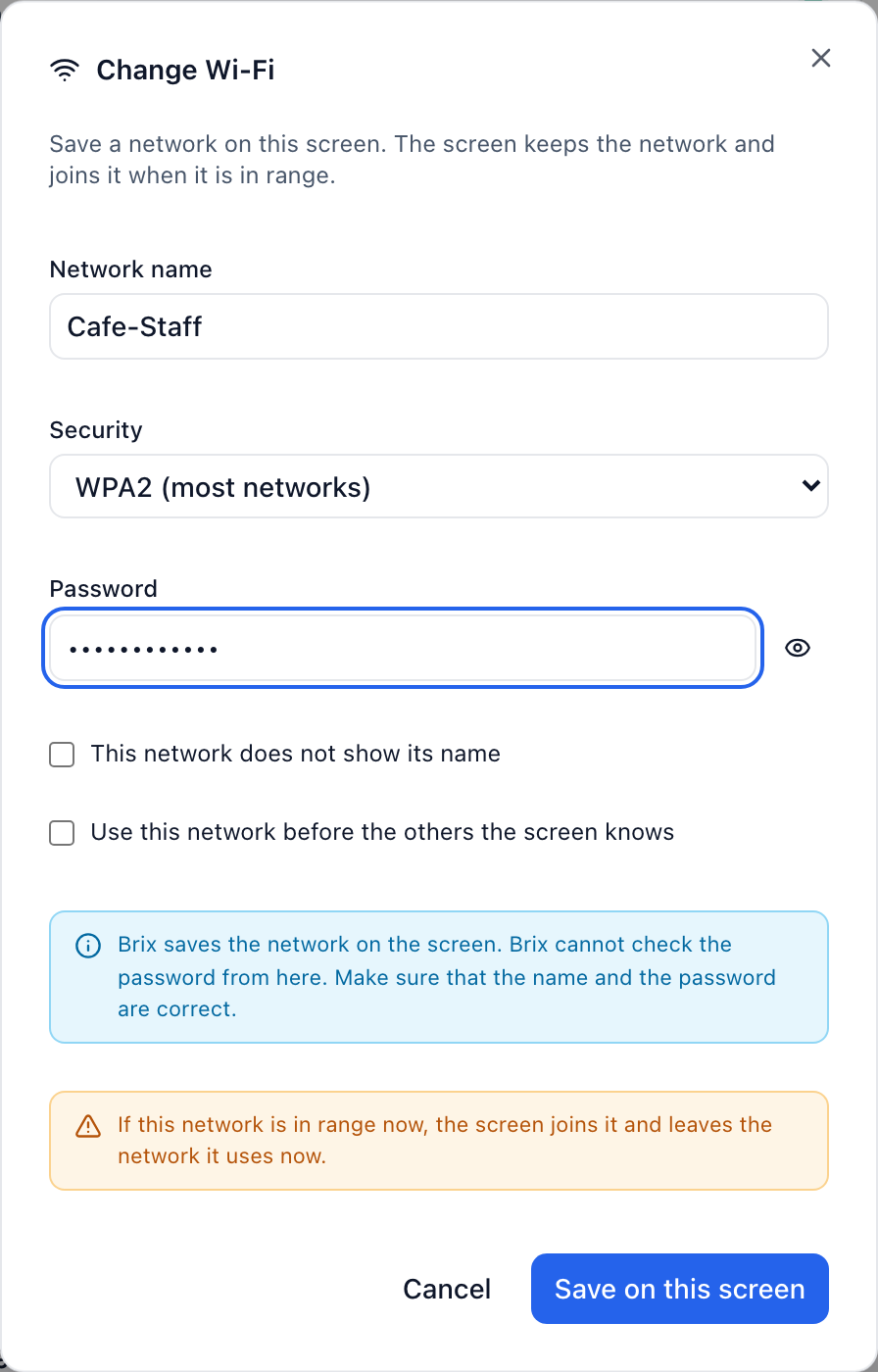
The screen takes the new network on its next contact with Brix, not instantly. If the screen is online when you save, Brix says it is saving the network and the screen joins it once in range. If the screen is offline, Brix says it will send the network once the screen comes back on the network it uses now. Either way, check Screens afterward for the screen to show online again, on the new network.
Change Wi-Fi works only for the Signage Stick. Brix sets its Wi-Fi through Amazon's own on-device agent, which no other supported player exposes the same way.
If the Stick already has a password network saved
A Stick already set up on a different network does not need either method above, as long as the network you are moving to is a plain open network. Open it in the CMS, select Change Wi-Fi, and set Security to No password, the same as steps 3 and 4 of Method 2. There is no need to touch the remote or the portal again. For an Enhanced Open network, use Method 1 instead: Brix's Change Wi-Fi does not offer Enhanced Open as a security type.
An open network is not the same as a login page
An open network with no password lets a device on to the local Wi-Fi straight away. A hotel, café or venue "guest Wi-Fi" more often needs a sign-in step after that: a room number, a terms checkbox, a voucher code, inside a browser page. That is a different setup question. If the Stick connects to Wi-Fi but still shows as offline, or drops and reconnects while asking for a sign-in again, see why an Amazon Signage Stick keeps disconnecting.
Where Brix fits
Brix costs $6 per screen per month billed annually, or $8 billed monthly, with a 7-day free trial and no card needed. For an open network you will touch only once, either method above is enough. If you expect to change the network again later, such as a router swap, Method 2 is worth it on its own: once a screen is paired, changing its Wi-Fi from the CMS needs no one at the screen and no app on a phone nearby.
If the screen has to stay online for months with nobody checking on the network, Wi-Fi itself is the risk, open or password-protected: ask for a wired connection with Amazon's micro-USB Ethernet Adapter instead, which removes the Wi-Fi question completely. Start a trial to try either path on a test screen first.
FAQ
Can I set up the Stick on a hidden open network?
Yes, with the physical remote during the Stick's first-time setup, or after pairing with Brix's Change Wi-Fi and This network does not show its name checked. The mobile app cannot do this. With the remote, on the Wi-Fi list, choose Join Other Network instead of picking an SSID, then type the network's exact name and security type by hand. If you would rather not type the name on a remote, unhide the network at the router, finish setup normally, then hide it again afterward. Either way, a hidden network never appears in the plain SSID list.
What does "Enhanced Open" mean on the Wi-Fi security list?
Enhanced Open is a security type for an open network: Amazon's setup still asks for no password, but the connection carries encryption behind the scenes. It is offered only during the Stick's first-time setup, with the remote, never through the mobile app. Brix's own Change Wi-Fi in the CMS does not offer Enhanced Open (only WPA2, WPA3, WPA, WEP and No password), so a Stick moving on to an Enhanced Open network needs Method 1, at the screen itself, not a later change from the CMS.
Does the Stick support an enterprise guest network?
No. Amazon's setup supports Enhanced Open, WEP, and WPA/WPA2/WPA3-Personal only. WPA/WPA2/WPA3-Enterprise networks, the kind that need a username as well as a password, are not supported at this time.
Can a network be open and still block the Stick?
Yes. Some business networks that ask for no password still only let approved devices on, by matching each device's Wi-Fi address (MAC address-based authentication). If the Stick cannot join an open network that other devices use fine, find its address at Settings > About Device > Device Wi-Fi MAC address and ask whoever manages the network to add it, before you try setup again.
Can I switch to an open network without the CMS, if I am already at the screen?
Yes. Open the Amazon Signage mobile app over Bluetooth, open the virtual remote, then Settings > Network & Internet > Wi-Fi, and pick the network. See backup Wi-Fi on the Signage Stick for the other ways to recover a Stick that loses its network.