Does the Amazon Signage Stick, what many buyers still call the Fire Stick, save a backup Wi-Fi network on its own? No. Amazon does not build a fallback network into the stick. With Brix, you can save a backup network for it, so a changed router does not strand the screen.
A stuck screen has three honest paths back:
- Brix backup Wi-Fi (this page). Save a second network in the CMS ahead of time. The stick switches to it on its own after it loses contact with Brix for several days.
- Amazon's Batch Wi-Fi Change. Open the Amazon Signage app on a phone, go to Settings > Network, and send the stick a new network over Bluetooth. This needs a phone on site, but it works on a stick with no backup saved.
- A wired connection. Amazon sells a micro-USB Ethernet Adapter for $14.99. It needs its own power, and it removes Wi-Fi changes from the picture entirely.
The rest of this page covers option 1.
Set up a backup network in the CMS
Save a backup network while the screen is still online. You need the screen.edit permission to see this control.
- Sign in to the CMS and open Screens.
- Select the Signage Stick screen.
- Open the Player row of the screen panel.
- Find the Wi-Fi section. It reads "Network" instead of "Wi-Fi" when the screen is offline.
- Select Backup network.
- Enter the network name and pick its security type.
- Enter the password. Skip this step for a network with no password.
- Choose how many days with no connection to wait.
- Select Save backup.
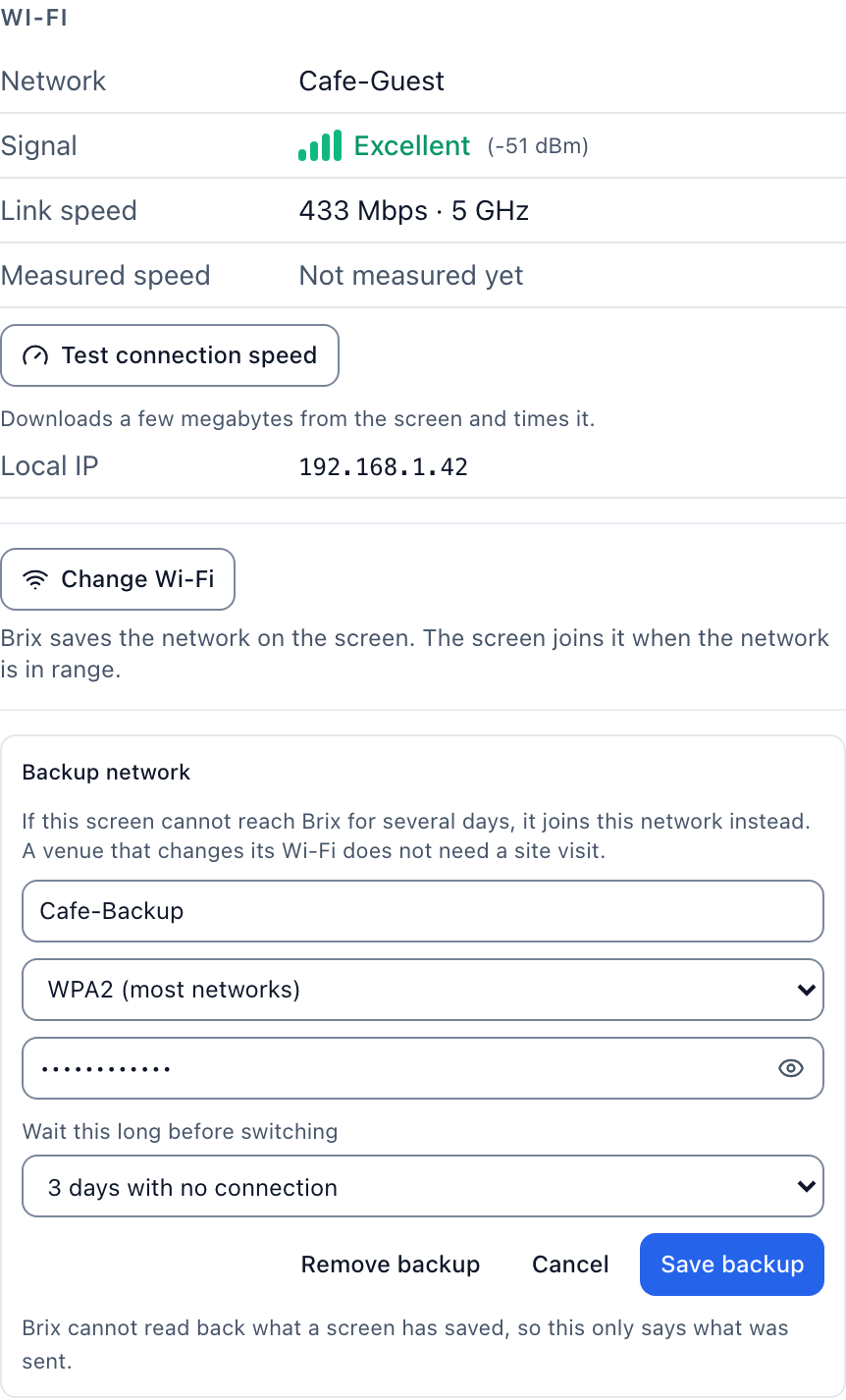
Brix sends the network to the stick at its next check-in. A screen that is online now gets it within the usual check-in window. A screen that is already offline gets it as soon as it reconnects to its current network.
Brix cannot send a new network to a stick that is already dark, because sending anything needs a network the stick can already reach. If a screen has no backup saved and has already gone dark, use Amazon's Batch Wi-Fi Change with a phone on site, or connect the wired adapter, instead of waiting.
Backup network sits next to Change Wi-Fi for the same reason: only a screen that can take one network at all can take a second one. If Backup network does not appear, this screen is not a Signage Stick, or it runs on a wired connection with no Wi-Fi settings to hold.
Change Wi-Fi sends a network to a screen that is still online now and can reach the new network right away. Backup Wi-Fi is different: it only runs after days with no contact at all. See change Wi-Fi on an Amazon Signage Stick remotely for that case.
How long before the stick switches networks?
By default, the stick waits 3 days with no contact from Brix before it tries the backup network. An operator can set a different wait, from 1 day to 30 days, per screen.
The wait exists for a reason. A short wobble in the network must not move a healthy screen onto a guest network. Guest networks often run slower. Many sit behind a captive portal, or limit how many screens can join. The stick tries one only as a last resort, not the first time it misses a check-in.
Brix counts the days from the stick's last real exchange with Brix's servers, not from a network ping. A captive portal can answer a ping and still block everything else. The countdown runs on true contact, so it stays honest even behind a login page.
Once the wait passes, the stick tries the backup network. If that try fails, the stick waits at least 6 hours before it tries again — at most four attempts a day, not hundreds, during a venue-wide outage. The stick still recovers the same day the backup network comes into range.
What the CMS shows, and what it does not
Brix cannot read back what a screen has stored. The network lives on the device, and nothing in its regular check-in sends it back — a passphrase has no reason to travel on every check-in.
Select Backup network and send one, and the panel shows "Backup network sent". That confirms Brix told the stick, not that the stick joined, or even kept, the network. The confirmation holds only for the rest of your current session, and it carries no timestamp. Brix also has no way to learn that the stick's own encrypted store failed to save it. To change or remove a saved backup, reopen the Backup network form.
The password itself sits in the stick's encrypted settings store, kept apart from the plain file that holds its pairing token. A pairing token is low value, and Brix can cancel it at any time; a venue's Wi-Fi password gets the stronger protection instead.
Is backup Wi-Fi available on Fire TV, Android boxes or Windows?
No. Only the Amazon Signage Stick gives Brix the control needed to save and join a network on a locked-down screen. That control runs through Amazon's own management agent on the stick. A Fire TV, a Walmart Onn or other Android box, and the Windows player have no such agent.
Brix has no way to hand these screens a network to join. The CMS shows Change Wi-Fi and Backup network only on a Signage Stick screen. These other screens never show a button that would only fail.
A screen on these other platforms still plays its cached content while offline. A person at the screen must move it to a new Wi-Fi network by hand.
Troubleshoot a stick that did not switch over
- Check the wait you set. A stick set to wait 7 days does not switch on day 3.
- Confirm Brix marks the screen offline. The venue's own monitoring may read it differently.
- Give it the 6-hour retry window after the wait passes.
- Resend the backup network after any password change on the guest network.
- Remember the CMS cannot confirm the join. Only a visit, or the screen's next report, proves it.
- With no backup saved and the screen already dark, use Amazon's Batch Wi-Fi Change with a phone on site instead of waiting.
While the stick waits out the countdown, it still plays its cached content. See Amazon Signage Stick offline playback. For every other reason a screen reads offline, see troubleshoot a screen.
FAQ
Does the backup network need to match the main one's security type?
No. The backup network can use any security type Brix supports for a Signage Stick: WPA2, WPA3, WPA, WEP, or no password. Brix does not support WPA-Enterprise networks, on a main network or a backup one, and a network behind a captive portal page cannot work as a backup either, because the stick cannot click through a login page on its own.
Can a screen have more than one backup network?
No. Each screen holds one backup network at a time. A new save replaces the old one.
Does the stick try the backup network while the main one is slow?
No. The wait starts only once Brix has had no contact at all from the stick. The shortest wait allowed is 1 day. A slow or congested main network that still reaches Brix never triggers the switch.
What happens once the main network comes back?
The stick keeps using whichever network works right now. Brix does not move the stick back to the main network by itself. That only happens once the stick is in range of the main network again, and can reach Brix on it.
Does backup Wi-Fi cost extra?
No. Backup Wi-Fi is part of every Brix plan. Brix costs $8 per screen per month, or $6 per screen per month billed yearly. A 7-day free trial needs no card.
Set up a backup network before the next router change forces a van and a lost day. Start a free trial and save one on a Signage Stick screen today.