To change the Wi-Fi on an Amazon Signage Stick without going to it, use a signage CMS that supports remote Wi-Fi through Amazon's Remote Management API. Send the new network while the stick is still online on the old one. Amazon's own tools need someone near the stick: the physical remote, or the mobile app's virtual remote, which opens the stick's Settings menu only over Bluetooth.
Your three options
| Method | Where you need to be | How |
|---|---|---|
| Physical remote | At the screen | Settings > Network & Internet > Wi-Fi, select the network, enter the password |
| Amazon Signage mobile app | Within Bluetooth range of the stick | Open the virtual remote, then the same Settings path |
| A CMS with remote Wi-Fi | Anywhere | Send the network name and password from the dashboard |
Remote Wi-Fi is part of version 1.2 of Amazon's Remote Management API, which signage software builds on. Only CMSs that use it can change the network from a distance. Ask your vendor, or check Amazon's CMS partners page.
Changing the router or the password without losing screens
The stick can only receive a new network over the network it is on. Once the old network is gone, no CMS can reach it. So the order matters:
- Before the change, send the new network name and password to every stick while the old network still works. The stick saves it.
- Make the change on the router.
- Check that each stick comes back online on the new network.
- Any stick still offline needs someone at the screen with the remote.
If you are only changing the password on the same network name, the same order applies: save the new password first.
Things that go wrong
- A typo in the password. The stick cannot test a network that is not in range, so a wrong password shows up only on the day of the switch. Type it twice, or paste it.
- Enterprise Wi-Fi. Amazon's FAQ lists Enhanced Open, WEP, WPA/WPA2-Personal and WPA3-Personal. Amazon's app and remote API also accept some password-based enterprise networks. A network that needs a certificate per device is a job for Ethernet.
- Hidden networks. During setup the stick lists only networks that broadcast their name. Unhide the network during setup, use "Join Other Network" on the remote, or connect over Ethernet.
- Guest networks with a sign-in page. They log the stick out. Use a private network. See keeps disconnecting.
- A stick on Ethernet. It does not need Wi-Fi at all. Leave it wired.
Where Brix fits
On a Signage Stick, Brix sends Wi-Fi through Amazon's device agent on the stick:
- One screen: open the screen, expand Player, and select Change Wi-Fi under the network it is on. Enter the network name, the security type and the password.
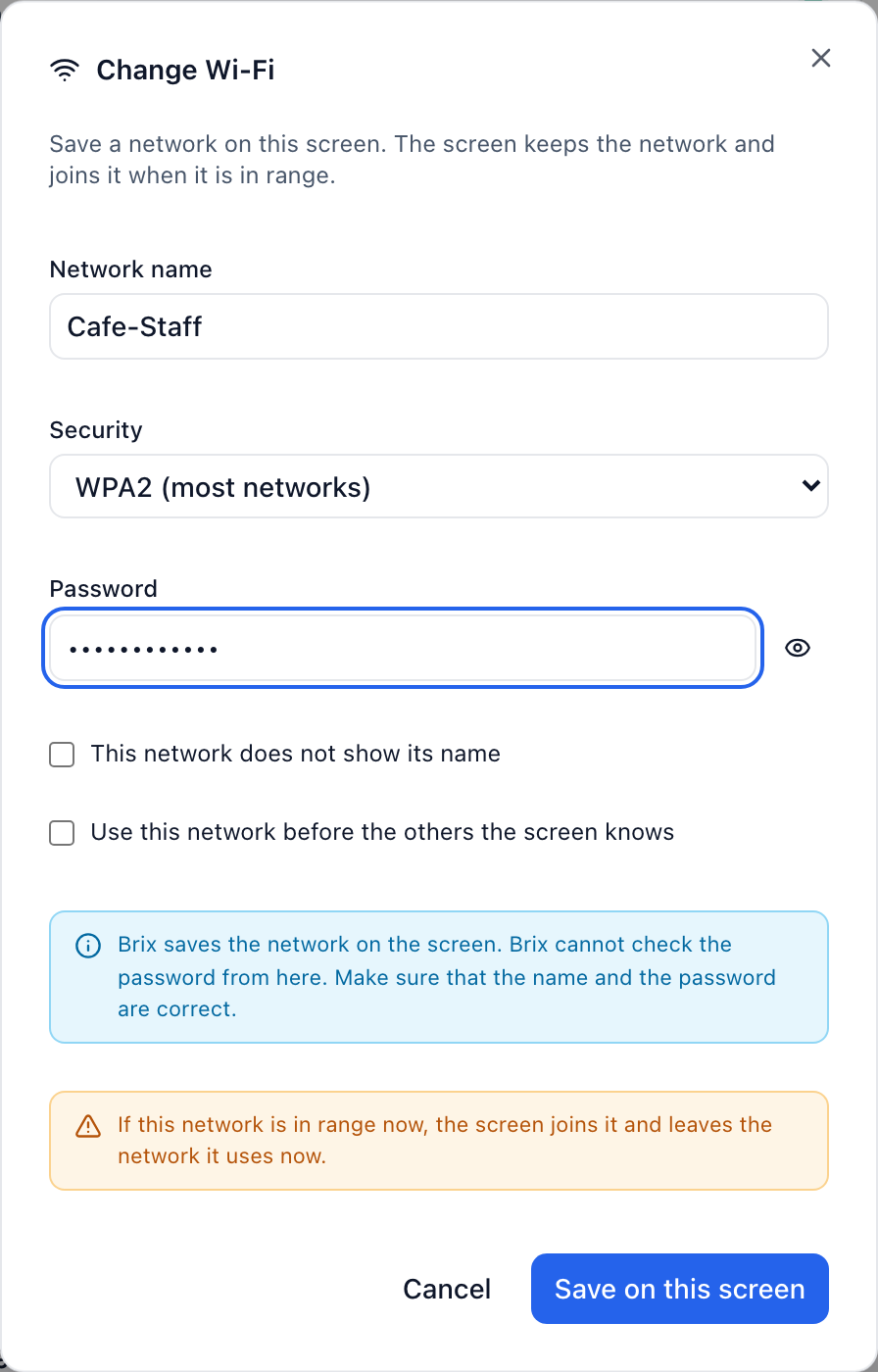
- Many screens: select them on the Screens list and choose Set Wi-Fi in the bar that appears. Use it to prepare sticks on a bench before they ship to a store, so nobody there needs the password.
- A backup network: under Change Wi-Fi, Backup network saves a second network, such as the store's guest Wi-Fi or a manager's hotspot. The stick joins it only after it has failed to reach Brix for a number of days you choose (3 by default), so a short Wi-Fi blip never moves it.
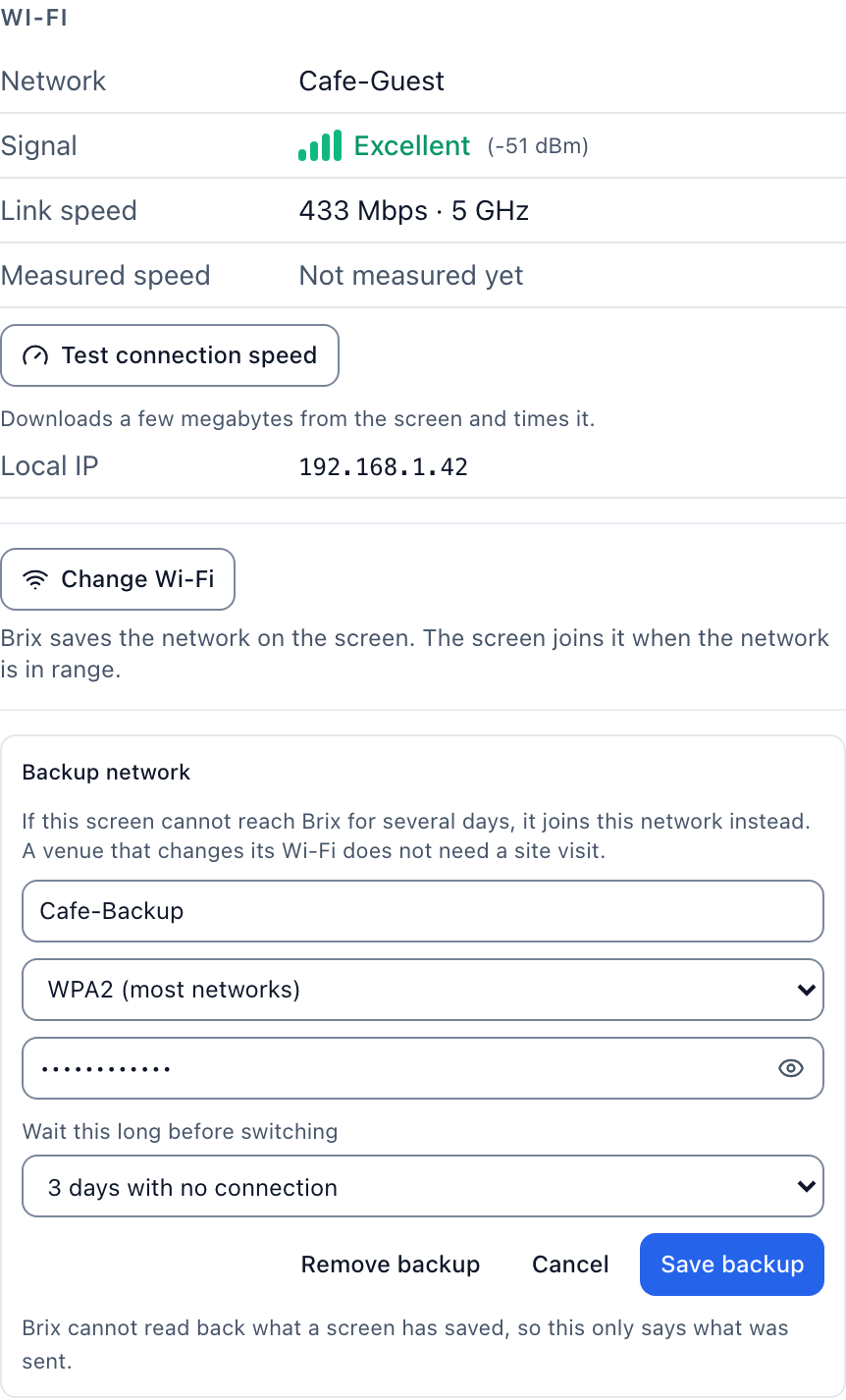
What Brix does and does not promise:
- Brix sends personal networks (WPA2, WPA3, WPA, WEP or no password), not enterprise networks.
- The stick saves the network. If the network is in range, the stick joins it at once. If not, it joins when the network appears. Brix cannot check the password before the switch.
- The option appears only on the Amazon Signage Stick, and not on a stick connected by Ethernet. Other players need the network entered on the device.
- Passwords do not appear in the activity log or the live command feed.
- A command sent to an offline stick waits for it to reconnect, over the network it knew. If that network is gone, someone at the screen enters the new one.
FAQ
How do I know the stick switched networks?
Open the screen in your CMS. When it is back online, check which network it reports. In Brix, the Player section shows the network name and signal.
Can I change the Wi-Fi on a Fire TV Stick the same way?
Brix offers remote Wi-Fi only on the Signage Stick. On a consumer Fire TV Stick, change the Wi-Fi on the device.
Start a free trial and send a network to a stick on your bench. New to the stick? See the setup guide.