You can switch digital signage provider without replacing your TVs. Check your contract's notice date, list every screen and player, get your original content files, test the new software on one screen, then move screens one site at a time and cancel the old service after the last one.
The TV is only a display: what changes is the player behind it and the software that controls it. A general-purpose player can usually stay. A player that runs only the old vendor's software must be replaced.
When is it time to switch?
- Screens show old content or nothing, and you find out from customers or staff.
- The vendor has gone quiet: tickets go unanswered, or the company has closed or been sold. For an example, see what happened to Raydiant.
- Simple changes take too long, or only one person knows how to make them.
- The price has gone up, or the features you need sit on a higher tier.
- You are growing and need roles by location, approvals or single sign-on that your plan does not have.
If the old vendor has stopped working entirely, you can still move. The steps are the same: rebuild content from your own files.
Can you keep your TVs and players?
Keep the TVs. What happens to the player depends on what it is:
| What runs your screen now | What to do |
|---|---|
| A general-purpose player: Amazon Signage Stick, Fire TV, an Android box | Keep it. Remove it from the old account, factory reset it if needed, and install the new vendor's app. |
| A player sold by the old vendor that runs only its software | Replace it. Plug the new player into the same HDMI port. |
| A BrightSign player | Keep it only if the new software supports BrightSign. |
| An app on a Samsung or LG smart TV | Keep it only if the new software has an app for that TV. Otherwise plug a player into a free HDMI port. |
| A Windows PC | Usually keep it and install the new player software. |
Ask each vendor you consider which of your players it supports, in writing, before you sign.
What should you check in the old contract?
- Notice period and renewal date. Many signage contracts renew automatically unless you give notice by a set date.
- Minimum term. Leaving early may cost the rest of the term.
- Hardware ownership. Players included "free" with a plan may belong to the vendor, or stop working when the plan ends.
- Data export. Whether you can download your files, playlists and proof-of-play reports, and for how long after you cancel.
Put the notice date in your calendar before you start. Plan the move to finish before it.
What should you collect first?
- A list of every screen: site, position, screen size, orientation, HDMI input and the player behind it.
- Your original content files, from whoever made them. Do not rely on downloading them from the old system.
- Your schedules: what plays at which hours and days, and any content with an end date.
- Network details for each site: Wi-Fi name and password, or whether a network cable reaches the screen.
- Account owners: who controls the old vendor account and any device account, such as an Amazon Signage account.
- Your users: who changes content today, at which locations.
If the old vendor still answers, ask for an export of your content and screen list before you give notice.
How do you make sure you can leave next time?
- Choose players that run more than one vendor's software.
- Keep your own copy of every content file.
- Check for a data export before you sign.
- Prefer month-to-month billing or a short term until you trust the vendor.
- Check that users, roles and locations are yours to change, without a support ticket.
How do you move, step by step?
- Shortlist two or three vendors and run a free trial of each on one of your own screens, with your own content. See questions to ask a digital signage vendor.
- Rebuild your main playlist from the original files, with the same schedules.
- Set up users and locations so each site's staff see their own screens.
- Set up offline alerts, so you hear about a dead screen before a customer does.
- Pilot at one site for a week. Check playback, schedules, screen on and off times, and what happens when the internet drops.
- Roll out site by site. Send each site the new player or instructions, then check each screen from the office.
- Cancel the old service after the last screen has moved, before the notice date.
How long does it take, and can both systems run at once?
Hardware is quick: a plug-in player takes about 10 to 30 minutes per screen to set up. Content takes longer, from an afternoon for one playlist to several weeks for a large network with many local variations.
Each TV has its own player, so you can run the old and new systems side by side and move one screen, store or region at a time.
Moving to Brix: we do the migration for you, free
You can move to Brix today. Brix does the migration for you, free, and it usually takes a day. Most vendors charge for this as professional services.
What we move:
- Content: we upload your images, videos and other files.
- Playlists and schedules: we rebuild them in Brix with the same hours and days. There is no automatic import from another CMS, so our team does it by hand.
- Screens: we pair each player to Brix once it shows its code, and put its content on it.
What you do:
- Send us your files, schedules and screen list. See the list under "What should you collect first?" above.
- Reset each Amazon Signage Stick at the TV. Someone on site removes it from the old Amazon Signage account, resets it and picks "Brix Signage" during setup. It takes about 10 minutes per stick. See change the CMS on an Amazon Signage Stick.
- On a Fire TV or an Android box, install Brix from the Amazon Appstore or Google Play. On an onn, grant "Display over other apps" by hand.
- On a vendor-locked player, or a Samsung or LG TV app, plug an Amazon Signage Stick into a free HDMI port. Brix has no app for Samsung Tizen or LG webOS TVs.
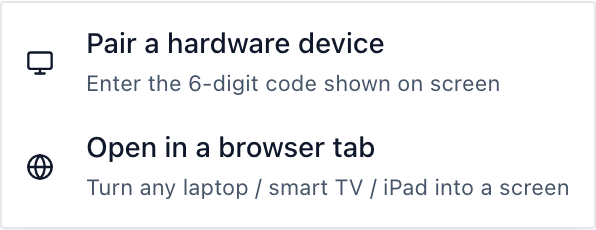
Each player then shows a 6-digit code. It is paired in Screens > Add screen > Pair a hardware device. See connect a screen.
After the move:
- A new screen uses "Standard hours", 6:00 am to 11:00 pm. Outside them the stick turns the TV off over HDMI-CEC. For a 24/7 screen, choose "Always on".
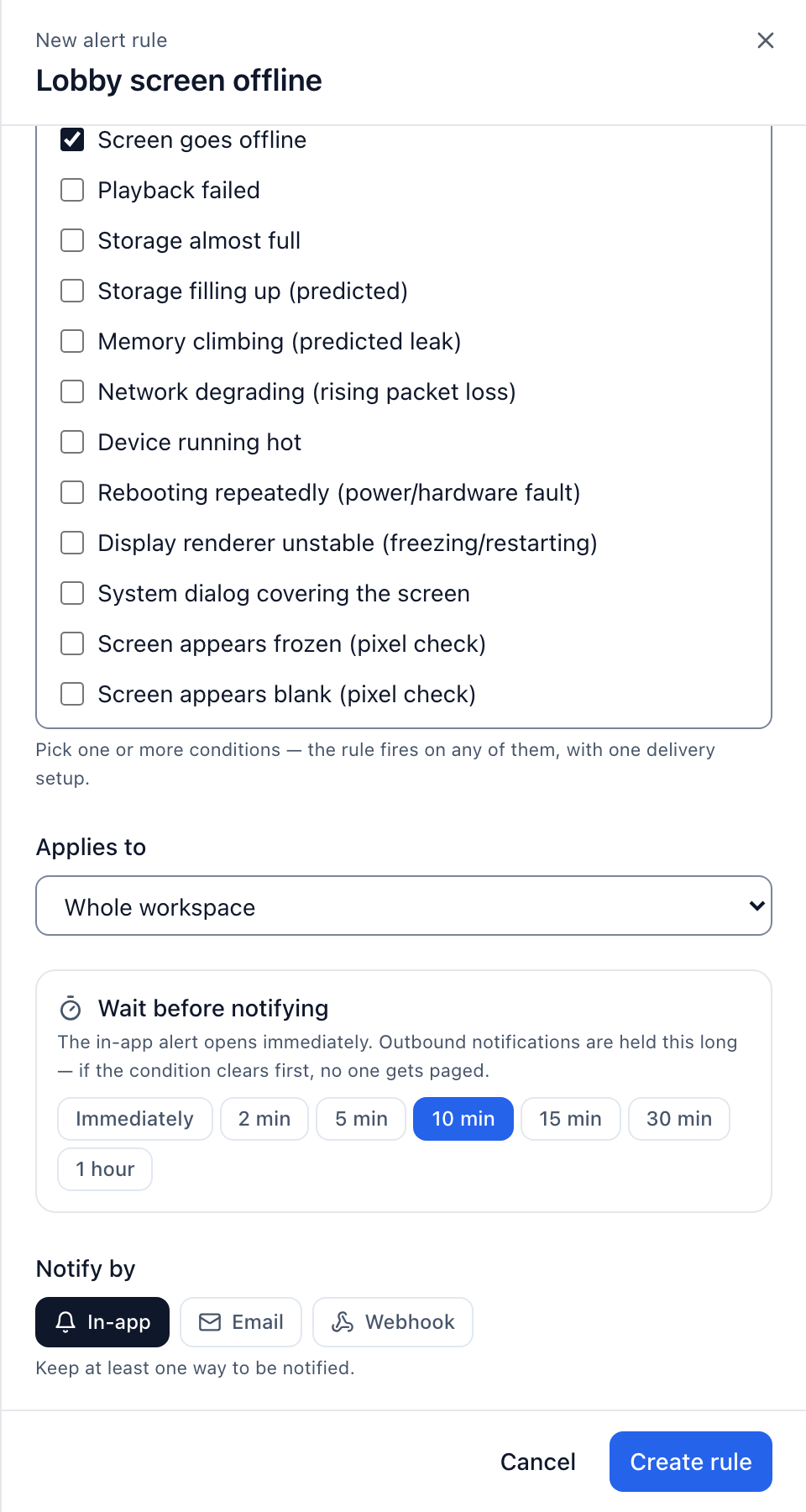
- In Alerts, add a rule for a screen that is offline too long and choose who gets the email.
- To leave Brix later, an owner downloads a summary of screens, files, playlists, schedules and people from Settings > Workspace, under Export your data.
Brix is $6 per screen per month billed annually, or $8 billed monthly. See pricing. Brix is not the right move for a synchronized video wall or touch kiosks: choose software built for those.