To connect a TV to digital signage, plug a media player into the TV's HDMI port (or install the signage app on a smart TV that supports it), connect it to the internet, and link it to your signage software. Most systems link the two with a pairing code: the player shows a short code on the TV, and you type it into the CMS. After that, you control the TV from the CMS and never touch it again.
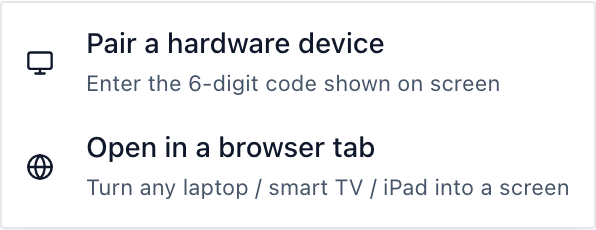
In Brix, every route starts at Add screen, top right of the Screens page: type the 6-digit code the TV shows, claim a device Brix finds on your network, or turn a browser tab into a screen. If the button is absent, ask an administrator for permission to create screens.
Which players connect a TV to Brix
| Player | How it connects |
|---|---|
| Amazon Signage Stick | Plugs into HDMI. Pick "Brix Signage" during its on-screen setup, then pair by code. |
| Fire TV | Install the Brix app, then pair by code. |
| Android box, such as the Walmart Onn | Install Brix from Google Play. On the Onn, grant "Display over other apps" by hand. |
| TV with Google TV or Android TV built in | Install Brix from Google Play on the TV. No extra box. |
| Windows PC | Install the Windows player. |
| Any browser | A trial, not an install: see the browser tab section below. |
Brix has no app for consumer Samsung or LG smart TVs. Plug a Signage Stick or an Android box into one of those TVs instead.
Pair a TV with the 6-digit code
- Plug in your Brix player and turn on the screen.
- Wait for the 6-digit pairing code to appear.
- Select Add screen on the Screens page.
- Choose Pair a hardware device.
- Type the 6-digit code into the six boxes, or paste it.
- Wait for the green Found line under the boxes.
- Type a name into Screen name.
- Pick a place under Location. It drives the time zone, the brand kit and the operating hours for that screen.
- Select Finish pairing.
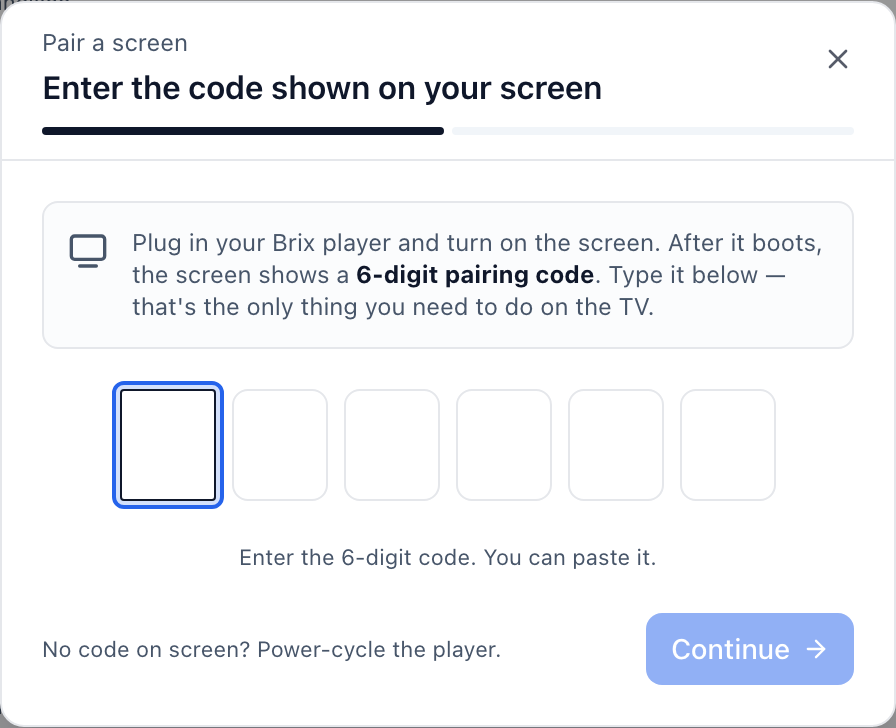
If Brix finds the code on your network, the dialog moves to the naming step on its own. A device on another network, another site or a guest Wi-Fi never appears by itself: type the code, select Continue, and pair it anyway. The dialog stays open while Brix claims the code.
Then select Add content on the Screen paired step to pick a playlist, schedule, layout, media file or app. Until you assign content, the screen shows the Ready for content splash. Read put content on a screen to do it later.
Pairing code not accepted or not showing
- Read the red message under the code boxes. The most common reason is a code that expired.
- Hold Command, or Control on Windows, and press Backspace to clear all six digits.
- Read the code on the screen again and type it again.
- If the screen shows no code, turn the player off and on again.
Claim a device that appears on your network
A device that reaches the internet from the same address as your computer appears above the screens list, so you can skip the code.
- Look for the amber New devices on this network strip above the list.
- Type a name into the Name this screen… box on the device row.
- Select Add to location… and pick where the screen belongs.
- Select Claim on that row.
If no device appears, select Look for devices in the top right, then Refresh in the panel. To match a row to the screen in front of you, type its code into Type code on screen… in the panel header and check the chip reads Found. Select the X on a row only for a device you do not want: Brix expires that pairing, and the device shows a fresh code at its next check-in.
Claim a whole install day at once
Claim all appears when two or more devices wait in the panel.
- Name each row you want to keep and leave the others blank. An unnamed row takes the device label.
- Select Add to location… and choose one place for the batch.
- Select Claim all.
- In the success message, select Assign content to give them all content.
Turn a browser tab into a screen
Any device with a browser can act as a screen: a laptop, a Chromebook, an iPad or a spare display you can paste a URL into.
- Select Add screen on the Screens page.
- Choose Open in a browser tab.
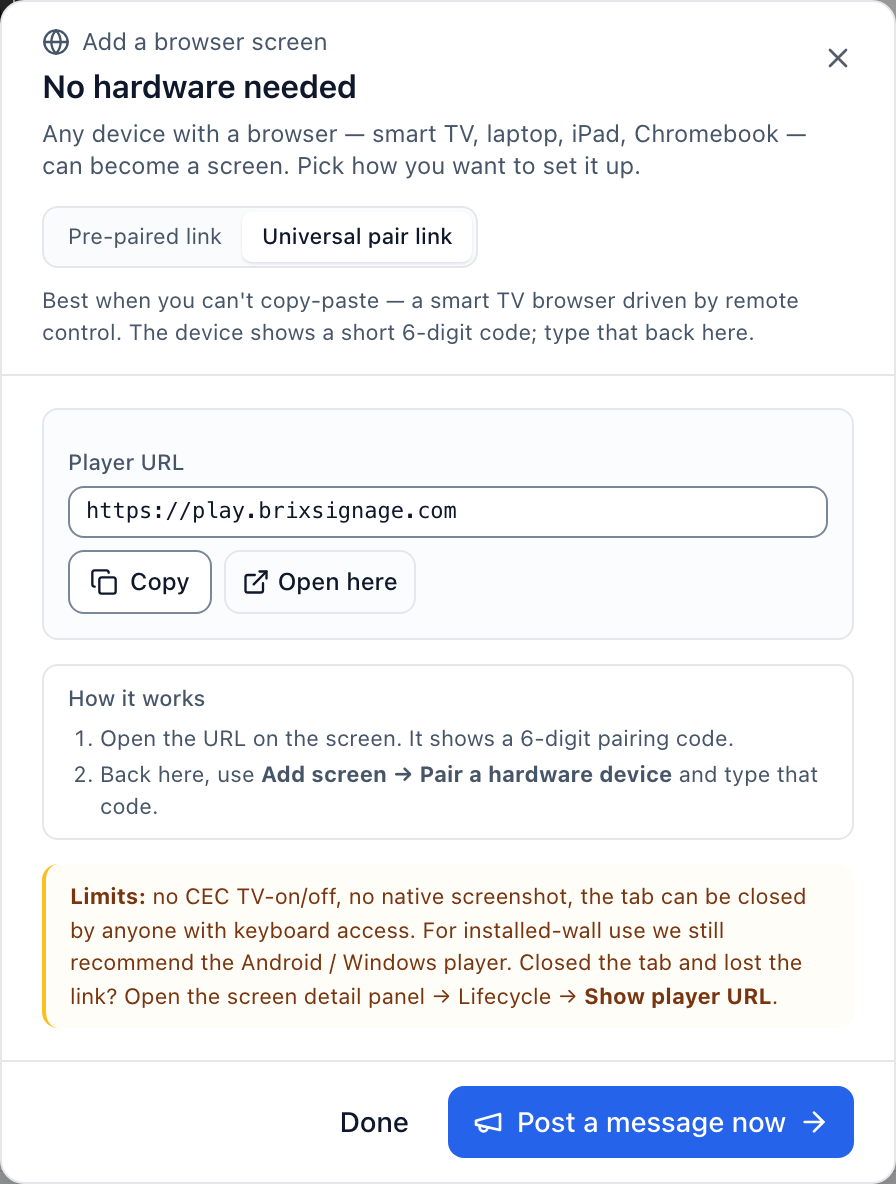
- Leave the control on Pre-paired link.
- Select Copy next to Player URL.
- Open that URL in the browser on the screen.
- Select Done.
The pre-paired URL is the credential for that screen. Anyone who opens it becomes that screen, so send it to one person only. Brix creates a new link each time the dialog opens. The dialog also shows a backup pairing code for when private browsing or a link scanner strips the credential out of the URL. If you lose the URL, open the screen panel, expand Replace or remove and select Get new player URL. The old URL stops working at once.
A browser screen cannot switch the display on or off or take a native screenshot, and anyone with a keyboard can close the tab. For a wall, use the Android or Windows player.
A screen you can drive only with a remote
A screen with no keyboard cannot take a pasted URL. Use the universal pair link.
- Select Add screen, choose Open in a browser tab, then Universal pair link.
- Select Copy next to Player URL and open that URL in the browser on the screen.
- Read the 6-digit code the screen shows.
- Back in Brix, select Add screen, choose Pair a hardware device and type the code.
Next steps
- Name, group and check your screens in manage your screens.
- Set the rotation, the volume and the operating hours in screen settings, opening hours and display power.
- Work out why a screen is blank or offline in troubleshoot a screen.