Brix bills per screen: $6 per screen per month billed annually, or $8 billed monthly, after a 7-day free trial with no card. You pay for the screens on your plan, not the screens running today. Cancelling needs 30 days' notice. Every task below starts in Settings > Billing. See pricing.
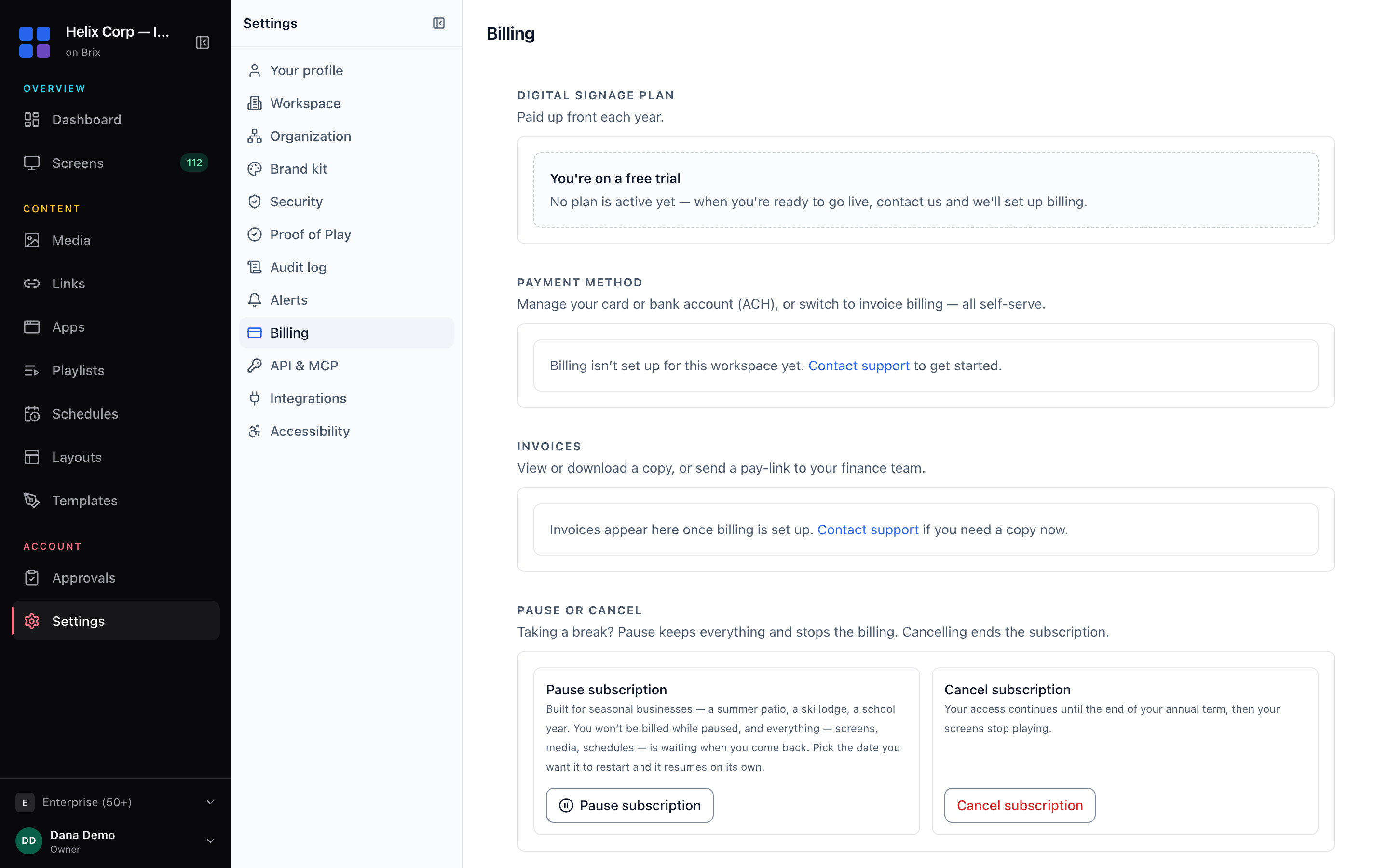
Check your plan and next renewal
Read the Digital Signage plan card: the rate per screen, Screens on your plan, the total for your period, how many screens are in use and how many are spare, and Next renewal. The state pill reads, for example, Trial, Paused until a date, Payment overdue, Suspended or Cancelled.
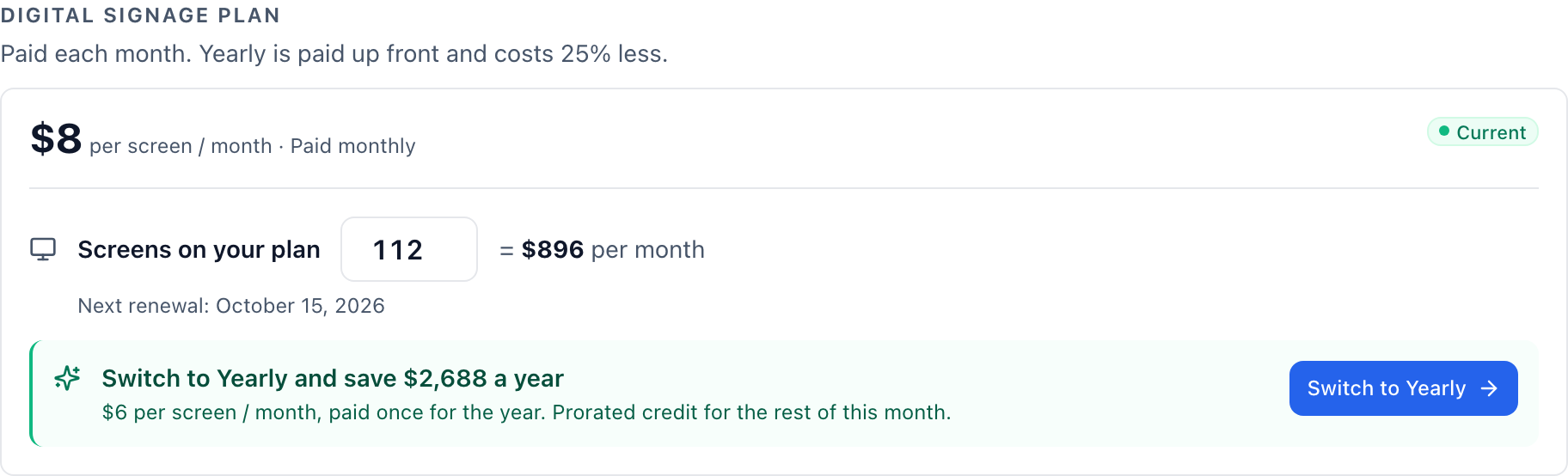
The card prices the screen licences on your plan, not the screens that run today. When more screens run than your plan holds, the card says how many are over your plan. To see the screens, read manage your screens.
During the free trial with no plan set up, the card reads You are on a free trial and the date the trial runs through. When you are ready to go live, contact us and we set up billing.
Add or remove screens on your plan
- Type the new number into Screens on your plan. The line beside it shows the list total for that number.
- Select Review and pay to add screens, or Review change to remove screens.
- Read the dialog. It shows what is charged today, what you pay from the next renewal, and the card it charges.
- Confirm, or select Not now to back out.
- Adding screens can charge today for the rest of the period. The dialog shows the amount before you confirm.
- On a paid plan, a reduction takes effect at the next renewal. The button names the date, for example Schedule for a date. Nothing is refunded and nothing is charged.
- During the trial, the number you set changes what the first invoice bills, in either direction, and nothing is charged.
- The field does not go below the number of screens running. To go lower, remove or deactivate screens first.
Switch from monthly to yearly billing
- Select Switch to Yearly in the green strip below the plan card. It names the saving for your screen count.
- Read the line items, the credit for the rest of this month, the card Brix charges and Charged today.
- Select the Pay button (for example Pay $432.00 & switch) to confirm, or Not now to back out.
Yearly billing is paid up front for the year and is a real charge. To go back to monthly billing, contact support.
Add or update a card or bank account
- Find the Payment method section.
- Select Add card or bank account, or Update payment method when one is on file.
- Complete the secure page of the billing provider. It returns you to Settings > Billing.
- To add a backup, select Add second card, add it, then select Make backup on its row. If a charge to the primary source fails, Brix tries the backup and your screens keep running.
Set the Billing address too. Its country decides the sales tax or VAT on your invoices.
Pay by invoice, or send an invoice to finance
- Scroll to Invoices.
- Select the eye icon to read an invoice in a new tab, or the download icon to save the PDF.
- For an unpaid invoice, select Send to finance to copy a pay-link. Paste it to your finance team. They can pay by card or bank transfer.
- With two or more unpaid invoices, select Copy pay-once link in the amber bar to settle them in one payment, or Individual links for one link each.
To be billed by invoice with a purchase order instead of an automatic card charge, contact us: invoice billing is set up with our team, on a yearly plan. For a large rollout, talk to us.
Bill each site separately (billing groups)
A chain or franchise can split the bill by site and keep one shared content library.
- In Who pays for these screens, select Billing groups.
- Select Add a billing group. Type the site name, the finance contact and their email, then select Create group.
- Under Screens, pick the group each screen is billed to. A screen left on This workspace bills to the workspace.
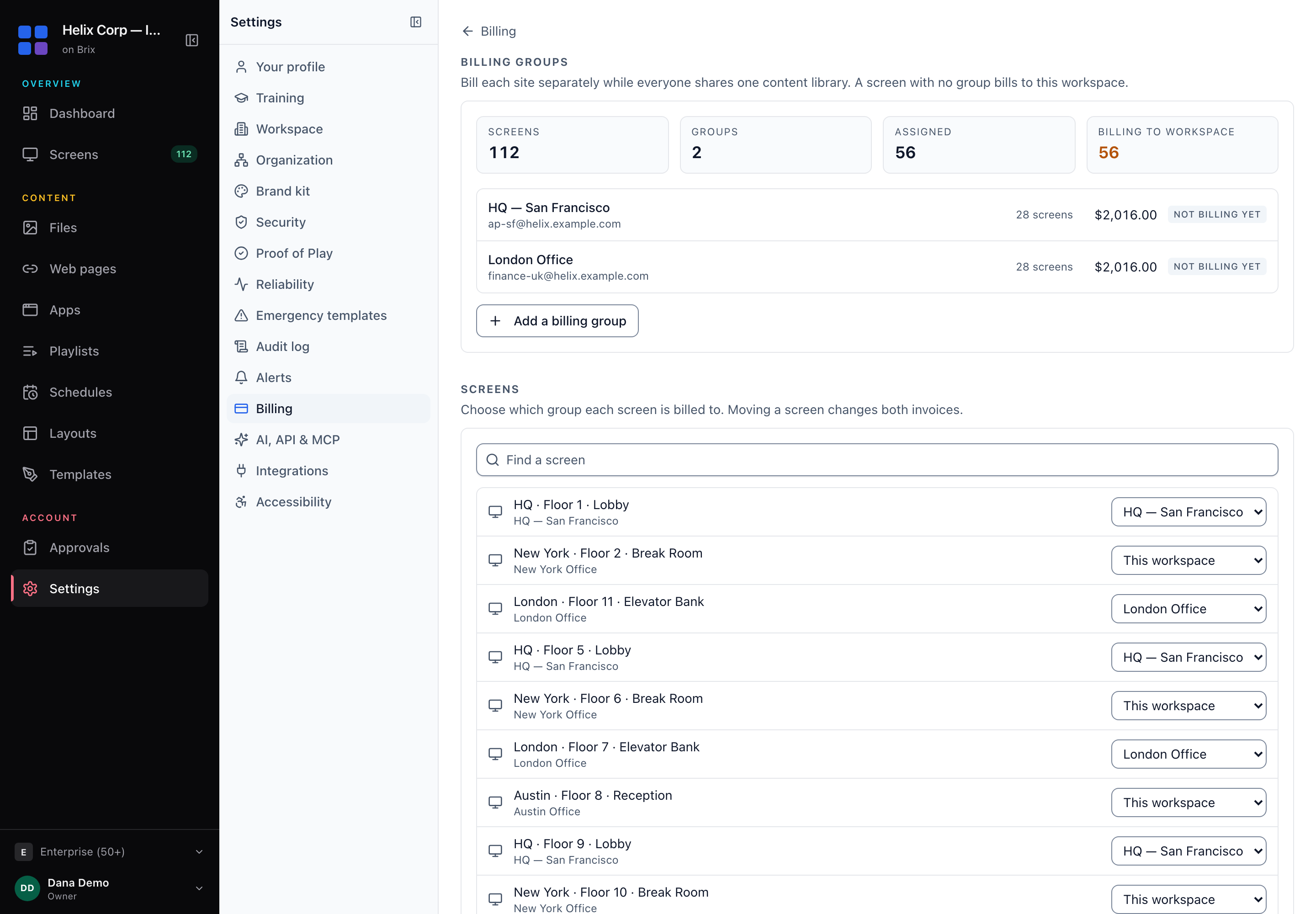
Contact support to start a separate invoice for each group.
Pause for a closed season
- Scroll to Pause or cancel and select Pause subscription.
- Pick the Restart on date, up to 12 months away, and add an optional note.
- Select Pause subscription to confirm.
Billing stops the day you pause. Screens, media and schedules stay as they are, and the account comes back on the restart date. To come back sooner, select Reactivate on Settings > Billing.
Cancel the subscription
- Scroll to Pause or cancel and select Cancel subscription.
- Choose a Reason for leaving, the other solution you will use, and how likely you are to return (1 to 10). Add a comment if you want.
- Tick the box confirming that you lose access to the account and its data at the end of the billing period.
- Select Cancel my account.
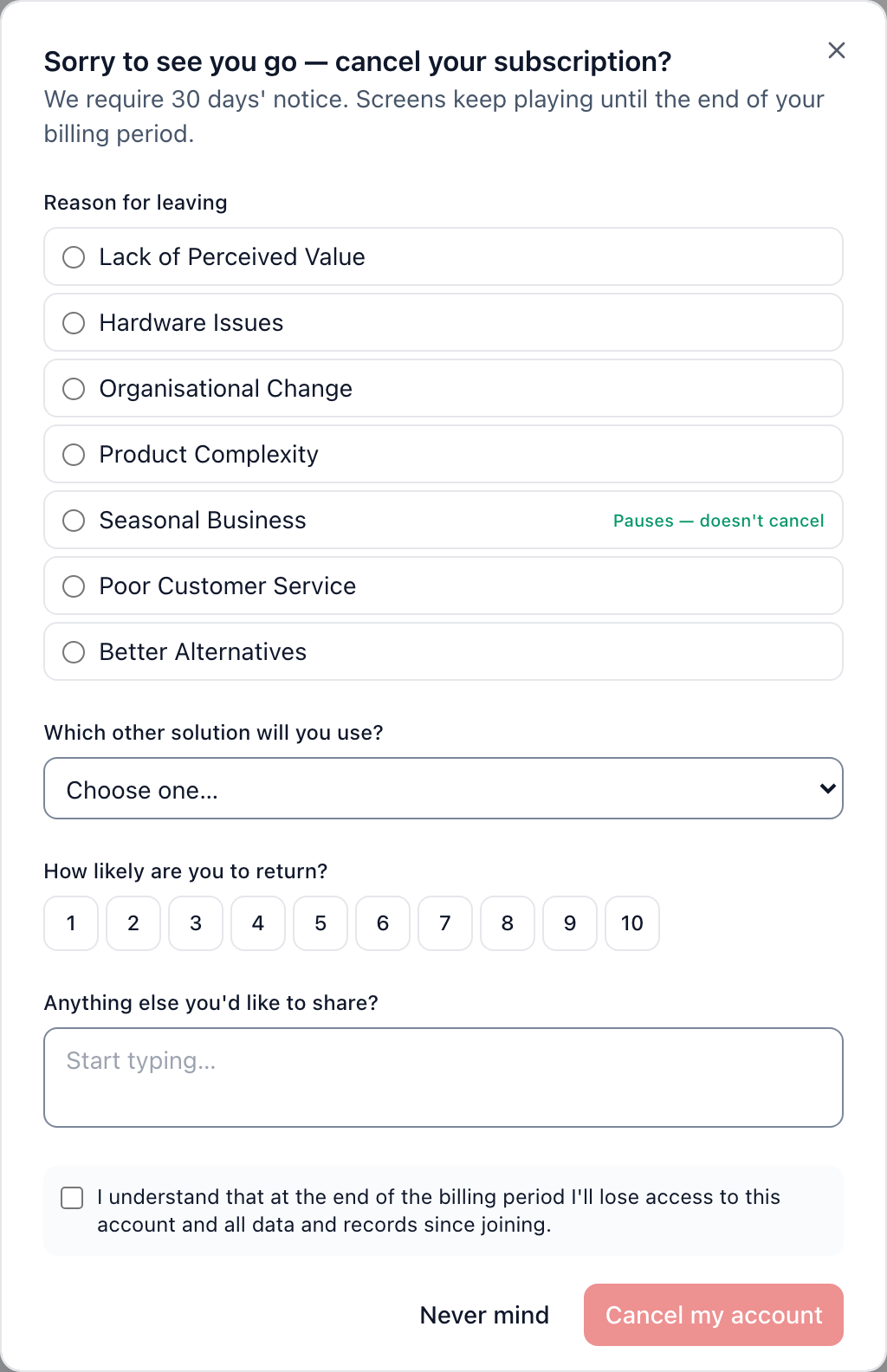
- Brix needs 30 days' notice. Screens keep playing until the end of the billing period.
- Seasonal Business as the reason pauses the account instead and cancels nothing.
- Pause or cancel shows only while the account is active. A paused, ending or trial-expired account sees a reactivate card instead. A past-due or suspended account needs its outstanding invoice paid first.
Delete the workspace
- Download every media file you want to keep. Brix cannot recover or transfer content after deletion. Read upload and organize media. For a full copy of your data, use Export your data in workspace settings.
- Scroll to Delete account and select Delete account.
- Type DELETE, type your password under Confirm your password, and type a current two-step code if your account uses one.
- Select Delete account to confirm.
Until the deletion runs, select Stop deletion in the banner at the top of the page to cancel it. Once it has run, the CMS cannot undo it. If you did not ask for the deletion, tell the other members of your workspace.
If you bought Brix through a reseller, Settings > Billing says so: your reseller handles screens, licences and invoices.