A Fire TV Stick can run digital signage, but it is a home streaming player that people use for signage because it is cheap. Amazon makes a version built for the job, the Amazon Signage Stick ($99.99), which opens the signage app in kiosk mode and lets the signage software reboot it and switch the TV on and off from a distance.
A Fire TV Stick is fine for one screen, a short trial, or a stick already behind a TV. Check first that it runs Fire OS: Fire TV Sticks on Vega OS cannot run a signage app at all.
Which "Fire Stick" do you need for store TVs?
Two different products get called a "Fire Stick" in a signage conversation:
- The Amazon Fire TV Stick is a consumer streaming player, sold to watch Prime Video and Netflix at home.
- The Amazon Signage Stick is sold for business signage. It runs one signage app, and Amazon gives that app device controls a Fire TV Stick does not give any app.
Use a Fire TV Stick you already own to try signage on one screen. For a screen nobody can walk up to, or for more than a few screens, buy the Signage Stick.
Fire OS or Vega OS: can your Fire TV Stick run signage?
Amazon sells Fire TV devices on two operating systems:
- Fire OS is based on Android. Signage apps for Fire TV are Android apps, so they need Fire OS.
- Vega OS is a separate system. Its apps are built with React Native, not Android, so an Android signage app does not install on it.
To check a stick, go to Settings > My Fire TV > About. The screen shows the model name and its software. Then match the model against Amazon's Fire TV device specifications, which list the operating system of every model.
Amazon's specification pages list these models (read October 2026):
| Model | Operating system | Signage app |
|---|---|---|
| Fire TV Stick HD (2026 model) | Vega OS | No |
| Fire TV Stick 4K Select | Vega OS | No |
| Fire TV Stick 4K (3rd Gen) | Vega OS | No |
| Fire TV Stick 4K Plus | Fire OS 8 | Yes |
| Fire TV Stick 4K Max (2nd Gen) | Fire OS 8 | Yes |
| Fire TV Cube (3rd Gen) | Fire OS 7, built-in Ethernet port | Yes |
If you must buy a Fire TV device for signage, buy the Fire TV Stick 4K Max, or the Fire TV Cube if the screen needs a wired network.
How to set up a Fire TV Stick for digital signage
- Check that the stick runs Fire OS (see above).
- Power the stick from its wall adapter, not the TV's USB port. A TV's USB port often turns off with the TV.
- Connect it to Wi-Fi, or to wired Ethernet with Amazon's adapter.
- Install your signage app from the Amazon Appstore. If the app is not in the Appstore, the vendor gives you a download link for the Downloader app.
- Open the app and pair it with your signage account, usually with a code the TV shows.
- Set the screensaver to never start: Settings > Display & Sounds > Screensaver > Start Time > Never.
- Unplug the stick and plug it back in. Check that the signage app comes back on its own.
Step 7 is where most Fire TV installs go wrong. A Fire TV Stick has no kiosk mode. After a restart it can stop on the Fire TV home screen. Some signage apps open themselves again. Others need a developer setting changed over ADB from a computer. Test it before you mount the TV.
What works remotely on a Fire TV Stick, and what does not
A signage app gets deep device control only where Amazon grants it. On the Signage Stick, Amazon's own agent holds that control and passes it to the signage app. A consumer Fire TV Stick has no such agent.
What a signage app typically gets on a Fire TV Stick:
- Plays, schedules and updates content
- Reports the stick's memory, storage and network
- Takes a screenshot of the app's own screen
- Clears its cache and restarts itself
- Sets the volume
What usually does not work on a Fire TV Stick:
- Rebooting the stick from the signage software. Unplug it to restart it.
- Turning the TV on and off over HDMI-CEC. A scheduled "off" time does not switch the TV off. Use the TV's own sleep timer.
- Changing the Wi-Fi network or the time zone from a distance. Do both on the stick with its remote.
- Full portrait rotation. Stills and the layout turn, but a video can play sideways. Video plays on a separate layer that only a display rotation turns, and that needs a system permission set over ADB.
The Signage Stick does every item on the second list. That gap, not video performance, is the reason to buy one for screens nobody watches.
Fire TV Stick compared with the Amazon Signage Stick
| Fire TV Stick (Fire OS) | Amazon Signage Stick | |
|---|---|---|
| Built for | Home streaming | Business signage |
| Starts in the signage app after a restart | Depends on the app; may need ADB | Yes, kiosk mode |
| Remote reboot | No | Yes |
| TV on and off over HDMI-CEC | No | Yes, on TVs that support HDMI-CEC |
| Remote Wi-Fi and time zone | No | Yes, where the signage software supports it |
| Portrait | Stills and layout; video can play sideways | Whole display, video included |
| Wired network | Ethernet adapter (Cube: built-in port) | Amazon's micro-USB Ethernet Adapter ($14.99) |
| Fleet tools from Amazon | None | Signage Manager and a mobile app: setup, profiles, locations, a virtual remote |
| Price | Already owned, or a streaming player | $99.99 |
Amazon also gives Signage Sticks free for rollouts of 30 or more screens. See how to get free Amazon Signage Sticks.
For a budget Android box instead of either stick, see Signage Stick compared with the Walmart onn box.
Where Brix fits
Brix runs on the Amazon Signage Stick, and on a Fire OS Fire TV Stick for a trial. On the Signage Stick, Brix uses Amazon's device controls: it reboots the stick, turns the TV off and on over HDMI-CEC, sets Wi-Fi and the time zone, and rotates the whole display for portrait, video included.
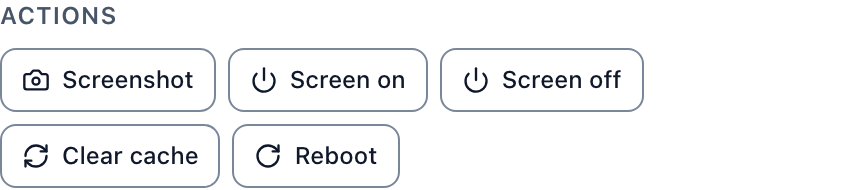
A new screen uses "Standard hours": 6:00 am to 11:00 pm. Outside those hours the Signage Stick turns the TV off over HDMI-CEC. On a Fire TV Stick, Brix shows the same buttons, but Reboot and the TV power commands fail, so use the TV's own timer.
Setup on the Signage Stick takes about 10 minutes. Pick "Brix Signage" in the stick's own setup. Then in the CMS go to Screens, Add screen, Pair a hardware device and type the code the TV shows (full Signage Stick setup).
Brix costs $8 per screen per month, or $6 per screen per month billed annually. The trial lasts 7 days and needs no card. Brix gives no free stick; Amazon's free sticks are for 30 or more screens.
When Brix is not the right choice: if every screen already has a Vega OS stick, no Android signage app runs on it. Replace the stick or use a different player.
Start your 7-day free trial, then plug in a Signage Stick ($99.99) and pair it.
FAQ
Can I use a Fire TV Stick I already own for digital signage?
Yes, if it runs Fire OS. Check the model in Settings > My Fire TV > About against Amazon's device list. Expect to restart it by hand and to switch the TV off with the TV's own timer.
Can I run digital signage on a Fire TV Stick with Vega OS?
No Android signage app installs on Vega OS. Use a Fire OS model or the Amazon Signage Stick.
Is the Amazon Signage Stick just a Fire TV Stick?
No. It looks similar, but Amazon sells it for business signage. It starts the signage app in kiosk mode, and Amazon gives the signage software remote reboot, HDMI-CEC TV power and screen rotation, which a Fire TV Stick does not give any app.