You can reboot an Amazon Signage Stick remotely in three ways: from Amazon's Signage Manager portal (the three-dot menu on the stick's row, then Reboot), from the virtual remote in the Amazon Signage mobile app, or from your signage software if it uses Amazon's Remote Management API. All three need the stick to be online. A stick that is offline needs someone at the screen to unplug it for one minute.
Three ways to reboot it remotely
Signage Manager portal
- Sign in at signage.amazon.com and open Signage Manager.
- Find the stick by its DSN (serial number) or its name.
- Open the three-dot menu on its row and select Reboot.
Amazon Signage mobile app
- Select the stick's location, then the stick.
- Tap the round remote-control icon (bottom right).
- Tap the restart icon (bottom left).
The virtual remote does not need to be in Bluetooth range for a restart. Amazon says it works whenever the phone has an internet connection. Opening the stick's Settings menu from the app does need Bluetooth.
Your CMS
Signage software that uses Amazon's Remote Management API can reboot the stick from its own dashboard. Amazon lists which CMS partners support remote management on its CMS partners page. See Amazon Signage Stick remote management, explained for what else the API controls. This is the only way to reboot many sticks at once, or on a schedule, from the same place you manage content.
Before you reboot
- Try a lighter fix first. If content looks out of date, most CMSs have a refresh or "restart app" command that reloads the content without a full restart.
- Expect a gap. The screen is dark or shows the Amazon logo for a minute or two during the restart.
- Check it is online. A command sent to an offline stick waits until it reconnects, or fails. If the stick is offline, the fault is usually power or network. See keeps disconnecting.
If the stick does not come back
- Wait five minutes. It may be installing an update.
- Ask someone at the screen to unplug the power for one minute, using the adapter from the box in a wall outlet.
- If it stops at the logo, see stuck on the Amazon logo.
- Factory reset only as the last step. A reset clears the Wi-Fi, so a stick you cannot reach stays offline until someone sets it up at the screen.
Where Brix fits
Brix is one of Amazon's Signage Stick CMS partners and uses Amazon's Remote Management API. A reboot from Brix goes to the stick through Amazon's own device agent on the stick, not through a workaround inside the app.
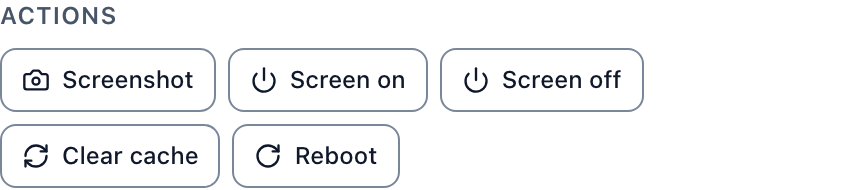
- One screen. Open the screen, expand Player and select Reboot under Actions. It is also in the panel's three-dot More device actions menu, next to Force refresh, which reloads content without a restart.
- Many screens. Select them on the Screens list and choose Reboot in the bar that appears.
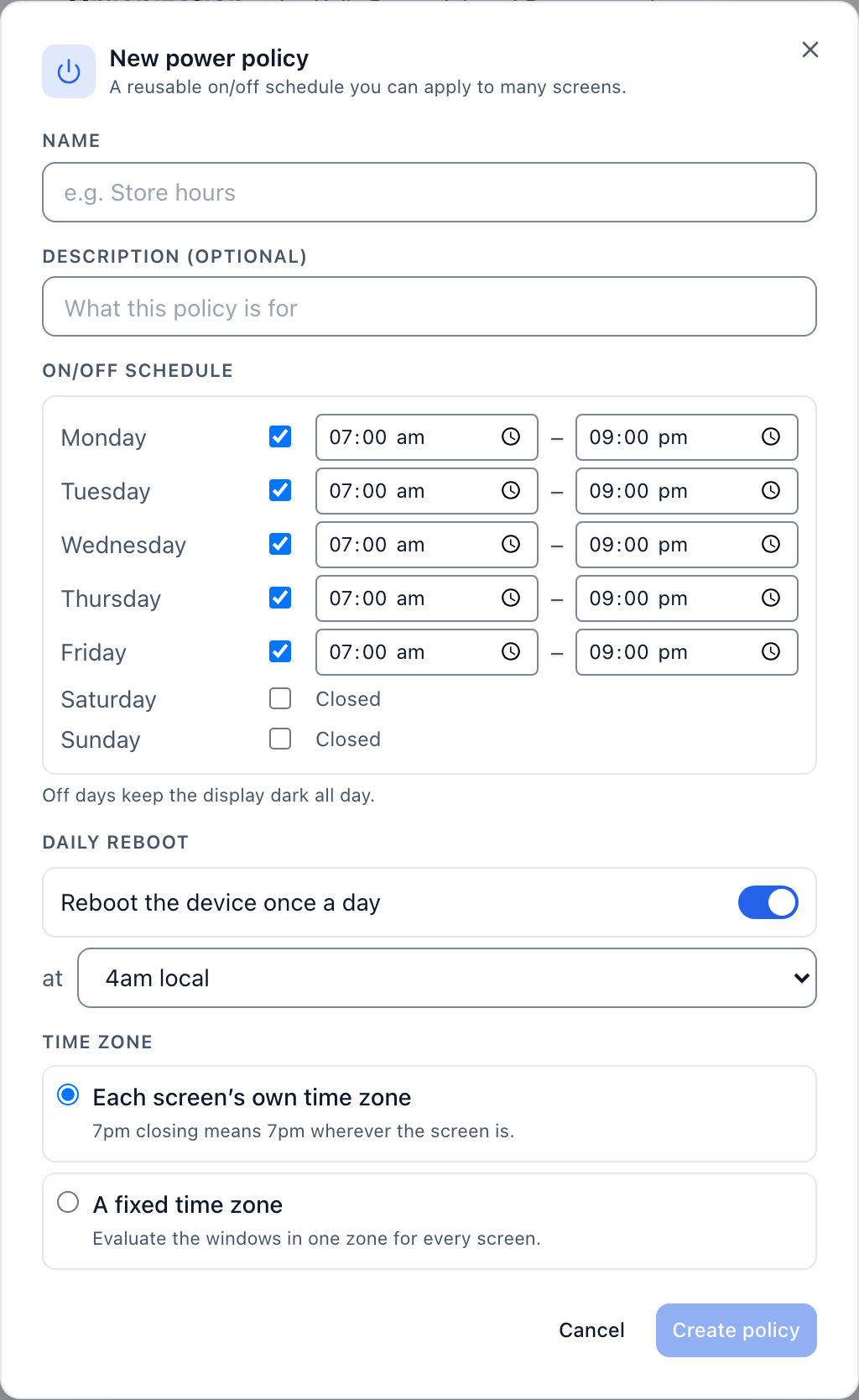
- Every night. In Settings > Organization > Power policies, turn on Reboot the device once a day and pick the hour, for example 4 am local time. Every screen on the policy reboots at that hour.
- Offline screens. The command waits and runs when the screen reconnects.
Brix also recovers a failing player on its own. When the Brix app keeps failing to start, the stick relaunches it, and restarts the device only if relaunching does not help, with a limit so it never reboots in a loop. The screen's outage history shows each restart and its cause.
A reboot does not fix a TV that is off or on another input. Brix shows that separately, as TV off or TV on another input.
FAQ
Does a reboot turn the TV off?
No. It restarts the stick. The TV may show "No Signal" for a moment.
Does a reboot lose the pairing or the content?
No. The stick keeps its Wi-Fi, its CMS pairing and its saved content, and resumes its playlist.
Start a free trial and reboot a paired stick from the dashboard.