To see what an Amazon Signage Stick is showing from anywhere, use a signage CMS that supports Amazon's Remote Management API. It can take a screen capture from the stick and show it in your dashboard. Amazon's API can capture a still picture or record a short video of up to 20 seconds. What your CMS does with that, a single screenshot or a picture that refreshes on its own, varies by vendor. Which CMS offers screenshots on the Stick compares them.
Ways to check a screen without going there
| Method | What you get | Limits |
|---|---|---|
| Screen capture from the CMS | A picture of exactly what the stick outputs | The stick must be online. Shows the stick's output, not the TV |
| Short video capture from the CMS | Up to 20 seconds of playback, where the CMS offers it | Same as above |
| Proof-of-play reports | A log of what played and when | Tells you what played, not what it looked like |
| Someone at the site with a phone | A photo of the real TV | Needs a person, and it is a one-off |
A capture is taken inside the stick, before the picture reaches the TV. It shows the right content even when the TV is off, on another input, or has a cracked panel. To know the TV itself is showing it, you also need the TV's state, which a stick can read over HDMI-CEC on TVs that support it.
What to check when the picture looks wrong
- Old content. The stick may be offline and playing its saved copy. Check its connection status in your CMS.
- A black or blank capture. The item on screen may still be loading, or it may be a web page that did not load.
- Stretched or cropped content. The file is the wrong shape for the screen. Check the screen's orientation and the content's size.
- A capture that looks right, but staff say the TV is dark. The TV is off, on another input, or broken. See No Signal or wrong input.
Where Brix fits
Brix shows a live picture of each Signage Stick, not just a screenshot on request. Open the screen from the Screens list. The picture sits at the top of the panel, with a LIVE badge while fresh frames arrive.
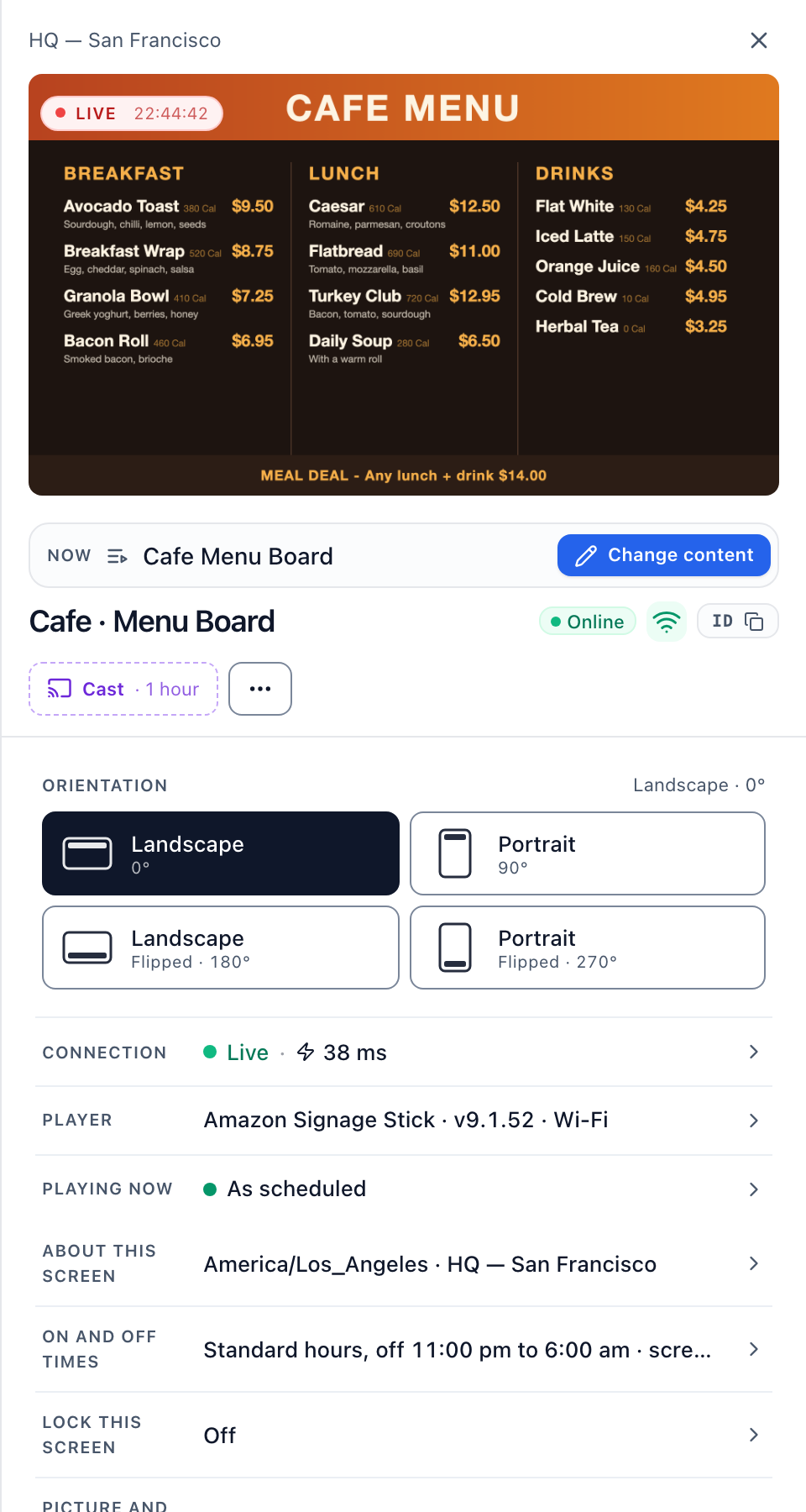
While the panel is open, Brix asks the stick for a new picture on a timer that slows the longer you leave it open:
| Panel open for | New picture every |
|---|---|
| First 2 minutes | 5 seconds |
| 2 to 5 minutes | 15 seconds |
| 5 to 15 minutes | 1 minute |
| Over 15 minutes | 5 minutes |
Close and reopen the panel to go back to every 5 seconds. Captures pause while the browser tab is hidden. It is a series of still pictures, not a video stream.
- Bigger view: select Mirror live from the panel's three-dot menu.
- Many screens at once: switch the Screens list to Grid view to see each screen's last picture side by side. Grid view does not refresh every few seconds.
- The TV, not only the stick: on a TV with HDMI-CEC, the screen's row reads TV off or TV on another input when the TV is not showing the stick.
- Offline screens show their last picture and how long ago it was taken.
A screen running Brix in a browser tab cannot capture itself, so it shows no live picture. Run the screen on a Signage Stick, a Windows player or an Android player for live pictures.
FAQ
Do I need anything installed at the location?
No. The capture travels from the stick to the CMS over the internet. Nothing else is needed at the site.
Start a free trial and open a paired stick to see its live picture. Setup is in the Signage Stick guide.