To post an announcement on every screen from Claude, connect Brix to Claude once, then type: "Post 'Store closes at 6:00 pm today' on every screen in the West region until 6:00 pm." Claude calls the Brix tool quick_post, which makes the announcement and puts it on those screens in one step. When the time is up, each screen goes back to its normal schedule. The same prompt works in ChatGPT.
Steps
- Connect Brix to Claude or ChatGPT and sign in. The steps are in Control your digital signage from Claude or ChatGPT.
- On the Brix permission page, set Screens and Creatives to View and change.
quick_postneeds both: one to make the announcement, one to put it on screens. - Type the prompt. Name the headline, the screens and how long it stays up:
Post "Store closes at 6:00 pm today" with the line "Online orders still ship tomorrow" on every screen in the West region. Use the alert style. Take it down at 6:00 pm.
- Claude shows the tool call. Depending on your settings it asks you to allow it. Allow it.
- Claude replies with the number of screens that got the announcement and when it ends.
What the connector does
- Finds the screens. For a region or a store, Claude reads your locations first. For a list of names ("the lobby and the break room"), it runs
search_screensand passes those screen IDs. - Makes the announcement.
quick_postbuilds a full-screen design from your headline (up to 120 characters) and an optional second line (up to 400 characters). The style (announcement, alert, celebrate or info) sets the background color. The design is saved in your library under the headline. - Puts it on screens as a cast. The announcement replaces what plays for the time you set, from 1 minute to 24 hours. The default is 1 hour. Then each screen returns to its schedule on its own. Nothing about your playlists or schedules changes.
- Checks the scope first. If the scope reaches no screens you can use,
quick_poststops and makes nothing, so a typo does not leave a stray design in your library.
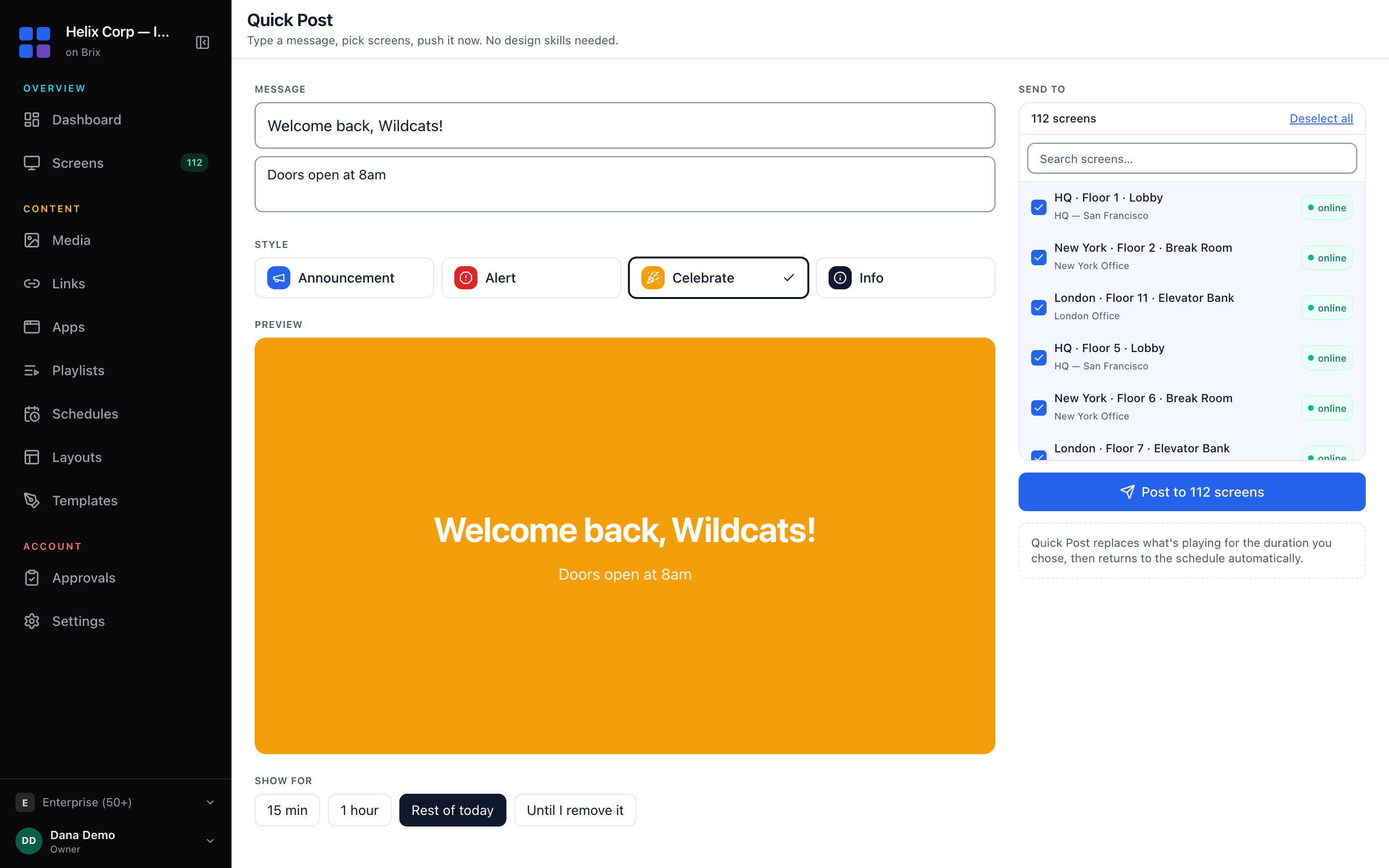
quick_post is the assistant version of Quick Post in the console. It makes the same kind of announcement.
Take it down early
Ask: "Take the store-closing message down now." Claude calls end_cast and the screens go back to their schedule at once. You can also end it in the console.
Put an existing design on screens instead
For a poster, video or playlist you already have, ask for it by name: "Show the Black Friday video on every screen in the Leeds stores until 9:00 pm." Claude finds it with search_media and shows it with cast_content, which works the same way: a timed takeover, then back to the schedule. To change what a screen plays by default, not for a set time, Claude uses assign_content.
Permissions and limits
- View only is not enough. With Screens on View only, Claude can tell you which screens would get the message but cannot post it.
- Location limit. If you limited the connection to one location when you connected, Claude can only reach screens there. "Every screen" then means every screen in that location.
- Offline screens get the announcement when they reconnect, if it has not ended by then.
- Audit log. Each post is recorded under Settings > Audit log with the connection that made it.
- Not for emergencies. For a lockdown or evacuation, use a prepared emergency template: see Trigger an emergency message on every screen from Claude.
Where Brix fits
The Brix connector is in Claude's connector directory and works in ChatGPT. You connect by signing in, pick View only or View and change for each area, and can limit it to one location. It is included on every plan: $6 per screen per month billed annually, or $8 billed monthly. The full tool list is on the MCP setup page.
If you only post a message now and then, the Quick Post page in the console is as fast as a prompt. The assistant pays off when the message depends on data it can read, such as "every store where the screen is online" or "the stores in this list".
Start the free trial. It runs for 7 days, with no card needed.