To automate digital signage from Claude Code or Cursor, make an API key in the Brix CMS and add the Brix MCP server to your editor. The agent can then read your screens, create locations, designs, playlists and schedules in bulk, and pull reports. For a job that runs on its own, such as a nightly one, call the same REST API from a script.
Make a key
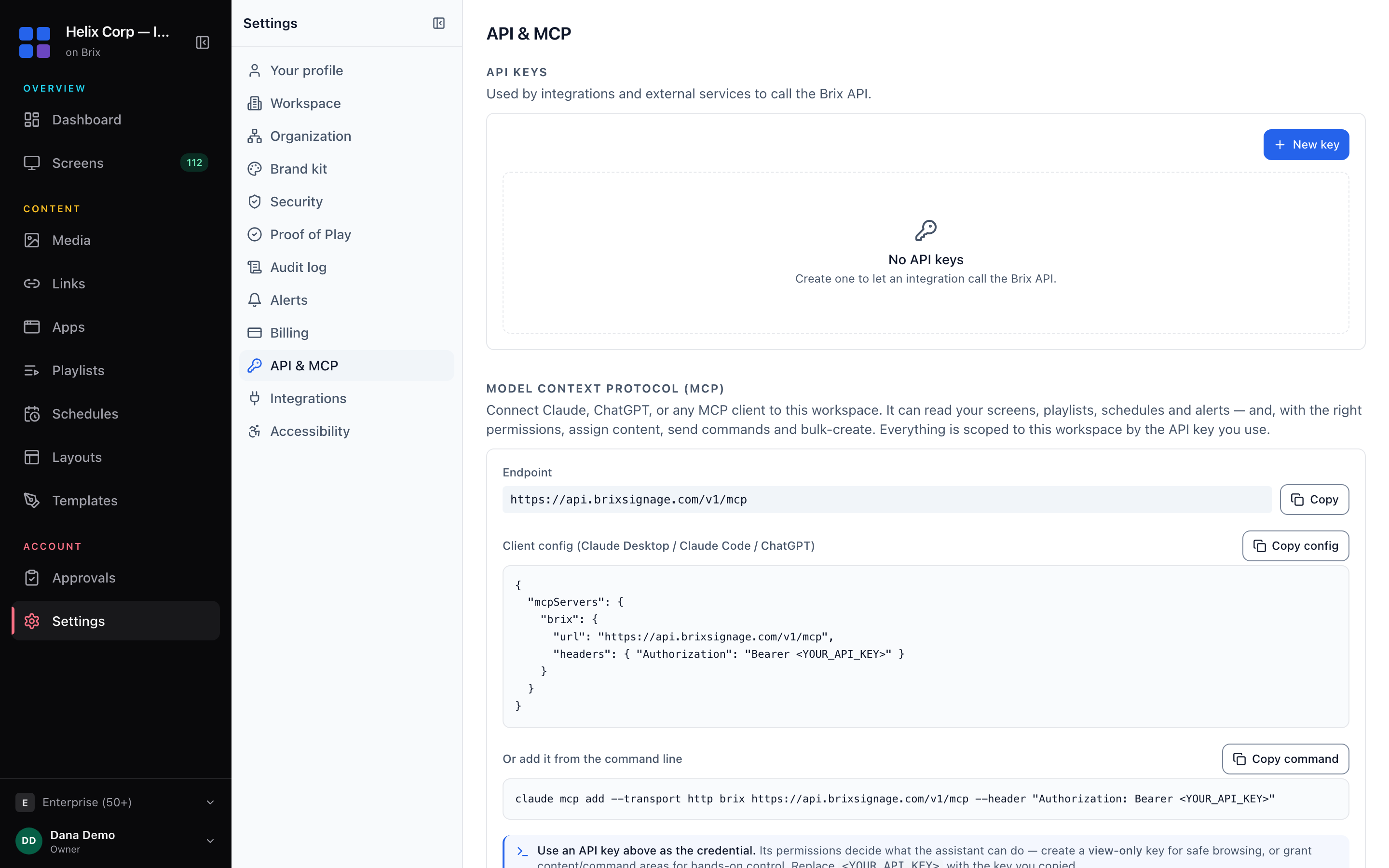
Open Settings > AI, API & MCP in the Brix CMS and select New key.
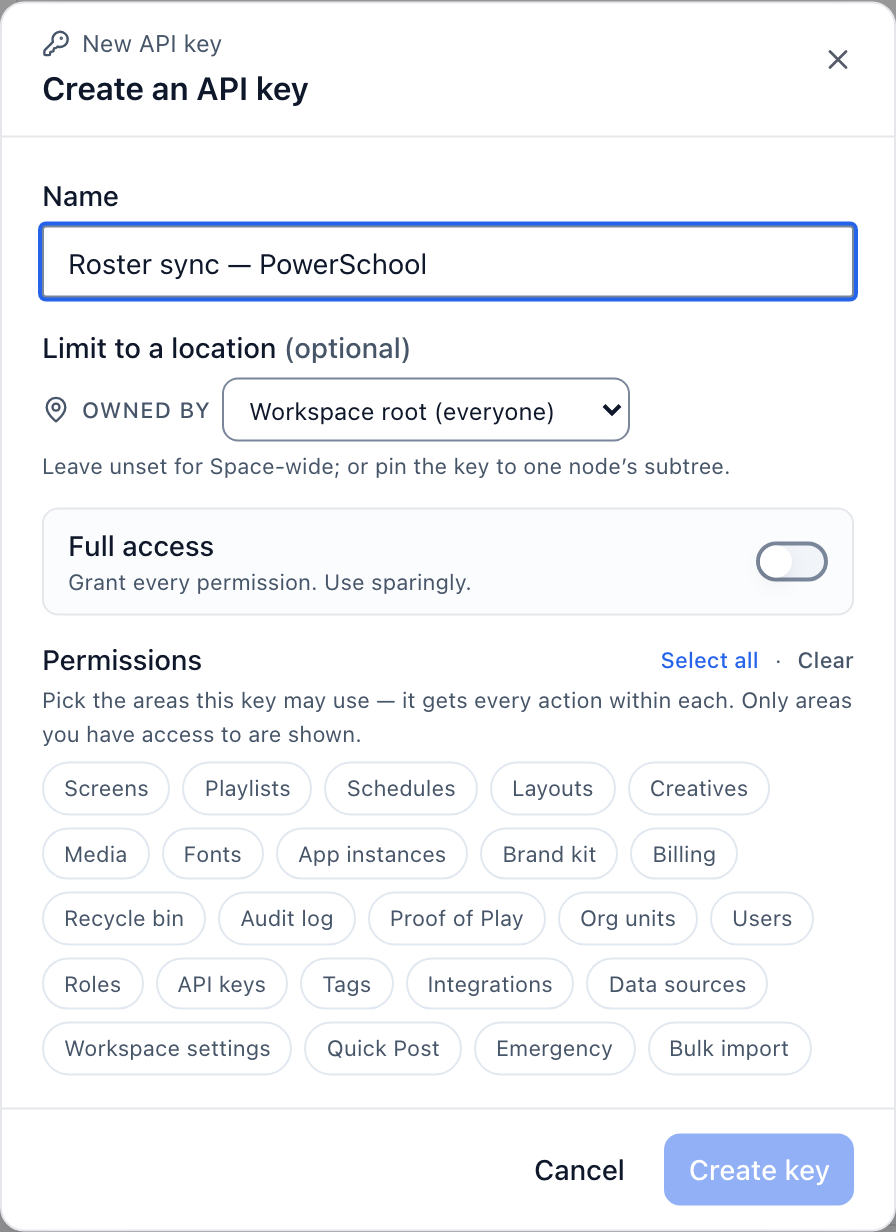
Name the key after the job, choose the location (and everything under it) it can reach, and pick its permissions. Start with view permissions only.
Connect Claude Code
claude mcp add --transport http brix https://api.brixsignage.com/v1/mcp \
  --header "Authorization: Bearer $BRIX_API_KEY"
Start claude and ask "Which of my Brix screens are offline, and why?" Run /mcp to check the connection.
Connect Cursor
Add this to ~/.cursor/mcp.json for every project, or .cursor/mcp.json for one:
{
  "mcpServers": {
    "brix": {
      "url": "https://api.brixsignage.com/v1/mcp",
      "headers": { "Authorization": "Bearer ${env:BRIX_API_KEY}" }
    }
  }
}
${env:BRIX_API_KEY} reads the key from your environment, so it stays out of the file and out of git. Open Cursor Settings > MCP to check that brix is connected.
Other clients that accept a server address and a header use the same shape. The MCP setup page has the config for Claude Desktop and for the Claude and OpenAI APIs. For the chat apps at claude.ai and chatgpt.com, no key is needed. In Claude, search for Brix in Claude's connectors (Customize > Connectors), or add it by URL. See Control your screens from Claude or ChatGPT.
What the agent can reach
The server has more than 40 named tools for the common jobs. Other tools list every documented API endpoint and call any of them with your key. Anything the CMS can do, the agent can do, within the permissions on the key. Every tool is labeled read only, changes data, can remove data, or reaches outside Brix, and MCP clients use the labels to decide when to ask you.
Four jobs to hand to an agent
1. Import a store list.
Read stores.csv. Create a location for each row under its region, with the store number as the Location ID. Skip rows that already exist.
The agent creates up to 1,000 locations in one call. A store whose Location ID already exists is skipped, so you can run the import again after you fix the file.
2. Move content out of another signage system.
The export from our old system is in ./export. Upload every image and video to Brix media, in folders that match the export folders. Then rebuild each playlist from playlists.json with the same order and durations.
See Switch digital signage provider, keep your TVs for the rest of a move.
3. Build designs from a spreadsheet.
For each row in promos.csv, make a landscape design: the photo in the image column as the background, the headline top left and the price bottom right. Name each design after the product.
The agent makes up to 100 designs per call. Brix refuses text that is too small to read from a distance or too low in contrast, with a reason the agent can act on.
4. Write a weekly report.
Pull last week's uptime for every screen and the proof of play for the three supplier videos. Write it to report.md as two tables, worst screens first.
Proof of play is off by default. Turn it on at Settings > Organization > Feature defaults before the week you want to report on.
Use the REST API for unattended jobs
An agent in your editor suits work you watch. A job that must run at 5:00 every morning belongs in a script that calls the REST API, with the same endpoints and permissions:
curl https://api.brixsignage.com/v1/screens \
  -H "Authorization: Bearer $BRIX_API_KEY"
Ask Claude Code or Cursor to read the API reference, write the job and test it on a test location. Then schedule it.
Rules for agent keys
- One key per agent or script. The audit log records the key on every change.
- Only the permissions the job needs. A key with only view permissions is read-only.
- Use Limit to a location to keep a new script on a test location first.
- Keep the key in an environment variable, not in a file in git.
The full checklist is in Let an AI assistant change your screens safely. The key rules are in Authentication and scopes.
Limits
- The tools that assign content or send commands change up to 200 screens per call. The agent works through larger fleets in batches.
- Each workspace has a request limit of 600 a minute by default, and the MCP server allows 30 calls a minute per caller. Over it, Brix answers HTTP 429 with a
Retry-Aftertime. A script that needs more should batch its calls; to raise the workspace limit, talk to support.
The API and the MCP server are included in every plan and in the 7-day free trial, with no card needed. Start the free trial and make a view-only key.