To put an emergency message on every screen from Claude, prepare the message as an emergency template in Brix first, connect Brix to Claude, then type: "Trigger the Severe weather warning template." Claude calls the Brix tool list_emergency_templates to find the template's ID, then trigger_emergency_template, which takes over every screen in that template's scope at once. The message stays up until someone clears it. It works the same in ChatGPT.
The assistant fires only a template you prepared. It does not write an emergency message on the spot.
Steps
- Prepare the templates. In the console, open Settings > Emergency templates and make one per situation: for example Evacuate, Lockdown, Severe weather, Site closed and All clear. Each has its content, a severity and a scope (all screens or one location). Turn Pre-stage on for the critical ones, so each screen stores the message in advance and switches even if the site's internet is down.
- Connect Brix to Claude or ChatGPT and sign in. The steps are in Control your digital signage from Claude or ChatGPT.
- Permissions. On the Brix permission page, set Emergency and Screens to View and change. Triggering needs both. With Emergency on View only, the assistant can list templates but not fire one.
- Trigger it:
Trigger the Severe weather warning template. Tell me how many screens it reached.
- The tool tells the assistant to confirm the scope with you, and it is marked as changing what screens show, so the assistant asks before it runs. Allow it.
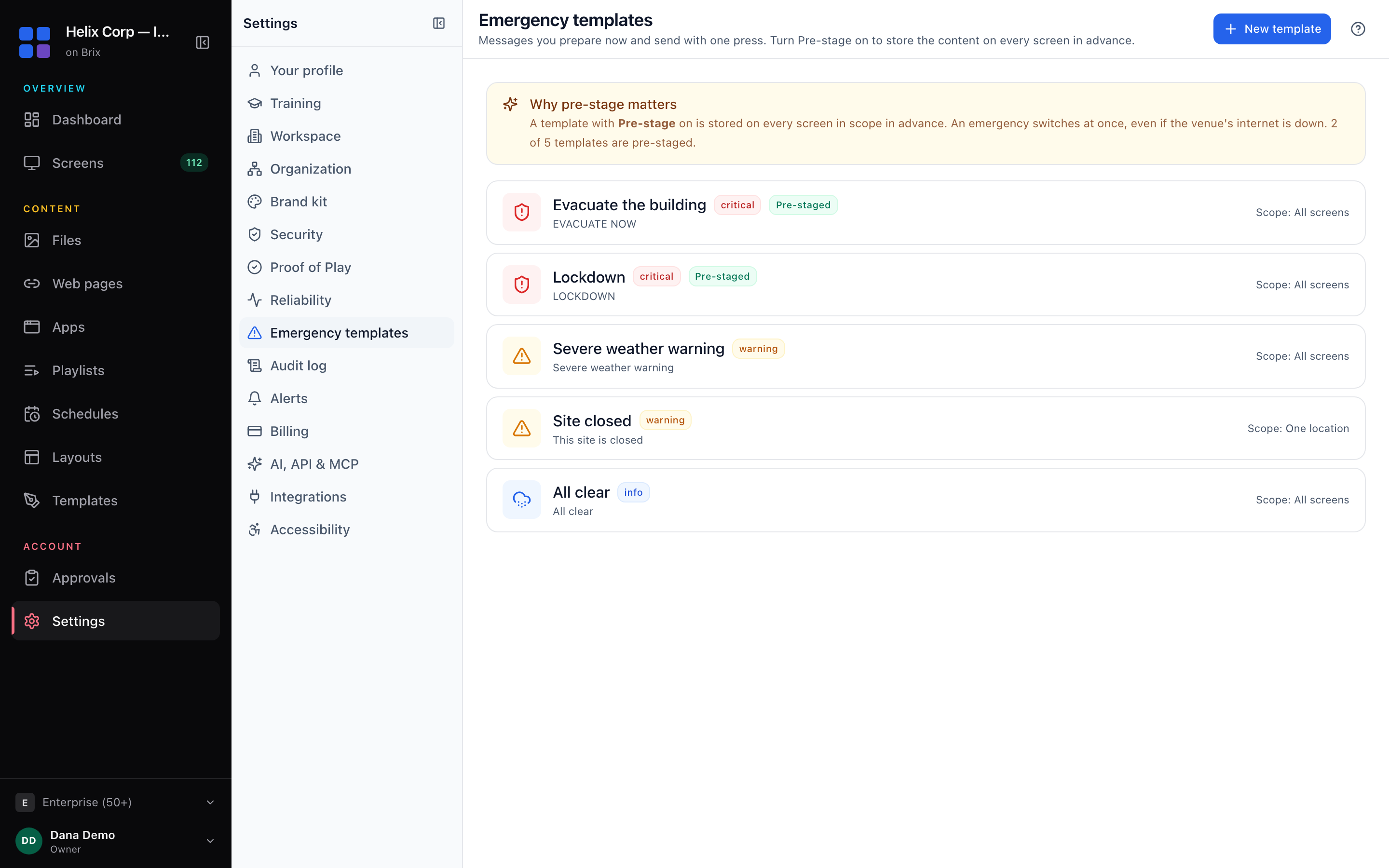
What the connector does
list_emergency_templatesreturns each template's ID, name, scope and severity. The assistant uses the real ID and never guesses one.trigger_emergency_templatefires that template across its scope. It checks that the content still exists and can play on every target screen before it fires, and refuses if not, so a stale template does not turn screens blank.- An emergency message takes priority over schedules, casts and announcements.
Clear it
Ask: "Clear the severe weather warning." The assistant ends it through the Brix API and the screens go back to their schedule. Or press Clear under Alerts > Emergency in the console. A message triggered from the assistant has no end time, so it stays up until one of those happens. If you keep an All clear template, trigger that first, then clear it when people have seen it.
When not to use an assistant
In a real emergency, the fastest path is the one that needs no typing: the emergency button in the console or on a phone, or your alert system. Brix connects to CAP and webhook alert systems such as Singlewire, Rave and Alertus. Our team configures the connection with you. Talk to us.
The assistant is useful for drills, weather warnings, a site closure and checks such as "which emergency templates cover the Leeds stores?" More on emergency messages is in alerts and emergencies.
Permissions and limits
- Emergency and Screens on View and change to trigger or clear. View only lists templates.
- Location limit. A connection limited to one location reaches only the screens there, even for an all-screens template.
- The template decides the content and scope. Change them in Settings > Emergency templates, not in the chat.
- Audit log. Every trigger and clear is recorded under Settings > Audit log with the connection that did it.
- Keep this permission for the people who would press the button anyway. See Let an AI assistant change your screens safely.
Where Brix fits
Emergency templates, pre-staging and the assistant tools are included on every plan: $6 per screen per month billed annually, or $8 billed monthly. See the MCP setup page for every tool.
Start the free trial. It runs for 7 days, with no card needed.