With cloud signage software you change what a screen plays from a browser, not at the TV: pick the screen in the CMS, choose the new content, and the player downloads it and switches over. There are three kinds of change:
- A permanent assignment replaces what the screen plays by default.
- A temporary takeover (a cast) shows something for a set time, then hands back.
- A short message goes out to many screens at once.
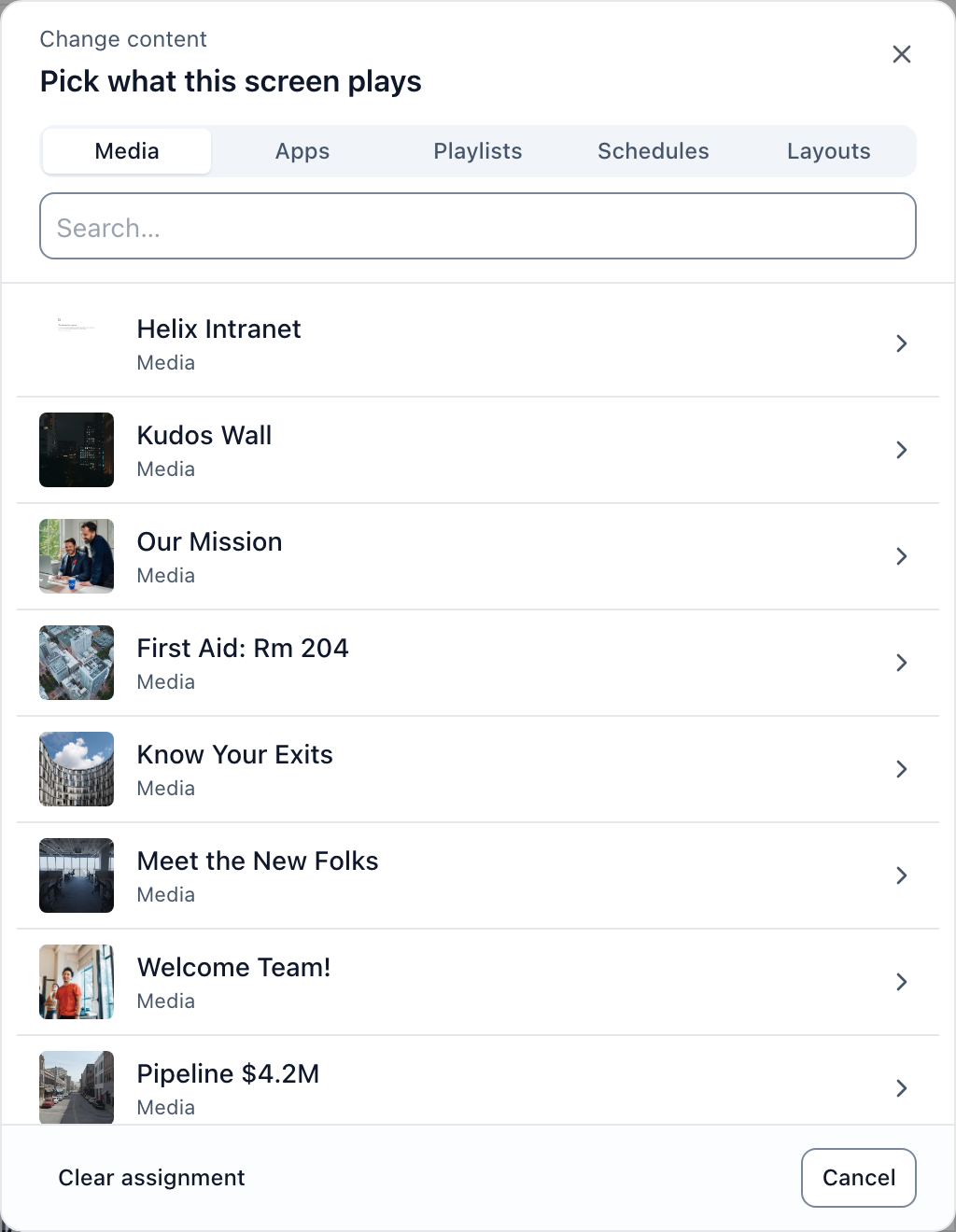
In Brix: select the screen on the Screens page, select Change content, pick an item, and it plays as soon as Brix saves. You need one paired screen; if you have none, read connect a screen first.
A screen plays one item at a time: a file, app, playlist, schedule, layout or design. To rotate several, put them in a playlist; to change by time of day, use a schedule.
Change what a screen plays
- Go to Screens in the sidebar.
- Select the screen you want to change.
- Select Change content on the Now bar at the top of the panel.
- Select a tab: Files, Apps, Playlists, Schedules, Layouts or Templates.
- Type in the Search… box to narrow a long list.
- Select the item you want the screen to play.
The dialog closes as soon as Brix saves the change.
Change what several screens play from the list
- Go to Screens in the sidebar.
- Switch to list view.
- Point at the row of the screen you want.
- Select the content name in the row, beside the pencil marked Change.
- Select a tab: Files, Apps, Playlists, Schedules, Layouts or Templates.
- Select the item you want the screen to play.
To put the same content on many screens at once, tick them in the list first. See manage your screens.
Undo a content change
- Look for the Now playing changed message in the bottom right corner.
- Select Undo in that message.
Clear the content on a screen
- Select Change content on the Now bar.
- Select Clear assignment at the bottom left of the dialog.
The screens list then reads Welcome screen for that screen.
Show something for a set time (cast)
A cast takes a screen over for a set length, then hands it back to its own content.
- Select the screen on the Screens page.
- Select Cast in the panel, or the dashed cast chip on the row.
- Pick an item under Content.
- Choose a length under For how long.
- Select Start cast.
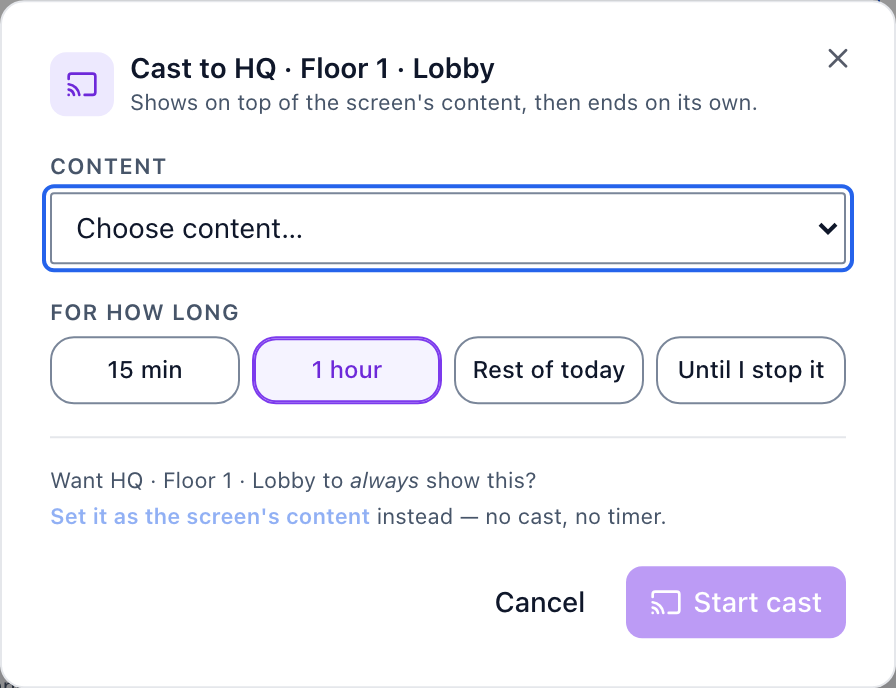
The default length is one hour. Choose Until I stop it for a cast with no end time.
Stop a cast
- Find the Casting chip in the panel, or the cast cell on the row.
- Select the X on it.
The screen returns to its own content.
Make a cast the screen's content
- Open the cast dialog for the screen.
- Pick the content under Content.
- Select Set it as the screen's content, below the length buttons.
Post a message to many screens at once
Quick Post writes a short styled message, sends it to the screens you tick, and returns them to their schedule.
- Open Quick Post at cms.brixsignage.com/quick-post. It has no sidebar entry.
- Type your message into the Message field.
- If you want a second line, type it into the subtext box.
- Choose a Style: Announcement, Alert, Celebrate or Info.
- Check the Preview panel.
- Choose a length under Show for.
- Tick the screens you want in the Send to panel.
- Select the Post to button at the bottom.
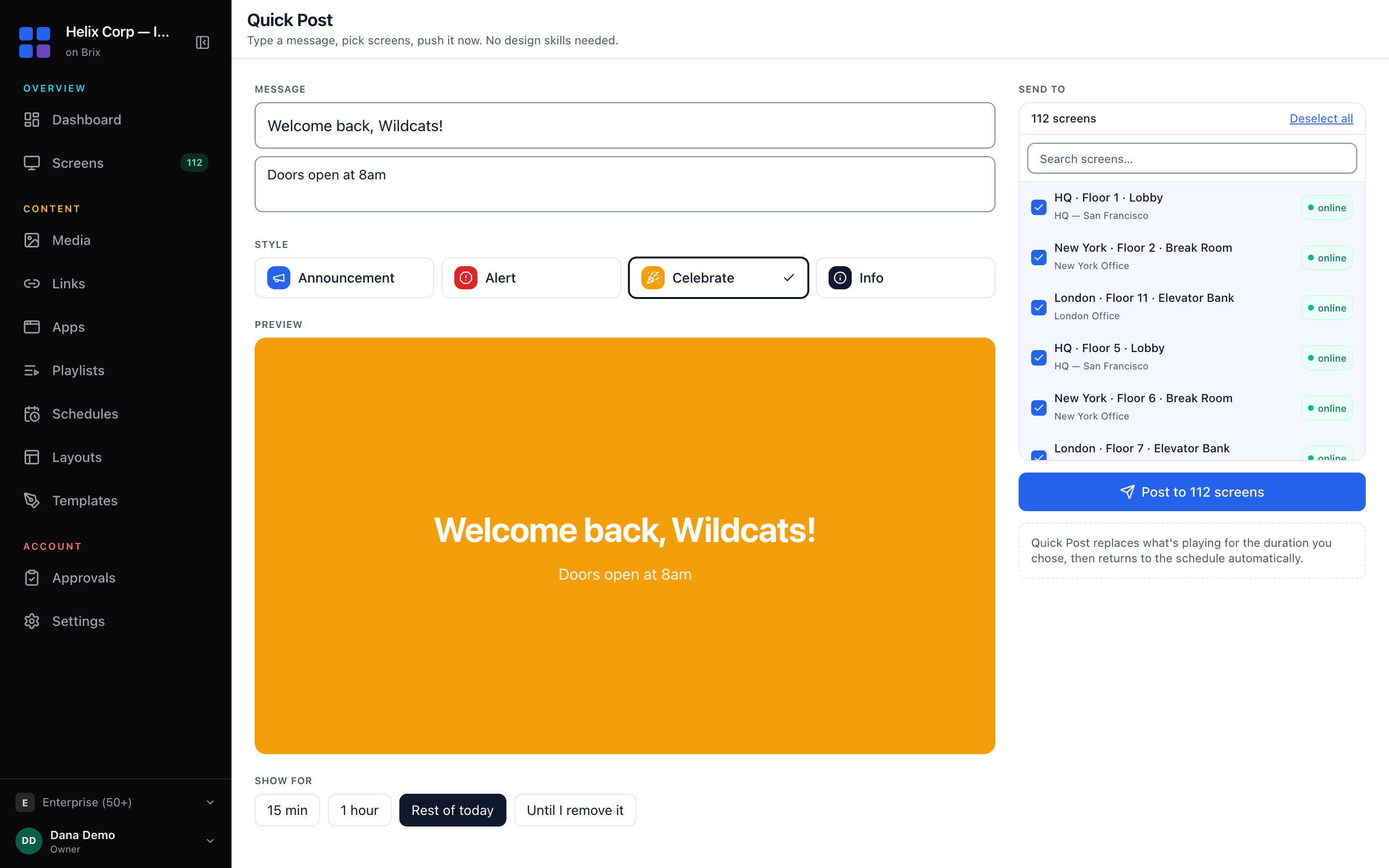
With Until I remove it the message stays until someone removes it.
You can do all of this from a phone browser: read manage digital signage from your phone.