Give a file or a playlist a start and an end date, and Brix stops it playing by itself. That is what buyers mean when they ask to "let the Christmas promo take itself down" instead of someone remembering to pull it by hand. Brix calls the setting an expiry date, or start and end dates when you also set when something begins. Set it once, and the sale ends on the day you picked, on every screen, with nobody logging back in.
Start a free trial and try it on your own files before you commit to a plan.
Set an expiry date on one file
- Open Files in the Content group of the sidebar and select the file.
- Expand Validity in the detail panel.
- Pick a date and time under Show from to keep the file hidden until then. Leave it empty to make it live at once.
- Pick a date and time under Expires to stop it playing after then. Leave it empty for no end date.
- Tick Move to recycle bin when it expires if you want Brix to archive the file for you, instead of leaving it sitting in your library.
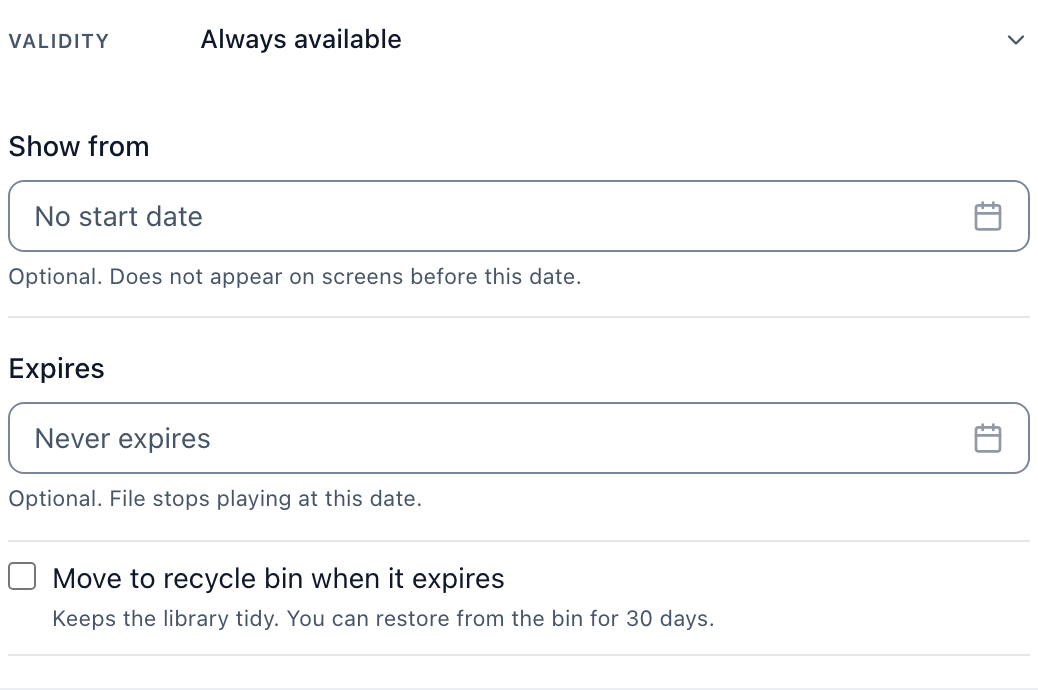
This date and time window follows the file everywhere it plays: on its own, in a playlist, or in a layout zone. You set it once, on the file, not once per place it appears.
Set start and end dates on a whole playlist
A playlist can carry its own window, separate from any single file inside it. Use this when the whole loop is seasonal, not just one slide in it.
- Open the playlist and select the Schedule card in the settings strip under its name.
- Set Starts, or leave it on Today to go live at once.
- Set Expires, or leave it on Never to run until you remove the playlist yourself.
Clear the end date later to start the same playlist again.
A worked example: a sale that ends itself
Say a spring clearance sale runs for three weeks. Upload the sale banner, set its Expires date to the sale's last day, and add it to your regular playlist alongside your evergreen content. On that date the banner stops playing and the rest of the loop keeps running, with no gap and nobody touching the CMS.
If the whole screen is dedicated to the sale instead, with a playlist made only of sale content, set the Expires date on the playlist itself. When that date passes, the playlist stops and the screen goes blank for that slot until you assign new content or clear the date.
What happens when something expires
- A file inside a playlist, past its own Expires date: Brix skips it and plays the rest of the playlist's items. The loop does not pause or leave a gap.
- A file on its own, or in every slot of a playlist: the screen it was on now has nothing to show in that spot.
- A whole playlist or schedule, past its own Expires date: it stops entirely and the screen plays nothing until you clear the date or put different content on it.
- The file itself: it stays in your library, marked Expired, unless you ticked Move to recycle bin when it expires. Tick that box and Brix archives the file for you on the same date, instead of leaving it active and waiting for you to notice.
- A date with no time: Brix keeps a start or end date live for the whole of that calendar day everywhere your screens are, so a sale never starts or stops a day early for a store further west.
FAQ
Does an expired file disappear from my library? No. It stays in Files, marked Expired, so you can find it, extend it or reuse it. Tick Move to recycle bin when it expires if you want Brix to archive it automatically instead.
Can I set an expiry date on one item inside a playlist, without affecting the file everywhere else? No. The date lives on the file itself, or on the whole playlist. There is no separate date for a single slot in one loop. Click a playlist row to open the same Validity settings for its file.
What happens to the screen when a whole playlist's dates run out? The playlist stops and the screen shows nothing until someone clears the end date, extends it, or assigns different content.
Will an expired file leave a gap in the loop? No, as long as other items in the playlist are still valid. Brix skips the expired one and keeps the rest of the rotation playing.
Set a date once, and stop checking the calendar yourself. Start a free trial to try expiry dates on your own files and playlists.
Next, build the loop these dates sit inside: create a playlist, add files from the media library, or schedule content by time of day. Before any of it reaches a screen, you may also want someone to approve it first.