Most TVs work for digital signage. Connect a box behind the TV — a dedicated player such as an Amazon Signage Stick, a Fire TV, an Android box or a small Windows PC — to a free HDMI port, and the TV becomes a screen that shows whatever the player sends. The TV does not need to be a "smart" TV, and it does not need Samsung, LG or Google apps built in.
For most rollouts, the right TV is the cheapest one that meets your size needs, bought from a normal retailer such as Costco, Amazon, Best Buy or Walmart. Buy the same model for every screen in a rollout: a row of identical TVs looks professional. Pair it with an Amazon Signage Stick, and the combination is cheaper, and easier to manage, than most other signage hardware. A consumer TV may not last as many years as a display built for commercial use, but replacing it in five or more years is still cheaper than paying commercial prices up front.
HDMI-CEC: it turns the TV off at night by itself
HDMI-CEC (Consumer Electronics Control) lets a player switch the TV on and off over the same HDMI cable, with no smart plug and no one walking over to press the button. Brands give it their own name in the setup menu: Anynet+ on Samsung, SimpLink on LG. Turn it on there before you rely on it.
With Brix, an Amazon Signage Stick turns the TV off outside opening hours over HDMI-CEC. On a Fire TV, an Android box, a Google TV set or a Windows player, Brix shows a blank screen outside opening hours but cannot switch the TV off, so use the TV's own timer if you want it off.
Test CEC on one TV with your player before you buy several of the same model: support varies by firmware version as well as brand. For a Signage Stick that does not switch the TV off as expected, see HDMI-CEC not working on an Amazon Signage Stick.
A TV with no working CEC still works for signage. It just stays on continuously, or needs its own timer, so check its duty cycle rating is high enough for that.
When commercial-grade actually earns its cost
A commercial display costs more than a consumer TV of the same size, and most rollouts do not need one. Spend the extra money only when one of these is true:
- The location is high-end and the screen is part of the impression, such as a flagship store or a premium lobby.
- The screen sits in direct sunlight, indoors or outdoors, for part of the day.
- The screen runs close to 24 hours a day, every day.
- Nobody on site can swap a TV that fails, so a longer warranty and a longer rated life matter more than the purchase price.
Outside those four cases, a consumer TV does the job for less money.
| Consumer TV | Commercial display | |
|---|---|---|
| Built for | About 8 hours a day, a few sources | 16 to 24 hours a day, one fixed source |
| Typical warranty | 1 year, often excludes commercial or public use | 3 years or more, covers continuous commercial use |
| Smart platform | Yes (often locked down or ad-supported) | Sometimes none at all |
| Where to check | The spec sheet's "recommended daily usage" or "duty cycle" line | Same line, stated in hours per day |
The consumer figure comes from Samsung, which states that the TVs you plug in at home are designed for perhaps eight hours a day. Many commercial displays are rated for continuous, around-the-clock operation across their warranty period.
Read the warranty before you buy, not after the panel fails. Many consumer TV warranties cover personal, family or household use only. A store, lobby or restaurant counts as commercial use.
Which TVs to look at
For the four exception cases above, look at a commercial line such as Samsung QM, LG's commercial UH5F series, Sony BRAVIA Professional, Philips D-Line or NEC MultiSync, and check that vendor's own spec page for duty cycle and brightness before you buy.
For everything else, a mainstream 4K TV from a normal retailer that meets your size needs is enough. Many budget sets from TCL and Hisense run Google TV. Brix installs directly from Google Play on those, so you need no separate player at all.
What size TV, and how bright?
Match the screen size to viewing distance. As a starting point, divide the viewing distance in inches by two to get a reasonable screen size in inches: a screen read from 10 feet (120 inches) away wants to be around 60 inches. Dense menu text or fine print needs a larger screen, or a closer viewing distance, than a logo or a single price.
Brightness is measured in nits (candelas per square metre). Match it to where light falls on the screen:
- Indoors, away from direct sun, such as an office or a menu board under the restaurant's own lighting: 250 to 350 nits is enough. Samsung puts most consumer TVs at 250 nits, and up to 400 nits for HDR sets.
- Near a window or skylight: 400 to 500 nits keeps the picture readable once the sun moves across it.
- A storefront window facing the street: a high-brightness commercial display, rated to sustain that brightness for hours, not a peak HDR number. Samsung lists some at 2,500 nits.
- Direct outdoor sun: no consumer or standard commercial panel is bright enough at any setting. That needs a purpose-built outdoor display, which is a different product line.
Avoid OLED for a screen that shows the same menu, logo or price all day. A static image left on an OLED panel for long periods can burn into the screen as a faint permanent ghost. An LED/LCD panel is far less prone to it.
HDMI and HDCP 2.2: the blank-screen mistake
HDCP (High-bandwidth Digital Content Protection) is the handshake that lets protected 4K and HDR content play over HDMI. If the TV, the cable or a switch in between does not support HDCP 2.2, the picture can go black or drop to a lower resolution with no on-screen error. Plug the player straight into the TV's HDMI port for the first setup, check the spec sheet for "HDCP 2.2" if you plan to show 4K, and add a switch only once the direct connection works. Content played at 1080p does not need HDCP 2.2 at all.
A buyer's checklist
- Buy the cheapest TV that meets your size needs, from a normal retailer, unless your location is high-end, in direct sunlight, running near 24/7, or has no on-site staff to swap a failed TV.
- Turn on HDMI-CEC in the TV's menu and test power on and off with your player before buying more than one.
- Match screen size to viewing distance, and skip OLED for a static menu or logo.
- Check the spec sheet's duty cycle: about 8 hours for a consumer set, continuous for commercial.
- Read the warranty's wording on commercial or public use before you buy.
- If you plan to show 4K, check the TV lists HDCP 2.2 next to its HDMI inputs.
- Buy the same TV model for every screen in a rollout, so it reads as one consistent display wall.
Where Brix fits
Brix runs on an Amazon Signage Stick ($99.99, about 10 minutes to set up), a Fire TV, an Android box such as the Walmart onn, a TV with Google TV or Android TV built in, or a Windows player. Brix has no app for Samsung (Tizen) or LG (webOS) smart TVs, so on those TVs plug in one of the players above and ignore the TV's own apps.
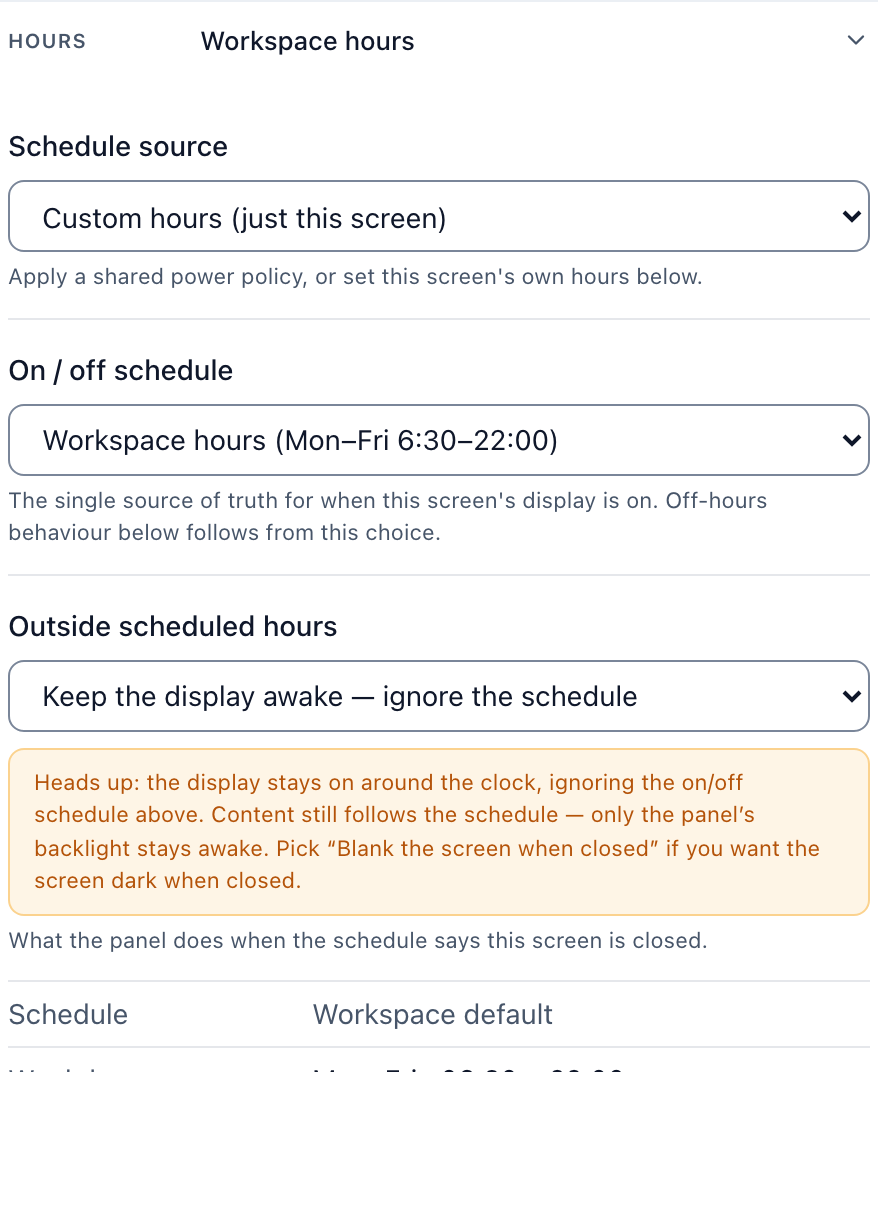
A new screen in Brix is set to On and off times, Standard hours, 6:00 am to 11:00 pm, and the Signage Stick turns the TV off over HDMI-CEC outside that window. Other players show a blank screen and leave the TV on. For a screen that must stay on day and night, choose Always on instead. See Screen hours for the full setting.
Brix costs $6 per screen per month billed annually, or $8 billed monthly.
If you already own TVs and want to know whether to keep them, see using your existing TVs for digital signage. If you are building a menu board, see the ultimate guide to turning a TV into a digital menu board.
Start a 7-day free trial and test your TV and player combination before you buy more hardware. No card needed.
Questions people ask
Does digital signage need a 4K TV?
No. 1080p is enough for most content viewed from normal store or office distances, and it avoids any HDCP 2.2 compatibility issues with older switches or cables. Choose 4K for a large screen viewed up close, such as a menu board near the counter.
How long does a consumer TV last running as a sign?
It depends on hours per day, not calendar years. A consumer panel built for about 8 hours a day wears out faster at 16 or more hours, and it may lose warranty cover sooner than its rated lifespan suggests. For most rollouts that is still fine: a cheap TV from a normal retailer, replaced every five years or so, costs less than commercial hardware bought up front.