Yes, you can use your existing TVs for digital signage. Almost any TV with a free HDMI port works: plug a small media player into that port and run signage software on the player. The TV does not need to be a smart TV. A smart TV can sometimes run a signage app itself, with no player, if your signage software has an app for that TV's system.
What do you need besides the TV?
- A media player behind each TV, unless the TV runs your signage app itself. Common choices: the Amazon Signage Stick (about $100), a Fire TV Stick, an Android TV box such as a Walmart onn (from $29.98), or a small Windows PC.
- Signage software (a CMS), usually a monthly or yearly price per screen. You make and schedule content in it, and it sends the content to every player.
- Power and a network at each TV.
For every cost line, see how much digital signage costs. For a menu board, see how to display a menu on a TV.
Should you use the TV's own apps or a player?
| App on the smart TV | A player on HDMI | |
|---|---|---|
| Extra hardware | None | One player per TV |
| Works on | Only TVs your CMS has an app for (Google TV, Android TV, sometimes Samsung Tizen or LG webOS) | Any TV with HDMI |
| Mixed TV brands | Different app, or none, per brand | The same player and setup on every TV |
| TV updates and pop-ups | The TV's own menus can interrupt the content | The player owns the screen |
With a mix of TV brands and ages, one player type on every TV is simpler: one setup to learn, and one spare that fits everywhere.
What should you check on each TV?
| Check | What to do |
|---|---|
| A free HDMI port | Note the port number, for example HDMI 2. |
| A power outlet near the TV | The player needs its own power. Do not power it from the TV's USB port. |
| HDMI-CEC turned on | Lets the player turn the TV on and off. Brands name it differently, for example Anynet+ (Samsung), SimpLink (LG) or Bravia Sync (Sony). |
| The TV's own sleep timer | Turn off any auto power off or eco sleep. |
| Wi-Fi signal at the TV | Test the signal behind the TV, or plan an Ethernet cable. |
| Portrait mounting | Check that your signage software can rotate content for a TV on its side. |
| Sunlight | A TV facing a window can look dim in daylight. |
A TV with no working HDMI port is not a good candidate. Every other point has a fix.
How do you turn the TVs off at night?
Through HDMI-CEC: the player tells the TV to switch off and on at set times. Most signage software lets you set opening hours per screen. If a TV does not answer HDMI-CEC, the content still plays but the TV stays on. Then use the TV's own on and off timer, if it has one.
How do you set up each TV?
- Plug the player into a free HDMI port and into power.
- Switch the TV to that HDMI input.
- Follow the player's on-screen setup and install or choose your signage app.
- Pair the screen with your signage account, usually with a code the TV shows.
- Choose what the screen plays, and set its hours.
When should you replace the TV instead?
Replace a TV only if it has no working HDMI port, is too dim to read where it hangs, has a damaged picture, must run outdoors, or must run 24 hours a day and its warranty does not cover business use. A consumer TV's warranty may exclude commercial use; read yours before you put it in a shop window all day. When you replace a TV, move the player to the new one.
Where Brix fits
Brix runs on the Amazon Signage Stick, Fire TV, Android boxes such as the Walmart onn, TVs with Google TV or Android TV built in (install "Brix Signage" from Google Play on the TV), and Windows PCs. Brix has no app for Samsung (Tizen) or LG (webOS) smart TVs, so on those plug a player into an HDMI port.
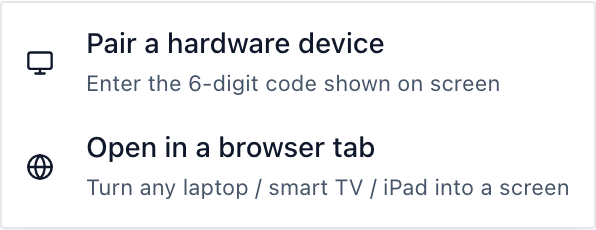
On the Signage Stick and Fire TV, Brix can take screenshots, reboot the player and turn the TV on and off from the CMS. The Android app on a Google TV or an onn cannot be managed remotely, so for many screens or sites with nobody on hand, use a Stick. A Stick takes about 10 minutes to set up: pick "Brix Signage" in its setup, then in the CMS go to Screens, Add screen, Pair a hardware device and type the 6-digit code the TV shows.
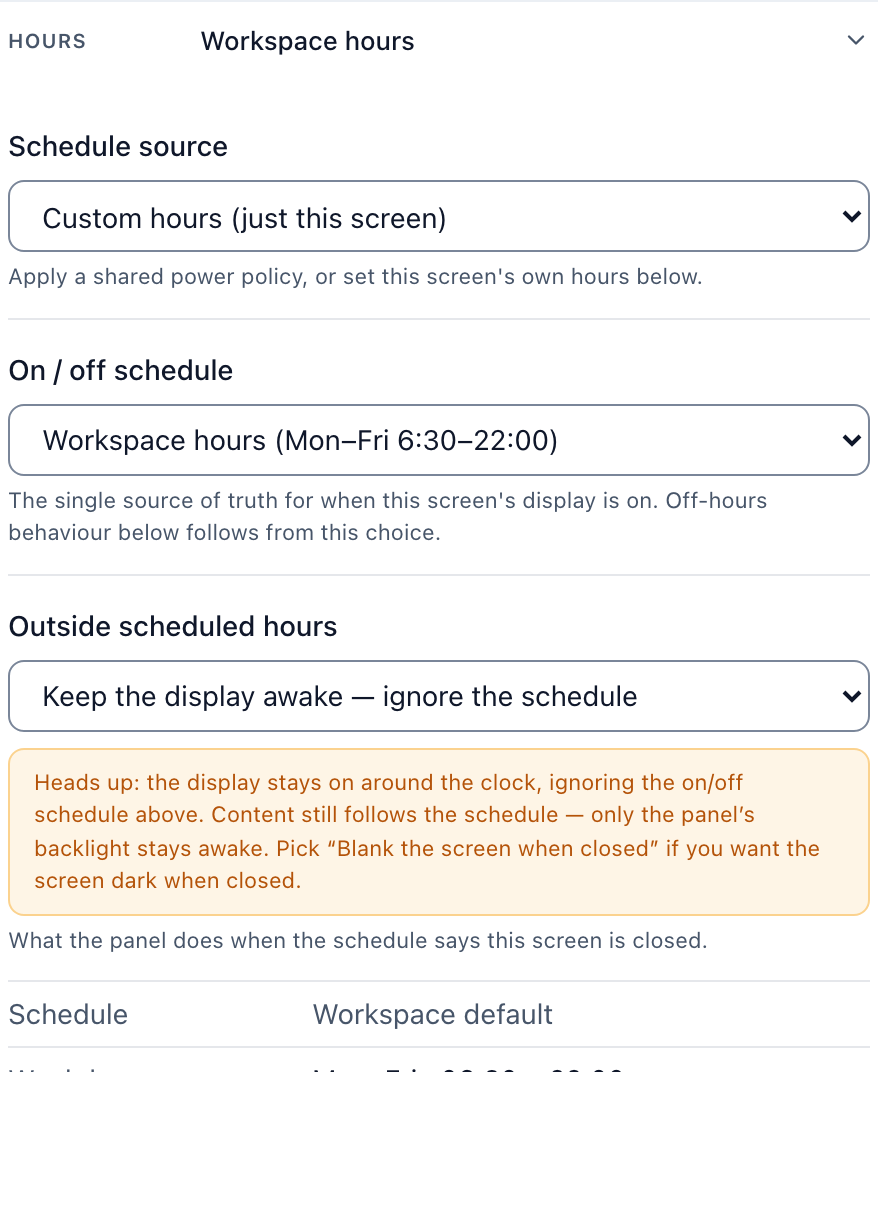
A new screen uses "Standard hours": 6:00 am to 11:00 pm. Outside those hours the Stick turns the TV off over HDMI-CEC. For a screen that runs day and night, choose "Always on".
If a player fails, use Replace device in the CMS: the screen keeps its name, content, schedule and history. The browser tab option (Add screen, Open in a browser tab) runs Brix in a TV's web browser for a quick trial, but it cannot turn the TV on and off or take screenshots, and anyone with the remote can close it.
Brix costs $6 per screen per month billed annually, or $8 billed monthly. See Signage Stick price and cost per screen and Signage Stick vs onn.
Start your 7-day free trial on the TV you already have. No card needed.