Every screen checks in with Brix on its own schedule. After 45 minutes of silence, Brix opens an in-app alert at the next hourly check, with no setup needed. Add a rule to also send an email, a webhook or a Microsoft Teams message. A screen dark for an hour reads as a glitch; dark for three days, and it looks like the store is going out of business.
How fast you find out
Brix checks for offline screens once an hour. A screen counts as offline after 45 minutes of silence, rule or not, so the first alert typically lands 45 to 105 minutes after its last check-in. If the screen already reported its own connection as down before it went quiet, that floor drops to 150 seconds, but the alert still waits for the same hourly check. A rule's Wait before notifying only delays the outbound email, webhook or Teams message after the in-app alert has already opened. It does not make the 45-minute floor or the hourly check faster.
A screen that paired but whose player never sent a first check-in follows the same rhythm, with a 30-minute floor: it is flagged 30 to 90 minutes after you added it, instead of staying silent forever.
Will I get an alert every night when a screen turns off on schedule?
No, if Brix is the one who turned the screen off. A screen on Screen hours, a power policy, or a schedule block that Brix itself switched off raises no offline alert while it stays inside that planned window. If the screen is still silent 45 minutes after its window reopens, Brix alerts like it would for any other screen. There is no separate quiet-hours setting: this suppression follows the schedule you already set for the screen, nothing else.
What else can trigger an alert
Brix watches for more than a dropped connection. The Alerts rules editor lists 21 conditions you can arm:
- Screen goes offline
- Screen freezes
- Screen looks frozen
- Screen looks blank
- TV off, or on another HDMI input
- A system message covers the screen
- Wi-Fi drops often
- Network getting worse
- Storage almost full
- Storage filling up
- Device too hot
- Screen running hot
- Screen restarts again and again
- Device low on memory
- Memory running out
- Videos do not start
- Downloaded content lost
- Player keeps unused videos open
- Player keeps freezing
- Playback failed
- Expired content leaves a gap
One of those, Screen goes offline, already shows up in Settings → Alerts → Events with no rule at all, 45 minutes after the last check-in (above). A second always-on condition is not on this list, because it has no rule option: Screen never connected, 30 minutes after a screen pairs but never sends a first check-in. Several more of the 21 listed conditions also open an in-app alert on their own, before you touch a rule: TV off or on another input, Screen freezes, Device too hot, Videos do not start, Downloaded content lost, A system message covers the screen, Wi-Fi drops often, Network getting worse, Screen looks frozen, Screen looks blank, and Playback failed (three failures in an hour). A rule on any of those adds an email, webhook or Teams message, or narrows it to one location or screen. The rest of the list needs a rule to fire at all.
Get an email when a screen goes offline
Go to Settings → Alerts → Rules and select New rule. Check one or more conditions under Trigger when — one rule fires on any of them, with a single delivery setup, so a frozen screen and a blank screen do not need two rules. Set Applies to (the whole workspace, a location, a screen group or one screen) and Wait before notifying (Immediately, 2, 5, 10, 15 or 30 minutes, or 1 hour) — the wait delays only the outbound message, never the in-app alert. Under Notify by, turn on Email, Webhook, Microsoft Teams, or any mix; In-app is on by default; a rule must keep at least one channel.
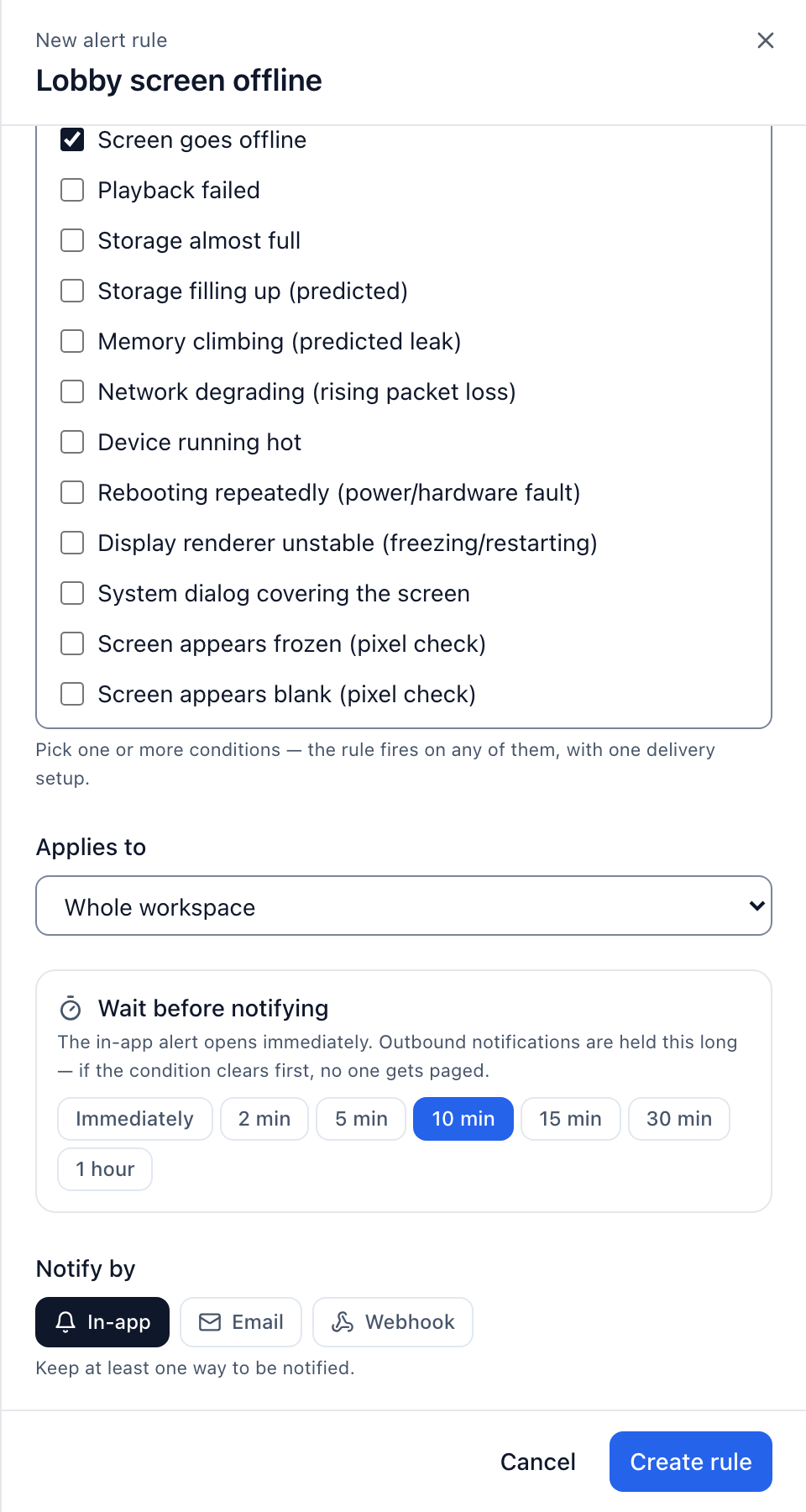
For Microsoft Teams, paste the channel's Workflow webhook URL and select Send test message before you rely on it. For Slack, paste a Slack incoming webhook URL into the same Webhook field — Slack reads the text field in what Brix sends. Turn on Also tell me when the screen comes back (only for the offline trigger) for a message on reconnection too.
Turn on Capture evidence when it fires (on by default once you pick an outbound channel) to have the screen take a screenshot the first time the alert goes out. For an offline screen that screenshot cannot happen right away: Brix queues the command, and it lands in the screen's Activity log, next to the player logs, as soon as the screen reconnects.
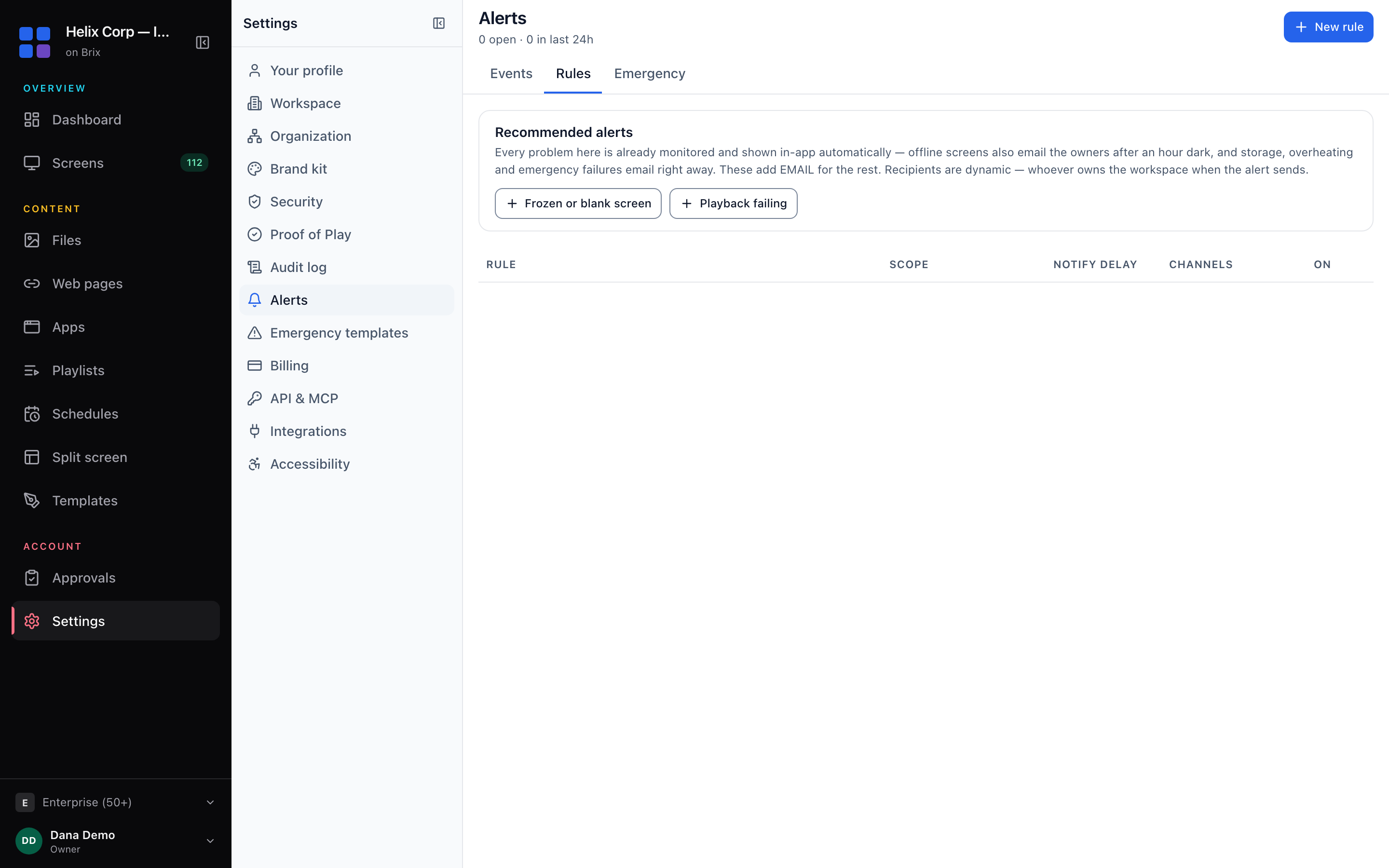
Two presets, Frozen or blank screen and Playback failing, set up a common rule for you, emailing the workspace owners by default. The full walkthrough, with a screenshot of every field, is in the alerts and emergencies guide.
What other signage platforms do
Screenly alerts by email, Slack or PagerDuty when a screen goes offline; its pages do not say how fast that alert fires. Pickcel sends email only, with a configurable threshold and a realtime mode that repeats every 15 minutes until the screen is back. Play Digital Signage sends email and a generic webhook natively, has its own setup guides for wiring that webhook to Slack and PagerDuty, and names Microsoft Teams as a destination too. None of the three pages mentions an alert for a screen that paired but never came online, or a single rule covering several fault types at once.
Brix's webhook is a plain JSON POST. For a channel Brix does not send to directly, such as SMS, route the webhook there yourself with a tool such as Zapier or Make.
FAQ
What do I get when an alert fires?
The event names the screen, how long it has been down, and a next step, such as checking power and network. When every screen at one location (three or more) is dark, each alert says so, so you see one site-wide outage, not separate faults. With Capture evidence when it fires on, the screen also takes a screenshot — queued until an offline screen reconnects — that lands in its Activity log next to the recent player logs.
Set up your first rule on the alerts and emergencies guide, or go straight to troubleshooting a screen that is already flagged. If you would rather ask an assistant to check your fleet, see how ChatGPT or Claude can find offline screens through Brix. Running on an Amazon Signage Stick? The same rules cover it alongside every other supported player. Start a 7-day free trial; no card needed.