Play a PowerPoint deck on digital signage by converting its slides into images or a video, then adding that file to a playlist like any other content. Most signage players do not open .pptx files directly, so the deck goes through a conversion step first.
Two ways to get a deck onto a screen
- Export it yourself. In PowerPoint, use File > Export > Create a Video for an MP4, or File > Export > Change File Type > PNG for one image per slide. Upload the result to your signage software.
- Upload the .pptx and let the software convert it. Signage platforms that accept PowerPoint directly usually turn each slide into an image behind the scenes, so you skip the export step.
Either way, the deck becomes still images or a video inside a playlist. It plays the same as any other signage content: on a loop, mixed with other files, on a schedule.
What changes when a deck becomes signage content
Animations, transitions and slide builds do not carry over to a converted deck. Each slide becomes one still image that shows everything on the slide at once. A build that reveals four bullet points one at a time becomes a single slide showing all four at once.
If a slide only makes sense mid-animation, export the deck as a video instead. A video keeps every animation, but you can no longer set a different time for each slide.
Slide size for a portrait screen
A new deck defaults to 16:9 (widescreen), which fits a landscape screen. For a portrait screen, set the slide size before you build the deck: in PowerPoint, go to Design > Slide Size > Custom Slide Size, then set Orientation to Portrait. A 16:9 deck shown on a portrait screen letterboxes, with blank space above and below instead of filling it.
Where Brix fits
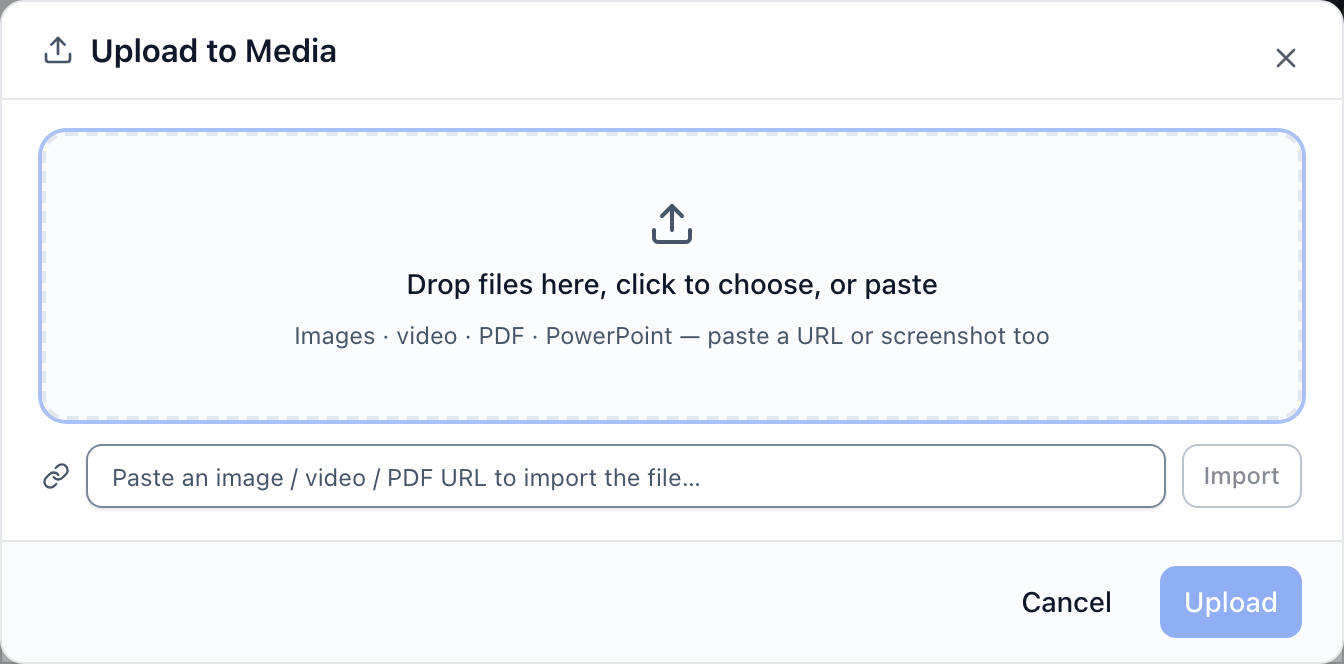
Upload a .pptx in Files and Brix converts it into slides on its own servers. You do not export anything or manage separate video or image files. Add the converted deck to a playlist and it plays on any screen Brix supports, including an Amazon Signage Stick. Your original .pptx file stays untouched in your library.
Start a free trial and upload a deck to see how it converts.
FAQ
Does Google Slides work the same way?
No. Export the deck from Google Slides as a .pptx or a PDF first (File > Download), then upload that file.
Can a PowerPoint deck loop on screen?
Yes. The deck is one item in a playlist, and playlists repeat on their own. Mix it with other content, such as social media posts, on the same screen.
Does a converted deck play offline?
Yes. Once converted, the slides download to the screen like any other file and play from local storage, so the screen keeps showing them without an internet connection.