You can install digital signage yourself in six steps: mount the screen, connect power and the player, connect the network, pair the player to your signage software, put content on it, then set when the screen turns on and off. With an Amazon Signage Stick, pairing it with Brix takes about 10 minutes once the screen is mounted and on the network.
What you need
- A screen. Any TV or commercial display with an HDMI port. A consumer TV works; check that its warranty covers commercial use, or buy a commercial display.
- A media player, unless the screen runs a signage app on its own. The Amazon Signage Stick costs $99.99, or use Fire TV, an Android box, or a Windows PC.
- Signage software. Brix costs $6 per screen per month billed annually, or $8 billed monthly, with a 7-day free trial and no card needed.
- Mounting hardware, if you wall-mount the screen: a bracket rated for the screen's weight and size.
- Power and a network connection at the screen's location, wired or Wi-Fi.
New to Brix? Start a 7-day free trial. No card needed.
What an install costs
- Screen: about $300 to $2,000 or more, by size and brightness (EasySignage). A TV you already have costs nothing.
- Media player: about $50 to $300 (EasySignage). The Amazon Signage Stick is $99.99. On January 7, 2027, Amazon raises the US price to $174.99.
- Software: Brix is $6 per screen per month billed annually, so $72 a year.
- Mount and installer: only when you need them (see below).
For example, one screen on a TV you already have: $99.99 for the Stick plus $72 for a year of Brix is $171.99 in the first year, then $72 a year.
Not sure which player to buy? Read Amazon Signage Stick setup. New to Brix? Getting started covers creating your account and adding your first content.
Install it yourself, or hire someone?
- Do it yourself when the screen hangs on a normal wall or stands on furniture, power and network already reach the spot, and a stepladder reaches the mount.
- Hire an installer when the mount needs an electrician, a lift, a ceiling or glass fixing, or new power or network cable run through a wall.
A single-screen install typically takes 2 to 4 hours from mounting to the first content showing (Pickcel).
1. Mount the screen
- Pick the screen's height: center it about 5 to 6 ft (60-66 in) from the floor for standing viewers, or 48 to 54 in for a seated area. Tilt a screen mounted higher than that down 5 to 15 degrees.
- Match the screen size to the viewing distance: about 43 in at 6 ft, 55 in at 7.5 ft, 65 in at 9 ft, 75 in at 11 ft.
- Check the wall can hold the screen's weight. Fix the bracket into wall studs or masonry, never drywall alone.
- Fit a bracket matching the screen's VESA mounting pattern (the hole spacing on its back) to the screen, then screw it to the wall.
- Keep the screen out of direct sun and away from heat, and leave its ports and power switch reachable for cables and later resets.
Bright, window and outdoor spots
- Indoors, away from windows, a normal screen of 300 to 700 nits is bright enough (EasySignage).
- Facing a sunny window, use a high-brightness display. Direct sun needs 1,500 to 5,000 nits (Pickcel). A normal TV looks washed out there.
- Outdoors, use an outdoor display of 2,500 nits or more. Put it in an IP65-rated enclosure, which keeps out dust and water (Pickcel).
- Ask first. A screen on a public street can need a permit from the city. A store in a mall can need the mall's approval (Pickcel). If you rent, check that the lease lets you drill into the walls.
Brix plays content on each screen separately. It does not span one image across a video wall; a video wall needs a player built for that.
2. Connect power and the player (HDMI)
- Plug the player into the screen's HDMI port.
- Plug the player into power.
- Turn on the screen.
- Select the HDMI input the player uses.
The screen now shows the player's own setup screen, or, on a smart TV with a built-in app, the signage app's start screen.
A TV with Google TV or Android TV built in needs no separate player box: install Brix from Google Play on the TV itself, then plug in power only. Check that an outlet is within reach of the mount, or use an extension cable rated for the player's power draw.
3. Connect the network
- Join the player to your Wi-Fi network, or connect it with a wired cable.
- Wait for the player to finish any software update it downloads.
The Amazon Signage Stick has no Ethernet port. For a wired connection, use Amazon's micro-USB Ethernet Adapter, $14.99.
A wired connection is steadier than Wi-Fi where cabling already reaches the screen.
4. Pair the player with your signage software
- On an Amazon Signage Stick, pick Brix Signage during the stick's own on-screen setup. On a Fire TV, an Android box or a TV with Google TV, install the Brix app and open it. Connect a screen lists each one. The screen then shows a 6-digit code.
- In Brix, go to Screens and select Add screen.
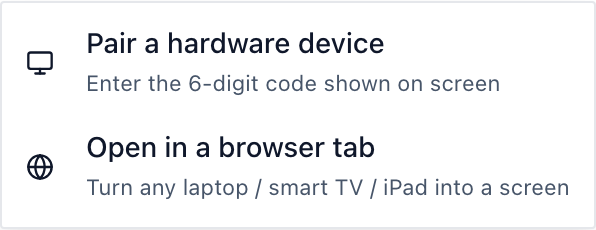
- Choose Pair a hardware device and type the code.
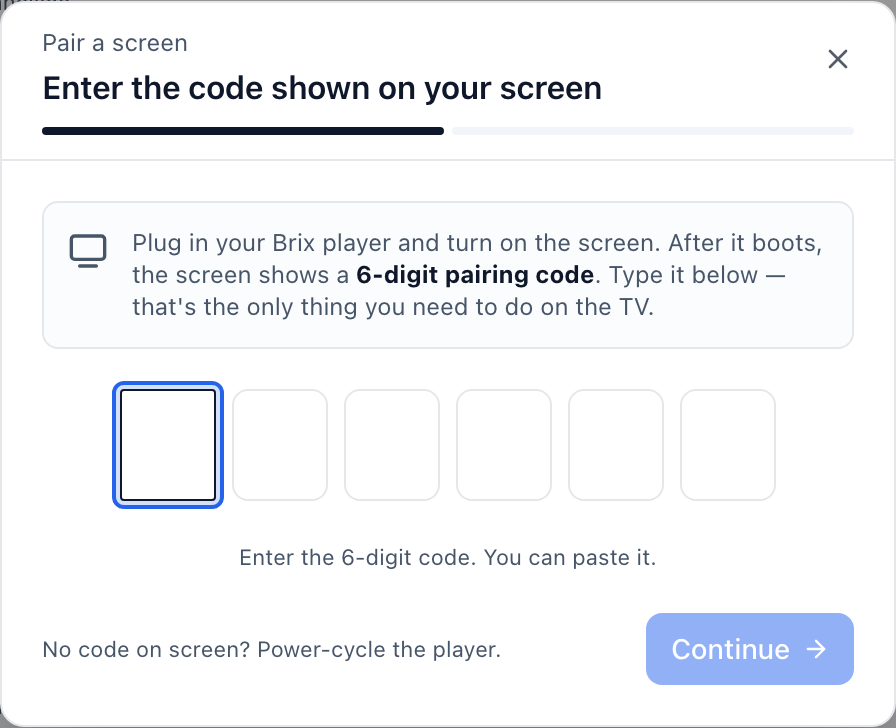
- Name the screen, pick a Group, and select Finish pairing.
No hardware yet? Choose Open in a browser tab to try Brix on a laptop first. It is a trial, not a permanent screen: there is no TV on/off, no screenshots, and anyone can close the tab. For the full pairing walkthrough, including pairing several screens at once, read Connect a screen.
If the code never appears, or the screen stays on the setup screen, check the network connection first. Read Troubleshoot a screen for the causes and fixes.
5. Put content on the screen
- On the Screen paired step, select Add content.
- Pick a playlist, a schedule, a layout, a media file or an app.
Until you add content, the screen shows the Ready for content splash. To do it later, read Put content on a screen.
6. Set Screen hours
A new screen follows Standard hours, 6:00 am to 11:00 pm. On an Amazon Signage Stick, the stick turns the TV off outside those hours over HDMI-CEC. For a screen that runs all day, every day, set it to Always on.
- Open the screen in Screens.
- Scroll to On and off times.
- Set the hours, or choose Always on.
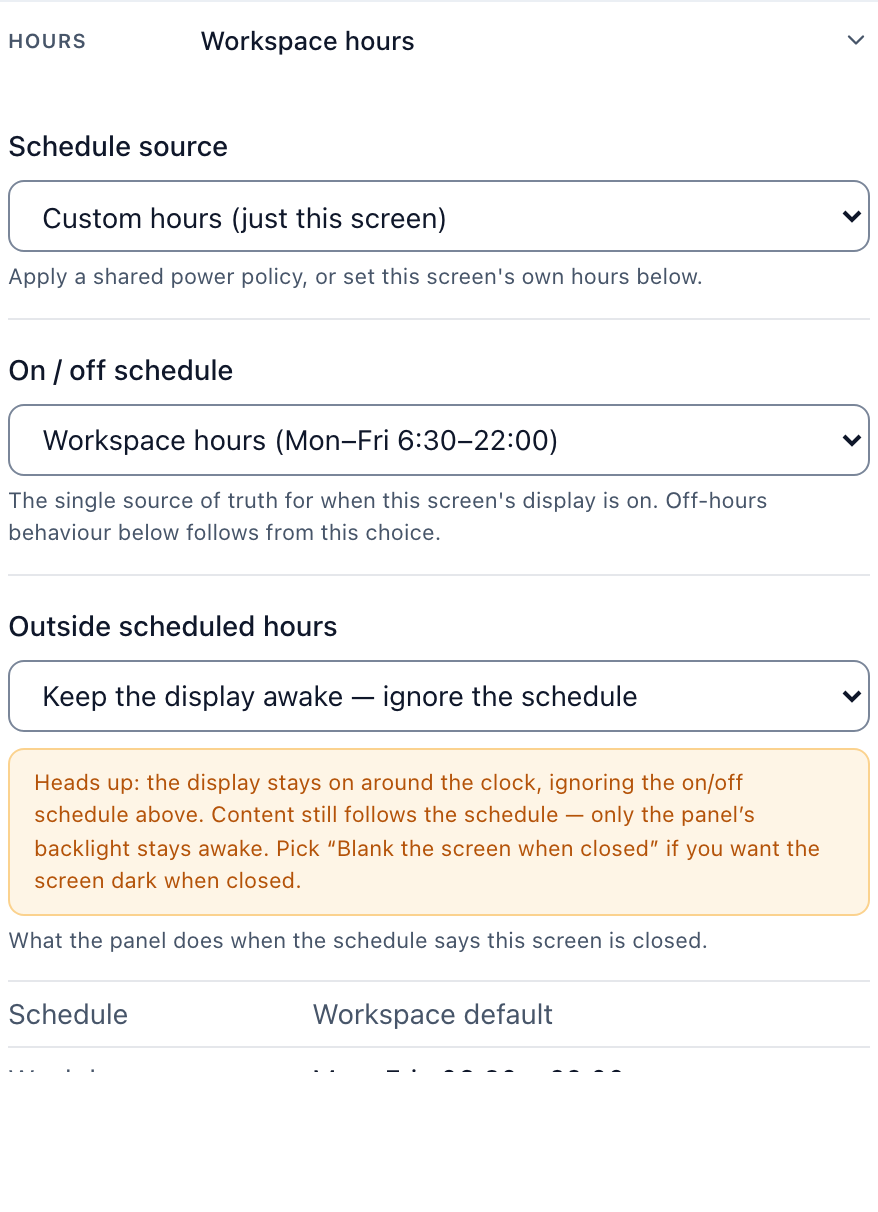
Read Screen settings and display power for daily reboots and per-weekday hours.
Check it before you leave the screen
- Confirm content is playing, not the splash or setup screen.
- Set Screen hours to match when the business is open, not the default.
- If more than one person runs the account, invite them in Settings → Organization so someone else can change the screen later.
FAQ
How long does it take to install digital signage?
A single-screen install, from mounting to the first content showing, typically takes 2 to 4 hours. Pairing an Amazon Signage Stick with Brix, once the screen is mounted and on the network, takes about 10 minutes.
Do I need to hire an installer?
No. A screen with HDMI and a network connection needs no installer. Hire one for a high or hard-to-reach mount, or for a video wall.
Can I install digital signage without drilling into a wall?
Yes. Stand the screen on a TV stand or an existing mount. Or choose Open in a browser tab in Brix to try it on a laptop or a screen you already have, with no new hardware; it is a trial, not a permanent screen.
Does digital signage need Wi-Fi or Ethernet?
Either. The Amazon Signage Stick has no Ethernet port and needs Amazon's $14.99 adapter for a wired connection.
What happens if the internet goes down?
With Brix, the screen keeps playing. Brix saves your content on the media player. The screen plays that copy offline and gets your changes when the connection is back. On the Amazon Signage Stick, the saved copy can use up to half of the stick's storage.
How much does it cost to install digital signage?
A screen costs about $300 to $2,000 or more, and a media player $50 to $300. Then add the software. One screen on a TV you already have, with an Amazon Signage Stick and Brix, is $171.99 in the first year.
What size screen do I need?
Match the size to the viewing distance: about 43 in at 6 ft, 55 in at 7.5 ft, 65 in at 9 ft, or 75 in at 11 ft.
Start your free trial to pair your first screen today.