Plug a USB drive loaded with menu images or a video into the TV's USB port, select USB as the input source on the remote, open the file, and turn on the TV's repeat or slideshow setting so it loops. This works on most smart TVs with no extra software and no internet connection.
Step by step: menu on a TV from a USB drive
- Format the drive. Use FAT32 or exFAT. Most TVs read both. A drive formatted NTFS may not show up.
- Export your menu as images or a video. Save still menu boards as JPEG or PNG, at the TV's native resolution (1920x1080 for a Full HD TV, 3840x2160 for a 4K TV). Export a looping menu as MP4 with H.264 video, which most TVs play.
- Name the files in order. If you have more than one slide, name them so they play in sequence, for example
1-breakfast.jpg,2-lunch.jpg,3-drinks.jpg. - Plug the drive into the TV's USB port (on the side or the back).
- Select USB as the input. Use the remote's source or input button and pick USB, or the TV's own media player app.
- Open the first file, then turn on the TV's own repeat, loop or slideshow setting so playback continues without anyone in the room.
The exact menu names and button positions are different on every TV brand, so check your TV's own remote and settings menu for the loop or slideshow option.
What this setup cannot do
A USB drive plays files. It does not know what time it is, you cannot update it from another place, and it does not connect to anything else. That has four real costs for a restaurant or bar:
- Every price change means a visit to the TV. You export new images, copy them to the drive, walk to the TV, and swap the drive in by hand. A multi-location business repeats that at every site.
- No different content for breakfast and lunch. The files play in the order you named them, on a loop, all day. To show a breakfast menu until 11:00 am and a lunch menu after, you swap the drive at 11:00 am yourself, or build two menus into one file and let diners see both at once.
- The TV does not turn off by itself. A USB slideshow keeps looping until someone turns the TV off at closing and back on in the morning. Forget once, and the menu runs all night.
- Every screen needs its own drive. Three TVs showing the same menu means managing three USB drives and updating all three by hand when a price changes.
Where Brix fits
Brix runs the same kind of menu on an Amazon Signage Stick ($99.99, setup about 10 minutes) instead of a USB drive, and updates it from the CMS instead of a drive swap. Start a free trial to try it on your own menu.
- Change prices from a phone or laptop. Edit the menu board template in the CMS and the screen picks up the change on its own. No walk to the TV, no new drive.
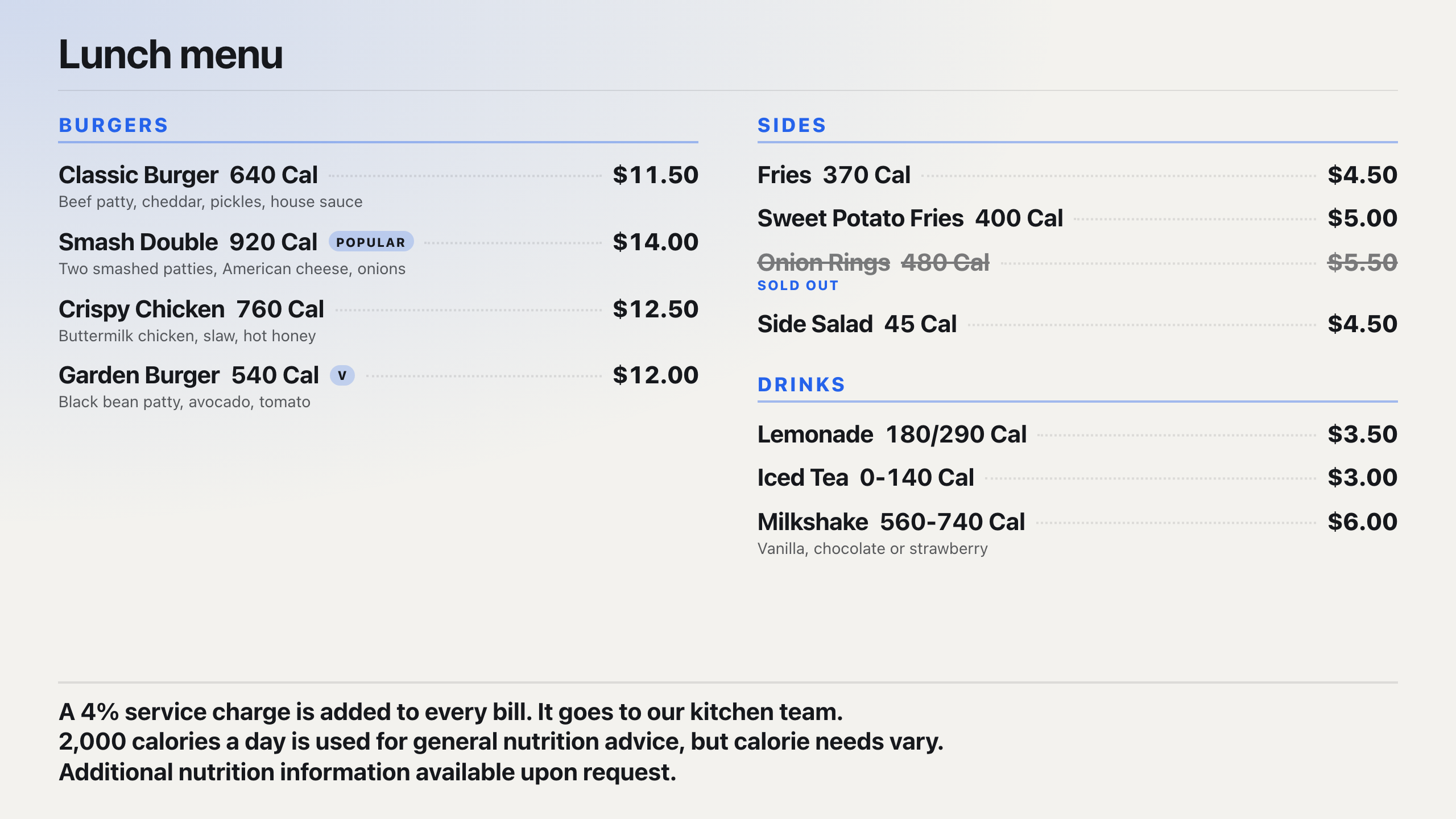
- Different content by time of day. Schedules day-part the screen: they show the breakfast menu until a set time, then switch to lunch, with no one touching the screen.
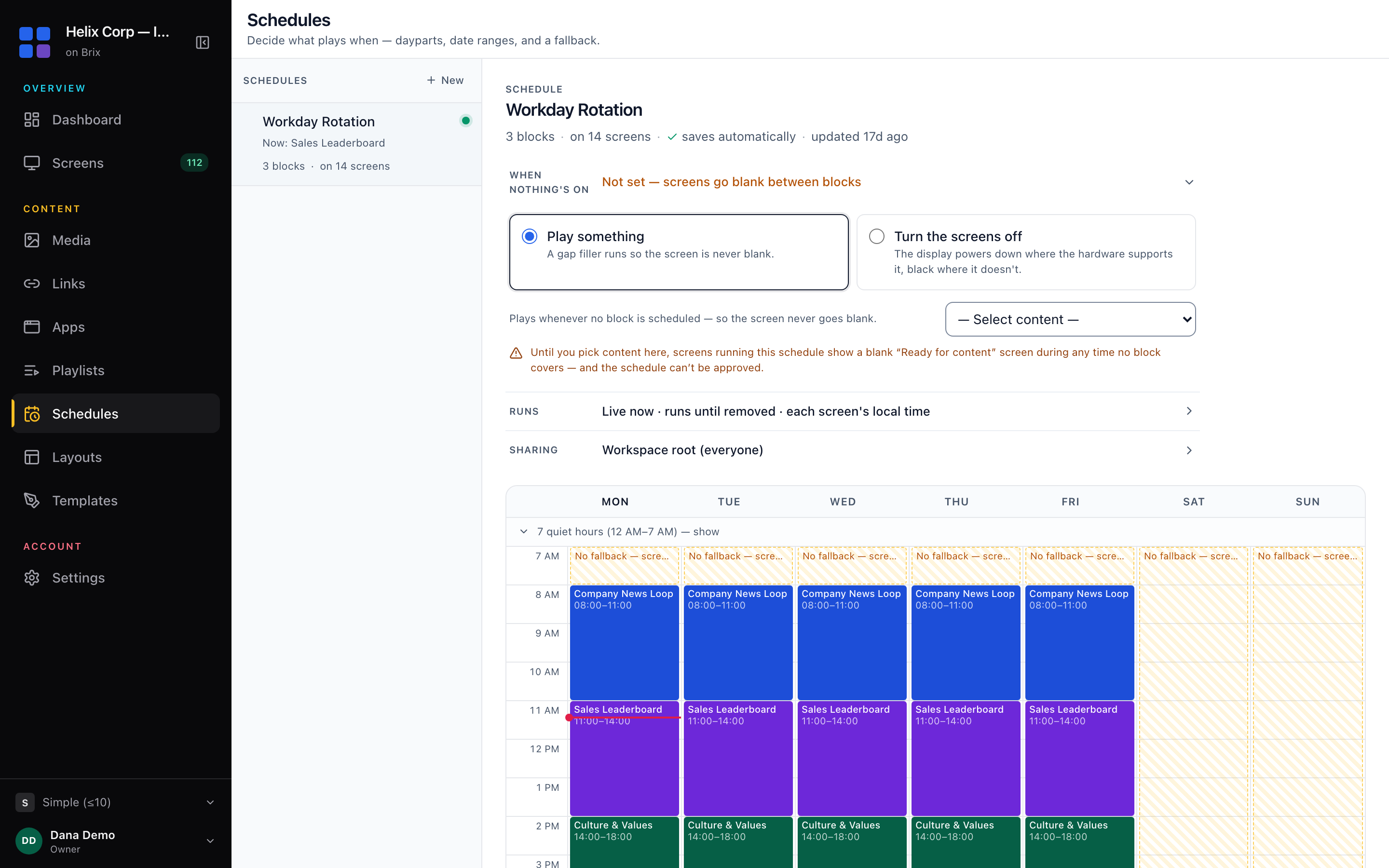
- Turn the screen off outside business hours. Screen hours default to Standard hours (6:00 am to 11:00 pm) and turn the TV off over HDMI-CEC outside that window. A screen that runs around the clock can be set to Always on instead.
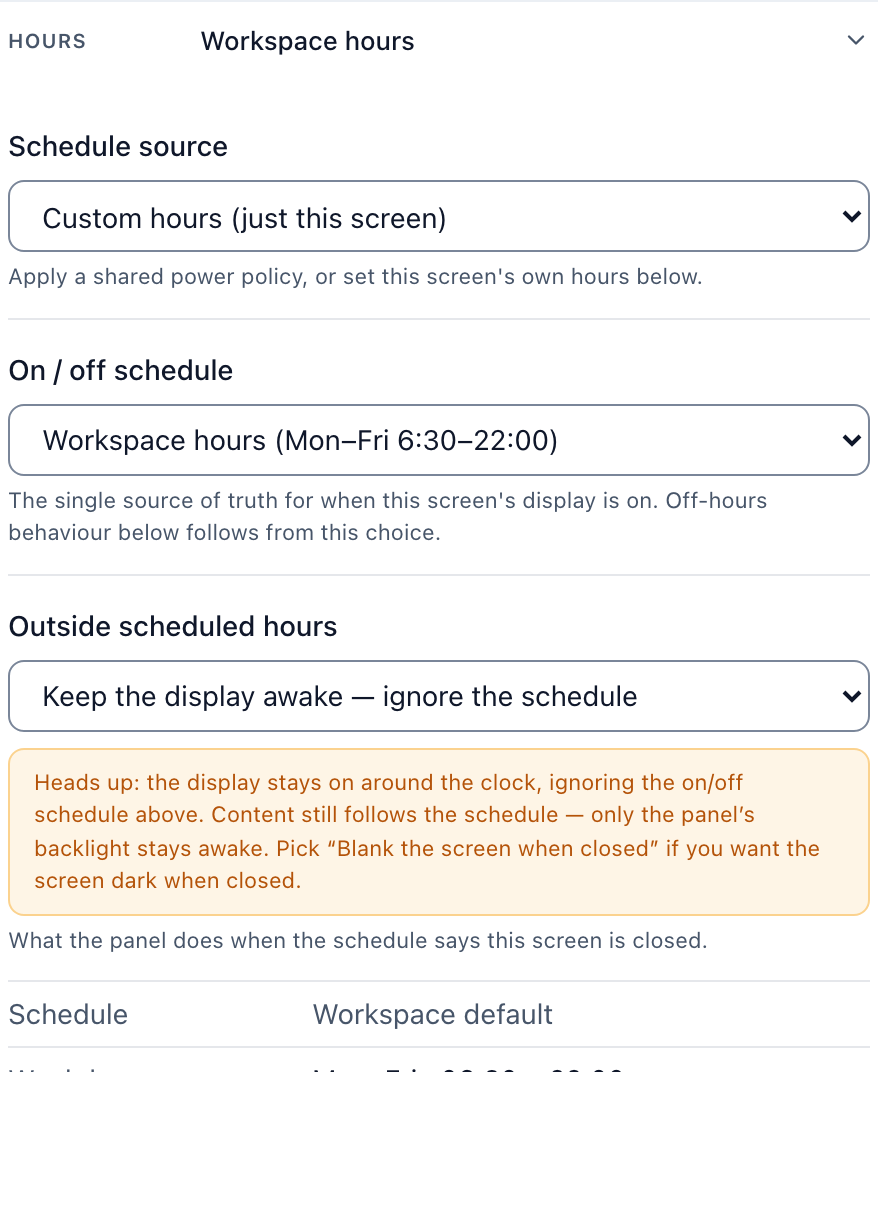
- One setup scales to many screens. Each screen is managed from the same account, so a three-TV menu board does not mean three drives to keep in sync.
Brix is not the only way to run a menu board, and a USB drive is a reasonable choice for a single TV with a menu that almost never changes. See the full ultimate guide to turning a TV into a digital menu board for every option, or compare software on the best digital menu board software page.
FAQ
Does the USB drive need to stay plugged in?
Yes. The TV plays the files directly from the drive. Unplug it and the screen goes blank or falls back to the TV's home screen.
What file format should I use for a menu on a TV?
JPEG or PNG for still menu boards, MP4 for a looping video menu. Export at the TV's native resolution so nothing is cropped or stretched.
Can I show a different menu on each of several TVs from one drive?
No. A USB drive serves the TV it is plugged into. Each TV needs its own drive with its own files.
Why will my TV not read the USB drive?
A common cause is the file system. Reformat the drive to FAT32 or exFAT, which most TVs support, rather than NTFS.