When an Amazon Signage Stick stops working, the fix depends on exactly what you see, not a single universal reset. Many owners call it the Fire Stick. A stick that never showed a pairing code has a different problem than one that paired last month and now shows nothing. Match your symptom in the table below, then follow its fix.
Match your symptom to the fix
| What you see | What it usually means | Fix |
|---|---|---|
| Stuck on "Press Play to Start," no pairing code | First-time setup has not finished | Not yet paired, below |
| Will not join the Wi-Fi during setup | A hidden network, WPA2/WPA3-Enterprise (not supported), or a guest sign-in page | Network requirements |
| Still runs our old signage company's app, not Brix | The CMS is chosen once, at setup | Factory reset, then pick Brix Signage |
| A message that the stick belongs to another organization | Still bound from a previous setup | Belongs to another organization, below |
| The remote will not pair to the stick, or shows Pairing failed | Out of range, dead batteries, or needs a reset | Remote will not pair, below |
| The Amazon Signage app finds no stick when it scans | The phone is out of Bluetooth range, or the stick has not finished starting | Keep the phone within 10 feet of the stick, leave the stick on power for 5 minutes, then restart it and scan again |
| The code is right but Brix says it does not match | Code expired, or claimed already | Code does not match, below |
| Stuck on the Amazon logo, or a black screen | Power, a pending update, or HDMI/HDCP | Stuck on logo or black screen |
| TV does not turn on or off by itself | HDMI-CEC is off, or something sits between stick and TV | HDMI-CEC not working |
| TV says No Signal, or shows the wrong input | Wrong HDMI port, or the TV is set to another input | No Signal or wrong input |
| Paired and online, but plays old content | Cache, a stuck schedule, or a full disk | Old content, below |
| Screen panel reads Cache full | The stick's storage is full | Storage full |
| TV turns off by itself, or the stick keeps restarting | A power or CEC conflict | Keeps turning off |
| Offline for hours or days | Network dropped, or a firewall blocks the stick | Offline playback, Keeps disconnecting, Network requirements |
Not yet paired: no code on screen
- Plug the stick into a wall outlet with the adapter from the box. A TV's USB port does not supply enough power for reliable setup.
- Switch the TV to that HDMI input.
- On screen, choose Brix Signage. The stick shows a six-digit code. Type that code in Brix (see below).
- If no code appears after 10 minutes, the stick may still be updating its firmware and installing the Brix app on a slow network. Give it longer before you reset anything. Scheduled updates also run between 2 am and 5 am local time, so leave a problem stick powered on overnight.
If it is stuck on "Press Play to Start" with no prompt to continue, pair the remote first, or use the Amazon Signage mobile app instead. Amazon's mobile app needs a password-protected Wi-Fi network (WPA2, WPA3 or WEP) to finish setup. The remote and Amazon's Signage Manager Portal route also work on open Wi-Fi. Finish setup with the remote instead, or join a password-protected network first and change networks once the stick is running.
The remote will not pair
- Hold Left, Menu and Back together for 12 seconds to reset the remote.
- If that does not work, take the batteries out for 30 seconds, then put them back in, or fit new alkaline batteries.
- Move the remote within 10 feet of the stick, then hold Home for about 10 seconds until the pairing prompt appears. If it still fails, unplug the stick for 5 seconds and try again.
- If a physical remote already paired the stick before you tried the mobile app, the app cannot take over from it. Factory reset the stick and start again from the app.
If the remote paired before and now will not, see remote not pairing.
The stick belongs to another organization
A stick bought used, returned, or moved from another account can show a message that it is still bound to another organization. A factory reset does not clear this on its own, because the binding lives on Amazon's side, not on the stick.
- With the original Amazon account: sign in at console.signage.amazon.com, open Login with Amazon > Signage Sticks, find the stick by serial number or pairing code, select it, then choose Unregister under Actions.
- Without that account: email [email protected] with the stick's Device Serial Number (on the box, or on the remote under Settings > About Device > Model & Hardware; it starts with "G"). Amazon unbinds it and the stick can be set up again.
Retry setup only after you have confirmation the stick is unbound. If you try again before that, the stick shows the same message.
Brix says the code does not match or has expired
In Brix, go to Screens, select Add screen, then Pair a hardware device, and type the six-digit code from the TV.
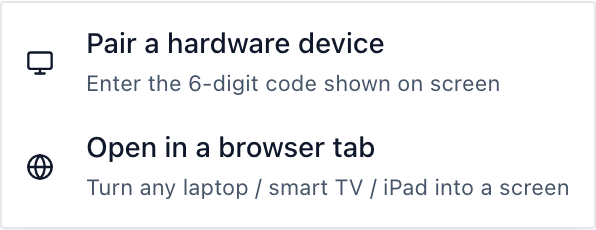
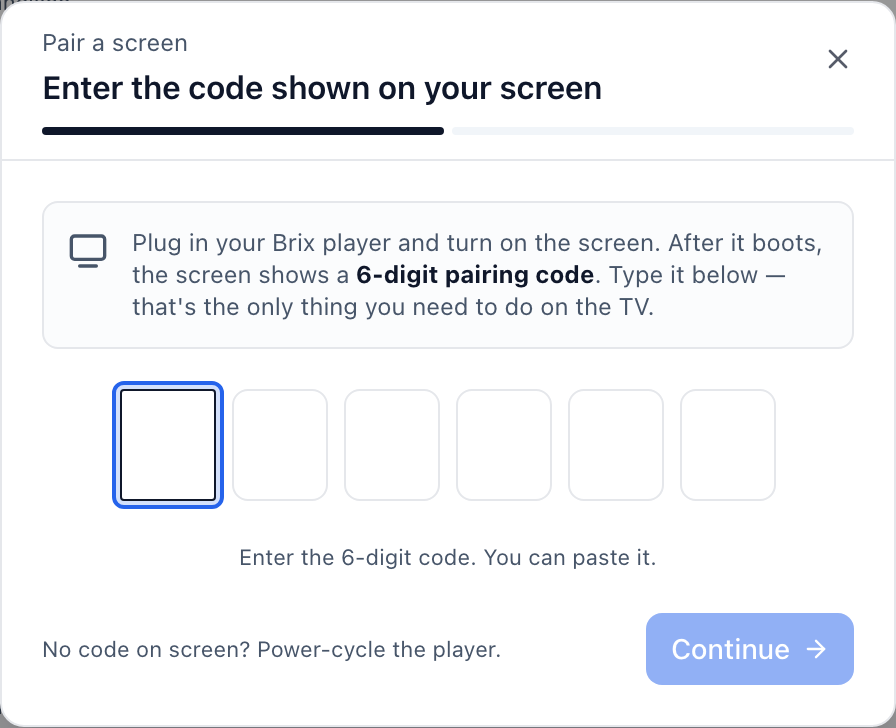
- Brix can find a stick automatically, with no code to type, in the New devices on this network strip on the Screens page. This works only when the stick sits on the same network as the computer you use to pair it.
- On a different network, type the code instead. Brix shows Could not find nearby devices only when the request itself fails, for example after an expired sign-in — not because the stick is on another network.
- The code stays usable for up to 7 days after it first appears, even once the stick's own screen has moved on. If the code has been sitting on the TV longer than that, restart the stick for a fresh one.
- For a wrong or already-claimed code, Brix shows No device is waiting with that code.
- For an expired code, Brix shows That code expired — restart pairing on the device. For either message, restart the stick to get a new code.
Paired and online, but it plays old content
- In the screen's panel, expand Playing now and read the Decision chain from the top, to see what is actually scheduled right now.
- Expand the Player row and scan Cached assets for anything marked Missing.
- Select Download again to reload the content list and fetch what is missing. Clear cache is a harder reset: it removes every local copy first, so only use it on a good connection.
- If the panel reads Cache full, the stick's storage, not the network, is the problem. See storage full.
For the full walkthrough of each of these screen-panel rows, see troubleshoot a screen.
Checking the stick's health from Brix
Once a stick has paired, Brix's Screens panel is the fastest way to tell a setup problem from a running one:
- Connection reads Live, Slow updates or Offline, from the stick's own heartbeat, not from the TV picture.
- Screen on and Screen off buttons send Amazon's remote-management command straight to the stick. If the TV does not have HDMI-CEC on, the buttons are grayed out with a tooltip saying why.
- The outage history labels each gap Power cut, Restarted or Switched off, so a stick that restarts in a loop is easy to spot from the office.
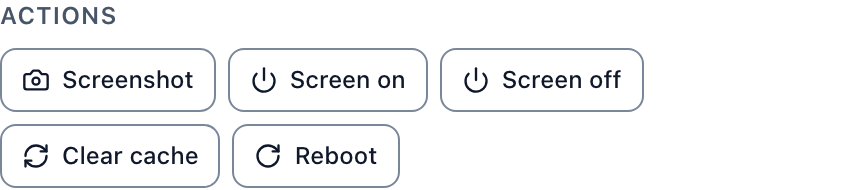
Start a 7-day free trial and pair your first Signage Stick to see these rows for yourself.
FAQ
How long does a Signage Stick pairing code stay valid?
Up to 7 days from the moment it first appears, even if the stick's screen has since moved past it. After that, restart the stick to get a new code.
Does a factory reset clear the "belongs to another organization" message?
No. The binding is stored on Amazon's side. Unregister the stick from the original account at console.signage.amazon.com, or ask [email protected] to release it, before you try pairing again.
Is the Amazon Signage Stick the same as a Fire TV Stick?
No. They are different Amazon devices with different signage support. See Fire Stick digital signage: Fire TV vs Signage Stick for what each one can and cannot do.
My stick is online in Brix but the TV is dark. What is wrong?
The stick and the TV are two different things to check. If Connection reads Live, the stick itself is fine; the fault is between the stick and the TV. Start with HDMI-CEC not working and No Signal or wrong input.
The stick has been offline for days. What happens to the screen?
It keeps playing whatever it already downloaded. See offline playback for how long that lasts, and network requirements for the firewall rules a corporate network needs to open.