A single screen needs one player device, one piece of software or a manual loop, and none of the multi-location features signage vendors build for chains. Most of that decision comes down to one question: do you want an app for your phone, so you can change the screen without visiting it, or is walking up with a USB stick good enough for how often the content changes?
Is digital signage overkill for one screen?
No, if the content changes more than a few times a year, or you want to change it without visiting the screen. Yes, if the screen shows one image that almost never changes. A printed sign or a USB stick on a loop does that job for less money, and you do not need an account, a network connection, or anything that can go offline.
Count how many times a year you expect to update the screen. Under five times, a manual approach wins on cost. Above that, remote software starts to pay for itself in the time it saves you walking back and forth with a USB drive.
What you actually need for one screen
Every signage setup, at any size, is built from the same two parts:
- A player. The device that sits behind the screen and plays the content. For one screen this is a single small box: the Amazon Signage Stick, a Fire TV, an Android box such as the Walmart Onn, or a TV with Google TV or Android TV already built in. It plugs into the screen over HDMI.
- Software, or a loop. Either a cloud dashboard that sends content to the player, or a folder of images and video the player loops on its own from a USB drive, with no dashboard at all.
You do not need a second workspace, user roles, screen groups, or anything built for managing dozens of locations. Some platforms charge for those features in a higher tier. With a per-screen price you pay only for the one screen.
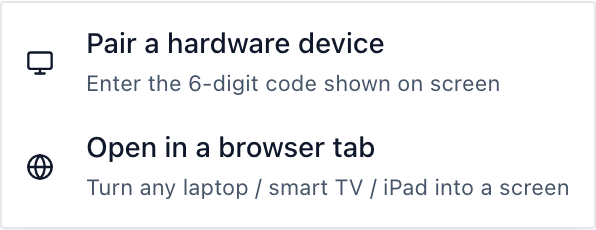
Pairing a player to a cloud dashboard is a one-time step. On the Amazon Signage Stick, the stick's own on-screen setup asks which signage app to use; after that you pair it from the dashboard, usually by entering a short code shown on the TV. The whole thing, box to paired screen, takes about 10 minutes (Signage Stick setup guide).
Can you control it from your phone without an app?
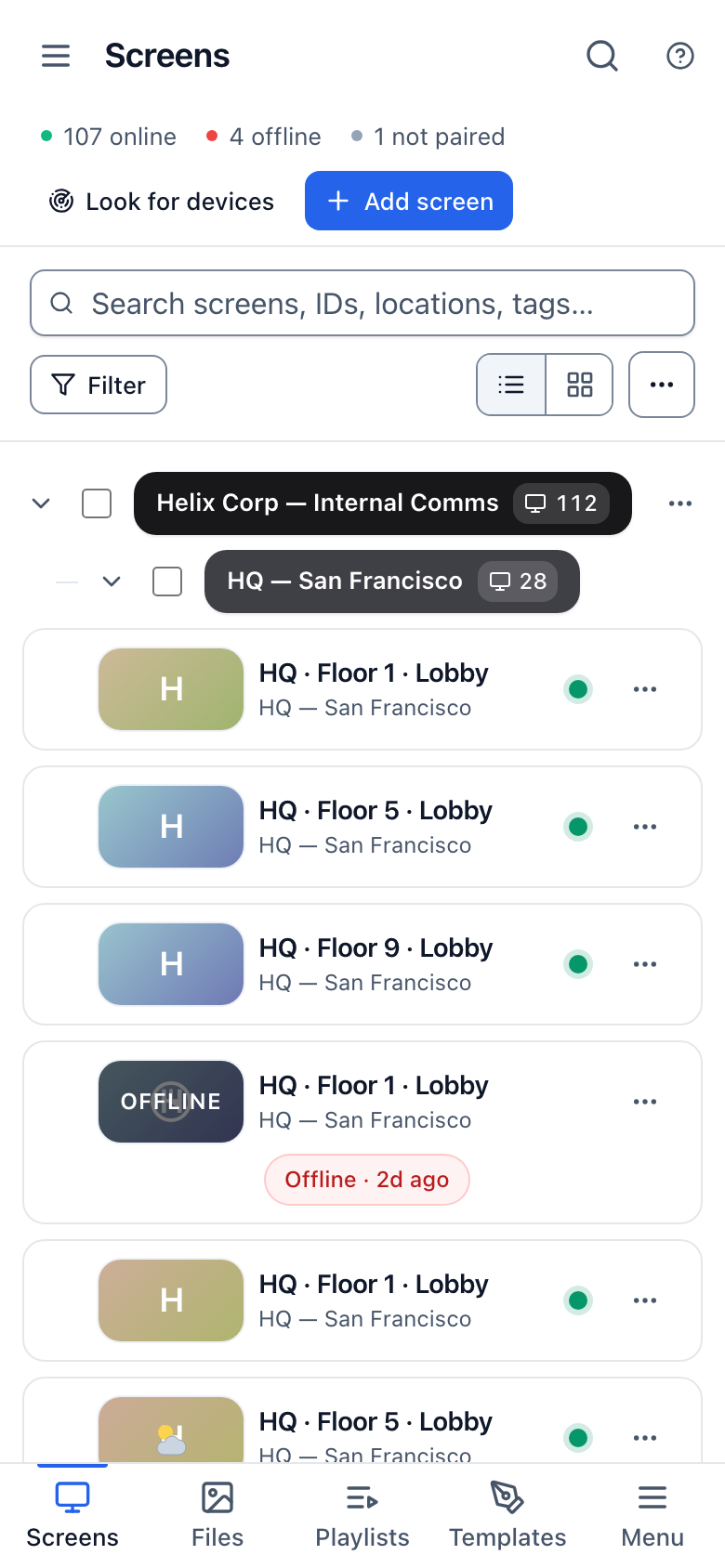
Yes, on most cloud dashboards. The screen's content lives in your account, not on the device, so a browser on your phone or computer can open the dashboard and change what plays, with no separate app to install on the phone itself. That is the main thing a USB loop cannot do: you cannot change a USB stick's content without physically swapping the files on it.
If you never expect to change the content away from the screen, this feature buys you nothing. If you run a shop, waiting room, or café and want to swap a promotion from your phone on a Saturday morning, it is the reason to pay for software at all.
Is a USB stick or a free app enough?
Often, yes, for exactly one screen. Many smart TVs will loop images and video from a USB drive on their own, with no account, no subscription, and no internet connection required (how to display a menu on a TV using a USB drive). Some signage software vendors also offer a free plan limited to one screen, with fewer features than their paid plans, so check what the free plan leaves out before you rely on it.
A free or manual approach is enough when:
- The content is the same for weeks or months at a time.
- One person updates it, and they are usually on-site anyway.
- You do not need to prove the content played, show different things at different times of day, or turn the screen off automatically overnight.
It stops being enough once any of those change, because by then you are paying in your own time for a limit the software would have removed for a few dollars a month.
What one screen really costs
| Setup | Hardware (one time) | Software | Typical year one | What you give up |
|---|---|---|---|---|
| USB stick in a smart TV's own player | $0, if you already own the TV | None | $0 | No remote changes; you walk up with the drive to update it |
| Free single-screen plan on a signage app | TV plus an existing or low-cost player | $0 | $0 for the software | Fewer features than the paid plans; the limits differ by vendor |
| Amazon Signage Stick + Brix, billed annually | $99.99 | $6 per screen per month, billed annually ($72 a year) | about $172 | Nothing cut; the same plan works at 100 screens |
| Amazon Signage Stick + Brix, billed monthly | $99.99 | $8 per screen per month, billed monthly ($96 a year) | about $196 | Pay $24 more a year for not committing to a year |
If your Wi-Fi at the screen is weak, the Signage Stick has no Ethernet port of its own; Amazon's micro-USB Ethernet adapter ($14.99) adds a wired connection.
Where Brix fits
Brix's price, $6 per screen per month billed annually or $8 billed monthly, is the same at one screen as it is at a hundred. There is no minimum screen count to sign up, and no extra charge for the features below, because they come with every screen on the plan:
- The CMS works in a phone browser. There is no separate app to install. You can change the one screen's content, check it is online, or swap a promotion from a phone during a slow Saturday, without visiting the screen.
- Different content at certain hours (Schedules). If the screen needs to show something different in the morning than in the afternoon, a schedule does that automatically once you set it up, instead of you remembering to swap content twice a day.
- Turn the TV off at night (Screen hours). A new screen defaults to on from 6 am to 11 pm and turns the TV off outside those hours over HDMI-CEC, so an empty shop or waiting room is not lighting a screen all night. A screen that runs all day can be set to always on instead.
- Proof of play, if you ever need it. It is off by default and free to turn on later, in Settings, Organization, Feature defaults, if a sponsor or landlord ever asks for evidence the content played.
- A 7-day free trial, no card needed, so you can pair a real screen before deciding.
Brix is not the right choice if the screen's content never changes: buy a printed sign or loop a USB drive instead, and keep the subscription for when the content starts to move.
Start a 7-day trial at brixsignage.com/start to pair your one screen and see the dashboard before you pay for software.
A quick checklist before you buy anything
- Content changes less than five times a year → skip software; print it or loop a USB drive.
- Content changes more often, but someone is always at the screen → a USB loop, updated by hand, can still be enough.
- You want to change it without visiting the screen → pick cloud software.
- You need different content at different times of day → pick software with a schedule.
- You may need proof the content played → pick software that can turn that on later.
- You might add a second screen or location → start on software now so you are not redoing the setup.
FAQ
Is there a minimum screen count to sign up?
No. You can sign up for Brix and pay for a single screen.
Do I need a subscription for just one TV?
Not always. If the content barely changes, a USB stick loop or a free single-screen plan is enough. A subscription earns its cost once you want to change content remotely, run a schedule, or turn the screen off automatically at night.
What hardware do I need for one screen?
One player device that plugs into the screen over HDMI: the Amazon Signage Stick, a Fire TV, an Android box, or a TV with Google TV or Android TV already built in.
Can I run digital signage from a USB stick?
Yes. Many smart TVs will loop images and video from a USB drive on their own, with no account or ongoing cost. The trade-off is that you must walk up to the TV with the drive to change anything.
How do I update one screen remotely?
Pair the player to a cloud dashboard once, then open the dashboard from a phone or computer browser to change what plays, check the screen is online, or swap content, without visiting the screen again. In Brix: Screens, Add screen, Pair a hardware device.