To push an urgent notice to every screen at once, open the file, playlist or app you want to show, select Cast, and leave Where set to Every screen — the default when you start from content. The message replaces what plays until the time you choose, then every screen returns to its normal content by itself.
Cast content to every screen for a set time
Cast puts a file, playlist, app or design you already have on every screen, or a chosen few, for a length of time you pick, then reverts on its own. Use it for a notice, a special or an early closing — anything you can say with content you already made.
- Open the file, playlist or app from the Files, Playlists or Apps page, then select Cast. Or go to the Screens page, select a screen, then Cast in the side panel.
- If you started from content, pick Where: it defaults to Every screen, or pick specific screens.
- Pick the content, if you have not already (media, playlist, app, schedule or design).
- Pick For how long: 15 min, 1 hour (the default), Rest of today (midnight in your own time zone), a custom For… length in minutes, hours or days, Until a time on a chosen date, or Until I stop it.
- Select Start cast.
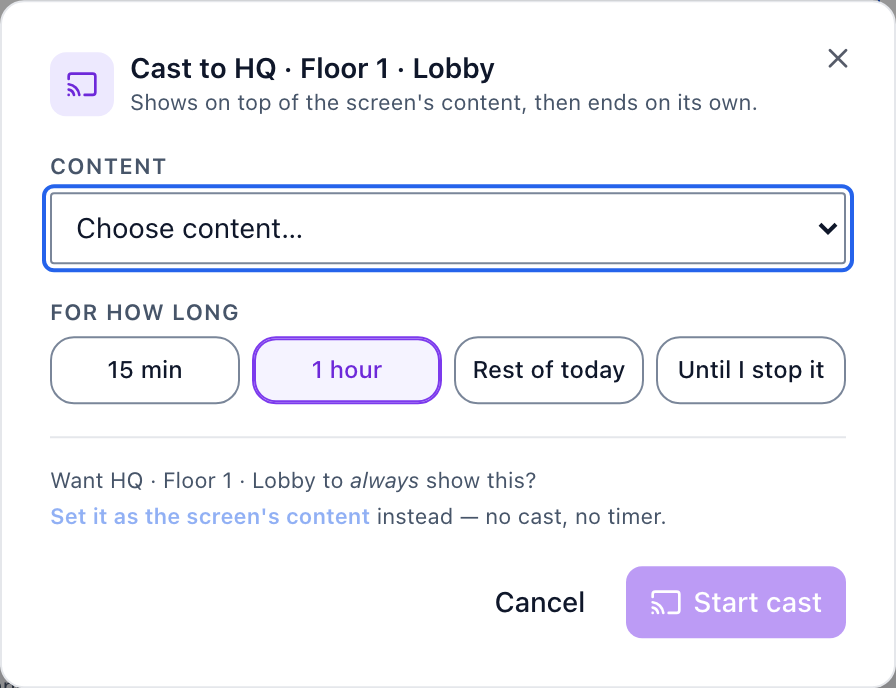
To end a cast early, open the screen (or the screen panel on a single screen) and select Stop cast. Or select the "[n] casting" button on the Screens page toolbar to see every cast running now and stop any of them. A screen that should always show this content, with no timer, uses Set it as the screen's content instead — that is a permanent change, not a cast.
Casting works on every screen type Brix supports, including the Amazon Signage Stick.
What takes priority: emergency, then cast, then the normal schedule
An emergency takeover (Settings > Alerts > Emergency) always wins: if someone triggers an emergency while a cast is live, the emergency replaces it. When the emergency is cleared, the cast resumes with whatever time it had left — but only if that end time has not already passed. A cast that would have ended during the emergency does not come back. A cast never interrupts or cancels an emergency.
In practice:
- Routine messages ("half day today", "the printer is down", a new special) go through Cast.
- A real crisis (evacuation, lockdown, severe weather) goes through emergency takeover, a separate, pre-configured feature — see emergency alerts and takeover for how to set it up.
Who can send a message to all screens
Casting needs the screen.cast permission, the same one a screen's assigned content needs, so anyone who can change what plays on a screen can also cast to it for a while. Casting works from a phone's browser as well as a desktop — see how to change your store TVs from a phone for the mobile view. A cast goes live the moment you select Start cast, unless your workspace requires approval for those screens, so check the content and the screen list before you send. A screen that is offline will not pick up the cast until it reconnects — see how screen offline alerts work to find out before someone notices a dark screen.
A worked example: a storm closure
Say a retail chain with 40 store screens keeps a "Closing early" image in Files for exactly this. When the decision is made, they cast it to every screen with no one visiting a single store.
- Find the "Closing early" image on the Files page.
- Select Cast.
- Where: Every screen (the default).
- For how long: Rest of today — the screens return to their normal playlists by themselves at midnight in the sender's time zone, so nobody has to remember to clear it.
- Select Start cast.
Every screen shows the notice as soon as the player checks in. If the storm turns into something that needs an evacuation or lockdown message instead, that goes through emergency takeover, which pre-empts this notice on every screen it reaches.
For more on putting any content on a screen, including a new design from scratch, see how to put content on a screen.
Checklist before you send
- Is this a routine message, or a real emergency? Use emergency takeover for the second one.
- Did you pick the right screens, or did you mean every screen?
- Is the duration long enough that the message is seen, but short enough that it does not outlive its relevance? Content left on Until I stop it blocks the screen from going back to normal until someone remembers to stop it.
- If the message is not built yet, upload it as a file first, then Cast it.
FAQ
Can I send a message to only some screens, not all of them?
Yes. The Where picker on the Cast dialog lets you tick specific screens, or search for one by name, instead of sending to the whole workspace.
Try it on your own screens: start a free trial.