Digital signage apps put live information on a screen without anyone making a slide: the weather, a clock, news headlines, sports scores, a countdown, a queue number. Each app pulls its own data and updates itself. You pick the app in your signage software, fill in a few settings (a city, a feed address, a team), and play it full screen, in a playlist between your own slides, or in one zone of a split screen.
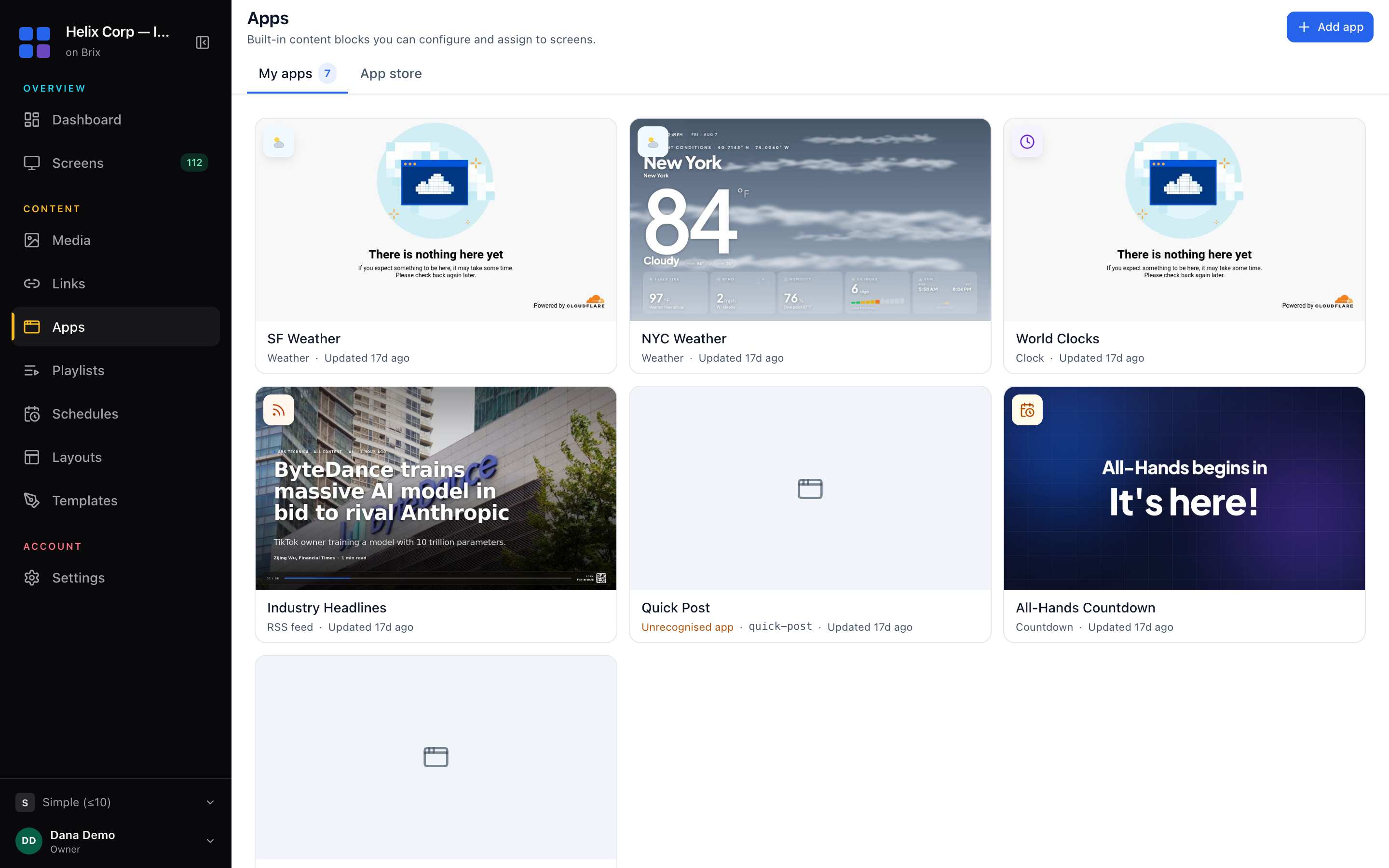
In Brix, select Apps in the Content group of the sidebar, open the App store tab, select the app's card, fill in its fields and select Add to my apps. Every app you save joins the My apps tab, ready for a playlist, a layout zone or a screen.
Popular apps in the Brix App store
| You want | App |
|---|---|
| The weather, the time and the date | Weather, Clock, Date |
| News headlines | RSS feed (any site with a feed), or a ready-made feed such as BBC News or NPR News |
| A scrolling line of text | Message Ticker |
| Live scores and league tables | Sports Scores, Sports Standings |
| A countdown to a launch or event | Countdown |
| A queue number or sales target that staff update from a phone | Now Serving, Goal Tracker |
| Opening hours, notices and a welcome message | Open / Closed, Notices, Welcome Board |
| Social posts and reviews | Instagram Feed, Google Reviews, YouTube |
Add an app to your screens
- Open the App store tab. Type part of the name in Search apps, or select a category chip such as Live data.
- Select the card of the app you want.
- Fill in the fields in the Configuration column.
- Check the Preview pane. Select zone above it to see the app in a square box, ticker for one line, or fullscreen to go back. The preview is an approximation: the player does the final rendering.
- Select Add to my apps, then check the app appears on the My apps tab.
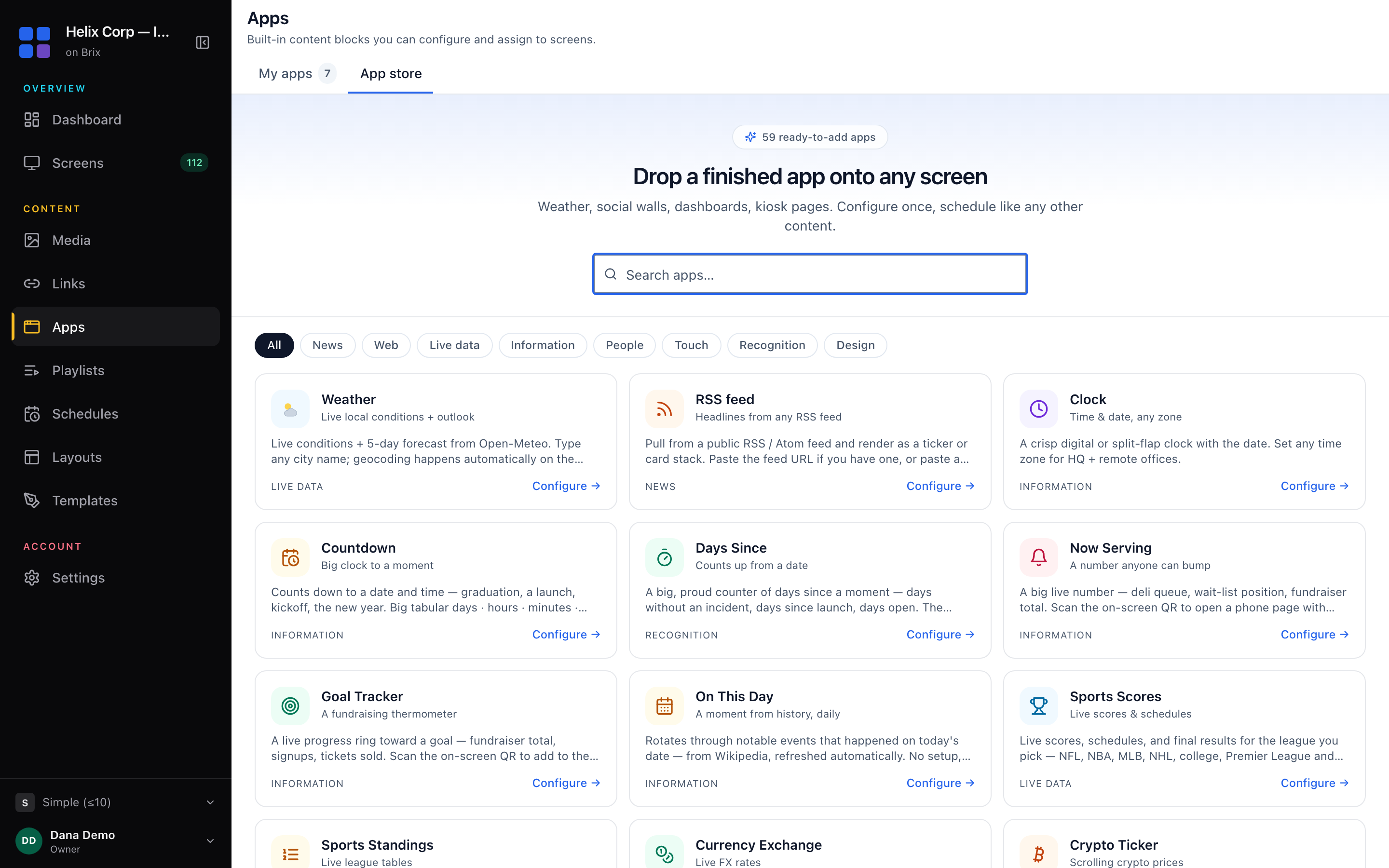
Brix blocks the save until every field the app needs is filled: the footer reads Finish setup to save and names what is missing. A new app starts from your profile preferences, so temperature units and time format follow your own settings. The store lists stable apps only; a beta or alpha app stays hidden until the Brix team gives your workspace early access. If nothing matches your search, select Tell us what you’re looking for and describe the app.
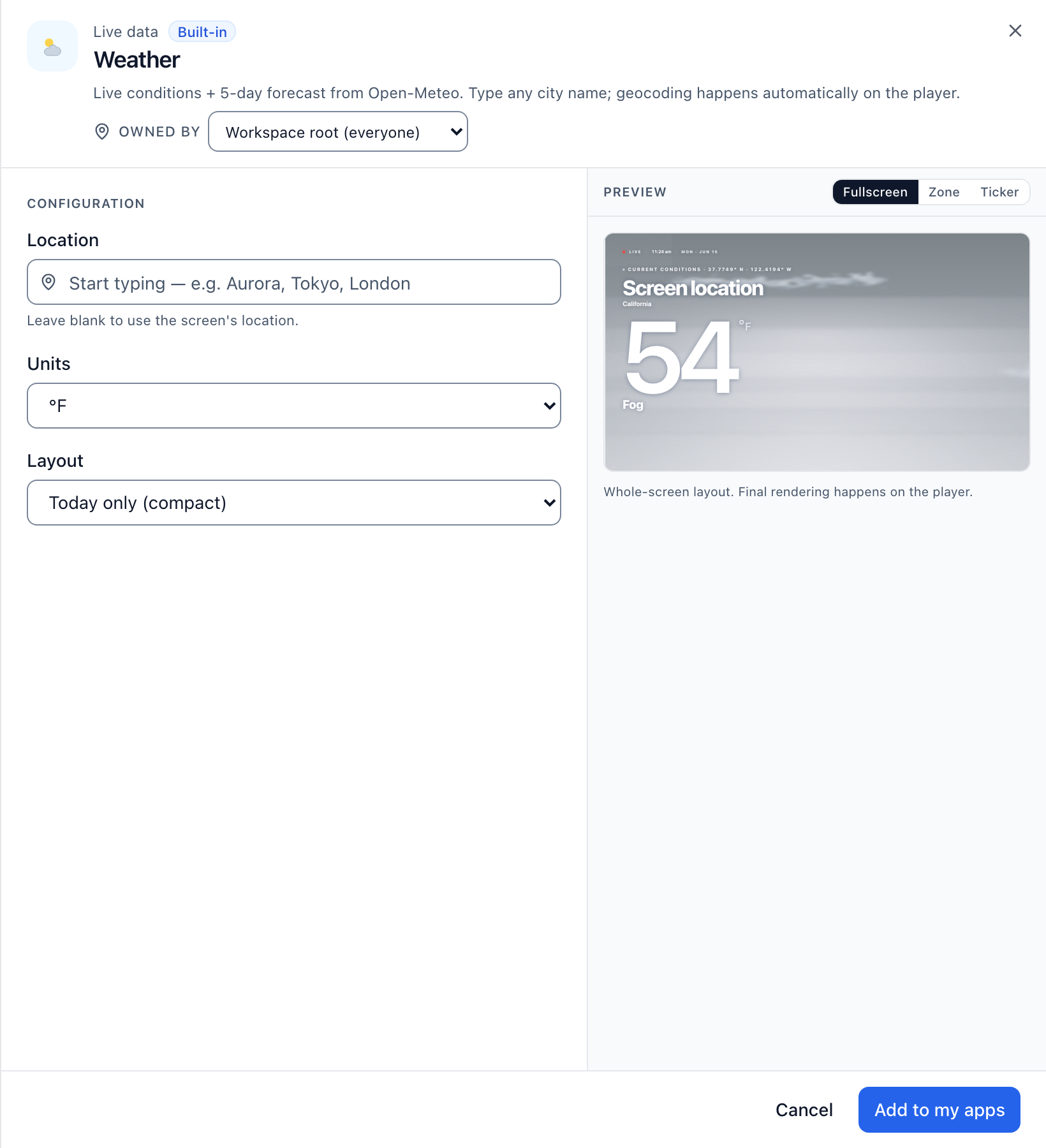
Show the weather on a screen
- Select the Weather card.
- Start typing a city in Location and select a suggestion. Leave it blank to use the location of each screen.
- Select °F or °C under Units.
- Select Today only (compact) or Current conditions under Layout.
- Select Add to my apps.
Show news headlines with an RSS feed
- Select the RSS feed card.
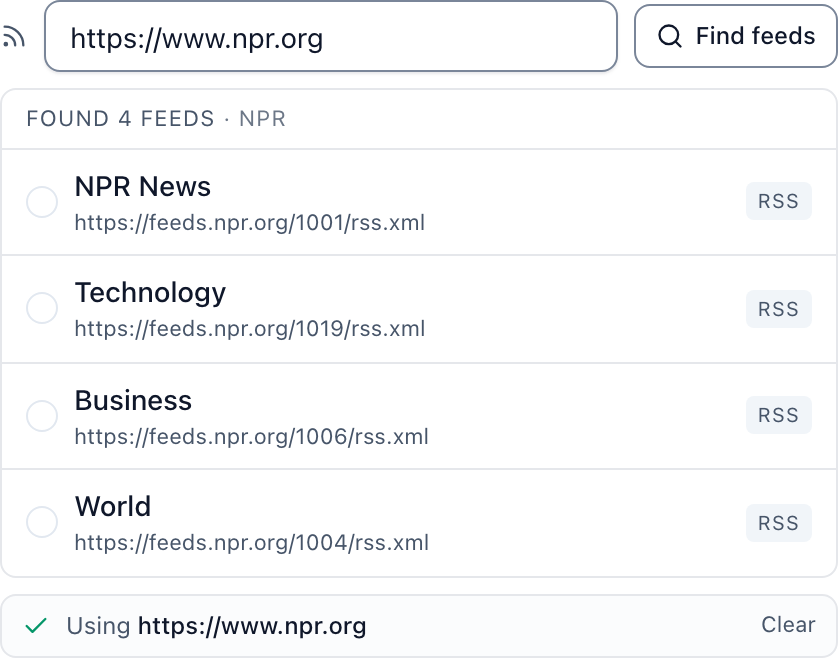
- Paste a website address or a feed address in Feed URL and select Find feeds.
- Select the feed you want in the results list.
- Set Rotate every (4 to 120 seconds) and Max items (1 to 50 headlines). Turn Show item image off for headlines only.
- Select Add to my apps.
Update a Now Serving number from a phone
The Now Serving and Goal Tracker apps carry a number that changes during the day. Anyone with the control link can set it from a phone.
- Open the app from the My apps tab and find Control code.
- Select Copy link and send it to the person who updates the number, or select Open control page to update it yourself.
- Select Save changes.
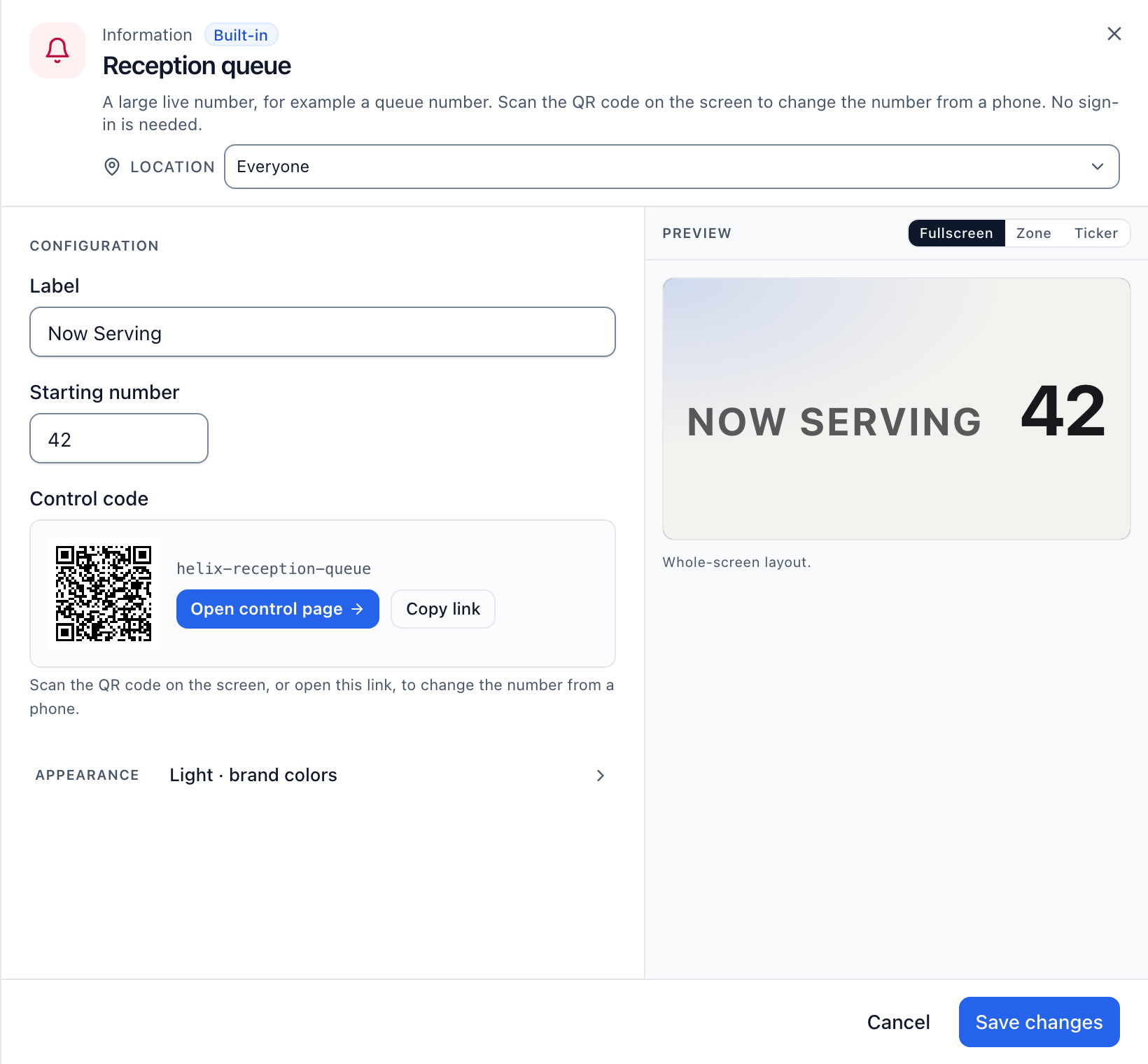
Anyone who holds the link or scans the QR code can change the number, with no sign-in. The control code exists only after the first save. Duplicate gives the copy a new control code.
Feed an app from a data source
The Agenda, Notices, Welcome Board and Spotlight apps can read a live list instead of the text you type.
- Open the app's configuration panel and find Or connect a data source.
- Choose an existing source, or select Connect, choose a connector, type a Name, fill in its fields and select Run test, then Connect & sync.
- Select Save changes.
A data source overrides the list you typed. For every kind of source, read show live data on screen.
Social apps
A social app such as YouTube Stats or Instagram Feed needs a connected account before Brix saves it. Choose the account in the dropdown, or select Connect a … account to connect one in a new tab. Bluesky and Mastodon need no account: type a handle. For what to show and how, read social media on digital signage and Instagram feed on digital signage.
Change, copy or remove a saved app
- Change: on My apps, select the app's thumbnail, change the fields and select Save changes.
- Copy: point at the card, select the actions button and Duplicate, then change the fields.
- Remove: tick the checkbox on one or more cards (hold Shift for a run), select Delete in the bar at the bottom and confirm. Every playlist and schedule that uses the app stops playing it at once. Brix keeps a removed app in the recycle bin for 30 days.
Set the colors of one app
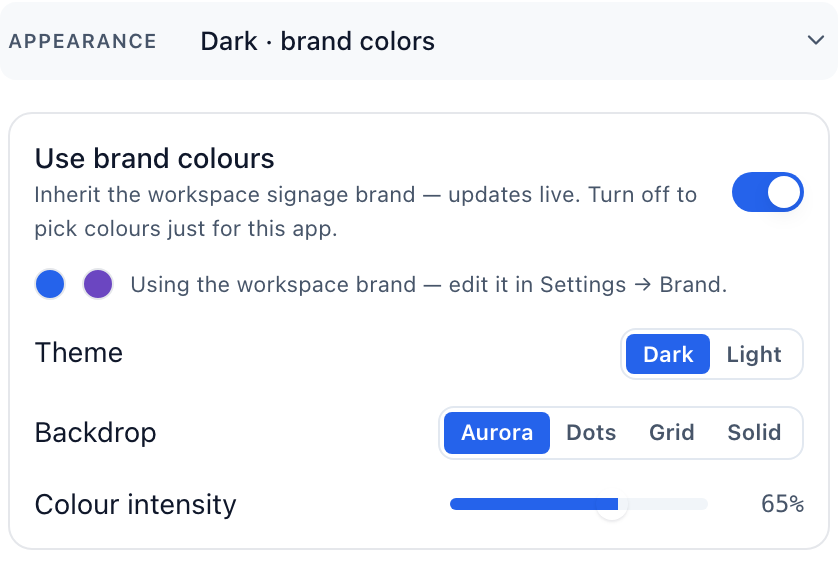
- Open the app's configuration panel and expand Appearance.
- To follow the workspace brand, leave Use brand colors on. Edit the workspace brand in Settings → Brand; read workspace settings.
- To color this app alone, turn Use brand colors off. Brix copies the workspace colors into the app, so later brand changes no longer reach it.
- Pick a Primary color and Secondary color, a Theme (Dark or Light), a Background and the Wash strength.
- Select Save changes. Reset to brand returns the overrides.
Put an app on a screen
An app does not reach a screen from the Apps page. Add it to a playlist, or assign it to the screen on the Screens page. Read put content on a screen.