Corporate Digital Signage for Lobbies and Offices
Run lobby and office screens with single sign-on, content approvals and live dashboards, all from one account.
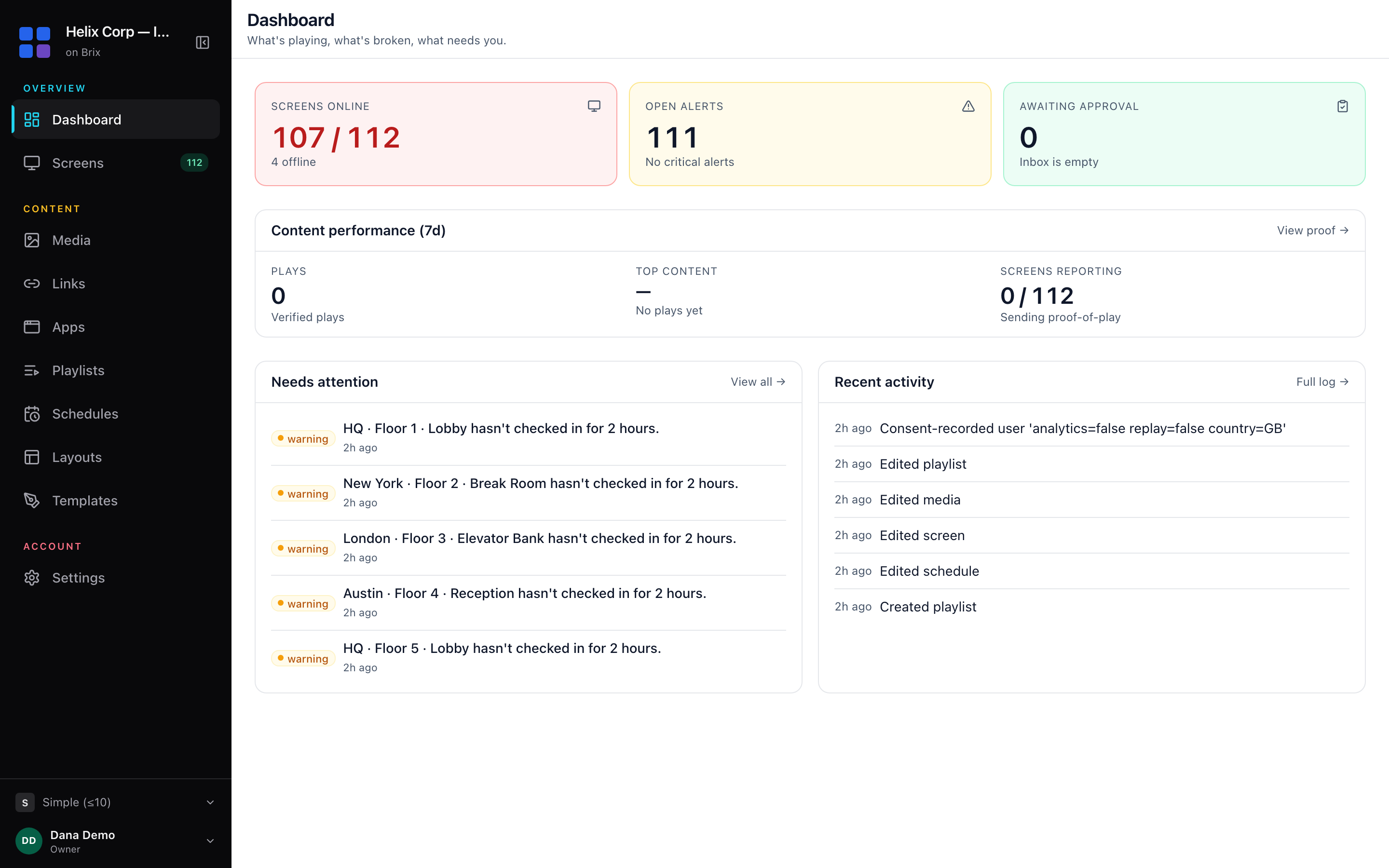
Corporate digital signage is screens in a lobby, break room or office floor that run through one account IT controls. Sign-in goes through the company identity provider. A location can require sign-off before new content reaches its screens, and a dashboard shows every screen's status in one glance.
What shows on a corporate lobby or office screen?
Most corporate deployments mix a handful of content types on a schedule:
- A welcome message with the date and the day's visitors or events.
- A live sales or operations dashboard — a published Power BI report, a Looker Studio page, or an internal tool.
- Company news, recognition and metrics for staff who do not sit at a desk all day.
- Numbers pulled from a Google Sheet or CSV file, such as headcount or a safety streak, with no code involved.
- The live file from OneDrive or SharePoint, not a re-uploaded copy. Brix checks the folder hourly.
- A meeting-room screen by the door: Available or Busy, the current meeting and the day's agenda (Meeting Room app, beta).
- An emergency message that replaces every screen at once when something needs everyone's attention. Brix support turns on emergency takeover for your workspace.
The Meeting Room app connects to a Google or Microsoft 365 calendar. Ask Brix to turn it on for your account.
Brix also connects to CAP and webhook alert systems such as Singlewire, Rave and Alertus for a building-wide emergency feed; our team sets up that connection with you.
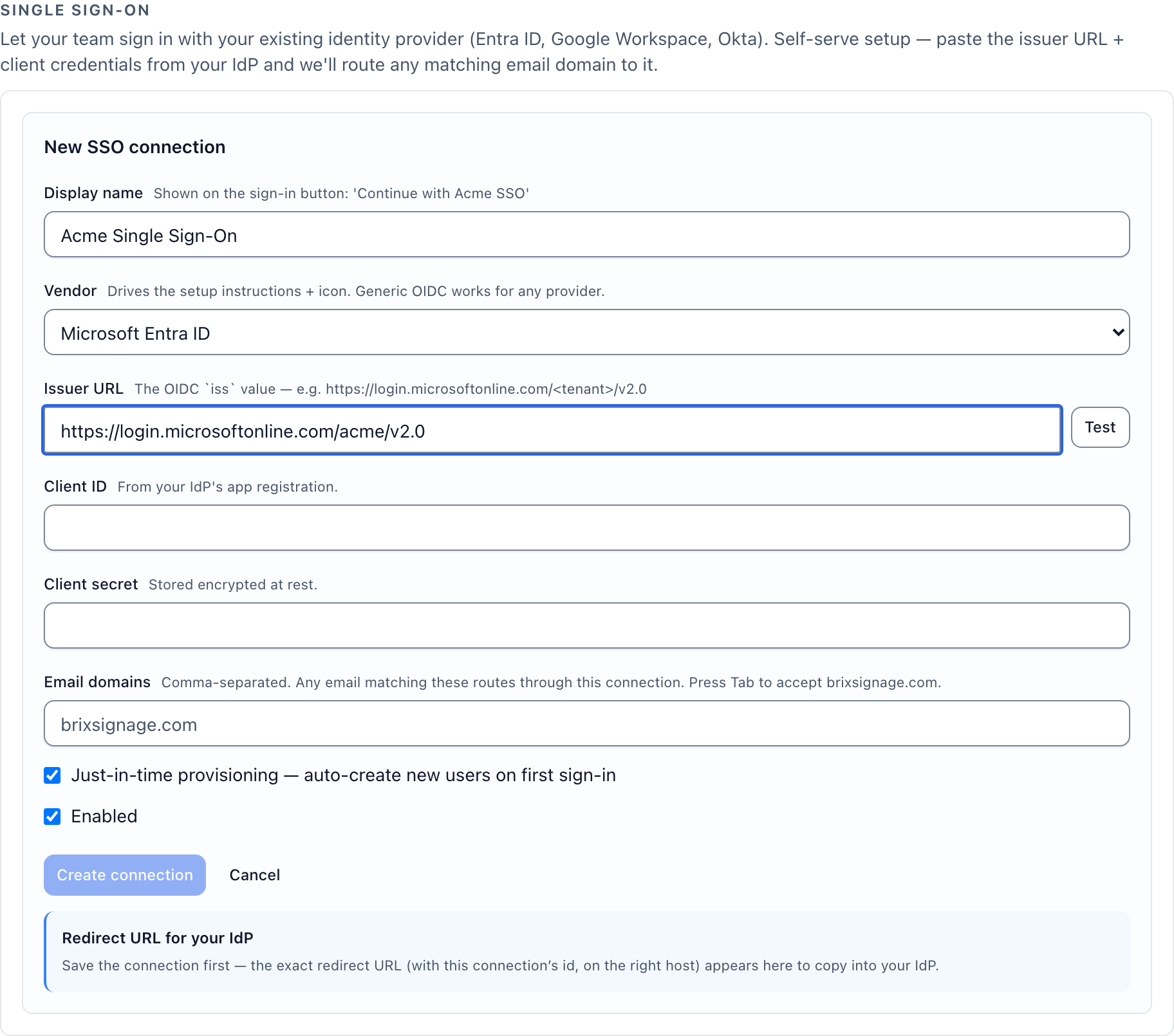
Access to screens that follows your HR system (SSO)
Connect Entra ID, Google Workspace, Okta or any OpenID Connect (OIDC) provider under Settings → Security, so anyone with a company email signs in with the account they already use. Brix supports OIDC only, not SAML. Set up single sign-on covers the steps.
Add SSO access rules and a person's Brix role and location follow what your identity provider says about them: a group, a department or a job title. The rule re-runs every time someone signs in, so when HR moves someone to a new floor or team, their Brix access updates with it. No separate ticket to open. Turn on Create a new account the first time a person signs in and a new hire gets access automatically, the first time they sign in with their company email.
Nothing goes on a screen until someone signs it off
Turn on approval for a location under Settings → Organization → Structure: select the location, then under Approval choose Needs approval first. From then on, content published at that location never reaches a screen until it is approved, whether or not anyone sent it for review. A location left on Publish straight away, or one that follows a parent set that way (the default), publishes new content right away, with no review step.

At a location that needs approval, a reviewer opens Approvals, sees what changed and a note from the requester, and selects Approve or Reject. Give a person that role for one location in Settings → Organization → People when you add them. A floor or building lead then reviews and sees only their own screens. A head-office role reaches every location. Set up roles and permissions walks through mapping your organization.
Put a live dashboard on the screen
Brix shows a web page full screen on a screen: a Power BI report, a Looker Studio dashboard, an internal tool. Some pages block framing (a header such as X-Frame-Options); Brix detects that and falls back to a refreshed snapshot of the page instead of the live version. Brix has no built-in Power BI or Tableau connector; it shows that tool's own published page, full screen, on a schedule. Add a web page covers the setup.
For a public page, or a dashboard with its own "Publish to web" link, paste the URL under Web pages and set a refresh interval. For a page that needs a real sign-in, record it instead: install the free Brix Recorder Chrome extension, sign in once in a private window, and Brix saves the steps. The password is encrypted and never appears in the list of recorded steps.
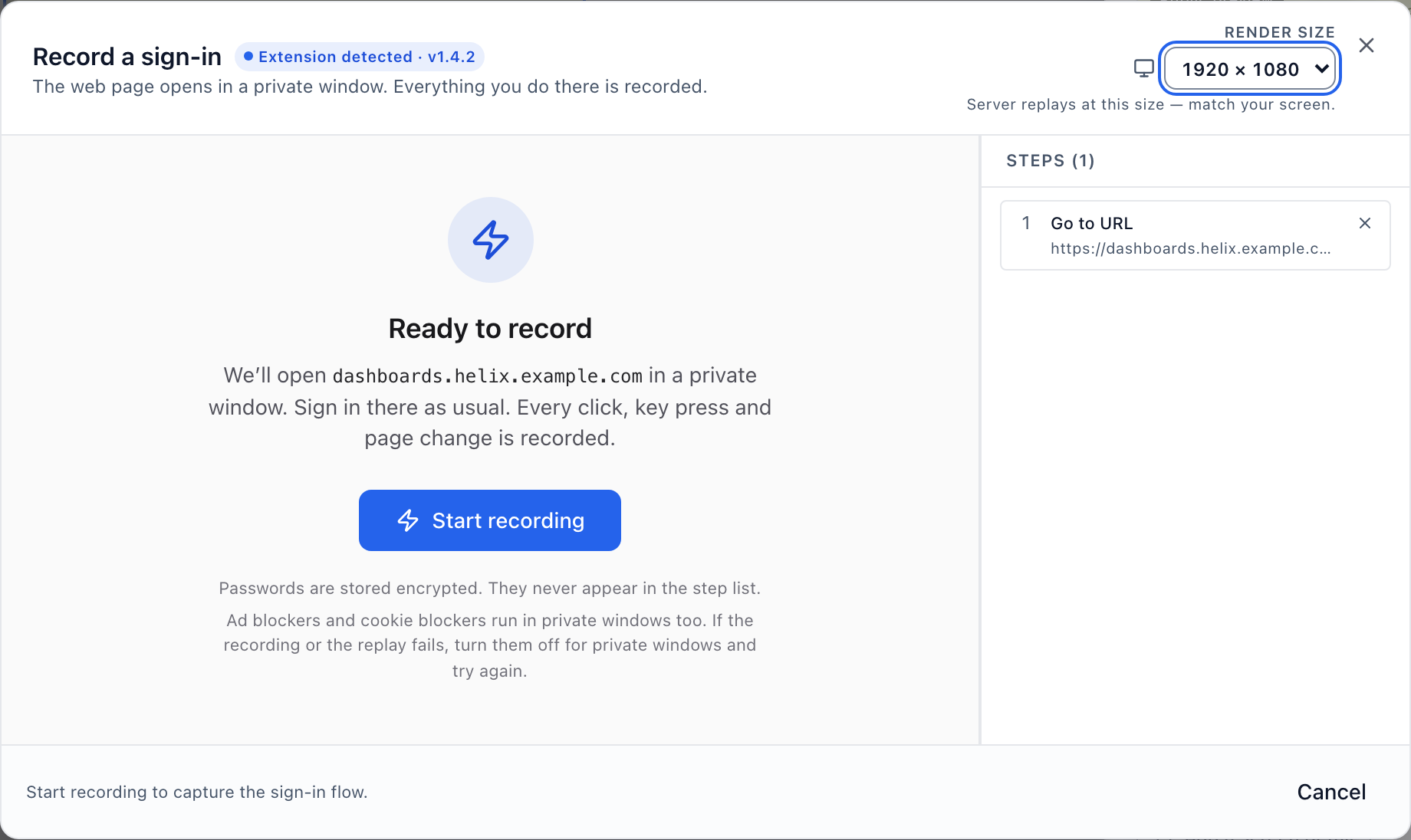
From then on, Brix replays the sign-in itself and refreshes the screen with a new snapshot on the interval you set. The screen shows a fresh picture of the dashboard, not a live, clickable browser, so a passer-by cannot click into the tool behind it.
Where office signage data is stored
If your offices sit in more than one country, Brix places each workspace's screens, media and database in the region it signed up from: US, EU, Oceania or Asia-Pacific. A screen then loads new content from storage nearby, instead of crossing an ocean on every refresh. The EU is the only one of the four that is a contractual jurisdiction. US, Oceania and Asia-Pacific are where the data is placed, not a legal guarantee.
What to check before you buy
- Single sign-on: OpenID Connect. Entra ID, Google Workspace, Okta or any OIDC provider. No SAML.
- Access tied to HR or groups: SSO access rules map identity-provider claims to a role and location, and re-run on every sign-in. SCIM user provisioning is under Settings → Security.
- Who can change what: Roles scoped to one location, given to a person in Settings → Organization → People. A floor or building lead sees only their own screens.
- Content sign-off: Set a location to Needs approval first under Settings → Organization → Structure. Content published there never reaches a screen until it is approved, sent for review or not. Leave it on Publish straight away to skip review.
- A record of changes: Every change is written to the audit log.
- Where data lives: Media, screens and backups sit in the region you sign up from. EU is a contractual jurisdiction; US, Oceania and Asia-Pacific are placement.
What does corporate digital signage cost?
Brix is $6 per screen per month billed annually, or $8 billed monthly, with a 7-day free trial and no card needed. It runs on the Amazon Signage Stick ($99.99), a TV with Android TV or Google TV built in, or the Windows player. An office does not need a proprietary box to start.
A screen defaults to Standard hours, 6 am to 11 pm, and turns the TV off outside that window over HDMI-CEC — a fit for a lobby that empties out overnight. Set a reception screen that runs all day to Always on instead.
FAQ
Does Brix support SAML?
No. Brix supports OpenID Connect (OIDC) only. Brix connects to Entra ID, Okta and Google Workspace over OIDC.
Can a floor or department see only its own screens?
Yes. Give a person a role for one location in Settings → Organization → People, so a floor or building lead sees and changes only their own screens, while a head-office role reaches every location.
Can we show a dashboard that needs a password, without leaving it on the screen?
Yes. Install the Brix Recorder Chrome extension, sign in once in a private window, and Brix saves the steps. The password is stored encrypted and never appears in the saved list of steps. Brix then replays the sign-in itself on your refresh schedule.
Does every content change need approval?
Only at a location set to require it. Set a location to Needs approval first and content published there never reaches a screen until it is approved, whether or not anyone sent it for review. Leave a location on Publish straight away (the default) and content there goes live without review.
Does Brix work for a single lobby screen as well as a multi-floor office?
Yes. The same account scales from one reception screen to every floor and building. SSO, approvals and location-scoped roles are there when you need them, and none is required to start.
Book a demo and we will walk through SSO, approvals and a live dashboard on your own screen.
Put Brix on your screens
Live in about 10 minutes. One plan: $6/screen/month billed annually ($8 month to month). No credit card to try.
Start Free TrialBrix for other industries