Digital Signage for Schools: Bells and Alerts
Digital signage for schools shows bell schedules, countdowns and emergency alerts, with separate access for each campus.
Digital signage for schools is a set of screens in hallways, the cafeteria and the front office. They show the bell schedule, the lunch menu, event countdowns and daily announcements, updated from one place instead of printed and taped up each morning. The same screens show a district-wide lockdown or weather alert in one action. You can limit each campus's staff to that campus's screens.
What should a school put on its screens?
Show what students and staff would otherwise read on a printed sheet or hear over the PA, then rotate in school spirit content.
- The current period and time left in it.
- The lunch menu, with calorie or nutrition information where your district requires it.
- A countdown to a game, a deadline, a dance or the last day of school.
- Announcements and club meetings, as a scrolling ticker so they do not take over the whole screen.
- Student and staff recognition: honor roll, a sports result, a birthday.
- A welcome message at the front office, with visitor sign-in instructions.
- An emergency message, replacing all of the above the moment one is triggered.
How do I put the bell schedule on a screen?
Type the periods once; the screen works out which one is current and counts down the minutes left in it.
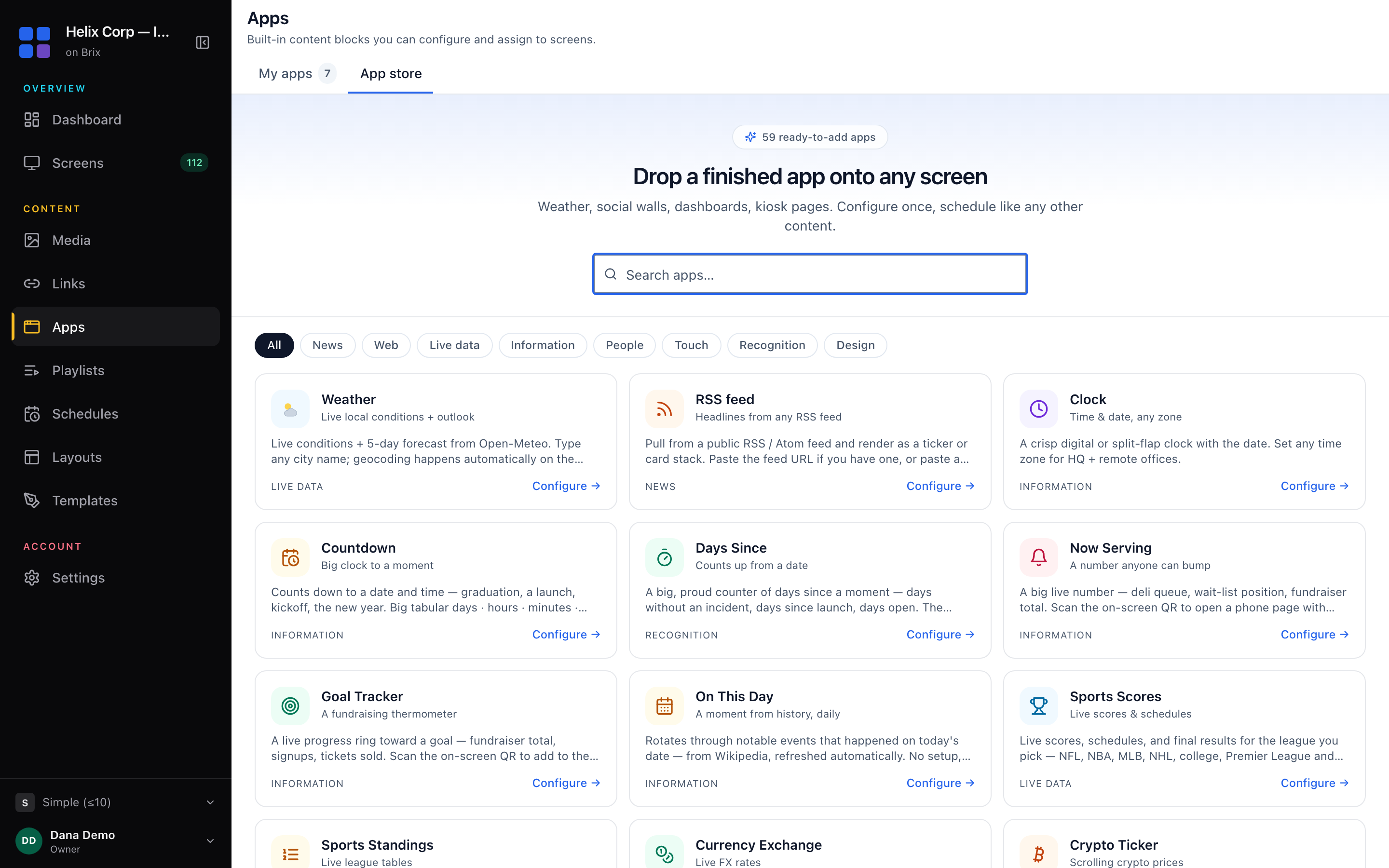
- Go to Apps, open the App store tab, and select the Bell Schedule card.
- Type a Heading, for example "Today". The screen shows it after the last period ends.
- In Periods, type one period per line, as
Period 1 | 08:00-08:50. - Select Add to my apps, then put the app on a screen, in a playlist, or in one zone of a split screen.
A half day or an exam schedule is a second Bell Schedule app with its own periods. Swap which one is on screen by hand, or set up another block in the day's plan. Bell Schedule sits in the same app store as Countdown, Weather and the rest.
The app shows the typed times. It does not read a real bell controller or ring anything; when your bell times change for the term, change the text.
How do I count down to a game, a deadline or graduation?
- Go to Apps, open the App store tab, and select the Countdown card.
- Type a Label, for example "Homecoming in" or "Finals start in".
- Set the Target date & time.
- Type a When it hits zero message, for example "It is here".
- Select Add to my apps, then put it on the gym lobby or hallway screen.
Put an urgent message on every screen at once (emergency takeover)
An emergency takeover replaces what every screen shows with one message, such as a lockdown, a shelter-in-place or a severe weather warning. The message stays until someone clears it or its auto-clear time ends.
Brix support turns emergency takeover on for your workspace. Write the wording before you need it:
- Go to Settings > Emergency templates, then select New template.
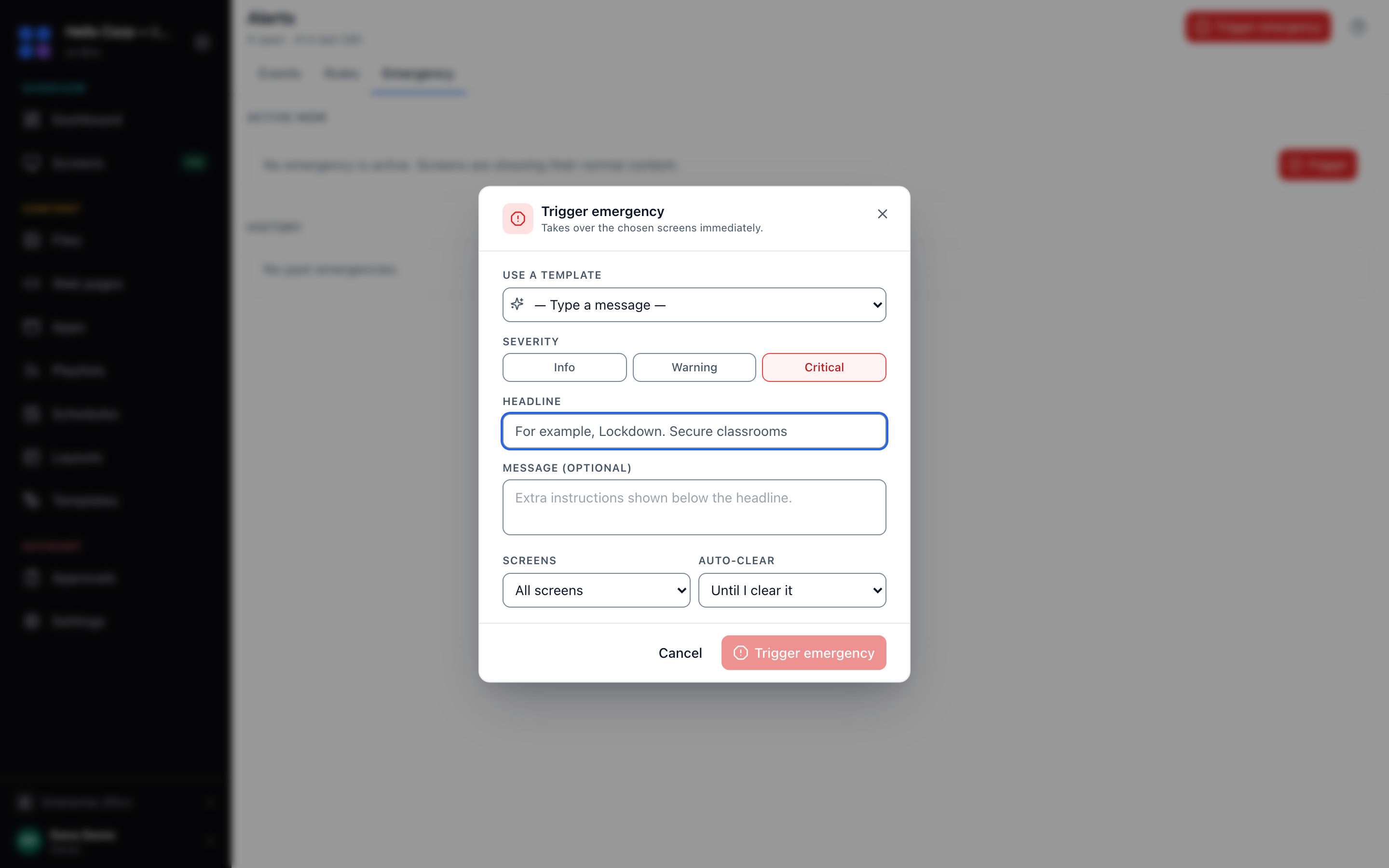
- Type a name, pick Critical, Warning or Info, then type the On-screen headline and Detail / instructions (for example "Lockdown. Secure classrooms.").
- Under Scope, pick All screens in this workspace, One org-tree node (one campus), or Specific screens.
- If the template shows a media file or playlist, select Choose content... for it, then turn on Pre-stage so every screen in scope already holds that file, and the takeover switches at once rather than downloading it first.
To trigger it: open Alerts > Emergency, select Trigger emergency, pick the template (or type a message), choose which screens, and set Auto-clear to 30 minutes, 1 hour, 4 hours or Until I clear it. It starts at once with no approval step, so check the wording and the screen scope before you select it.
Brix connects to CAP and webhook alert systems such as Singlewire, Rave and Alertus. Our team configures the connection with you. Talk to us. Read the full emergency alerts and takeover guide for templates and history.
How do district and campus permissions work?
A district office should see every campus; a single school's front office should see only its own screens. Brix does this with one tree of locations and roles, not a separate account per school.
- Go to Settings > Organization > Structure.
- Select Tiers and name your levels, for example District and School.
- Select the district, then select Add a location for each campus. For many campuses at once, select Add several from a spreadsheet, select Download CSV template, fill it in, then select Upload filled CSV.
- Build a role under Roles with the actions a campus front office needs (edit its own playlists, nothing that touches another campus).
- Invite each campus's staff to their own location with that role.
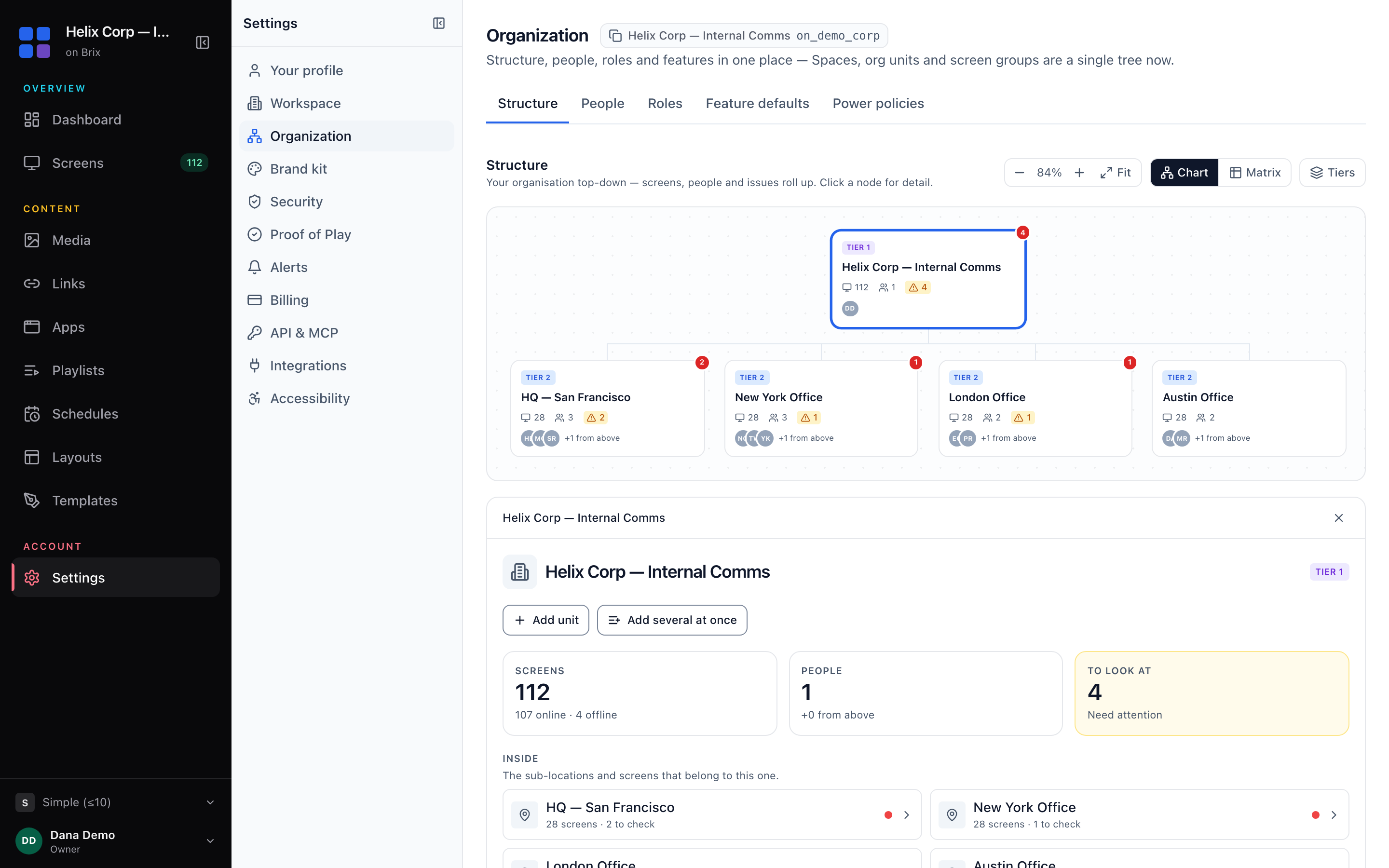
A role given at the district level covers every campus under it, including ones added later. A role given at one school stops at that school; its front office cannot see or change another campus's screens. Nobody can hand out more access than they hold, and Brix hides a control from anyone whose role cannot use it. See digital signage user roles and permissions for building the role, and digital signage user permissions by location for the pattern behind it.
What does it cost for a typical school?
For a school with 8 screens (front office, cafeteria, two hallway commons, gym lobby, library and two wing corridors):
| Item | One time | Per year |
|---|---|---|
| 8 media players (Amazon Signage Stick at $99.99) | $799.92 | |
| 8 Ethernet adapters (optional, $14.99 each) | $119.92 | |
| Brix software at $6 per screen per month, billed annually | $576 |
Rise Vision's K-12 Basic plan runs $119 per display per year (their pricing page, September 2026), which comes to $952 a year for the same 8 screens, against $576 for Brix billed annually. Rise Vision also sells a flat $1,399-per-school K-12 Enterprise plan with unlimited displays: at around 20 screens or more, that flat plan can cost less than Brix's per-screen price. Below 11 screens, where Rise Vision's volume discounts start, Brix is the cheaper software.
A school that already owns its TVs needs no new displays, only a player behind each one. An Android box such as the Walmart onn. 4K ($39.98) works as a cheaper player than the Signage Stick; on it, grant "Display over other apps" by hand so Brix can run full screen.
FAQ
Does the bell schedule app sync with our real bell system?
No. It shows the periods you type and counts down the one that is current. It does not connect to a bell controller, a PA system, or a timetabling system. Update the text when your bell times change.
Can one teacher or one campus only manage their own screen?
Yes. Give a role at a single school, and its holder sees and changes only that school's screens, playlists and files. A role given higher, at the district, covers every campus under it.
Does the emergency takeover need the internet to work?
Triggering it needs a network connection to reach your screens. Turning on Pre-stage beforehand caches the message or image on every screen in scope, so the moment it triggers, the screen switches to content it already holds rather than downloading it.
What hardware runs the Bell Schedule and Countdown apps?
The same hardware as any other Brix screen: the Amazon Signage Stick, Fire TV, Android boxes such as the Walmart onn., TVs with Google TV or Android TV built in, and the Windows player.
How much does Brix cost for a school?
$6 per screen per month billed annually, or $8 per screen per month billed monthly. There is a 7-day free trial, no card needed.
Start your free 7-day trial. No card needed.
Put Brix on your screens
Live in about 10 minutes. One plan: $6/screen/month billed annually ($8 month to month). No credit card to try.
Start Free TrialBrix for other industries